**Setting up Asset Types

Asset types are groups of settings that define the characteristics of your organization’s assets. For example, you might create asset types called “pumps” or “piping and valves.” The asset type contains basic information, policies, and permissions, such as whether or not standard jobs can be created for assets of the type. When you create an asset in APM, you must specify an asset type, which then determines the information and functionality available for the asset.
Tip: APM 7.14 introduced asset properties and specifications related to electricity transmission and distribution. For more information, see Asset Types for Electricity Transmission and Distribution Networks.
APM comes with many asset types already defined. You can edit the existing asset types or add new ones for your organization. For each asset type, you can specify:
See To Create the Asset Type Record.
See To Set General Options.
See To Set Policies.
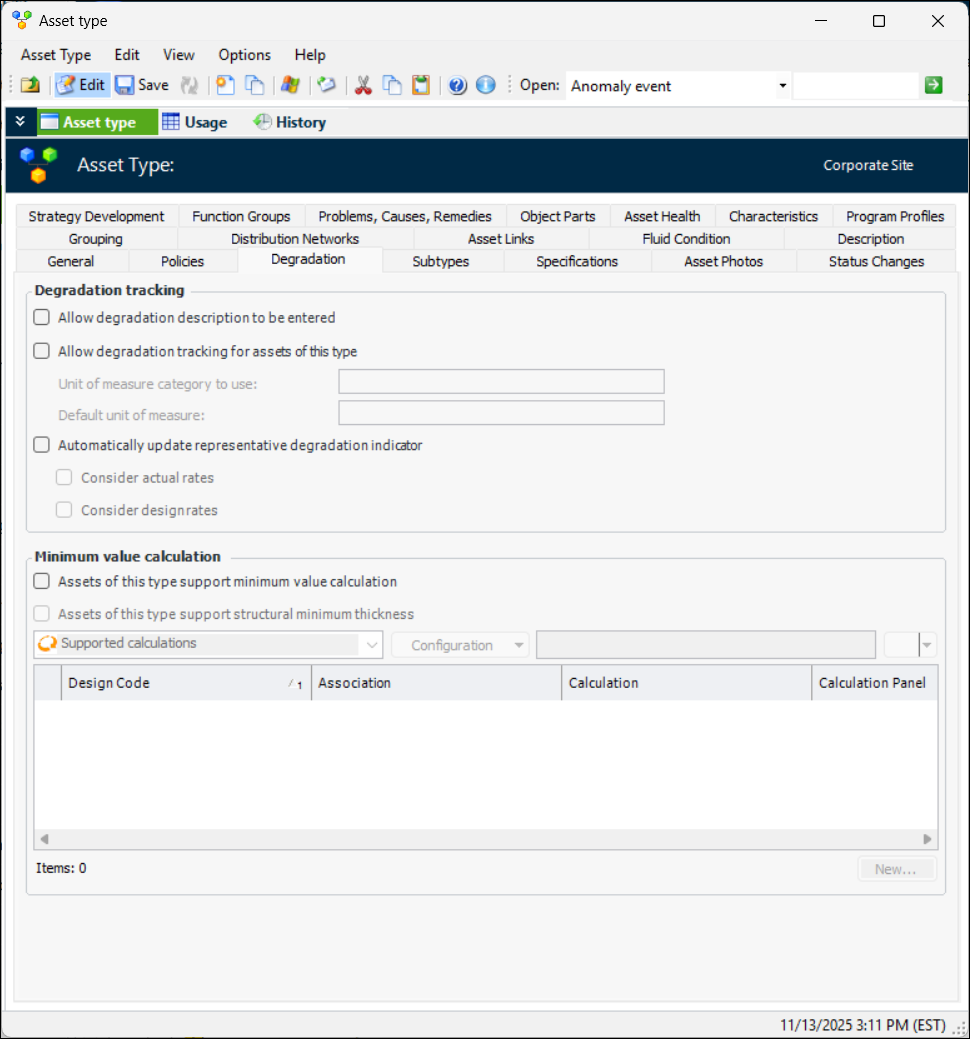
See To Set Options for Degradation Tracking.
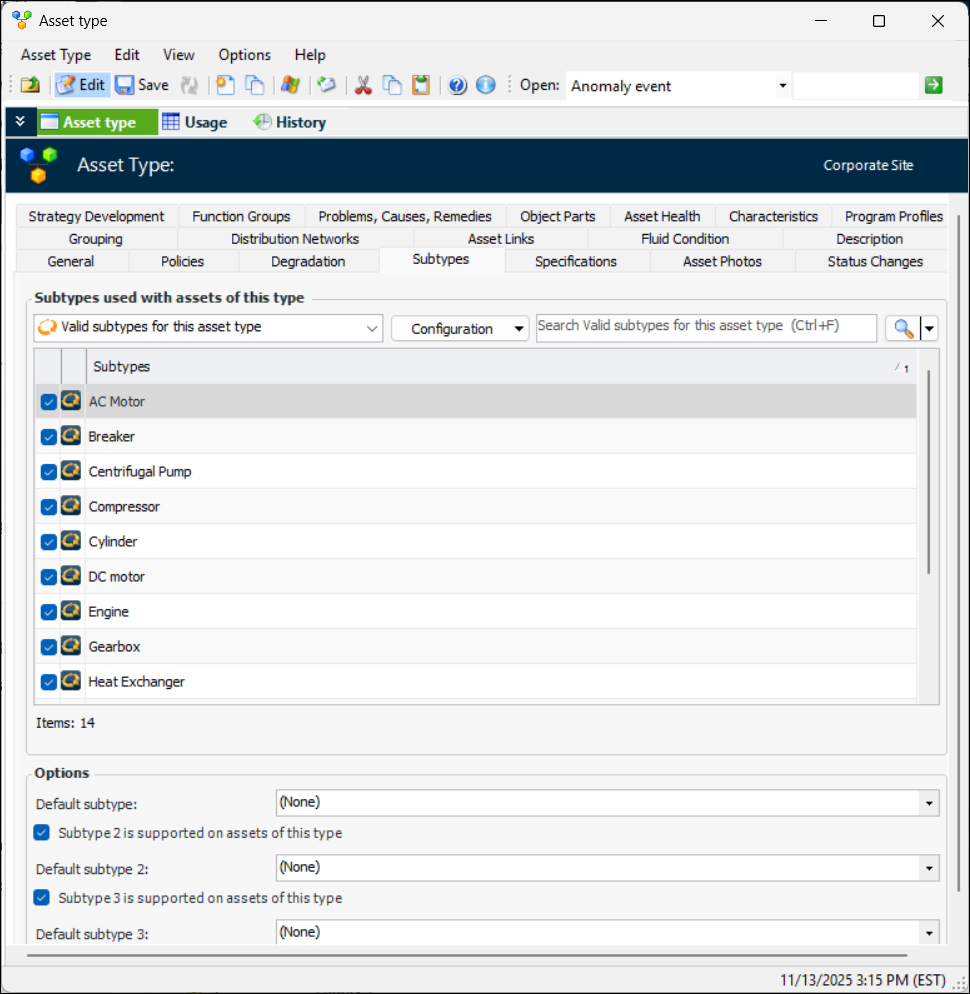
An asset subtype is a means of recording additional information about a type of asset. For example, the AC Motor subtype presents a tab in the Asset window where users can enter information such as voltage and insulation rating. Asset specifications have a similar purpose, but they are designed to record extensive information about an asset subcomponent, for example, a tank roof or circuit breaker.
See To Select Subtypes and Specifications.
For information about having your APM administrator add asset subtypes and asset specifications panels, see Subtypes in the Customization Guide. To add to the value lists for asset subtypes, see Adding Values for Asset Subtypes and Specifications. For information about setting up user asset specifications, see Working with User Asset Specifications.
Note: User asset specification settings are generally available in APM. To use the functionality, you must first enable feature 75. In the Enterprise window, select the Features view and the Enabled Features tab. Click Browse, select “Support for user asset specifications”, and click OK. If APM is running as a smart client, click Refresh Enabled Features on the server. Then restart the client to use the functionality.
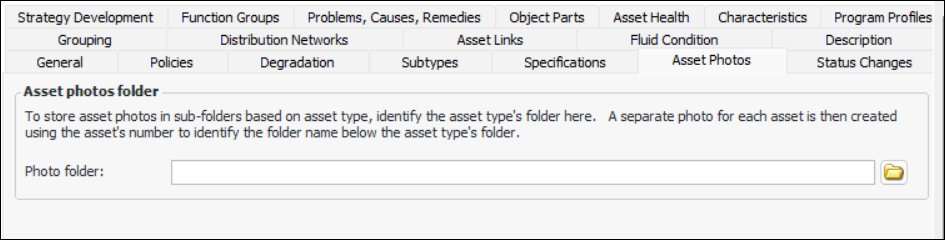
See To Select the Asset Photos Folder.
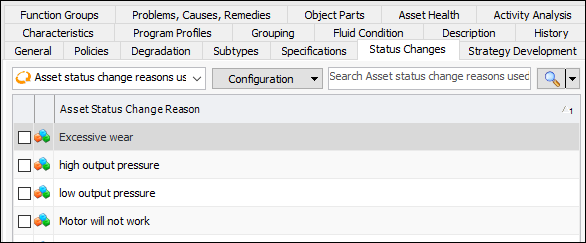
See To Select Status Change Reasons.
See To Set Strategy Development Options.
See To Select Function Groups.
See To Select Problems, Causes, and Remedies.
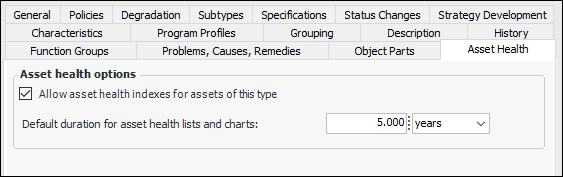
See To Set Asset Health Options.
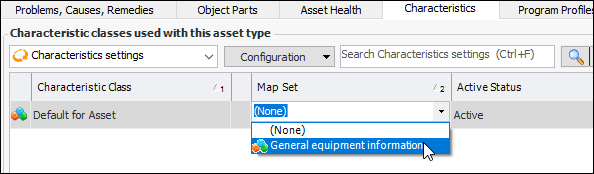
See To Add Asset Characteristic Settings.
See also Setting up Characteristic Mapping for Assets.
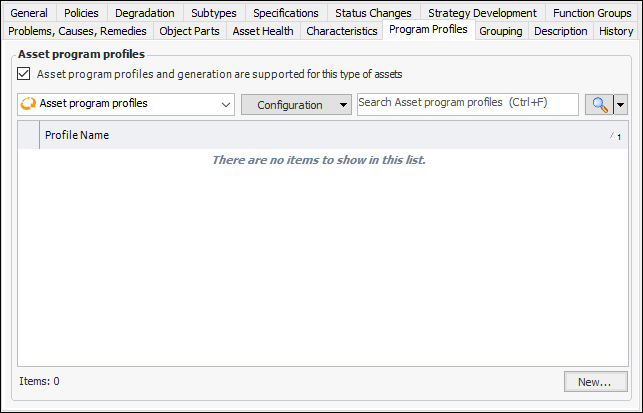
See To Add Asset Program Profiles to the Asset Type.
See also Asset Program Profiles.
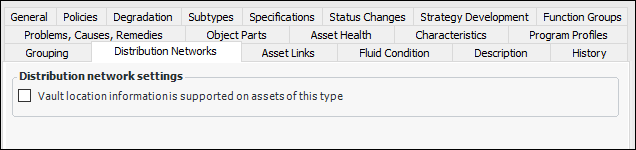
See To Set Distribution Networks Options.
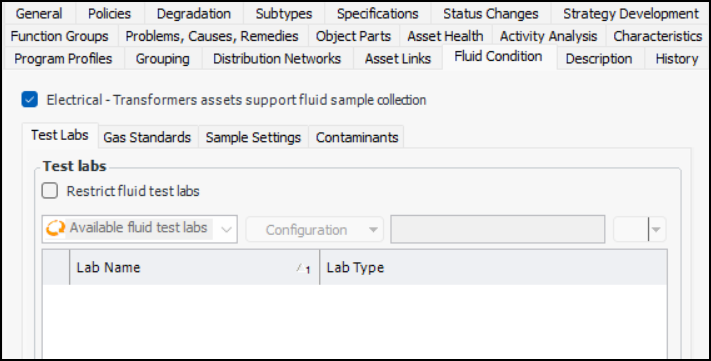
See To Set Fluid Condition Options.
Tip: For information about how asst types are being used in APM, open an asset type and click Usage. The Usage dialog displays three tabs:
Assets – Lists assets that have this asset type
Strategy development templates – Lists strategy development analysis templates for this asset type. You can create templates and hierarchy nodes using this tab
Failure Modes – Lists failure modes that have been identified on analysis templates for this asset type

To Create the Asset Type Record

1.
From the Site window, select the Assets view, Settings tab. Select the Assets tab and the Asset management settings node in the tree.
Tip: You can also select the Administration menu, Asset Management Settings, and then Asset Management. The Asset Management Settings dialog appears.
2.
Select the Asset Types tab. This tab shows a list of the current asset types.
3.
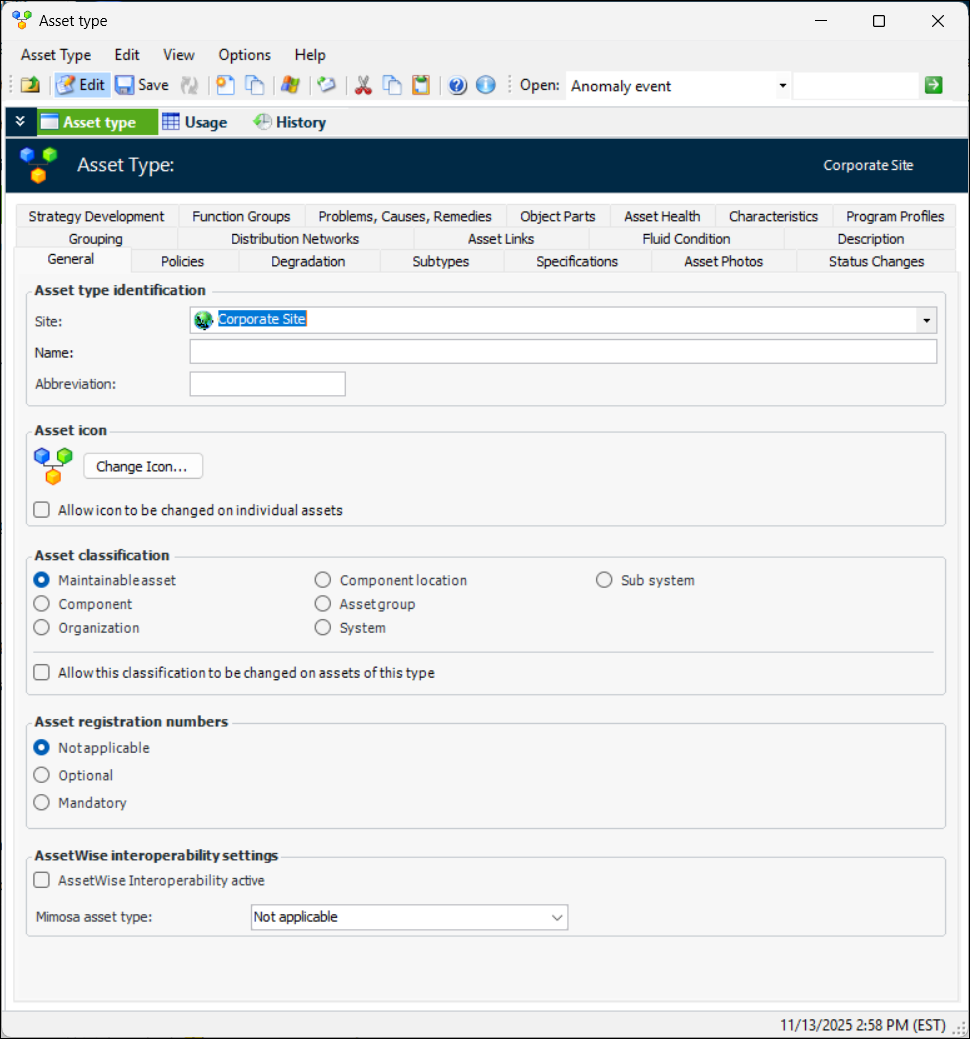
Click New. The Asset Type dialog appears:
4.
In the Asset type view, General tab, select the site that will own the type.
5.
6.
Enter a short form in the Abbreviation box to be used in charts and graphs.
7.
To change the icon that will appear on all assets of this type, click Change Icon, select a different graphic, and click OK.
8.
If you select Allow this icon to be changed on individual assets, users will be able to change the icon used on assets of this type.
Note: If you change the icon for the asset type, all of the assets that have been created for that type will be updated with the new icon, except for any assets that have had their icons changed individually.

To Set General Options

1.
On the General tab, select an asset classification. All assets of this type will be under this asset classification. If you select Allow this classification to be changed on assets, users will be able to change the classification of individual assets of this asset type.
Tip: Generally, you should not need to change the classification of an asset, except during the initial set up of your hierarchies. If you allow users to change the classification of individual assets, you might lose some information associated with the asset, such as parts lists.
Note: If you change the classification for the asset type, all of the assets that have been created for that type will be updated with the new classification, except for any individual assets that have had their classifications changed.
2.
Note: When AssetWise Enterprise Interoperability is active, you can click the option and select the Mimosa asset type. Possible values for this property are “asset”, “segment”, or “none”. The value is provided when an asset is created or updated by AWEIS.

To Set Policies

1.
Select the Policies tab.
2.
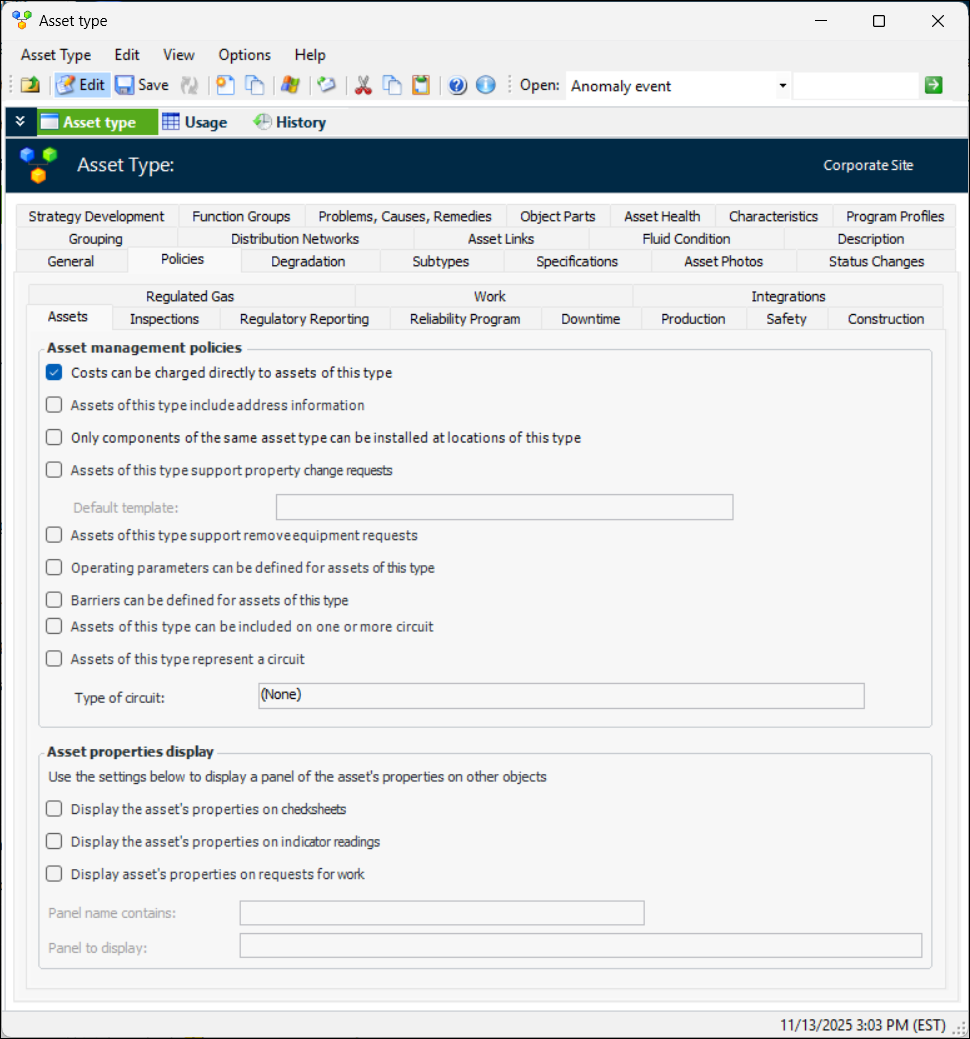
On the Assets tab, set the following options for the asset type:
Select this option to make the Operating Window available in the Asset window for assets of this type.
When this option is selected, the Asset window, Properties view, General tab displays the Circuits tab. Assets of this type can be assigned to as many as 10 asset circuits.
When this option is selected, the Asset window contains the Circuit view, which displays information about all of the assets assigned to the circuit.
3.
If assets of this type represent a circuit, you can assign a circuit type. Circuit types are handy for fine-tuning the types of information shown in the Circuit view. For example, you could specify that the “Corrosion loop” circuit type does not show cable splices.
4.
The Asset properties to display area provides settings to display a set of asset properties in any of checksheets, indicator readings, and requests for work. An Asset Properties view (on Checksheet) or tab (Indicator Reading and Request for Work) is added to the user interface if the asset’s asset type has enabled support for displaying asset properties.
Select the appropriate locations and then the asset panel to display, for example, Properties. You can add a value to the Panel name contains box to filter the list of available panels to display.
Note: This functionality is generally available. To use it in APM, you must first enable feature 65. In the Enterprise window, select the Features view and the Enabled Features tab. Click Browse, select “Display asset properties on selected objects”, and click OK. If APM is running as a smart client, click Refresh Enabled Features on the server. Then restart the client to use the functionality.
5.
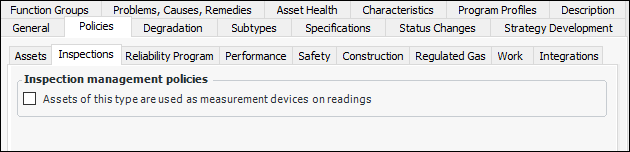
Select the Inspections tab and select the required options.
6.
Select the Regulatory Reporting tab.
7.
Select the levels of regulatory information required for assets of this type. The Asset window will display the Regulatory Reporting tab, which contains one tab for each of the agencies supported for the site and the asset.
8.
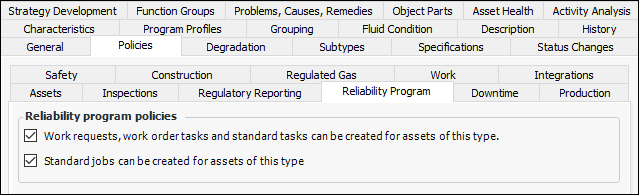
Select the Reliability Program tab and select the required options.
9.
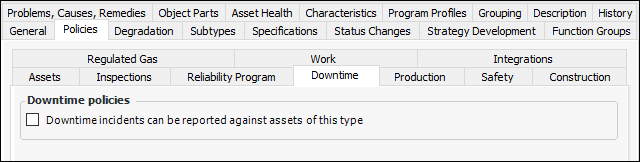
Select the Downtime tab if assets of this type support downtime incidents. Select the downtime policy option.
10.
Select the Production tab to select options for production loss accounting and events.
11.
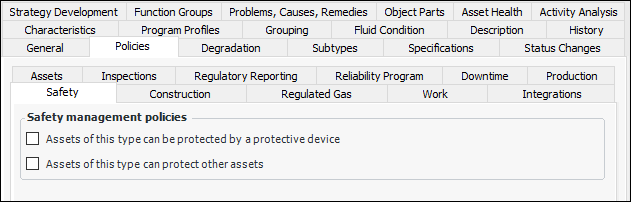
Select the Safety tab and select the required options.
12.
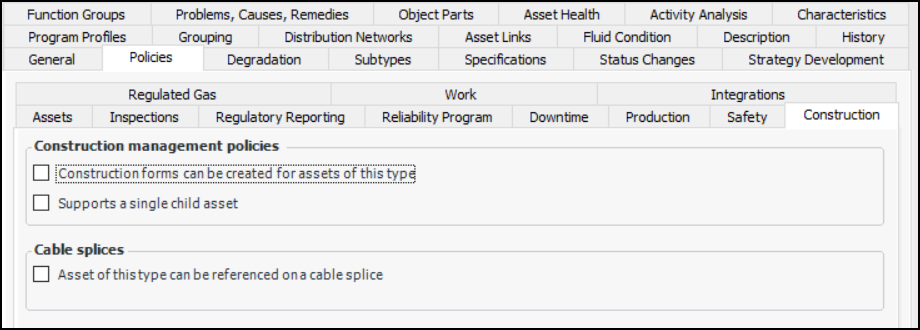
Select the Construction tab and select the required options.
13.
Select the Regulated Gas tab and select the required options.
14.
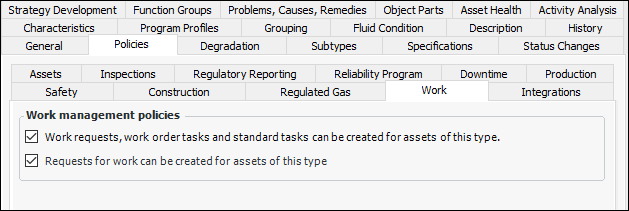
Select the Work tab and review the default selections.
15.
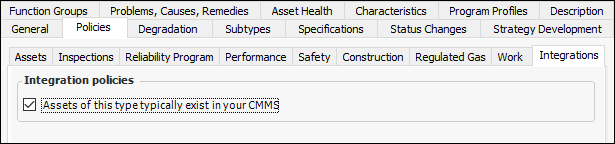
Select the Integrations tab if a CMMS integration plug-in has been implemented.

To Set Options for Degradation Tracking

1.
Tip: You can work with degradation settings for multiple asset and indicator types, sites, and calculations. In a Site window, click the Administration menu, Asset Management Settings, and Degradation Settings to open the Degradation Settings window.
2.
3.
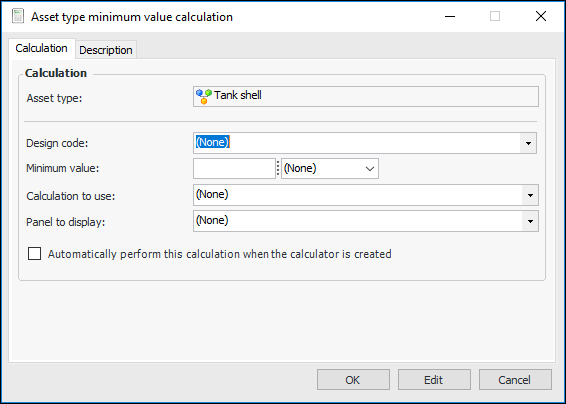
If the Minimum Value Calculator is supported, you can add one or more calculations. Click New. The Asset type minimum value calculation dialog appears:
Note: Before you can set up calculators for the asset type, the design codes, calculations, and panels must be set up for your organization. Be sure to review the design codes, calculations, and panels that APM provides. A generic Minimum Calculation panel is available for customization for the calculation you wish to set up. For a list of calculations and more information, see Creating a Degradation Minimum Value Calculation.
Select the panel to display when a user clicks the Calculate button in the Asset, Indicator, or Failure Mode Degradation Rate window. The user enters values that are used in the calculation.
When Automatically perform this calculation is selected, the minimum value is calculated when the user clicks the Calculate button. The result is shown in the Calculations window.
Select the Description tab to provide more information.
Click OK. The calculation is added to the table.

To Select Subtypes and Specifications

1.
Select the Subtypes tab.
2.
3.
4.
5.
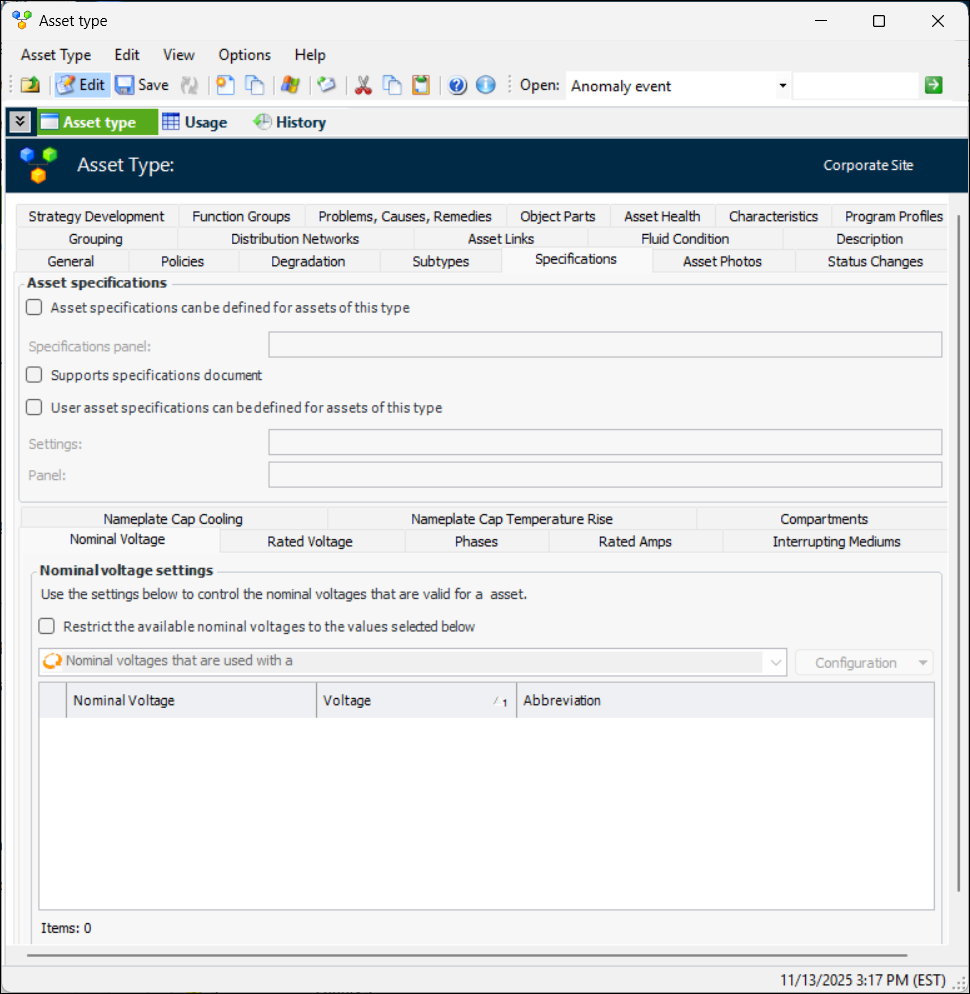
Select Asset specifications can be defined for assets of this type. Select a specifications panel from the list.
The Asset window for assets of this type will display an additional tab, where users can view and add information (for example, material type and lining material grade). The tab is displayed in the Properties view, and its label is the asset type name followed by “Specifications”. This tab is in addition to any supplied by the asset type’s default subtype.
6.
Select Supports specifications document to allow assets of this type to display documents on their Specifications tabs. The document must be linked to the asset as a standard document.
Note: The Supports Specifications Document functionality is generally available. To use this functionally, first enable feature 104 in APM. In the Enterprise window, select the Features view and the Enabled Features tab. Click Browse, select number 104 “Support for displaying asset P&ID or other document as part of asset specifications” and click OK. If APM is running as a smart client, click Refresh Enabled Features on the server. Then restart the client to use the functionality.
7.
Select User asset specification can be defined for assets of this type.
8.
9.
10.
You can restrict the nominal voltage, rated voltage, phase values, rated amps, interrupting mediums, nameplate cap cooling values, and nameplate cap temperature rise values available for selection on specification panels for assets of this type. For example, on the Nominal Voltage tab, select Restrict the available nominal voltages to the values selected below. The Nominal Voltages tab is populated with values. Select the appropriate values.

To Select the Asset Photos Folder

1.
Select the Asset Photos tab.
2.

To Select Status Change Reasons

1.
Select the Status Changes tab.
2.
To create status change reasons, see Setting up Reasons for Changing Asset Status.

To Set Strategy Development Options

1.
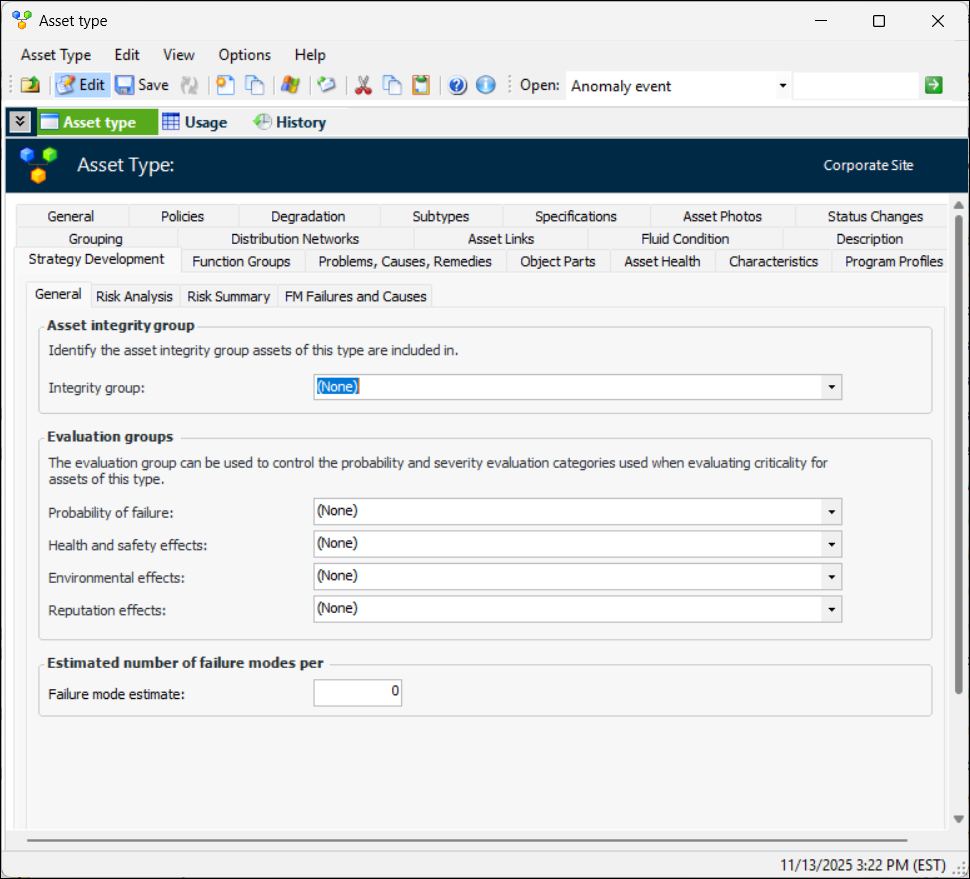
Select the Strategy Development tab.
2.
In the Integrity group list, select a group to associate the asset type with. Integrity group provides an easy mechanism to identify similar assets. For example, integrity groups can be created for piping systems, vessels, and heat exchangers. Integrity groups are used in inspection factor matrices to help determine a failure mode’s Inspection Factor, Inspection Strategy, and Inspection Interval during confidence evaluation.
3.
In the Evaluation groups area, select the evaluation groups that assets of this type are associated with for each of the probability, health and safety, environmental, and reputation evaluations.
An evaluation group is an identifier that restricts consequence evaluation categories to specific asset types or failure mode library entries. For example, a pop-up questionnaire that analysts use to evaluate the Health and Safety effects of a failure mode in an RBI analysis can display one set of questions for a Tank Roof asset and another set for a Tank Floor asset, depending on the evaluation groups assigned to the asset types and evaluation categories.
To create evaluation groups, see Setting up Evaluation Groups.
4.
In the Estimated number of failure modes section, enter a number in the Failure mode estimate box to help the analysis team estimate the time required to complete strategy development analyses. You can enter the estimated number of failure modes per asset for the asset type.
5.
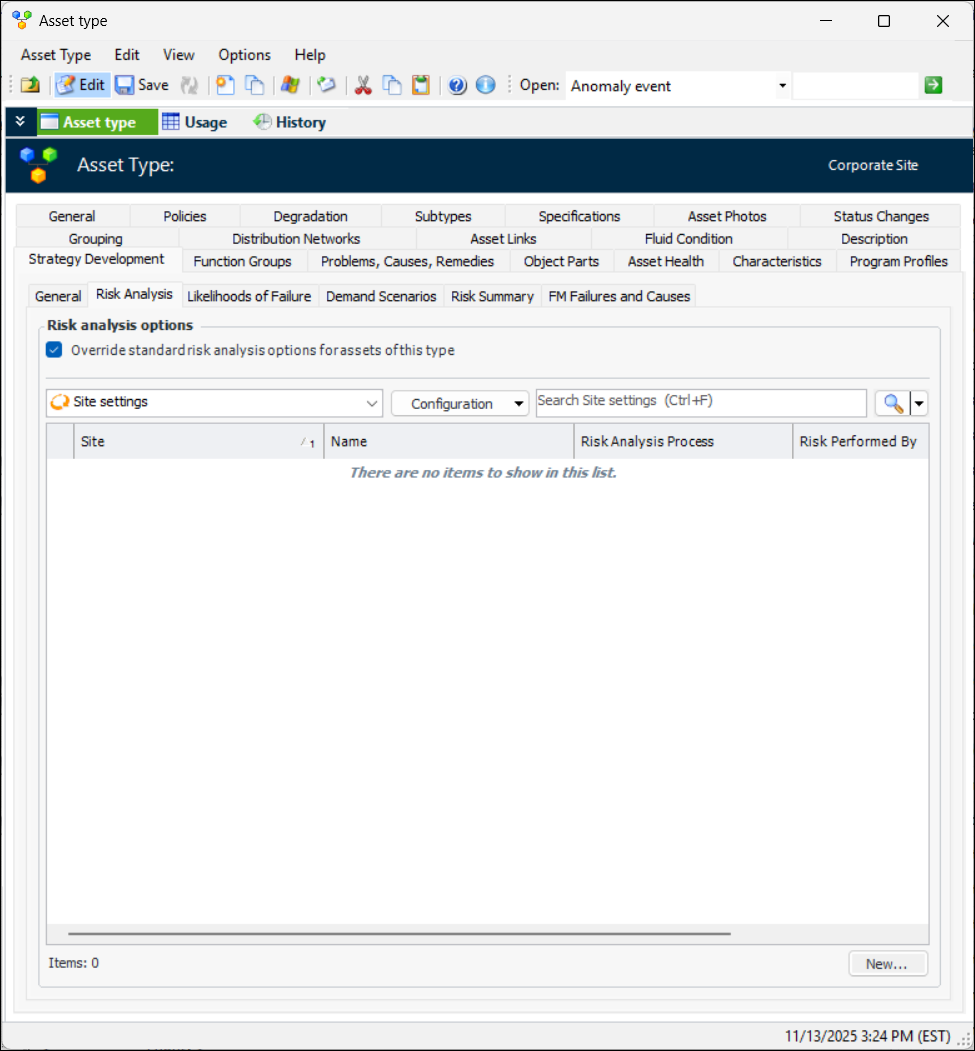
Select the Risk Analysis tab:
6.
If you wish to override the standard risk analysis options for this asset type, click Override standard risk analysis options for assets of this type. For more information about creating the override settings, including likelihoods of failure and demand scenarios, see Setting Strategy Development Options on Asset Types.
7.
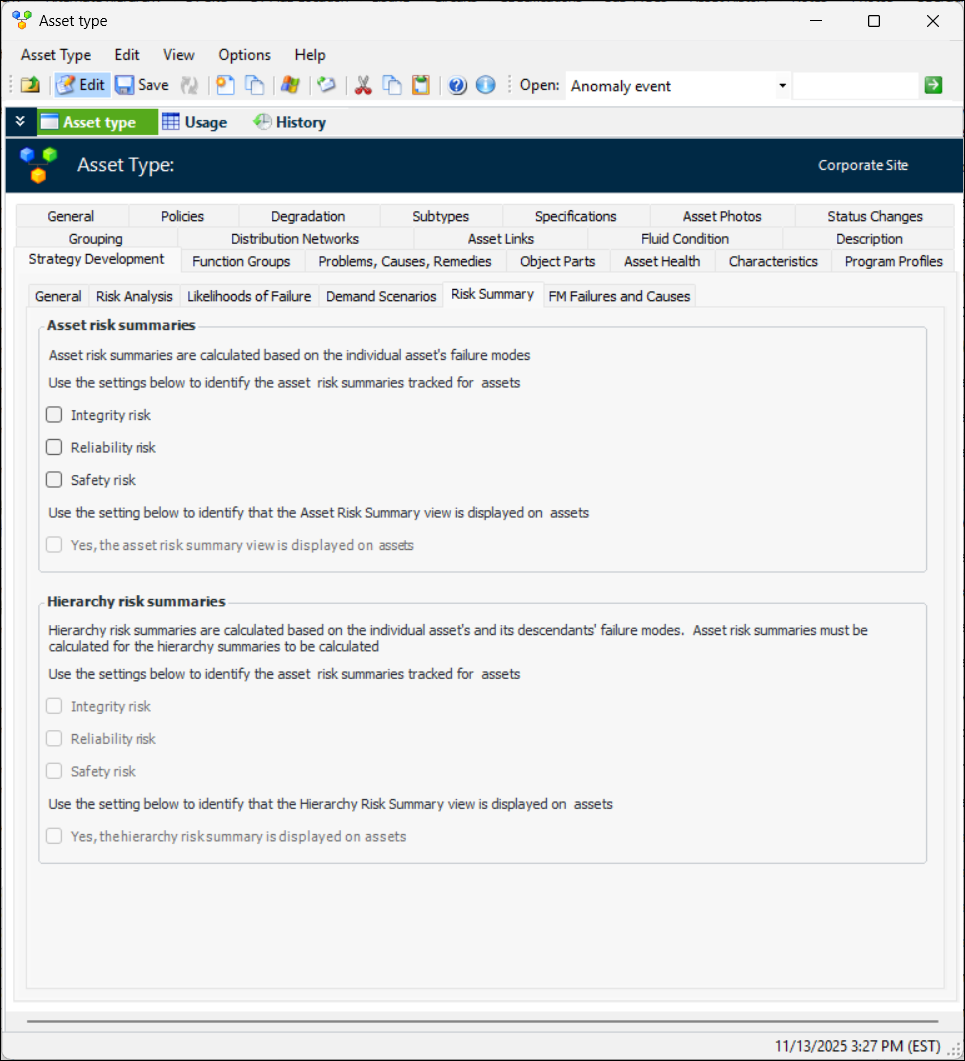
Select the Risk Summary tab:
8.
9.
When you select one or more summaries, the Asset Risk view is automatically displayed in Asset windows. You can clear the option to prevent it from appearing.
10.
11.
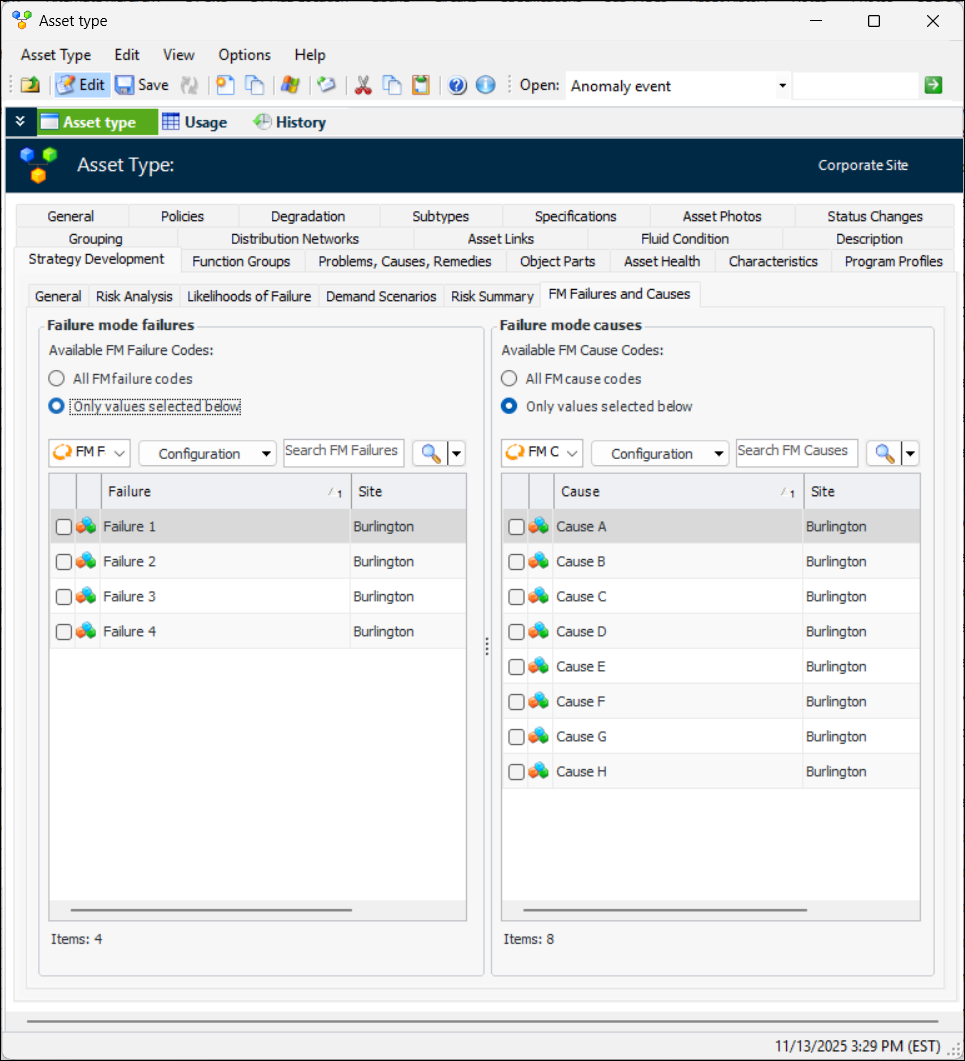
Select the FM Failures and Causes tab. If you wish to restrict assets of this type to referencing specific failures and causes on failure modes, select Only values selected below in the Failures table, Causes table, or both. For example:
12.
For information about setting up FM failures and causes, see Setting up FM Failures and Setting up FM Causes.

To Select Function Groups

1.
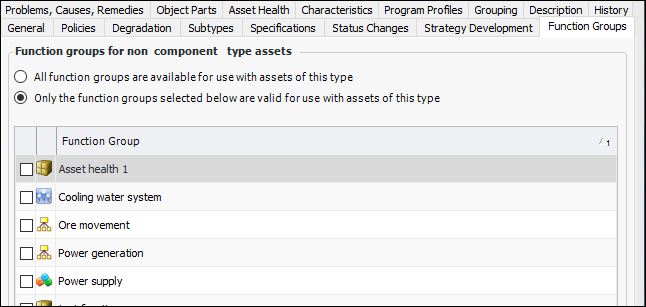
Select the Function Groups tab. By default, all function groups are available for the asset type. If you wish to limit assets of this type to specific function groups, select the second option. The table displays all of the function groups that have been defined for the site. For example:
2.
To create function groups, see Setting up Function Groups.

To Select Problems, Causes, and Remedies

1.
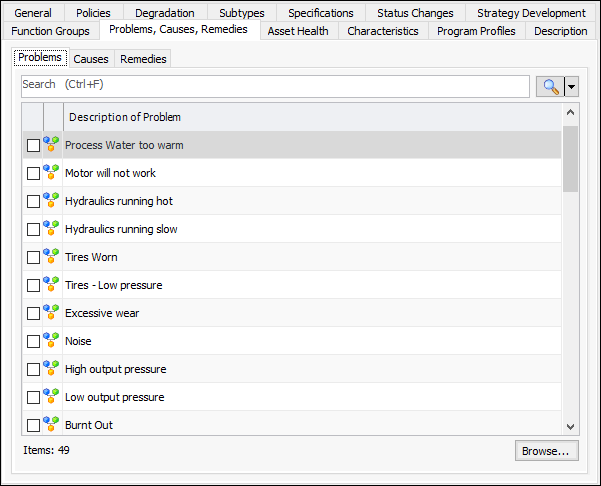
Select the Problems, Causes, Remedies tab.
2.
On each of the Problems, Causes, and Remedies tabs, select the objects for assets of this type.
To create problem categories, see Setting up Problem Categories.

To Set Asset Health Options

1.
Select the Asset Health tab.
2.

To Add Asset Characteristic Settings

1.
Select the Characteristics tab.
2.
Click Browse to add characteristics classes.
3.
4.
Tip: You can also click Browse to add one or more classes to the asset type.
Tip: You can mark settings as inactive while they are being developed. Select the settings and click Mark as Inactive. To activate them, select them in the table and click Mark as Active.

To Add Asset Program Profiles to the Asset Type

1.
Select the Program Profiles tab. Select Asset program profiles are supported for this type of assets.
2.
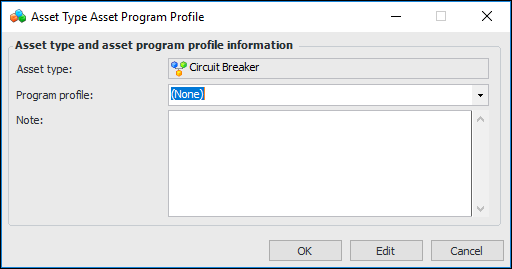
Click New. The Asset Type Asset Program Profile dialog appears:
3.
4.
5.
Click OK. The dialog closes and the profile is added to the tab.

To Set Distribution Networks Options

1.
Select the Distribution Networks tab.
2.
When this option is selected, the Asset window, Properties view, General tab displays the Vault Info tab. Information about vault locations is required for electricity transmission and distribution networks.

To Set Fluid Condition Options
1.
Select the Fluid Condition tab. Select Assets support fluid sample collection.
2.
On the Test Labs tab, you can select Restrict fluid test labs and then select the laboratories that will be available on fluid samples for assets of this type.
3.
On the Gas Standards tab, you can select Restrict gas standards and then select the gas standards that will be available on fluid samples for assets of this type.
4.
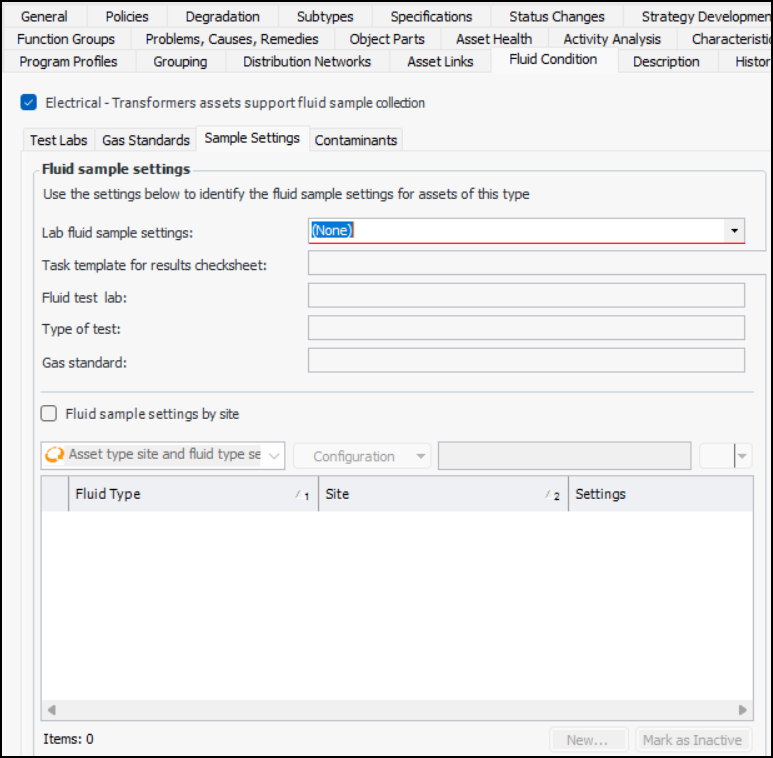
Select the Sample Settings tab. For example:
5.
6.
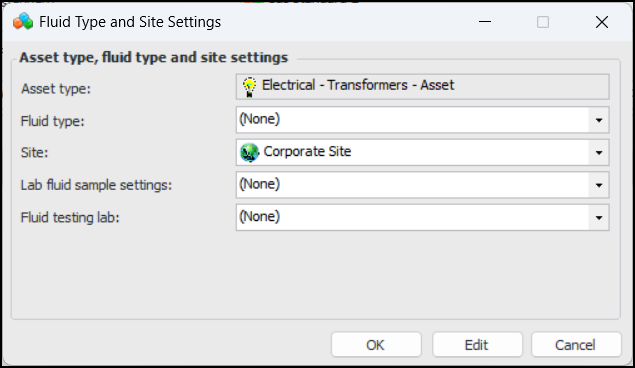
Select Fluid sample settings by site to select options that are specific to a site, asset type, and fluid type. Click New to open the Fluid Type and Site Settings dialog:
7.
8.
Click OK to close the dialog. The settings record is added to the table. Note that you can mark a record as inactive to make it unavailable for selection in samples. When you are ready, mark it as active to make it available.
9.
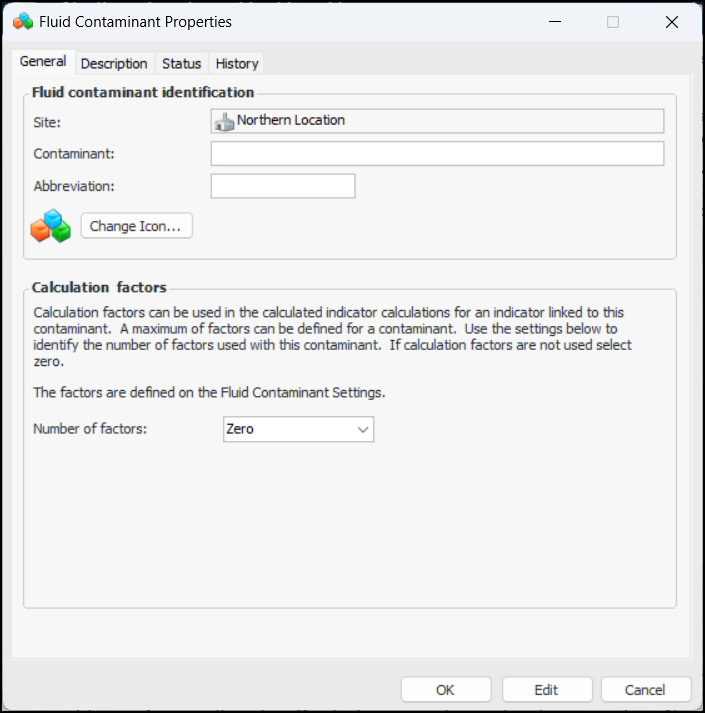
Select the Contaminants tab. Click New to add a contaminant. The Fluid Contaminant Setting Properties dialog appears:
10.
11.
12.
For each of First level, Second level, and Third level, enter a value and select the unit of measure. These settings identify the trigger points used in calculated indicators for fluid condition tracking.
13.
14.
Enter values in Calculation factors, as needed.
15.
Click OK. The dialog closes and the Fluid contaminant settings table.
When you have finished entering information for the asset type, click OK. The window closes and the asset type is added to the Asset Types tab.