Adding Values for Asset Subtypes and Specifications
An asset subtype is a means of recording additional information about a type of asset. For example, the AC Motor subtype presents a tab in the Asset window where users can enter information such as voltage and insulation rating. Asset specifications have a similar purpose, but they are designed to record extensive information about an asset subcomponent, for example, a tank roof or shell, typically for use in RBI analysis.
The APM Install database comes with 14 asset subtypes, specification panels for atmospheric storage tank subcomponents, over 20 specification panels for electrical substation subcomponents, and more. The asset type determines what specification panel is displayed in the Asset window, the subtypes that are available, and up to three default subtypes.
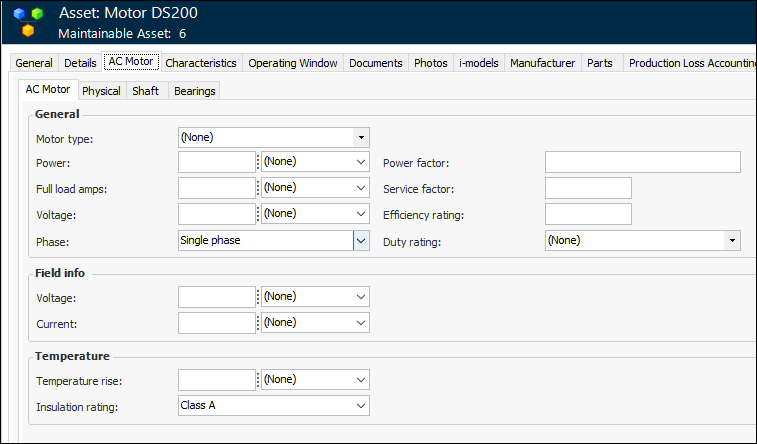
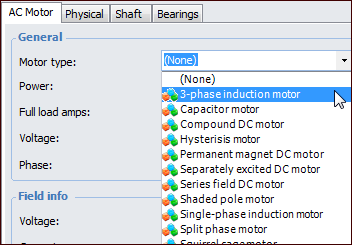
For example, the Motor - AC asset type specifies the AC Motor default subtype. As a result, the AC Motor tab is added to an asset with the Motor - AC asset type:
APM asset subtypes and specifications can have relationships to one or more value lists. Value lists are simple classes with only a few attributes, and a relationship to the subtype. They appear as drop-down lists in the specifications tab.
You can add values to each of these shipped value lists and revise the values supplied by APM. These are the values that users can select when filling in the specifications for an asset. Each value list can relate to one or more of the APM asset subtypes or specifications panels. For example, the Motor type value list appears for both the AC motor and DC motor subtypes.
Note: You can use these value lists in custom asset subtypes, but you will first need to customize the value list class (for example, the Motor Type class).
This topic explains how to add values (for example AC Induction, Brushed DC, and so on) to the APM subtype value lists. For information on adding subtypes and specifications, see Subtypes.

To Add Values for Asset Subtypes and Specifications
1.
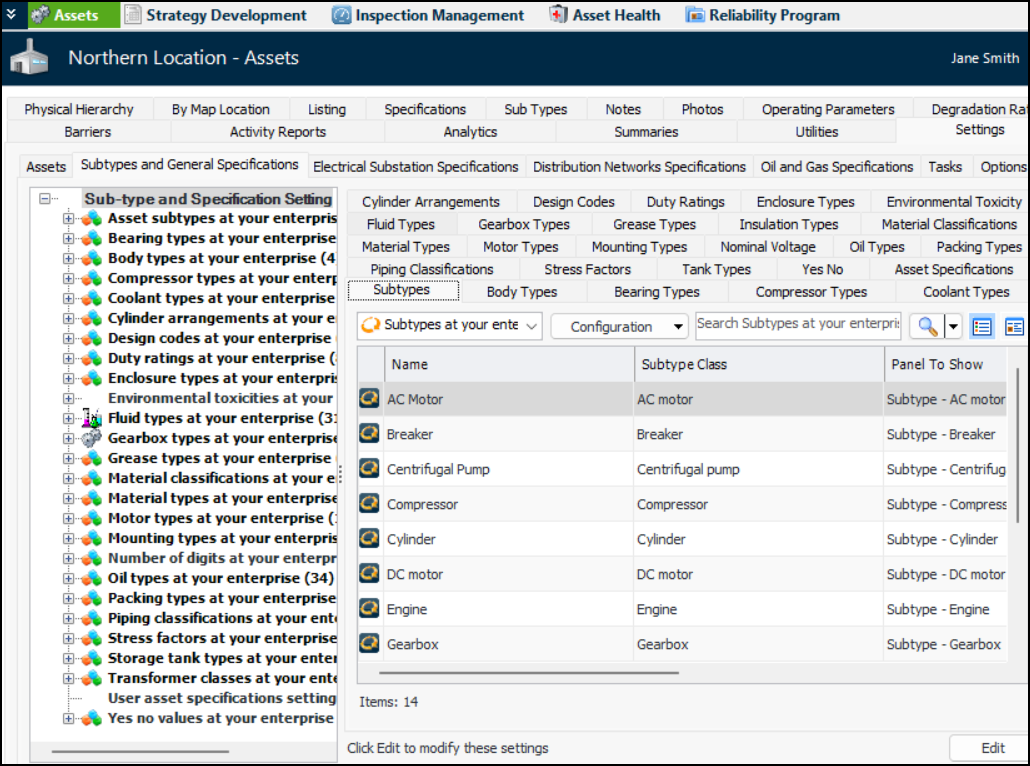
From the Site window, select the Assets view, Settings tab, and then and the appropriate Specifications tab. Select the top node in the navigation tree. For example:
2.
3.
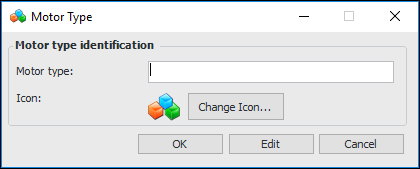
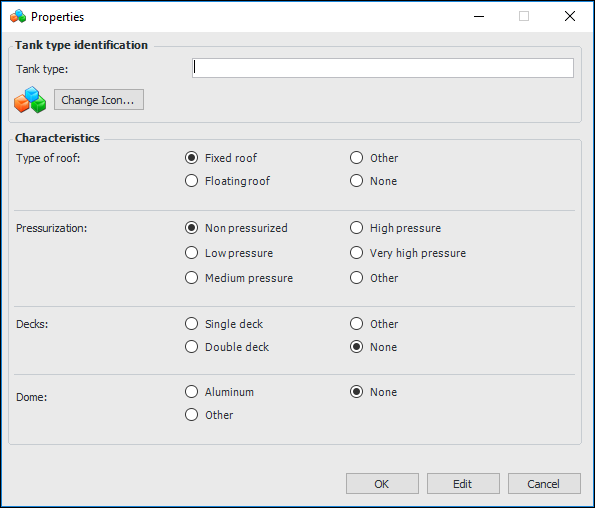
To add a new value, click New, or to edit an existing value, double-click it. The value list’s dialog appears. For example:
4.
5.
When you are finished, click OK. The value is added to the tab.