|
Setting up Structural Minimum Thickness Lookup Tables
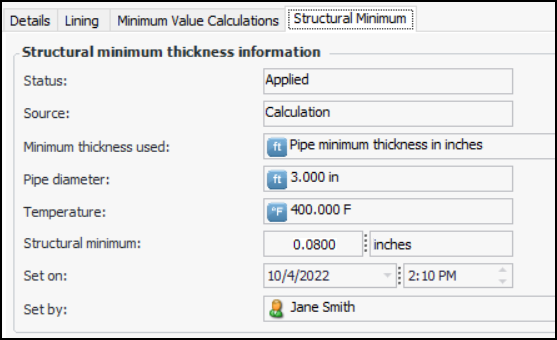
Note: Support for structural minimum thickness is available for preview. You must first enable feature 102 to use the functionality in APM. In the Enterprise window, select the Features view and the Enabled Features tab. Click Browse, select “Support structural minimum thickness when calculating an asset’s minimum thickness” and click OK. If APM is running as a smart client, click Refresh Enabled Features on the server. Then restart the client to use the functionality.After setting up the lookup table, enable support for structural minimum thickness on the appropriate asset types. Assets of these types display the result of structural minimum thickness evaluations on their calculation dialogs, Degradation Info tabs, and degradation indicators. For example:To Set up Structural Minimum Thickness Temperatures
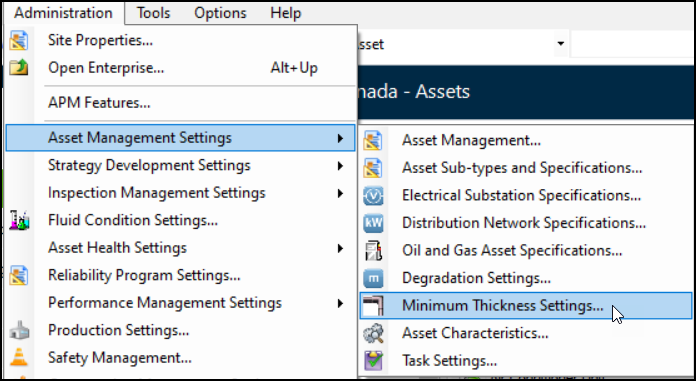
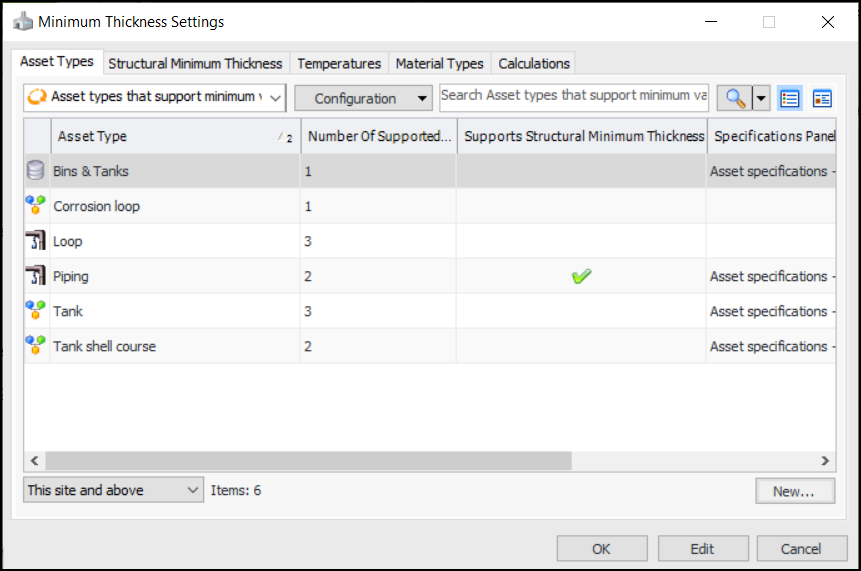
1. In the Site window, click the Administration menu, Asset Management Settings, and then Minimum Thickness Settings:The Asset Types tab displays all asset types that support minimum value calculations. You can also select the “Asset types that do not support minimum value calculations” configuration to add calculations and enable structural minimum thickness. For more information, see **Setting up Asset Types.Tip: You can also find structural minimum thickness settings in the Assets view, Settings tab, Oil and Gas Specifications tab. Select the Oil and Gas Specifications node in the tree. Select the Minimum Thickness tab.
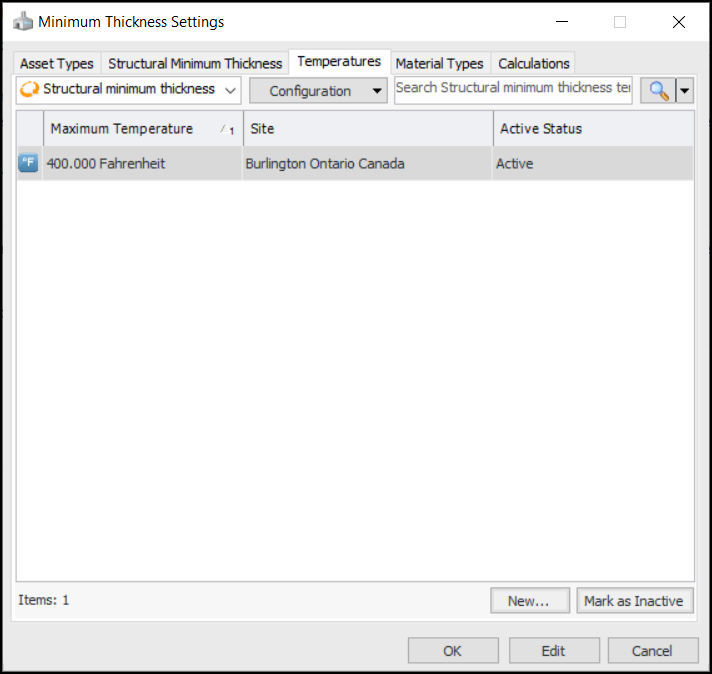
2. Select the Temperatures tab.
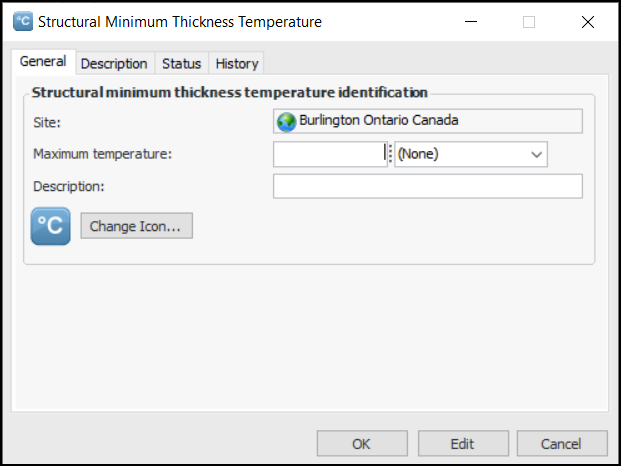
3. For each temperature you wish to add, click New. The Structure Minimal Thickness Temperature dialog appears:Tip: Temperatures can be marked as inactive to prevent them from being available for selection. When you are ready to release an inactive temperature, select it in the table and click Mark as Active. In the Structural Minimum Thickness Temperature dialog, the Status tab allows you to change the active status and view the most recent active status change.
6. If you wish to change the graphic that represents the temperature in tables and charts, click Change Icon, select a new icon, and click OK.
7. Click OK. The temperature is added to the table.To Set up a Structural Minimum Thickness Lookup Table
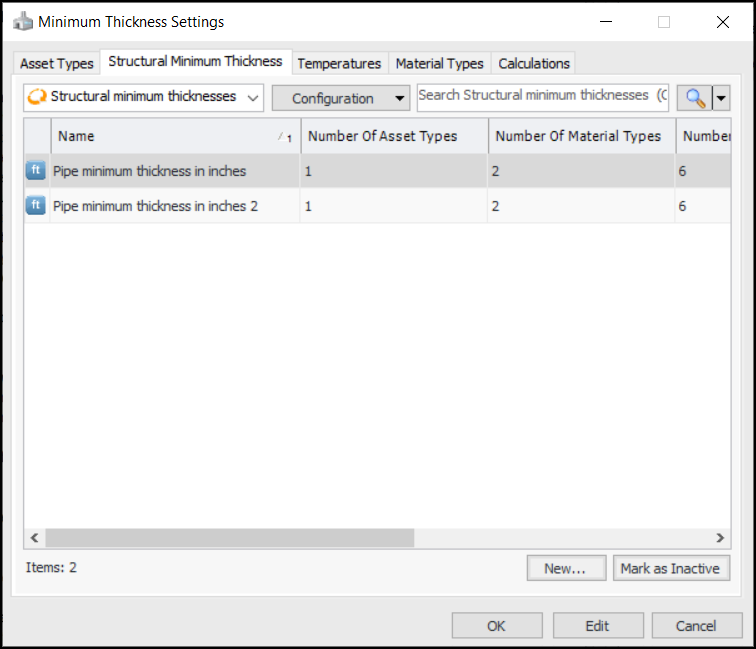
1. In the Minimum Thickness Settings window, select the Structural Minimum Thickness tab:Tip: Structural minimum thickness tables can be marked as inactive to prevent them from being available for selection. When you are ready to release an inactive table, select it in the tab and click Mark as Active. In the Structural Minimum Thickness Properties dialog, the Status tab allows you to change the active status and view the most recent active status change.
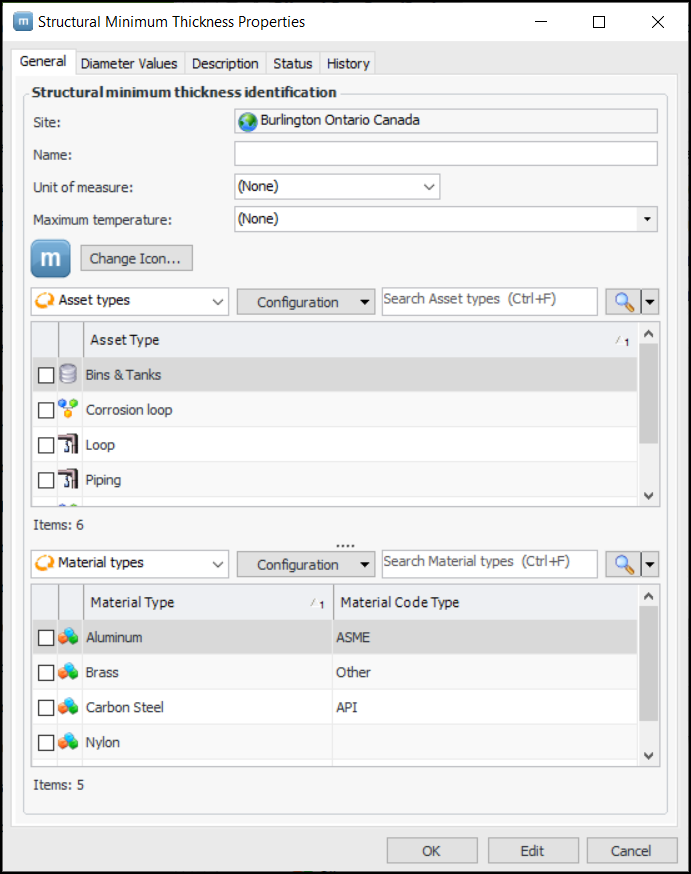
2. Click New. The Structural Minimum Thickness Properties window appears:
4. In the Unit of measure list, select either “inch” or “millimeter”. These are the only two values supported.
6. If you wish to change the graphic that represents the table in tables and charts, click Change Icon, select a new icon, and click OK.
8. Tip: If you need to add a new material, select the Material Types tab in the Minimum Thickness Settings window and click New. For more information, see Setting up Material Types and Classifications.
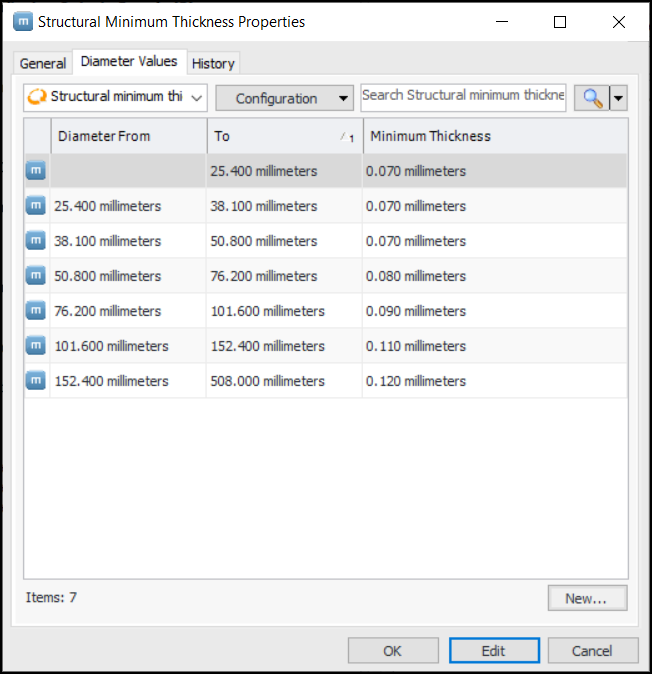
9. Select the Diameter Values tab.
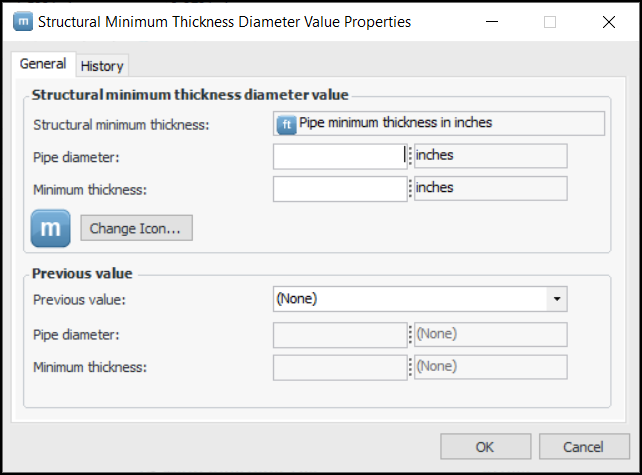
10. For each range of diameter values, click New. The Structural Minimum Thickness Diameter Value dialog appears:
13. If you wish to change the graphic that represents the diameter value in tables and charts, click Change Icon, select a new icon, and click OK.
15. Click OK. The dialog closes and the diameter values are listed in the table. For example:
16. When you have finished entering diameter values, click OK. The structural minimum thickness table is added to the tab.The Material Types tab displays the material types supported by the enterprise.The Calculations tab displays the minimum thickness calculations supported by the enterprise. For information about creating them, see Creating a Degradation Minimum Value Calculation.