**Setting up Asset Statuses

An asset’s status represents its operational state and indicates whether it is available for use. APM uses status to determine when work is triggered and whether components are available for installation. Sites can also use statuses, but these statuses are specific to sites and cannot be used for assets.
For more information, see Creating Site Status Codes.
APM comes with several asset statuses. You can edit the existing statuses or add new ones for your organization. This topic explains how to add an asset status.
When you create an asset record, you can select a status. You can also identify the status of assets as you perform functions on them. For example, you can select the appropriate status as you swap components and transfer assets.
You can use asset statuses to determine when standard tasks are triggered. For example, you might create a standard task that is only triggered when an asset is “stored.” Changing the asset status could affect triggers for existing standard jobs. You can also use statuses to sort assets in a list.
An asset’s status is often shared by its child assets. When you change the status of an asset, you can choose whether the status of child assets is also changed. However, if any of the child assets are component locations, their installed components always have the same status. Note that changing the status of the site asset does not affect the status of the assets on that site.
Note: The option to not apply the status to descendants is generally available. You must first enable feature 106 to use the functionality in APM. In the Enterprise window, select the Features view and the Enabled Features tab. Click Browse, select “Provide an option to limit an asset status change to the current asset only” and click OK. If APM is running as a smart client, click Refresh Enabled Features on the server. Then restart the client to use the functionality.
When you create asset statuses, you must classify them as either “In service” or “Out of service” statuses. When a user selects an “In service” status, this indicates that the asset is currently in use. An “Out of service” status indicates that an asset is not currently being used. You can further define “Out of service” statuses to indicate that they are “available for use”.
For example, you might create the following statuses for your site:
You can define different asset statuses for maintainable, component, and component location assets. If you wish to swap component assets between different locations, you can also select default asset statuses for APM to use when a component asset is installed or removed.
If your organization has multiple sites, you can set up statuses for sites, as well as for individual assets. Asset statuses that apply to sites cannot apply to other types of assets.
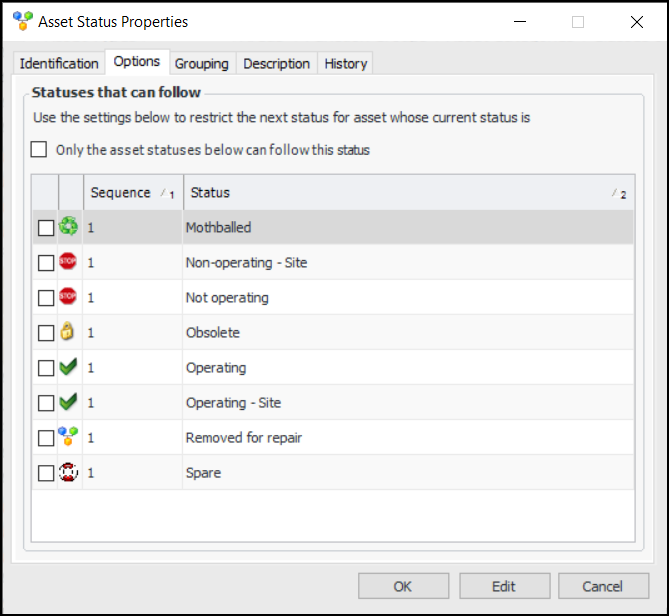
You can control the order in which statuses are assigned to assets. In the Asset Status dialog, you can specify the statuses that can follow the current status. You can also designate the employees who are allowed to change an asset’s status, as well as the statuses available to them. For more information, see Setting up Employee Permission Groups.
Note: If your organization will be using serialized resources, you will need to link your asset statuses to inventory statuses. See Setting up Serialized Inventory Unit Statuses for Repairable Spares.

To Set up Asset Statuses

1.
From the Site window, select the Assets view, Settings tab. Select the Assets tab and the Asset management settings node in the tree.
Tip: You can also select the Administration menu, Asset Management Settings, and then Asset Management. The Asset Management Settings dialog appears.
2.
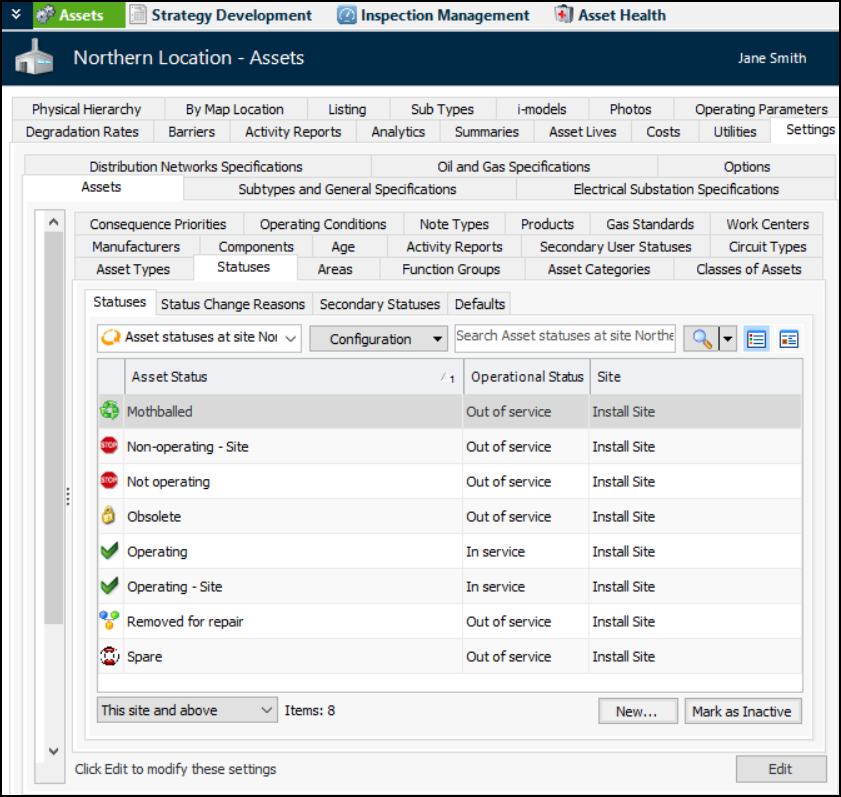
Select the Statuses tabs. This tab lists the asset statuses at your enterprise.
3.
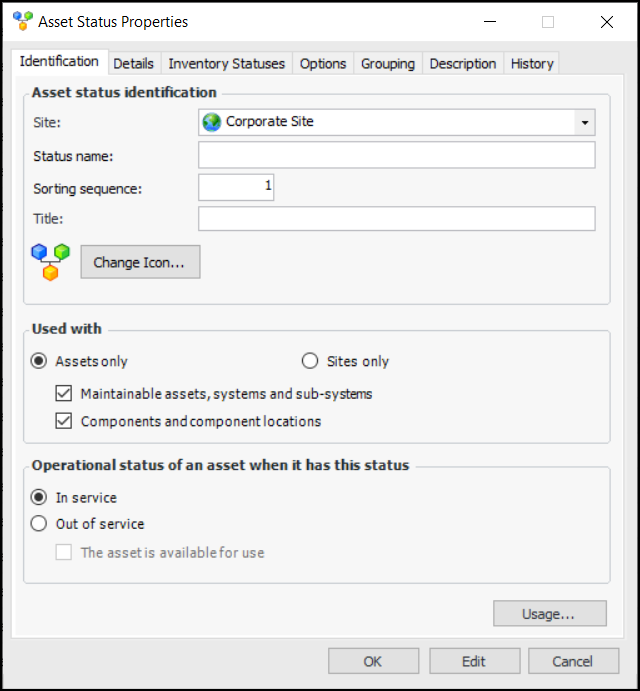
Click New. The Asset Status Properties dialog appears:
4.
In service: the asset or site is currently being used.
Out of service: the asset or site is not currently in use. For example, an asset might out of service when it has failed, or a site might not be in operation when it is still being defined (data entry status).
If you select this option, you can also select The asset is available for use (typically used for components and locations).
5.
6.
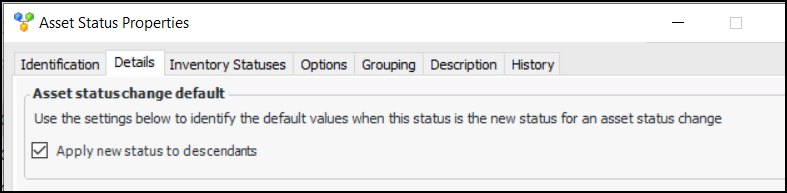
By default, when an asset’s status changes, the status is also applied to its child assets. To change the default behavior, clear Apply new status to descendants. On the Change Asset Status dialog, the option will not be selected by default.
7.
8.
Select the Description tab to provide more information.
9.
Click OK to save the status and close the dialog.
Tip: You can return to the Asset Status Properties dialog and click Usage to see all assets that currently have the status.
Tip: If your site uses component and component location assets, you can select default statuses for component assets when they are installed, removed, or copied. See Selecting Default Statuses for Components and Locations.