Setting up Reasons for Changing Asset Status

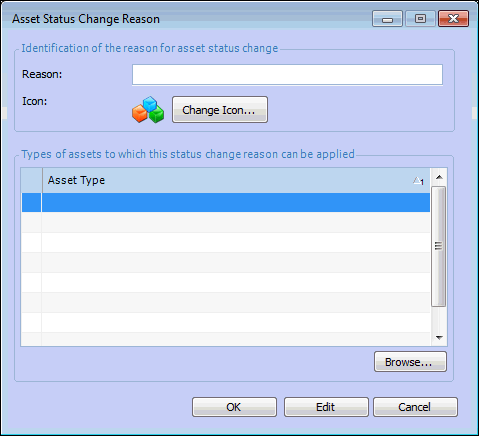
Enter the reasons that are used in your organization when changing an asset’s status. You can link each reason to one or more asset types. This controls the list of available reasons that a user can choose from when changing an asset’s status. The selected reason will be recorded on the asset’s status change history.

To Set up Asset Status Change Reasons

1.
From the Site window, select the Assets view, Settings tab. Select the Assets tab and the Asset management settings node in the tree.
Tip: You can also select the Administration menu, Asset Management Settings, and then Asset Management. The Asset Management Settings dialog appears.
2.
Select the Statuses tab and then the Status Change Reasons tab. This tab shows a list of the current reasons.
3.
Click New. The Asset Status Change Reason dialog appears.
4.
Enter the Reason description.
5.
Click Browse to select the asset types that this reason applies to. Select one or more asset types and click OK.
6.
Click OK to save the reason and close the dialog.
7.
Repeat steps 3 to 6 for all asset status change reasons that you need to enter.