Setting up Asset Note Types

Asset notes allow you to attach information and comments to an asset, objects associated with assets, and non-related objects (such as indicator templates). Note types are typically used to group notes by purpose or area. They also control the availability of the review functionality.

To Set up Asset Note Types

1.
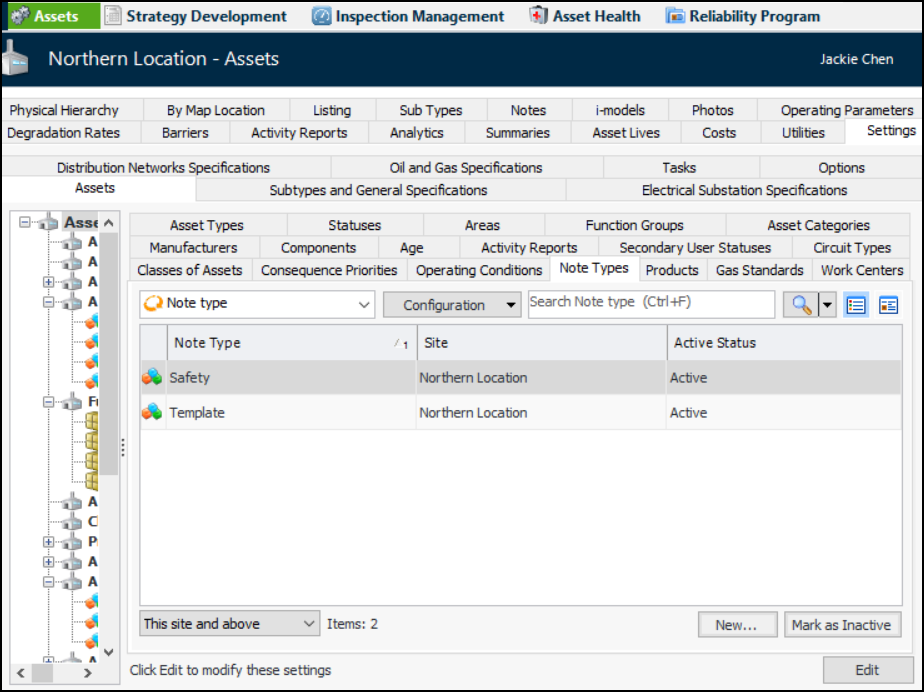
In the Site window, select the Assets view, Settings tab, Assets tab, and Note Types tab.
You can mark individual note types as “inactive” to prevent them from being available for selection. To deactivate or reactivate a type, select it in the list and click Mark as Inactive or Mark as Active. The Mark as Inactive/Active dialog appears, where you can enter a comment and click OK. Click OK in the confirmation message that appears. In the Note Type dialog, the Status tab shows the object’s active status, update date, update employee, and comment.
2.
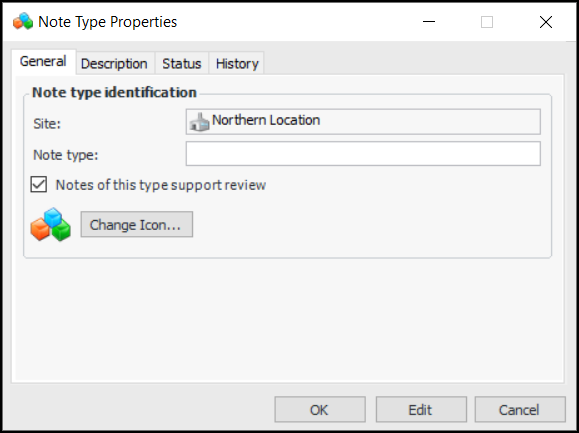
Click New. The Note Type Properties dialog appears:
3.
4.
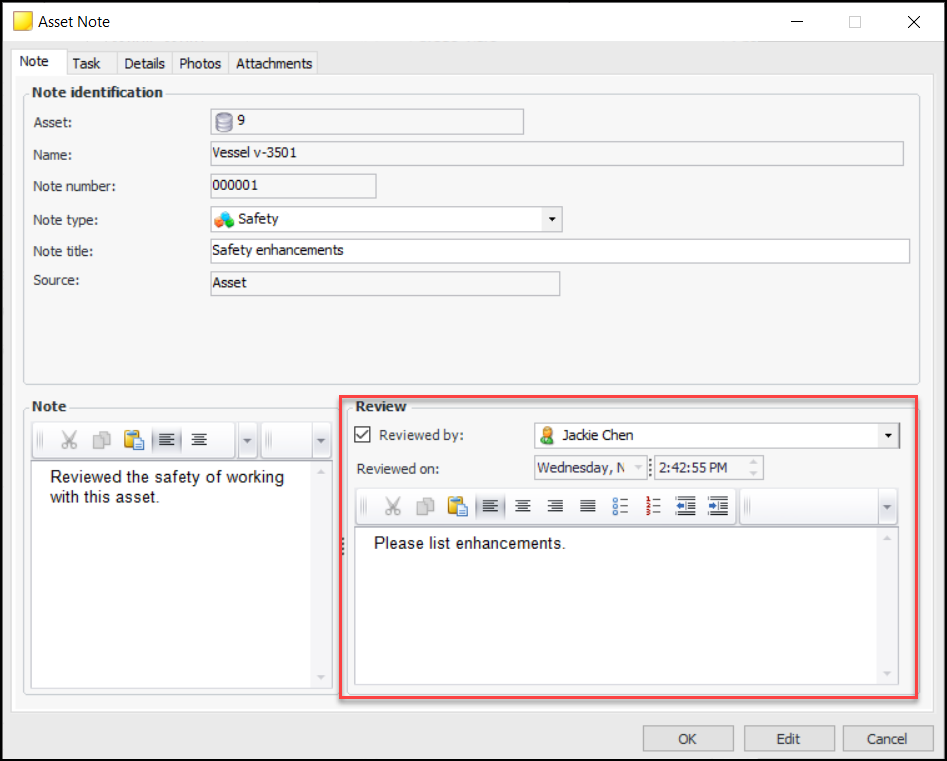
Notes of this type support review is selected by default. After a note has been saved, anyone can open the Asset Note window, mark the note as reviewed, and provide comments. For example:
5.
Select the Description tab to add more information about the type’s purpose or category.
6.
To change the icon that will appear on all notes of this type, click Change Icon, select a different graphic, and click OK.
7.