
|
Setting up Asset Classes
To Set up Asset Classes
1. From the Site window, select the Assets view, Settings tab. Select the Assets tab and the Asset management settings node in the tree.Tip: You can also select the Administration menu, Asset Management Settings, and then Asset Management. The Asset Management Settings dialog appears.
2. Select the Classes of Assets tab. This tab displays the classes defined for the enterprise.Note: You can mark a class as inactive until it is ready to be used. Select the class in the table and click Mark as Inactive. The Mark as Inactive/Active dialog appears, where you can enter a comment. When you click OK, a confirmation message appears. Click OK. When you are ready, click Mark as Active to make the class available for use.
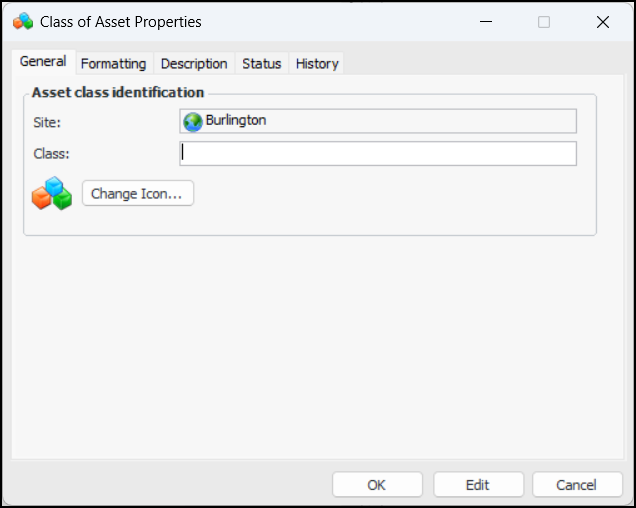
3. Click New. The Class of Asset Properties dialog appears:
5. Select the Formatting tab to set the font, text color, and background color for the class. The formatting options determine the appearance of classes in tables and charts.
7. Click OK to save the new class and close the dialog.