Setting up Asset Change Request Types

Change requests specify updates to be performed on assets in the external CMMS (for example, SAP) that manages assets and work. AssetWise Enterprise Interoperability (AWEIS) conveys requests to the CMMS and returns information to APM. The asset update is performed in the CMMS and then information such as a new equipment number is communicated back to APM, where the interop asset is updated.
There are five varieties of asset change request:
You can use characteristic mapping to populate the properties of CMMS objects with matching properties from the request. For example, a characteristic map set for equipment removal requests might copy the work order number and removal date to the equipment.
This topic explains how to create request types. See To Set up an Asset Change Request Type.
Some requests are created automatically by the system (asset status changes and priority update). At the site level, select the request types for these types of requests. In templates for construction forms and asset change requests, you can identify the request type so that the appropriate requests are created. See To Set Request Types for the Site.
When an asset type supports equipment removal requests, the default request type for equipment removal that is set at the sit level is automatically selected when a new request is made for assets of that type.
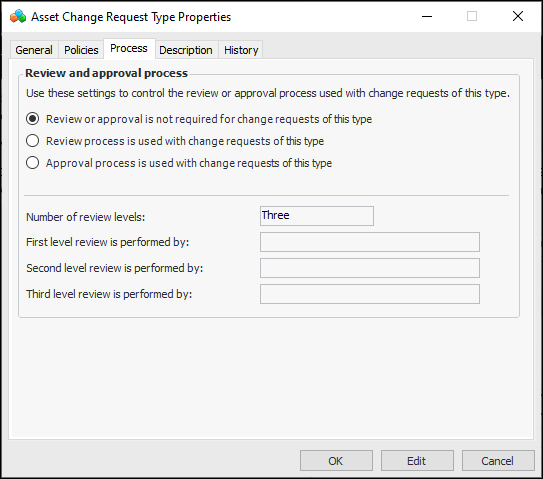
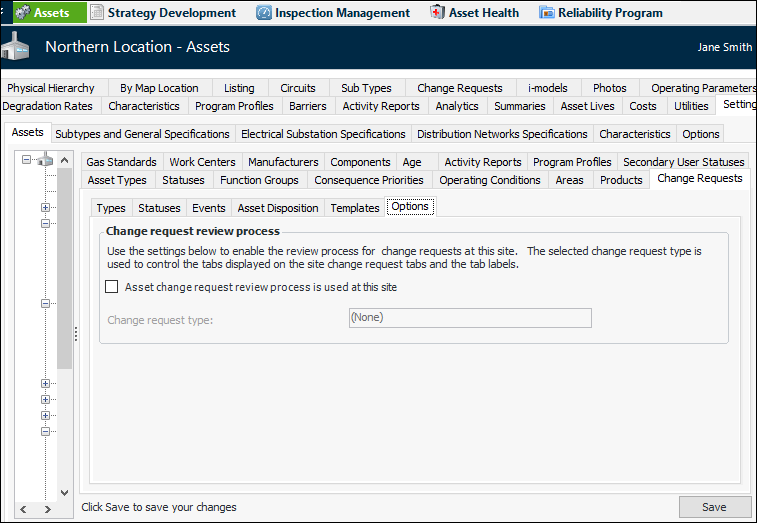
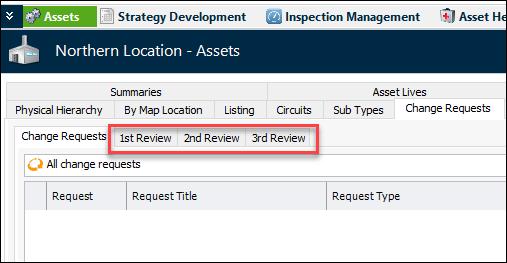
When a request type for asset properties updates supports the review process, you can define up to three levels of review. On the Site window, Assets view, the Change Requests tab can display tabs for each of the levels. This topic explains how to determine the tab labels. See To Set Site Options for the Review Process.

To Set up an Asset Change Request Type

1.
From the Site window, select the Assets view, Settings tab. Select the Assets tab and the Asset management settings node in the tree.
Tip: You can also select the Administration menu, Asset Management Settings, and then Asset Management. The Asset Management Settings dialog appears.
2.
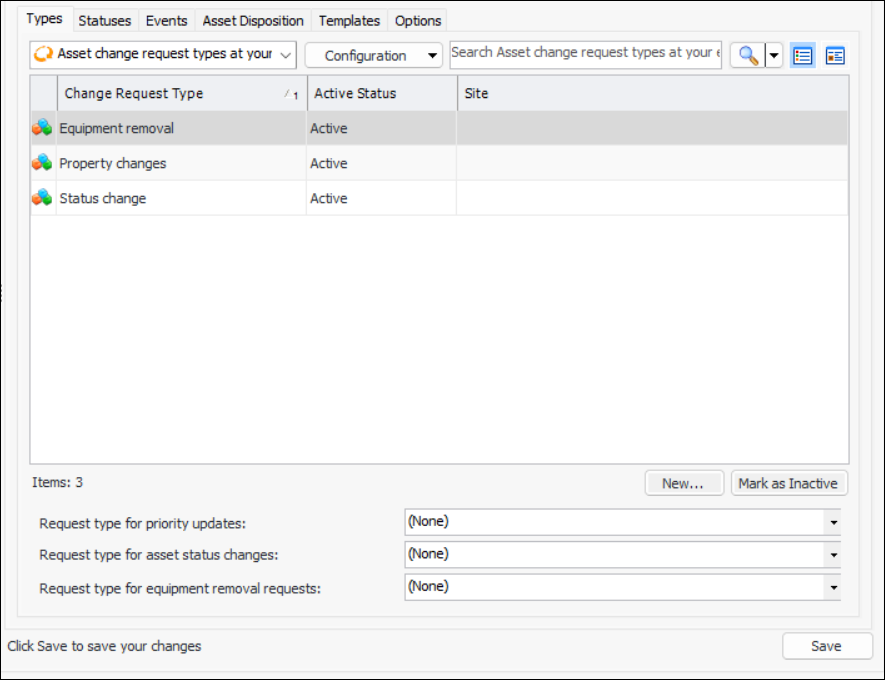
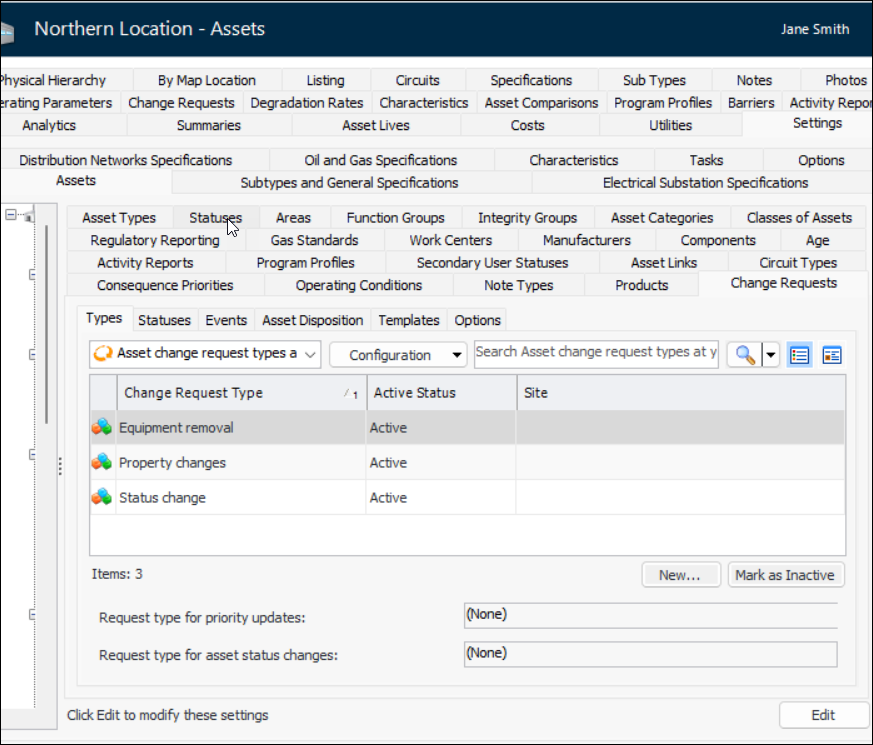
Select the Change Requests tab and the Types tab. This tab displays the asset change request types for the enterprise. For example:
Tip: While types are being developed, you can mark them as inactive to prevent them from being selected in construction form templates. When you are ready to enable the type, select it in the table and click Mark as Active.
3.
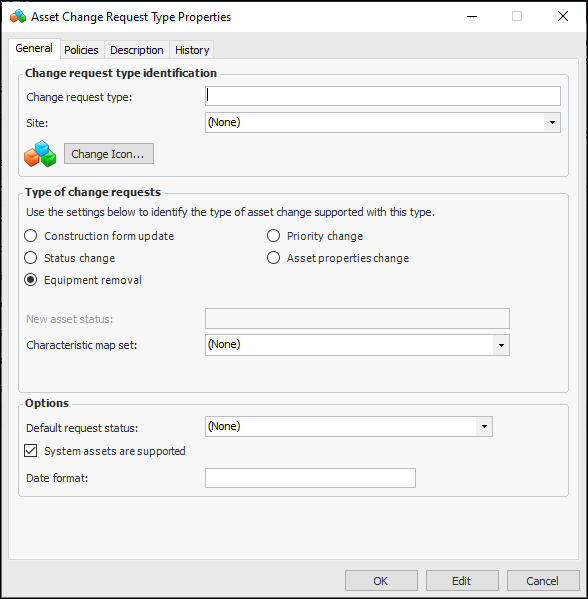
Click New. The Asset Change Request Type Properties dialog appears:
4.
Note: The dialog changes depending on the purpose of the request. For example, only Asset properties change adds the Process tab, where you can select the approval or review process.
d (short date) – For example, 2009-06-15T13:45:30 -> 6/15/2009 (en-US)
D (long date – For example, 2009-06-15T13:45:30 -> Monday, June 15, 2009 (en-US)
f (Full date/time pattern (short time) – 2009-06-15T13:45:30 -> Monday, June 15, 2009 1:45 PM (en-US)
F Full date/time pattern (long time) – 2009-06-15T13:45:30 -> Monday, June 15, 2009 1:45:30 PM (en-US)
5.
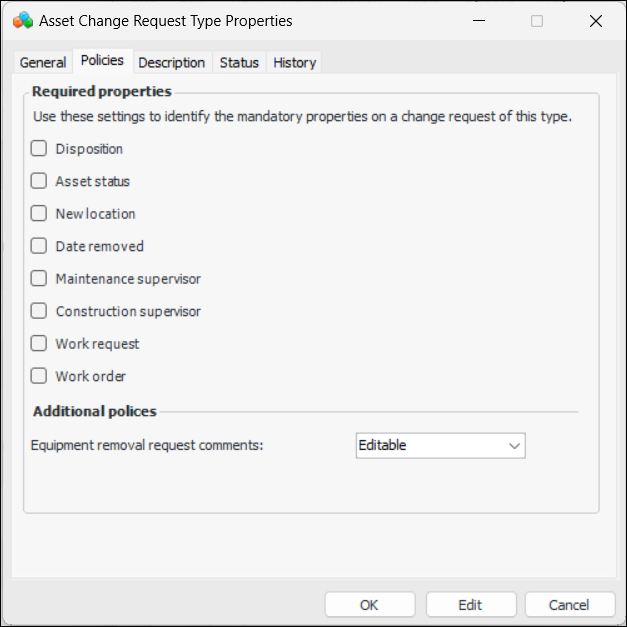
Select the Policies tab if it is available (for equipment removal and asset properties changes). This example is for an equipment removal request type:
Note: For an asset properties change request type, the first four options are disabled.
6.
7.
8.
9.
10.
Select the Description tab to add more information.
11.
Click OK to save the type and close the dialog.

To Set Request Types for the Site

1.
From the Site window, select the Assets view, Settings tab. Select the Assets tab and the Asset management settings node in the tree.
Tip: You can also select the Administration menu, Asset Management Settings, and then Asset Management. The Asset Management Settings dialog appears.
2.
Select the Change Requests and Types tabs. This tab displays the asset change request types for the enterprise.
3.
Click Edit to set the request types for priority and status changes. The Edit button changes to Save. For example:
4.
5.
6.
7.
Click Save.

To Set Site Options for the Review Process
1.
In the Site window, select the Assets view and the Settings tab.
2.
Select the Change Requests tab and then the Options tab.
3.
Click Edit to modify the site settings. The Edit button is replaced by the Save button.
4.
Select Asset change review process is used at this site.
5.
6.
Click Save.
You can view the review tabs in the Site window, Assets view, Change Requests tab. For example: