Setting up Anomaly Event Statuses

Your organization can use event statuses to track and control anomaly events in APM. You can set up rules for how the status can be used. For example, you could specify that the “Immediate Action” status can be applied to actionable events but not non-actionable events. The status can also control the actions that you can perform on the events to which it is applied. For example, in a typical implementation, when an event has the status “Open”, properties can be updated.

To Set up Anomaly Event Statuses

1.
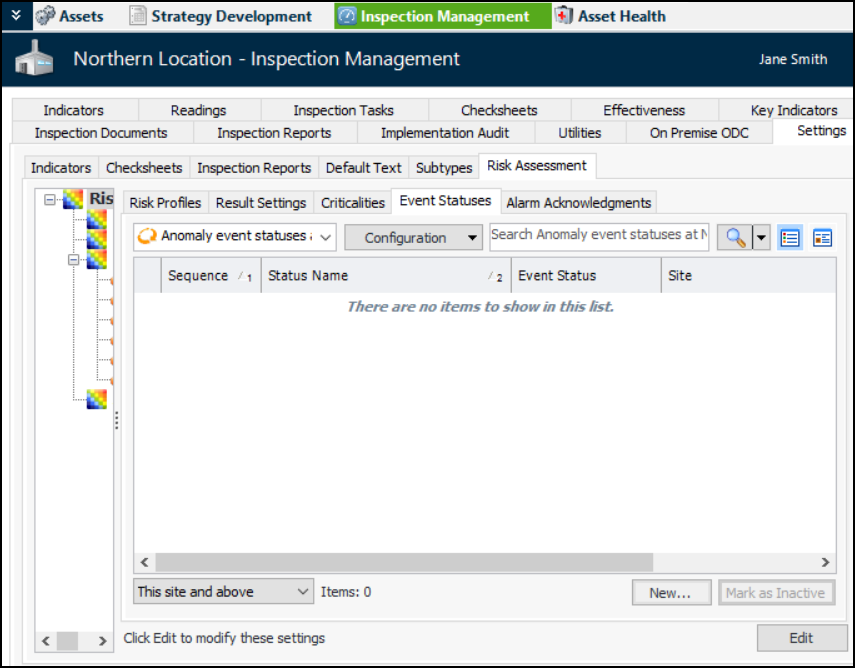
From the Site window, select the Inspection Management view and the Settings tab. Select the Risk Assessment tab and the Risk Assessment Management Settings node in the tree.
Tip: You can also select the Performance Management or Work Management view and then the Settings tab.
2.
Select the Event Statuses tab:
Tip: You can mark a status as inactive to prevent it from being used. Select it in the table and click Mark as Inactive. When you wish to make the status available, select it in the table and click Mark as Active.
3.
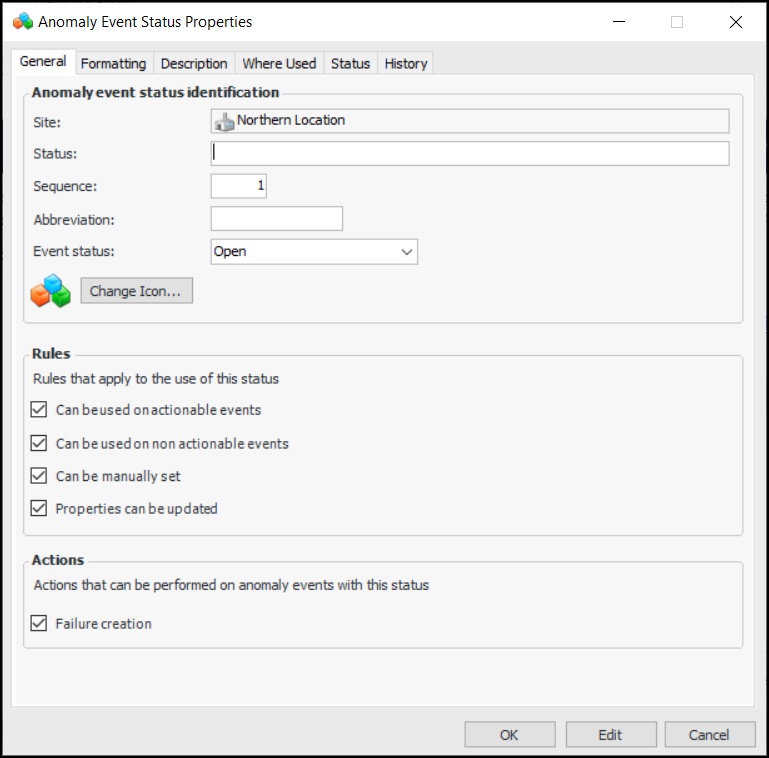
Click New. The Anomaly Event Status Properties dialog appears:
4.
5.
6.
7.
In the Event status list, specify whether the event is Open, Closed, or Rejected. When an event has the status “Open”, new alarms are not raised when the next reading is processed.
8.
To change the icon that will appear on the status, click Change Icon, select a different graphic, and click OK.
9.
10.
11.
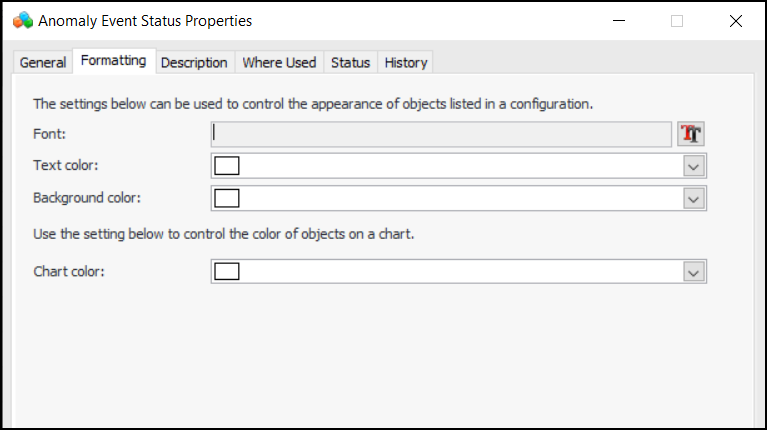
Select the Formatting tab:
12.
13.
Select the Description tab to add more information about the status.
The Where Used tab lists the anomaly events with this status.
The Status tab displays whether the status is active or inactive, as well as the active status history.
The History tab shows when the status was created and last changed.
14.
Click OK to save the status and close the dialog.