|
Setting up Anomaly Risk Assessment Results
To Set up Anomaly Risk Assessment Results
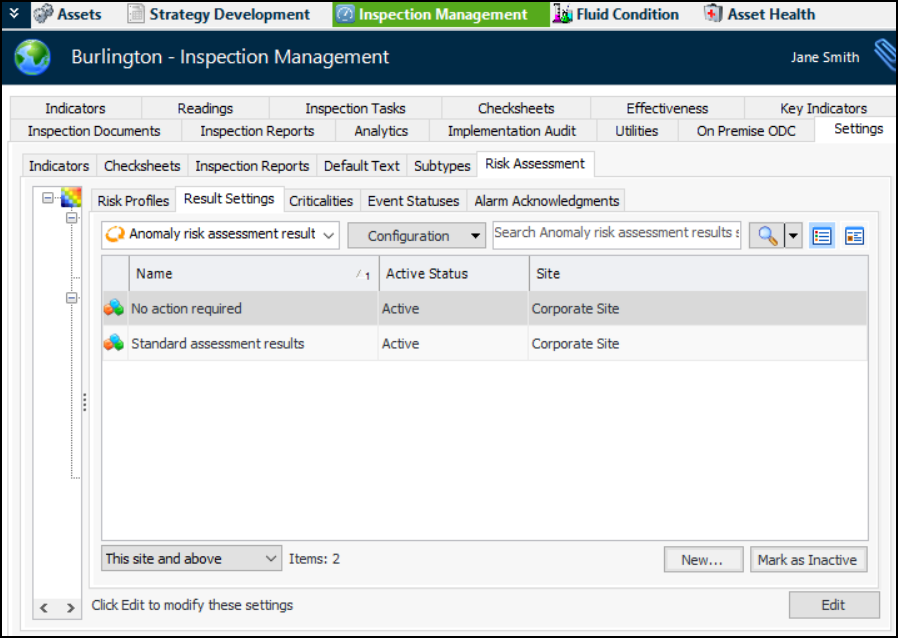
1. From the Site window, select the Inspection Management view and the Settings tab. Select the Risk Assessment tab and the Risk Assessment Management Settings node in the tree.Tip: You can also select the Performance Management or Work Management view and then the Settings tab.
2. Select the Result Settings tab:Tip: If you wish to prevent a results setting from being used, you can mark it as inactive. Select it in the table and click Mark as Inactive. When you are ready to make it available, select it in the table and click Mark as Active.
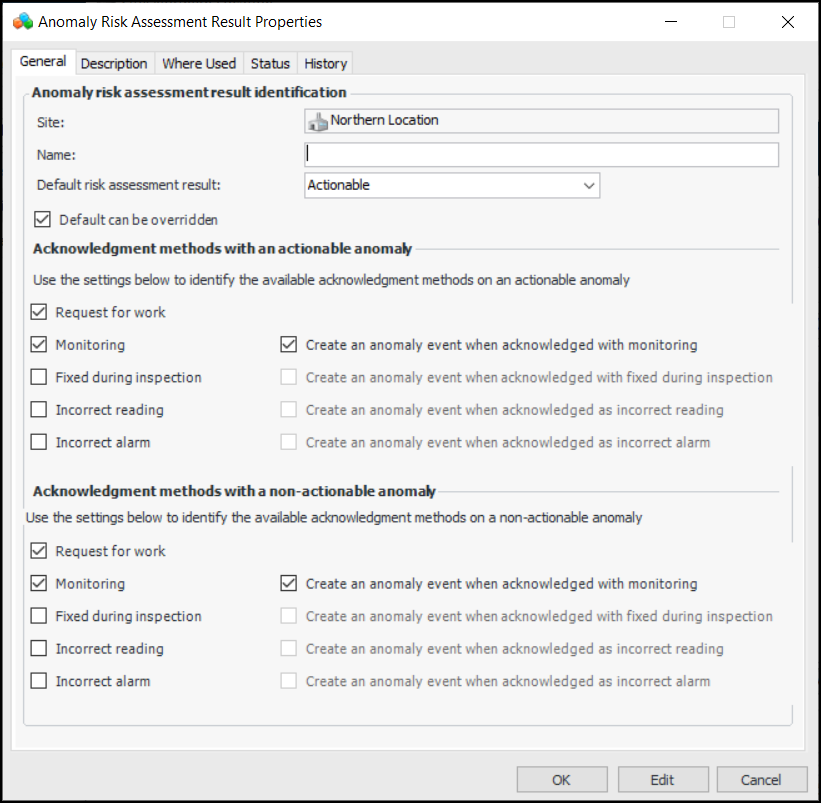
3. Click New. The Anomaly Risk Assessment Result window opens:
5. In the Default risk assessment result list, select whether the result is Actionable or Non-actionable.
7. In the Acknowledgment methods with an actionable anomaly area, select the appropriate acknowledgment methods. Specify whether an anomaly event is created when a selected method is used.
8. In the Acknowledgment methods with a non-actionable anomaly area, select the appropriate acknowledgment methods. Specify whether an anomaly event is created when a selected method is used.
9. Select the Description tab to add more information about the result.The Where Used tab will list the failure criticalities the result is used.The Status tab displays whether the result is active or inactive, as well as the active status history.The History tab shows when the result was created and last changed.
10. Click OK to save the result and close the window.