
Setting Acknowledgment Policies

The alarm acknowledgment settings allow you to select which acknowledgment methods will be used at your site and to enter the default work type to use when a user creates a work document to acknowledge an alarm. You must enter a default work type in order to acknowledge alarms using work orders, work requests, or requests for work.
Acknowledgment methods can also be disabled on individual alarm types. For more information, see Setting up Alarm Types and Notification Ranking.
You can also control whether the alarm state of an indicator reflects the alarm state of its most recent reading or that of its most severe unacknowledged alarm.
Note: A subsequent higher-severity reading puts the indicator back in an alarm state and triggers the need for re-acknowledgment even though the work order or work request used to acknowledge the previous reading is still open.
Note: This indicator alarm policy can also be set on an individual indicator’s alarm states.
Acknowledgment policies can be set differently for each site in the enterprise.
If APM uses AssetWise Enterprise Interoperability (AWEIS) to exchange data with an external CMMS, indicator alarms can be acknowledged with requests for work, rather than work requests or work orders. When interoperability is active for the site, the Acknowledgment Policies tab displays the appropriate options.
If your organization uses an APM CMMS integration plugin (SAP® Plant Maintenance, IBM® Maximo®, or Oracle® eAM) or a custom integration, you can allow alarms to be acknowledged with work documents that have already been sent to the CMMS (that is, the APM work order or request has been updated as “Sent to CMMS”).
You can specify how failures are filtered for selection, based on asset, in alarm acknowledgments.
Note: You can also set the default action for new alarm states in regard to creating failures and downtime incidents when acknowledging alarms. See Setting Acknowledgment Defaults for New Alarm States.

To Set up Acknowledgment Policies for a Site
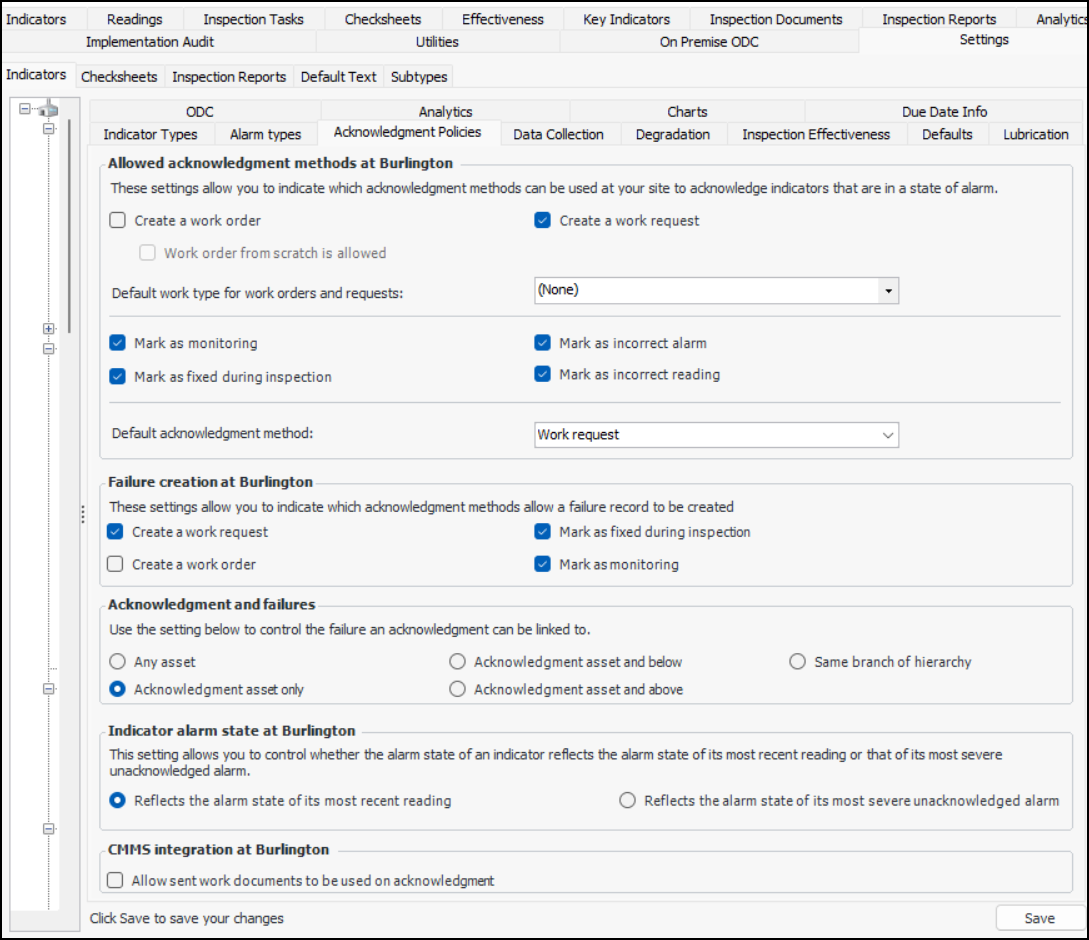
1.
From the Site window, select the Inspection Management view, the Settings tab, and then the Indicators tab. Select the Indicator Settings node in the tree.
Tip: You can also click the Administration menu, Inspection Management Settings, and then Indicator Management. The Indicator Settings window appears.
2.
Select the Acknowledgment Policies tab.
3.
Click Edit to modify the site settings. The Edit button is replaced by the Save button.
Note: When AssetWise Enterprise Interoperability (AWEIS) is active for the site, Create a work order is not available. Create a work request is replaced by Create a request for work.
Note: The CMMS integration area is available only when integrations are active for the site.
4.
If this option is cleared, the Create a new work document option will not be available in the Acknowledge Indicator Alarm dialog.
Select this option to allow users to acknowledge indicator alarms by selecting the Monitoring option. If this option is cleared, Monitoring will not be available in the Acknowledge Indicator Alarm dialog.
If this option is cleared, the Fixed during inspection option will not be available in the Acknowledge Indicator Alarm dialog. However, users will still be able to mark an alarm as fixed when entering indicator readings.
If this option is cleared, the Incorrect reading option will not be available in the Acknowledge Indicator Alarm dialog. However, users will still be able to mark readings that did not cause alarms as being incorrect.
5.
In the Failure creation area, select the acknowledgment methods that support the creation of failure records.
6.
In the Acknowledgment and failures area, select a setting to determine how failures are filtered for selection when linking an acknowledgment to a failure record. Options are:
Any asset – All failures at the site are available for selection
Acknowledgment asset and below – Failures for the acknowledgment’s asset and below in the hierarchy are available
Same branch of the hierarchy – Failures for acknowledgment’s asset and assets above and below in the hierarchy are available
Acknowledgment asset only – Only failures for the asset associated with the acknowledgment are available
Acknowledgment asset and above – Failures for acknowledgment’s asset and above in the hierarchy are available
7.
Most recent reading - Whenever a new reading is processed for an indicator that has an unacknowledged alarm, the alarm state of the indicator is re-evaluated and either raised or lowered depending on the value of the new reading. The previous unacknowledged reading is marked as missed and the new reading, assuming it’s an alarm, becomes the reading that requires acknowledgment. In situations where the latest reading is a normal one, the indicator alarm is turned off altogether and no acknowledgment is required.
Most severe unacknowledged alarm - An indicator’s alarm level can only increase in severity as subsequent more severe readings are entered. It will not be turned off or reduced in severity by a subsequent normal or less severe reading. Instead, the alarm remains in effect until all of the unacknowledged alarm readings for the indicator have been explicitly acknowledged. When new readings are entered, previously entered unacknowledged readings are not marked as missed but remain with an acknowledgment status of either “waiting for acknowledgment” or “Re-acknowledgment required”, as the case may be.
8.
Click Save.