
|
Setting Up Work Weeks
To Define Work Weeks
1. From the Site window, select the Administration menu and then Work Management Settings. The Work Management Settings dialog appears. Select the Schedules tab.Tip: You can also select the Work Management view on the site window. Select the Settings tab and then the Scheduling tab. Click the Scheduling settings node in the tree.
2. Select the Weeks tab.
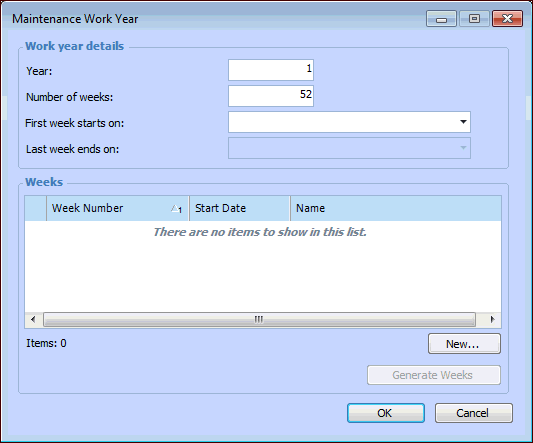
3. To define the weeks for a year, click New. The Maintenance Work Year dialog appears.
6. You can manually add weeks to a year, or you can click Generate Weeks and APM will generate the year’s weeks for you. A generic name of Week 1, Week 2, and so on, is assigned to each week. If necessary, you can change the name by opening each week.Note: After the weeks have been generated, or if you manually create one or more weeks, the Generate Weeks button is disabled. If you need to rerun the generation, you must first delete the year’s weeks. The Generate Weeks button is enabled again.