|
Setting up Study Step Types
To Set up a Study Step Type
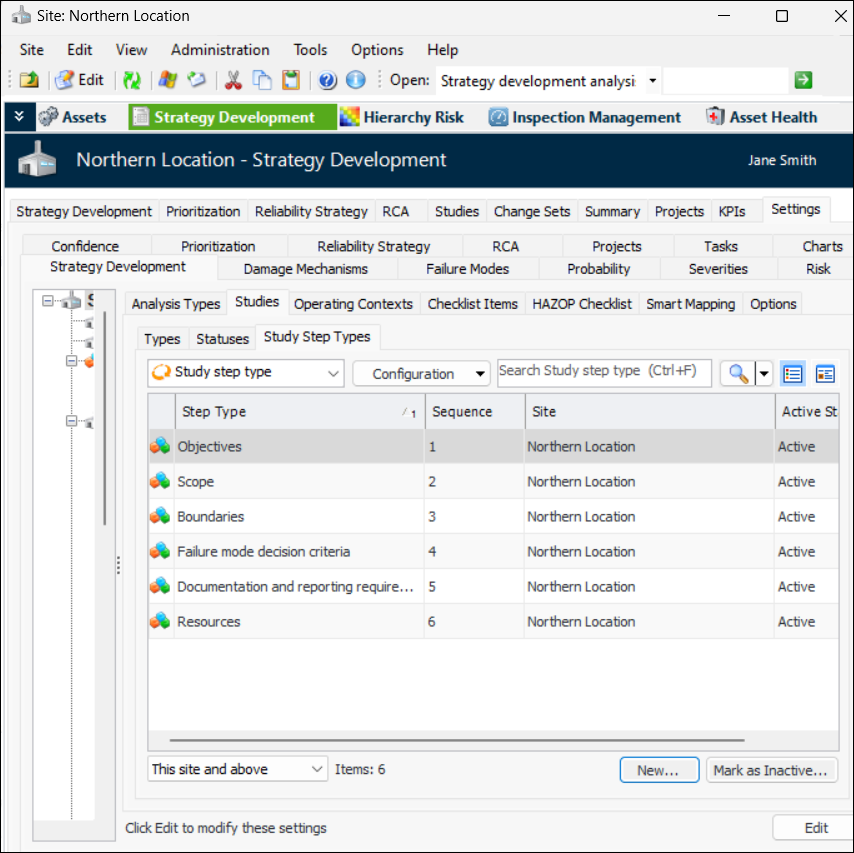
1. From the Site window, select the Strategy Development view, Settings tab and then the Strategy Development tab. Select the Strategy development settings node in the tree.Tip: You can also select the Administration menu, Strategy Development Settings, and then Strategy Development. The Strategy Development Management Settings dialog appears.
2. Select the Studies tab and then the Study Step Types tab. This tab lists all of the study types that have been defined for the site.
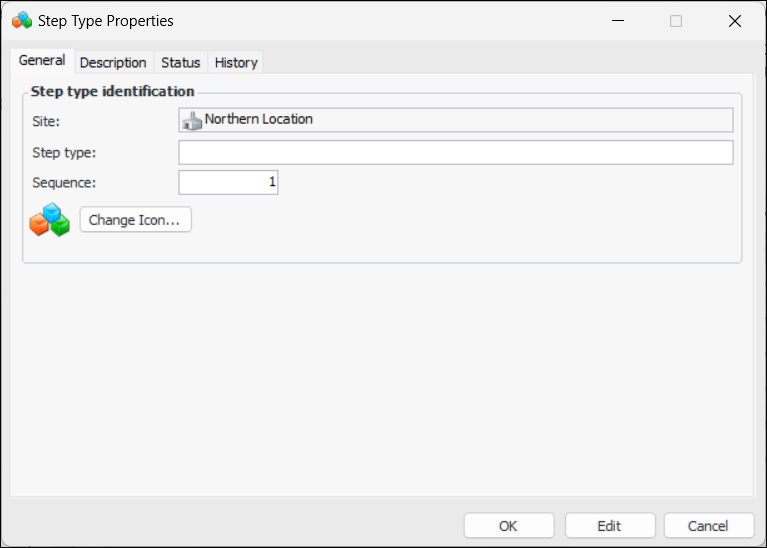
3. Click New. The Step Type Properties dialog appears:
6. To select a different icon for the step type, click Change Icon. Select the new icon and then click OK.
7. Select the Description tab to add information about the step type.The Status tab displays information about the step type’s active status. The History tab displays information about the step type’s creation and update history.
8. When you are finished defining the step type, click OK. The step type is added to the Study Step Types table.