|
Setting up Analysis Types
Note: You can also create analysis types for asset prioritization and asset condition analysis. See Setting up Analysis Types for Asset Prioritization and Setting up Analysis Types for Asset Condition Analysis.Note: Site filtering rules for analysis team members is a “generally available” product feature. You must first enable feature 97 to use the functionality in APM. In the Enterprise window, select the Features view and the Enabled Features tab. Click Browse, select “Support site filtering rules for analysis members” and click OK. If APM is running as a smart client, click Refresh Enabled Features on the server. Then restart the client to use the functionality.
• Failure mode options – For example, hide or show the Failure mode identification area and Failure mode note sidebar in Maintenance Action Plan windows. Set options for avoidance savings and maintenance cost feasibility and set options for indicator search values. You can also set UI formatting options that determine what tabs are displayed in the Maintenance Action Plan window
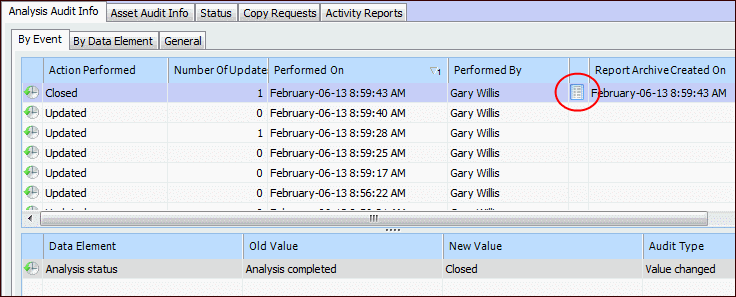
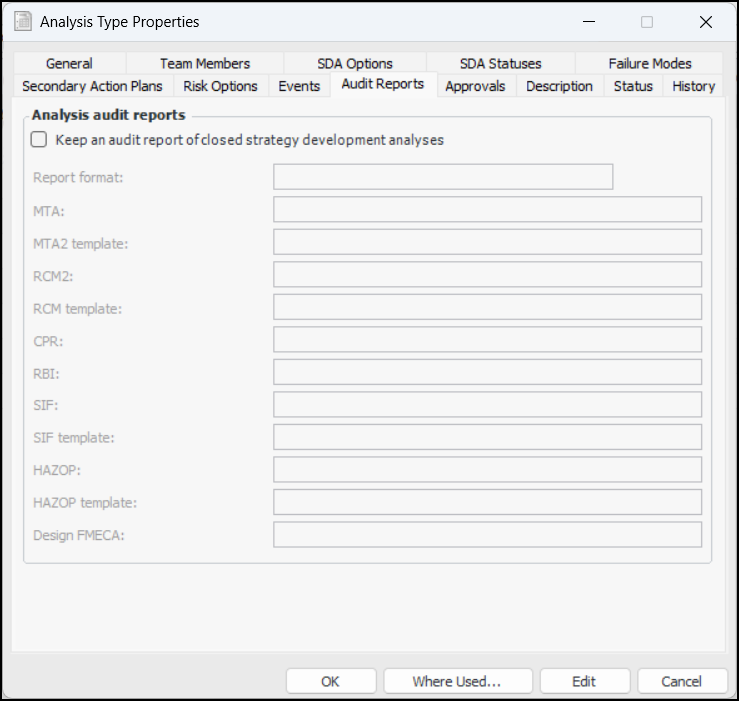
• Audit report options – When a strategy development analysis or template is marked “Closed”, an audit report can be created and added to the analysis’s History view, Analysis Audit Info tab. For example:On the Audit Reports tab, you can enable this feature, select the report format, and select report types for each of the kinds of analysis.You can also view the history of the analysis type. The History tab displays changes to the type and includes the user responsible for the change, the date, and the before and after values of the property that changed.Tip: Click Where Used at the bottom of the Asset Analysis Type window when you wish to see lists of the analyses, studies, and asset prioritization analyses that use the type.To Set up an Analysis Type
1. From the Site window, select the Strategy Development view, Settings tab and then the Strategy Development tab. Select the Strategy development settings node in the tree.Tip: You can also select the Administration menu, Strategy Development Settings, and then Strategy Development. The Strategy Development Management Settings dialog appears.
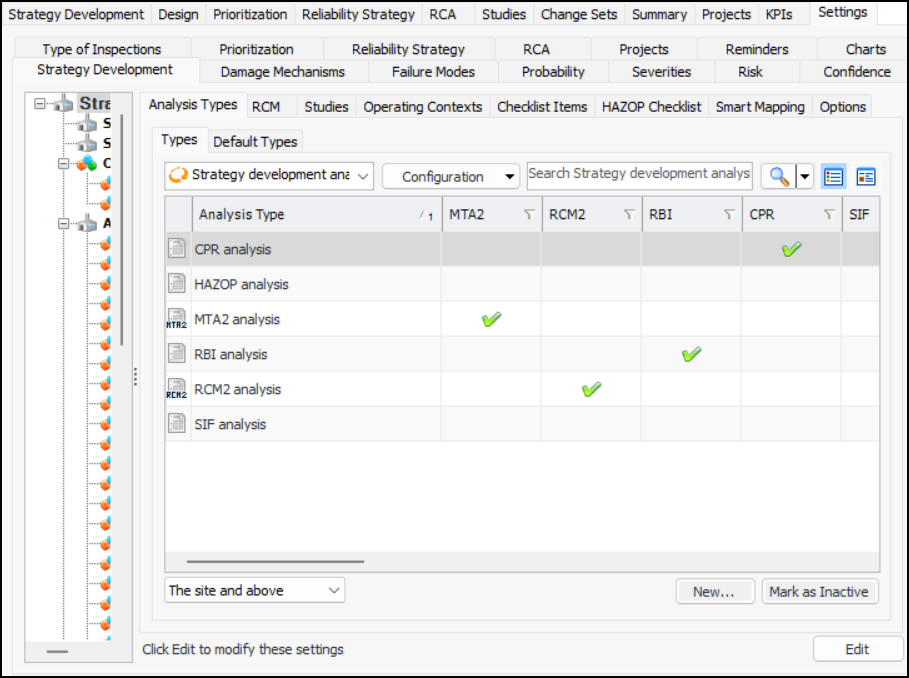
2. Select the Analysis Types tab. This tab lists the analysis types at your site. For example:Tip: While you are developing an analysis type, you can mark it as inactive until it is ready to be used. Select the type in the table and click Mark as Inactive. The Mark as Inactive/Active dialog appears, where you can enter a comment. When you click OK, a confirmation message appears. Click OK. When you are ready, click Mark as Active to make the type available.
3.
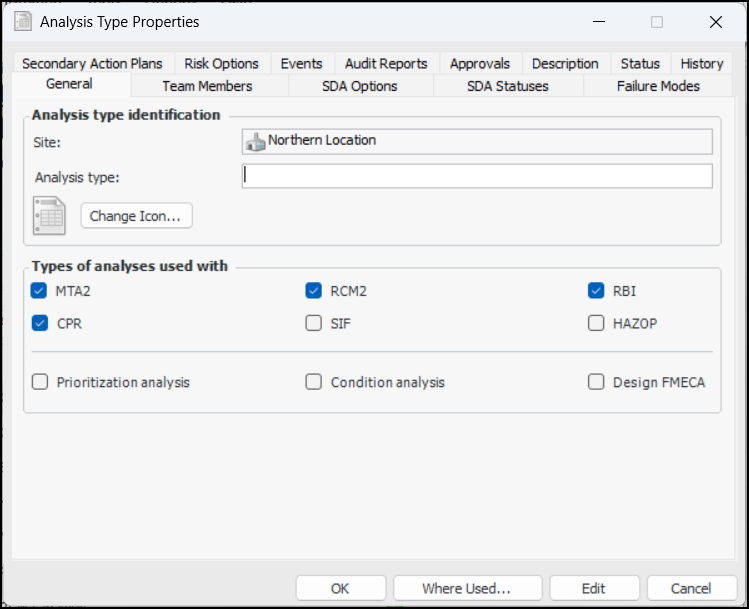
5. To change the image that represents this type, click Change Icon, select a different image, and click OK.Note: The tabs and options available vary depending on the kinds you select. For example, if the analysis type supports CPR only, the Risk Options tab is not available. This topic shows the window when all analyses except prioritization and condition analysis are selected. For information about asset prioritization and condition types, see Setting up Analysis Types for Asset Prioritization and Setting up Analysis Types for Asset Condition Analysis.
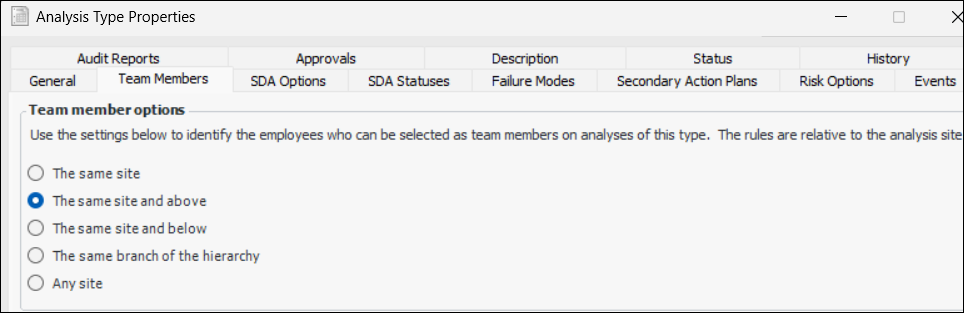
7. Select the Team Members tab.
8.
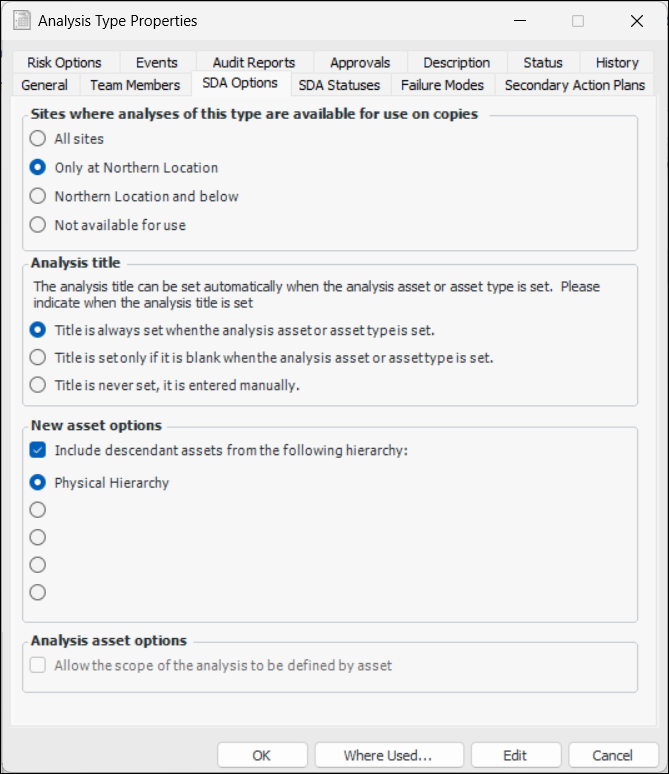
9. Select the SDA Options tab.
12. In the New assets options area, you can specify the default selection when assets are added to an analysis. Select the option to have an asset’s descendants from the specified hierarchy included.
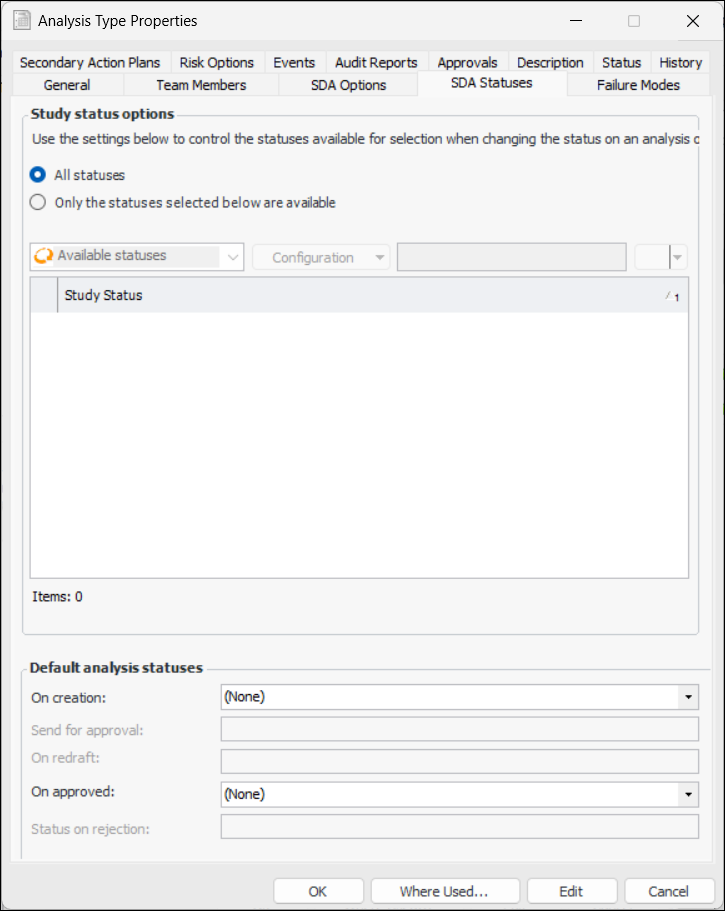
14. Select the SDA Statuses tab. Study statuses are applied to analyses to control the actions, events, and rules available to them.
15. By default, all statuses are available for use. To restrict statuses, select Only the statuses below are available. The table is populated with the statuses defined for the site. Select the statuses to be available.
16. In the Default analysis statuses area, select a status to be applied whenever the analysis’ system status changes. For example, when an analysis is created, it could automatically be given the status “Draft”.
17. Select the Failure Mode Options tab. See Setting Failure Mode Options for Analysis Types for more information.
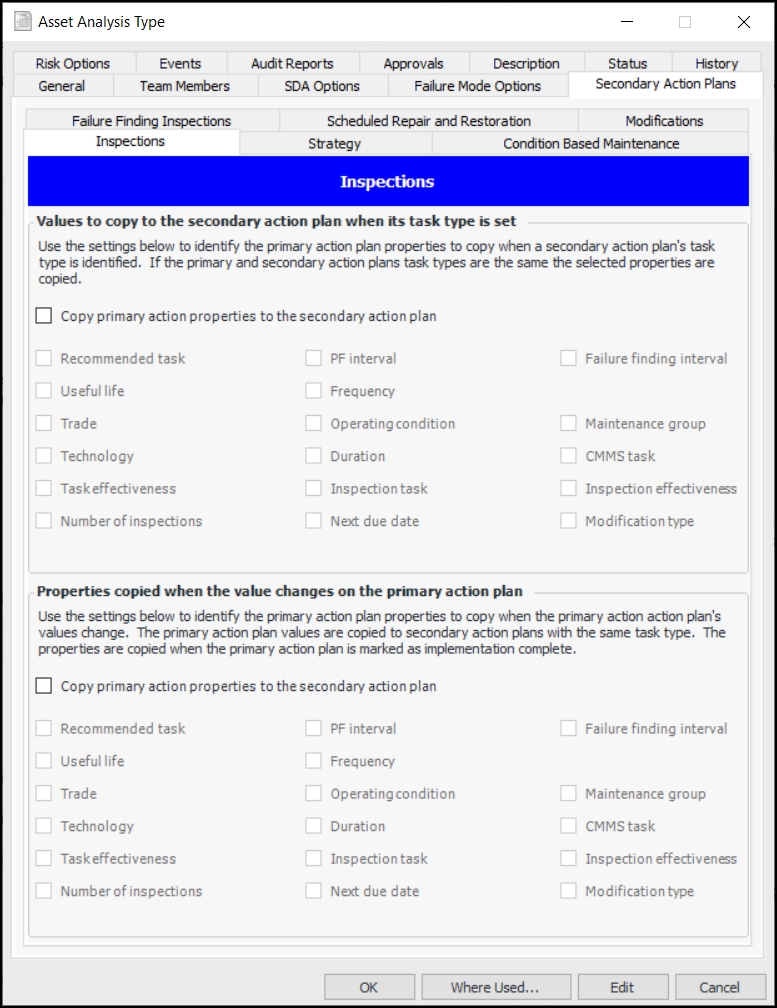
18. Select the Secondary Action Plans tab.
•
20. Select the Risk Options tab. See Setting Risk Analysis Options for Analysis Types for more information.
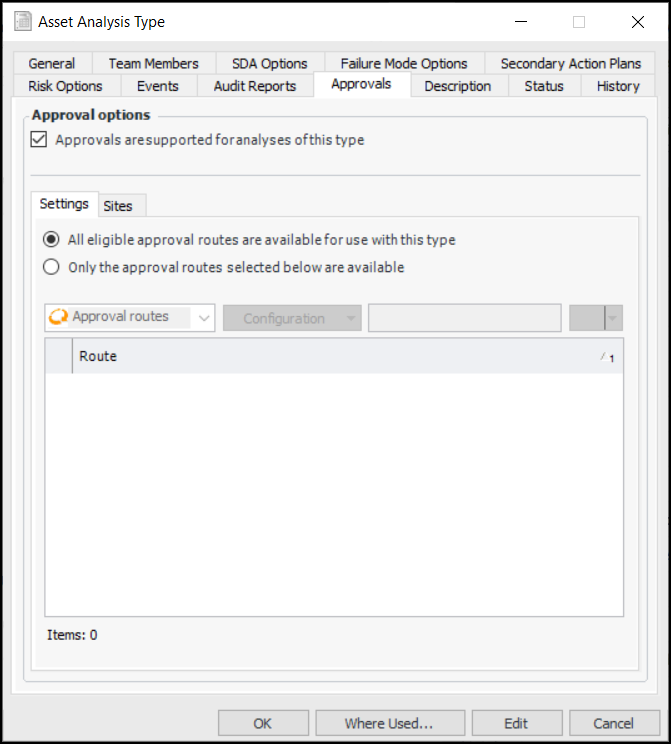
21. Select the Approvals tab. If analyses of this type are to be sent for approval, click Approvals are supported.
22. To specify the approval routes available for analyses of this type, click Only the approval routes selected below are available. The table lists routes that approve safety objects. Select one or more routes.Select the Sites tab to see which sites support analysis approval settings.
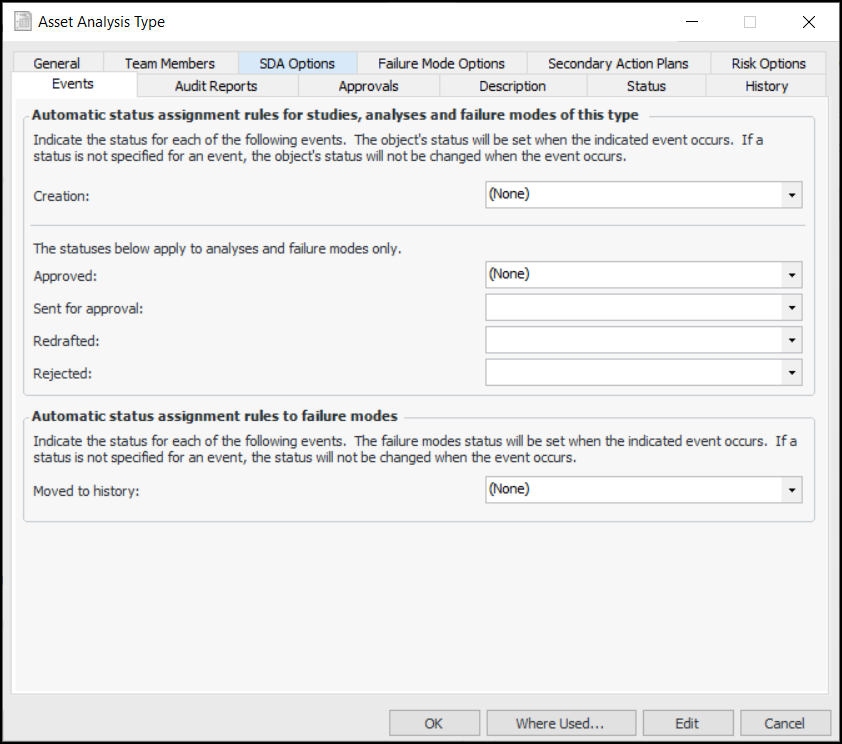
23. Select the Events tab. Here is an example when approvals have been enabled:
25.
Type of MTA2 report to be created and added to the History view, Analysis Audit Info tab when the MTA2 is marked “Closed”.
Type of MTA2 report to be created and added to the History view, Analysis Audit Info tab when the MTA2 template is marked “Closed”.
Type of RCM2 report to be created and added to the History view, Analysis Audit Info tab when the RCM2 analysis is marked “Closed”.
Type of RCM2 report to be created and added to the History view, Analysis Audit Info tab when the RCM2 template is marked “Closed”.
Type of CPR report to be created and added to the History view, Analysis Audit Info tab when the current practice review is marked “Closed”.
Type of RBI report to be created and added to the History view, Analysis Audit Info tab when the risk-based inspection analysis is marked “Closed”.
Type of SIF report to be created and added to the History view, Analysis Audit Info tab when the analysis is marked “Closed”.
Type of report to be created and added to the History view, Analysis Audit Info tab when the HAZOP analysis is marked “Closed”.
Type of report to be created and added to the History view, Analysis Audit Info tab when the HAZOP template is marked “Closed”.
Type of report to be created and added to the History view, Analysis Audit Info tab when the design FMECA is marked “Closed”.
27. Select the Description tab to add more information.
28. When you have finished defining the analysis type, click OK. The type is added to the table.To Set Default Analysis Types
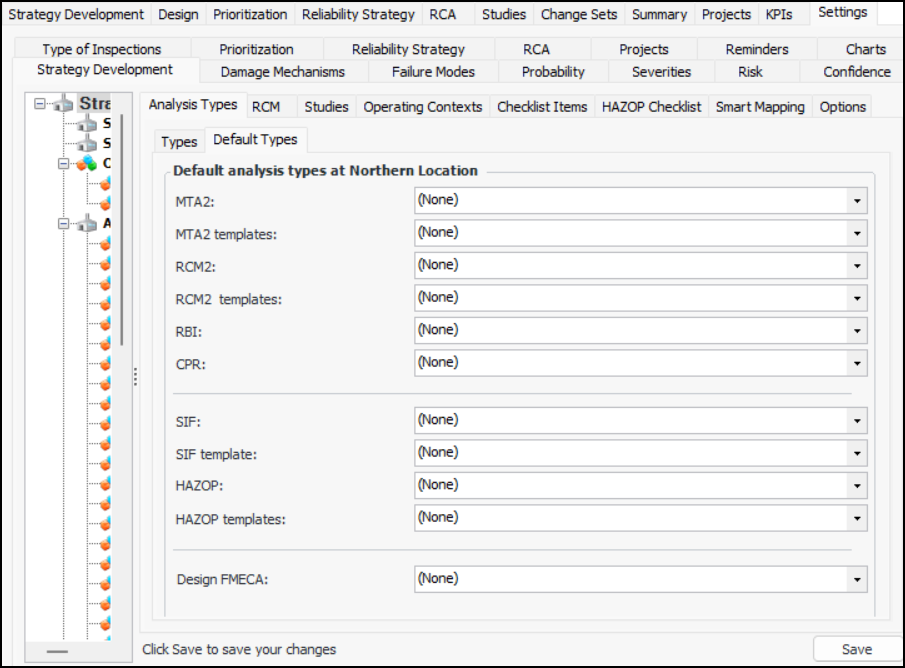
1. From the Site window, select the Strategy Development view, Settings tab and then the Strategy Development tab. Select the Strategy development settings node in the tree.Tip: You can also select the Administration menu, Strategy Development Settings, and then Strategy Development. The Strategy Development Management Settings dialog appears.
2.
3.
5.