|
Setting up Evaluations with the Category Answer Matrix
The category answer matrix is only supported for simple evaluations with one level of questions. Evaluations must be presented as embedded forms, meaning that the user opens the Maintenance Action Plan window, selects the Risk tab, and then selects options. This choice can be set in the risk options of the analysis, analysis type, or asset type.
•Anatomy of an Evaluation
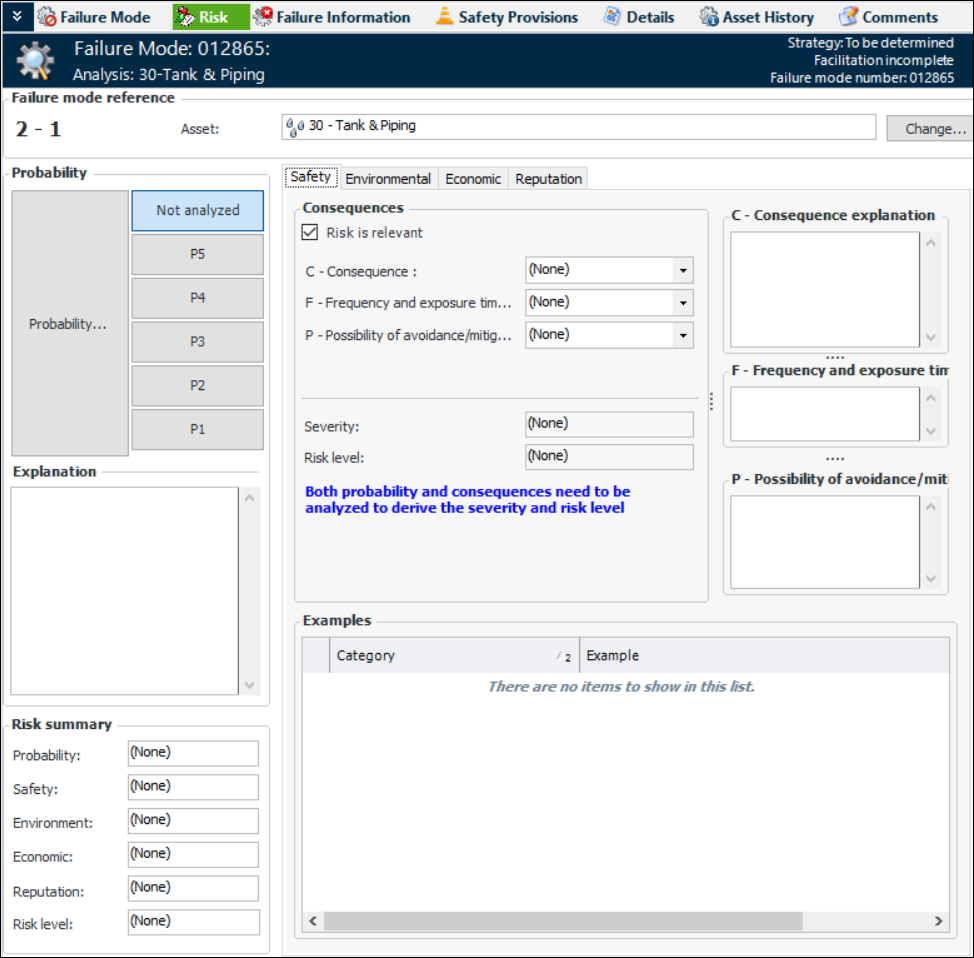
Example Evaluation
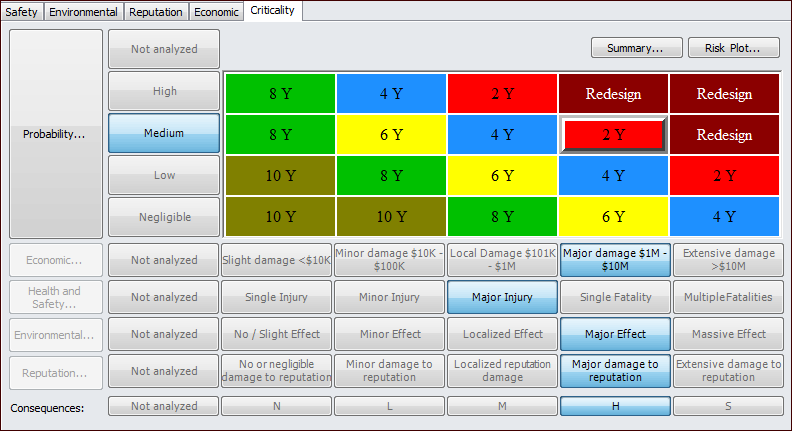
To complete the Safety evaluation, the analyst selects options for each consequence category (for example, Frequency or exposure time) and enters comments. The selection with the highest severity score determines the severity assigned to the evaluation, which is shown in the Severity box. The risk level for that entry is shown in the Risk level box and the Safety box in the Risk summary area.In the Risk summary area, the Risk level box shows the overall risk level for the failure mode, which is the highest level assigned to any of the evaluations.The analyst can select the Criticality tab to view a risk matrix summarizing the severities of the evaluations. For example:To Set up an Evaluation with a Category Answer Matrix
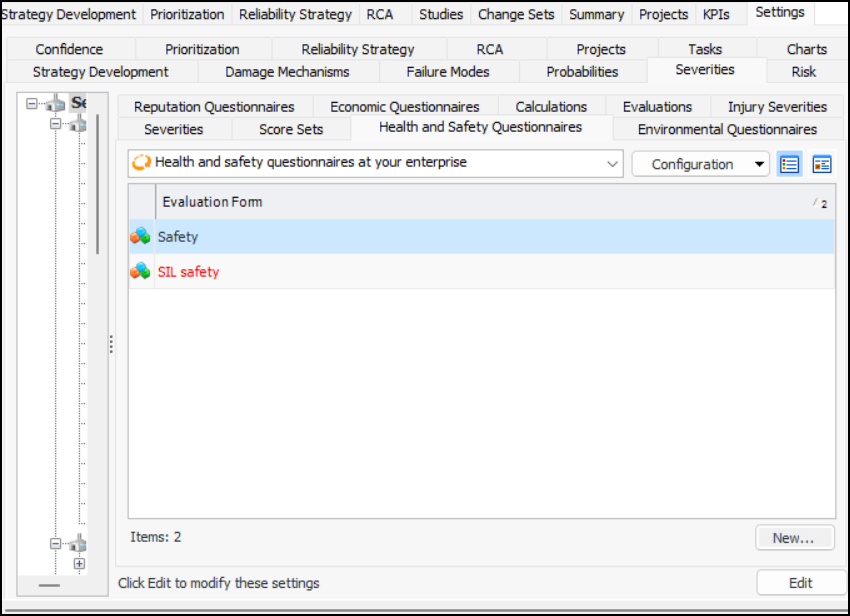
1. On the site’s Strategy Development view, select the Settings tab, the Severities tab, and the Severities settings node in the tree.Tip: You can also select the site’s Administration menu, Strategy Development Settings, Risk Analysis and then Severities. The Strategy Development - Severities Settings dialog appears.
2. Select the Questionnaires tab for the type of evaluation you are creating, for example, Health and Safety Questionnaires.
3. Click New. The Evaluation Form window appears.
5.
6. Select Category answer matrix. This option is only available when Only simple evaluations are supported is selected. It is not available for probability or confidence evaluations.To Create Categories and Questions
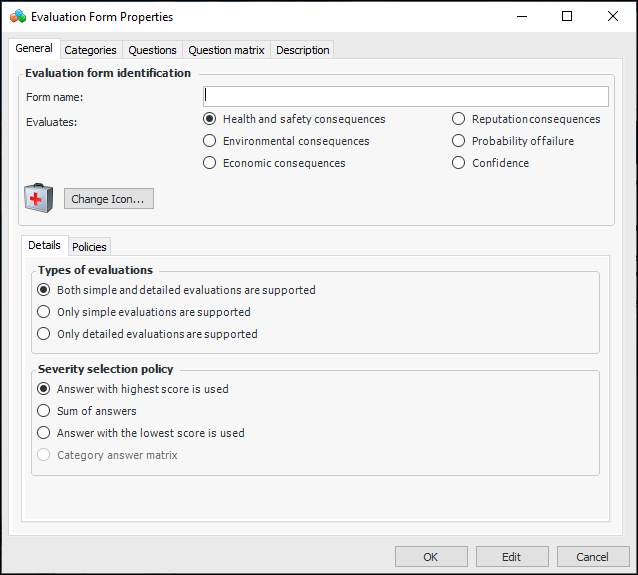
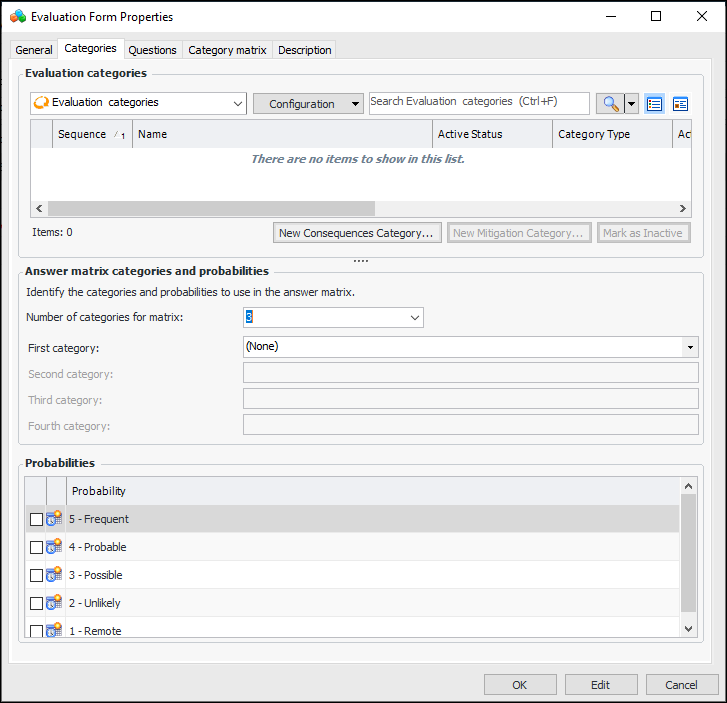
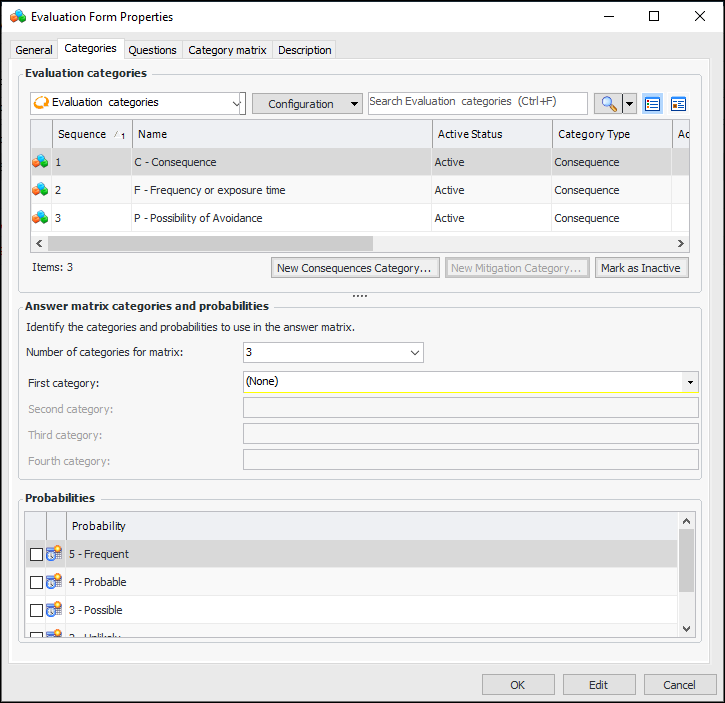
1. On the Evaluation Form Properties dialog, select the Categories tab.
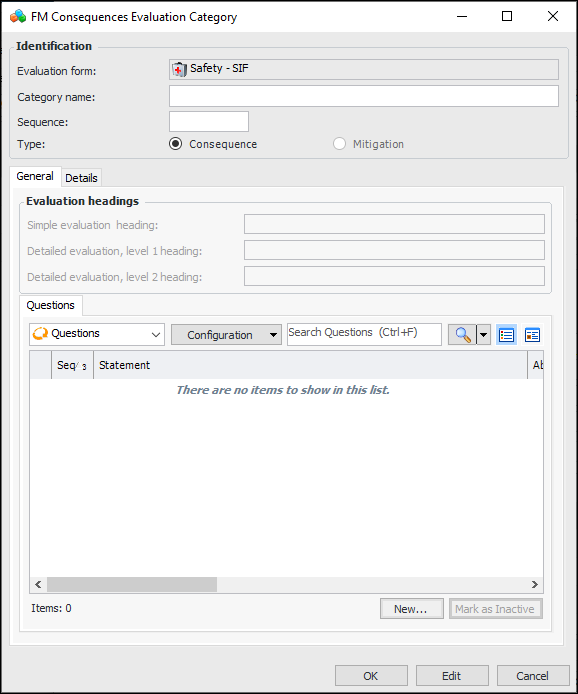
2. Click New Consequences Category. The FM Consequences Evaluation Category window appears.
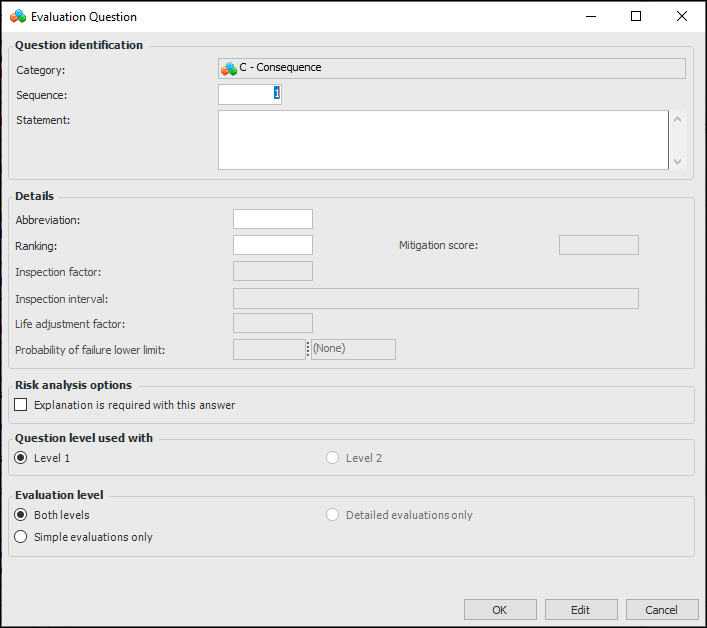
4. Click New. The Evaluation Question window appears.
6.
7.
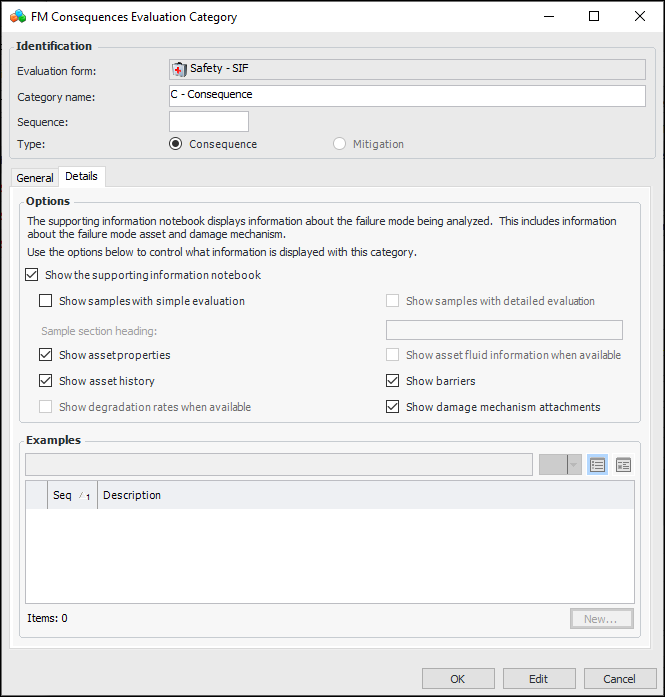
8. Select the Details tab to set supporting information options. For example:
The heading that appears at the top of the Samples tab for this category in the questionnaire.
When this option is selected, the supporting information notebook contains the Asset Properties tab. This tab provides the failure mode asset’s properties on several tabs.
When this option is selected, the supporting information notebook contains the History tab. This tab provides the failure mode asset’s checksheets, failures, work orders, and work requests.
When this option is selected, the supporting information notebook contains the Barriers tab. This tab lists the failure mode asset’s failure barriers.
When this option is selected, the supporting information notebook contains the Attachments tab. If the RBI failure mode was created from a damage mechanism, this tab lists the damage mechanism’s attachments.
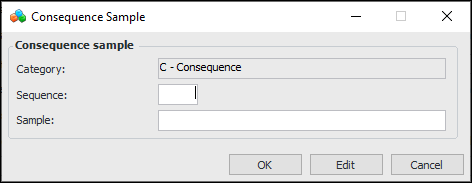
10. For each example, click New. The Consequence Sample dialog appears:
•
11. Tip: While you are developing an evaluation, you can mark a category as inactive until it is ready to be used in risk analyses. On the Categories tab, select the category in the table and click Mark as Inactive. The Mark as Inactive window appears, where you can enter a comment. When you click OK, a confirmation message appears. Click OK. The category’s Active Status in the table is shown as “Inactive”. When you are ready, click Mark as Active to make the category available.
12. In the Answer matrix categories and probabilities area, select the number of categories to use in the matrix. The maximum number is 4.
15.
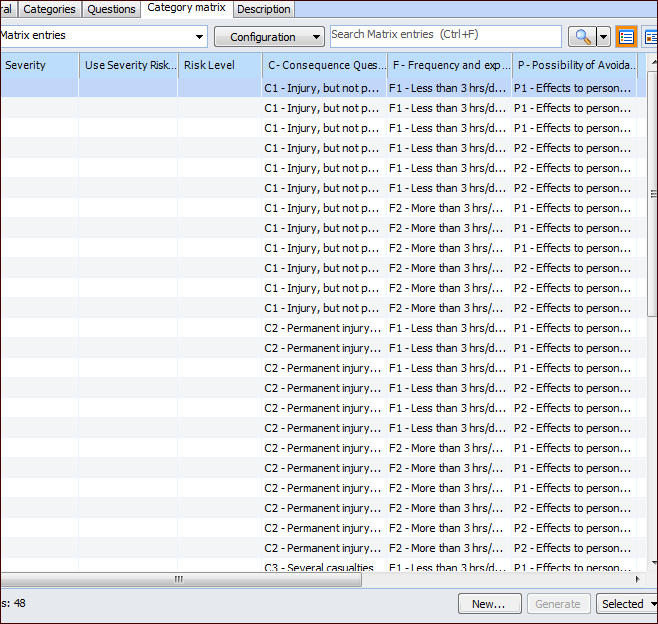
16. Select the Category Matrix tab. Click Generate. A matrix entry is created for each combination of category question and probability. For example:
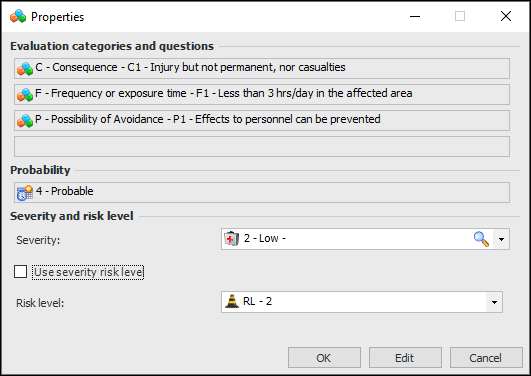
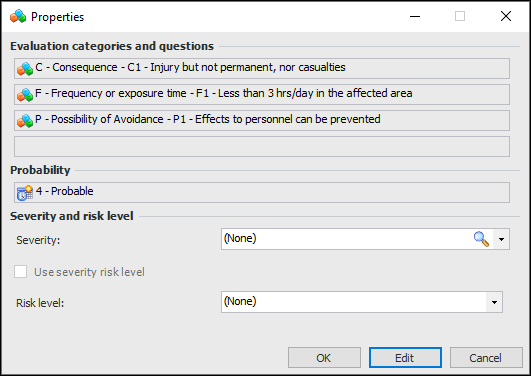
17. Open each of the entries in turn and click Edit. For example:Each box in the Evaluation categories and questions area displays one of the categories that you selected on the Categories tab, along with one of the category’s questions. The Probability box displays one of the probabilities that you selected on the Categories tab.
19. Click OK to save and close the entry.
20. Select the Description tab to enter additional information.
21.