|
Setting up Reminder Types
Note: Reminders are a generally available product feature. You must first enable feature 139 to use the functionality in APM. In the Enterprise window, select the Features view and the Enabled Features tab. Click Browse, select “Reminders and assignments” and click OK. If APM is running as a smart client, click Refresh Enabled Features on the server. Then restart the client to use the functionality.To Create a Reminder Type
1. From the Site window, select the Work Management view and the Settings tab. Select the Reminders tab and the Reminder management settings node in the tree.
2. Select the Types tab.
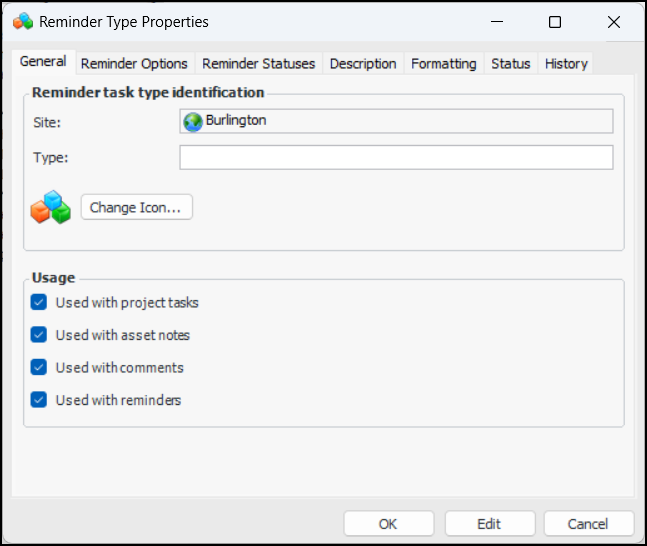
3. Click New to open the Reminder Type Properties dialog:
5. If you wish to change the graphic that identifies the type, click Change Icon, select a different image, and click OK.
6. The Usage options identify the objects with which the type can be used. Select or clear the options as appropriate:
•
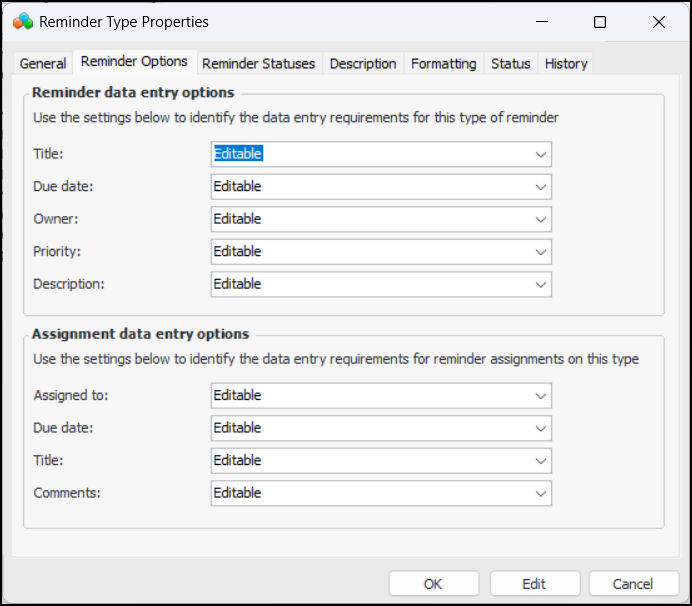
7. Select the Reminder Options tab.
8. In the Reminder data entry options area, select a data entry option for the Title, Due date, Owner, Priority, and Description values. The options are:
9. In the Assignment data entry options area, select a data entry option for the Assigned to, Due date, Title, and Comments values.
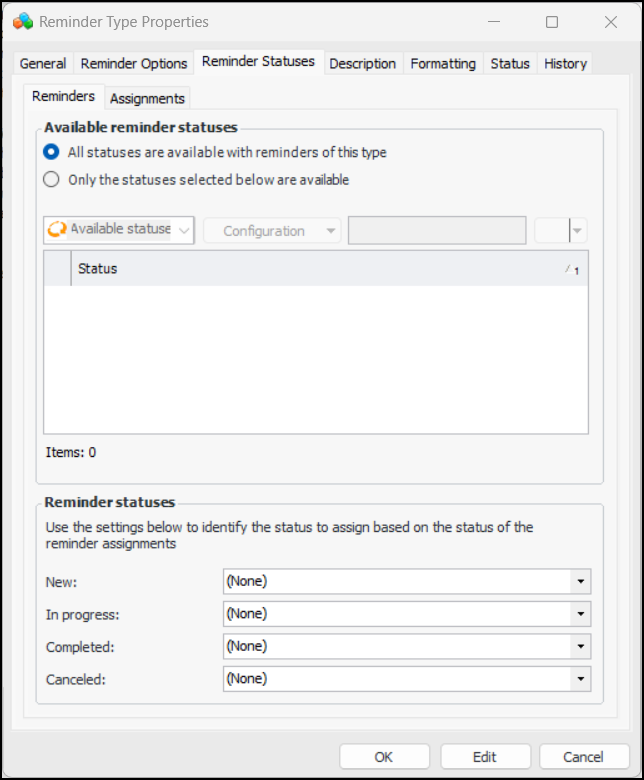
10. Select the Reminder Statuses tab. On the Reminders tab, you can restrict the statuses available on reminders of this type. You can also set the reminder status based on the status of its assignments.
11. To restrict reminders of this type to specific statuses, click Only the statuses selected below are available. The table is populated with existing reminder statuses. Select the appropriate statuses.
12. In the Reminder statuses area, select statuses to be assigned to reminders when their assignments have the status New, In progress, Completed, and Canceled. For example, when an assignment is marked as “Canceled”, you could specify that the reminder also be canceled.
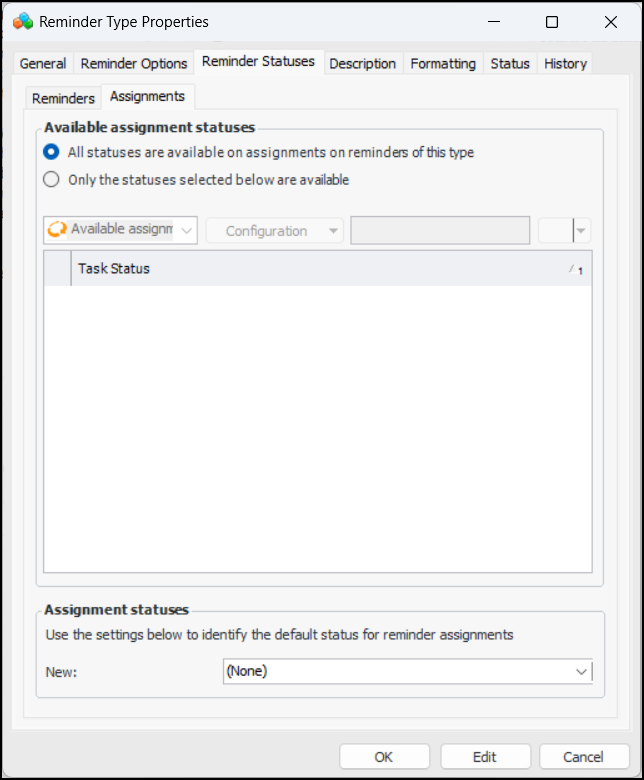
13. Select the Assignments tab. On this tab, you can restrict the statuses available on assignments of this type. You can also set the default status given to new assignments.
14. To restrict assignments of this type to specific statuses, click Only the statuses selected below are available. The table is populated with existing statuses. Select the appropriate statuses.
15. In the Assignment statuses area, select the default status for new assignments.
16. Select the Description tab to add more information about the reminder type.
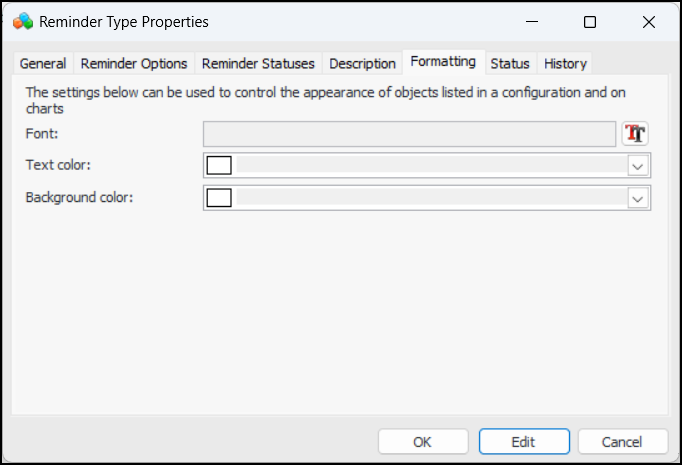
17. Select the Formatting tab.
19.