Setting up Risk Matrices

You can set up risk matrices for use in strategy development analyses when risk analysis is warranted for the failure mode or its demand scenarios.
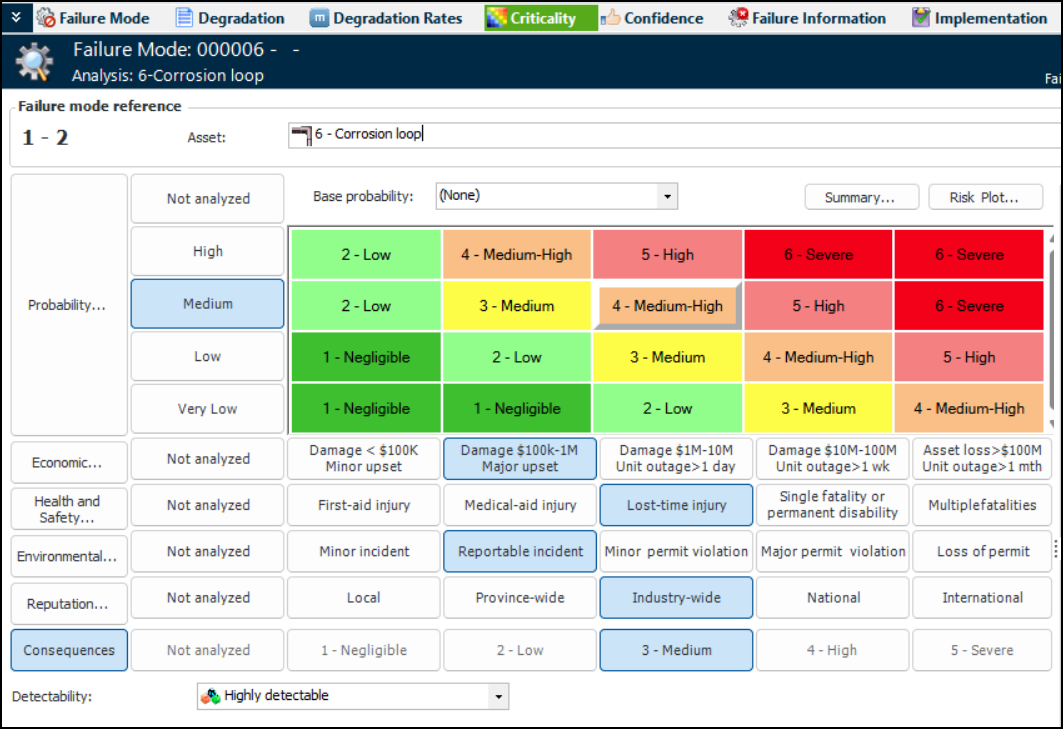
Criticality or risk is defined as the combination of two parameters: the likelihood or probability of failure and the consequences of failure. The risk matrix displays this combination, with four to eight criticality levels and four to eight probability levels. Here is an example of a 5 x 5 chart:
Note: If you wish to add one or more consequences to your matrix, be sure to add the corresponding number of severities in each category.
A separate risk matrix entry is created for each combination of consequence and probability. For example, if you have four consequence priorities (negligible, low, medium, and high) and four probabilities (remote, possible, probable, and frequent), 16 risk matrix entries would be defined. The size of the matrix is shown as 4X4. More than one risk matrix entry can have the same label (for example, “Medium”) and color.
You can create risk matrix entries manually or using the Generate function to create an entry for any combination for which an entry does not exist. Once you have generated entries, you can edit their labels and color and change their criticality levels, if appropriate.
The strategy selected on the risk matrix entry can be copied to the failure mode’s action plan. For example, a risk matrix entry that records “Medium-high” criticality could recommend “Condition based maintenance or inspections” as the failure mode strategy with a frequency of “2 years”. To set this up:
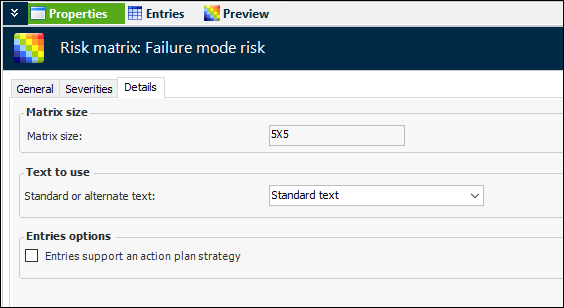
On the risk matrix, select the Details tab and click Entries support an action plan strategy.
On the strategy development analysis, ensure that the risk options include Default the action plan strategy and frequency from the risk matrix.
When the analysis team develops an action plan that recommends scheduled restoration or discard, condition-based maintenance, or failure-finding maintenance, they will find that the frequency has been provided from the criticality analysis.
If your APM environment is configured to use AssetWise Enterprise Interoperability and anomaly risk assessment and integration, you must create or edit a risk matrix to work with anomaly risk assessment. For more information, see Setting up APM for Anomaly Risk Assessment and Integration.
This topic explains how:

To Set up a Risk Matrix

1.
On the site’s Strategy Development view, select the Settings tab, the Risk tab, and the Risk settings node in the tree.
Tip: You can also select the site’s Administration menu, Strategy Development Settings, Risk Analysis and then Risk Analysis. The Risk Process and Matrix Settings dialog appears.
2.
Select the Risk Matrices tab.
3.
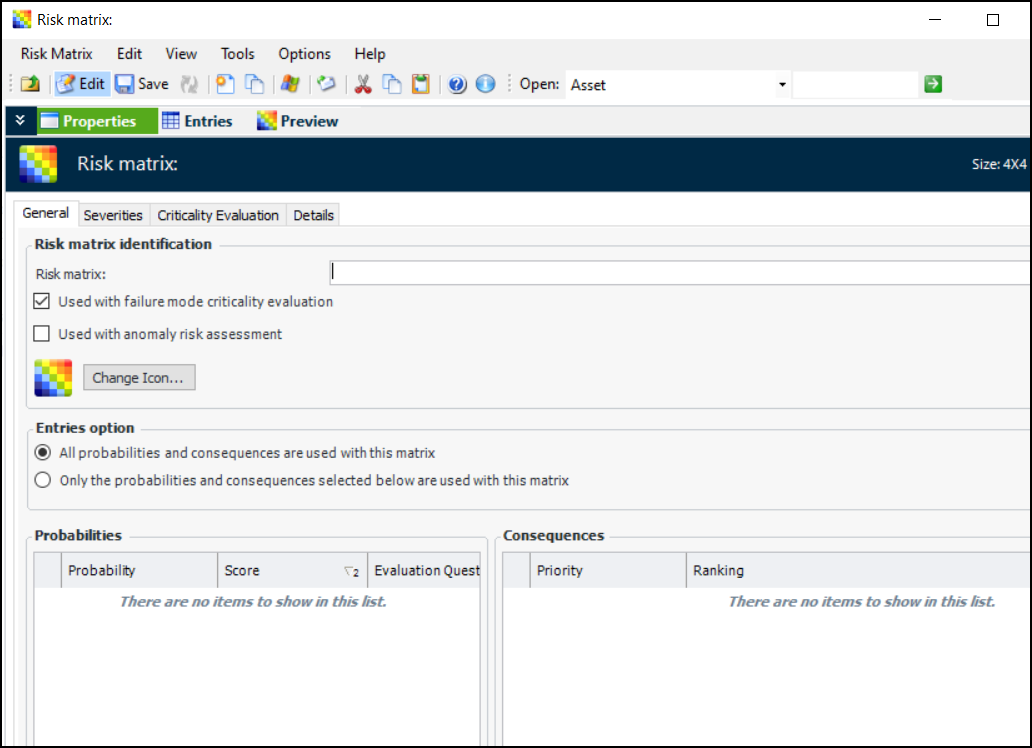
Click New. The Risk Matrix window appears, showing the Properties view and the General tab.
4.
5.
6.
If you are using anomaly risk assessment, select Used with anomaly risk assessment.
7.
To replace the image that identifies the risk matrix, click Change Icon, select a different icon, and click OK.
8.
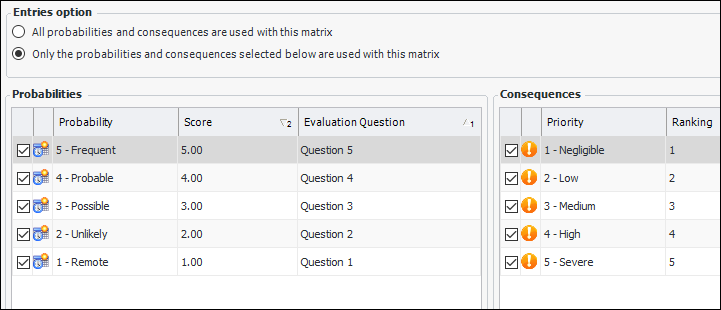
By default, all of the probabilities, consequences, and severities defined for the site are used in the risk matrix. To limit the values, click Only the probabilities and consequences selected below are used with this matrix. On this and the Severities tabs, a selection check box becomes available for each option. For example:
On the General and Severities tabs, clear the items that you want to exclude from the matrix. Ensure that you have selected as many severities in each category as there are selected consequences.
9.
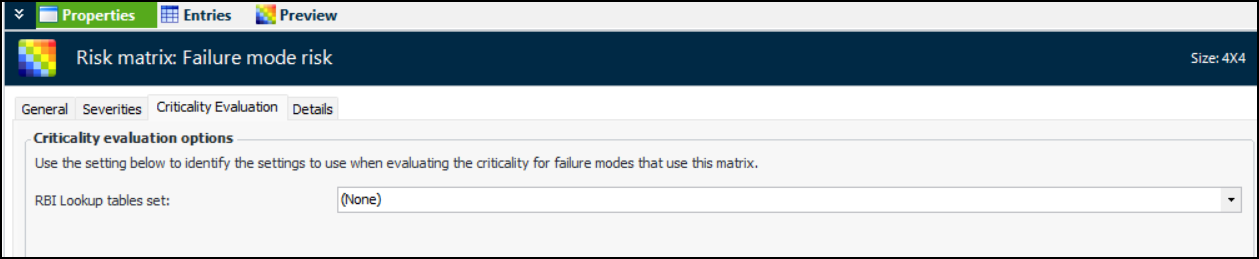
Select the Criticality Evaluation tab, if available.
10.
11.
Select the Details tab.
The Matrix size value is updated when the entries are generated. The first number is the quantity of probability values. The second number is the quantity of consequences.
12.
13.
14.
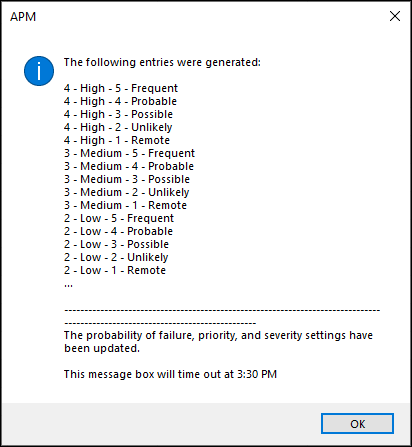
Select the Entries view and click Generate Entries. A message appears listing the entries that were generated. For example:
If no entries were created, a message appears to let you know.
15.
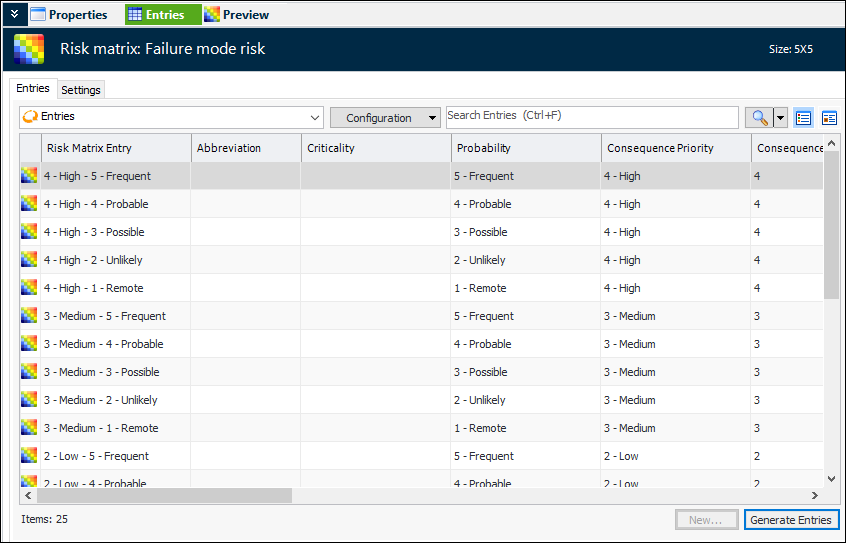
Click OK. The entries are listed in the Entries tab. For example:
The number of items in the matrix is shown at the bottom of the table and the Size value in the banner has been updated to show the number of columns and rows in the matrix.
Tip: Select the Preview view to see the matrix as you are developing it.
16.
On the Entries tab, you can now open each new entry to set its color or adjust its label. See To Work with a Risk Matrix Entry for information about setting entry properties.
17.
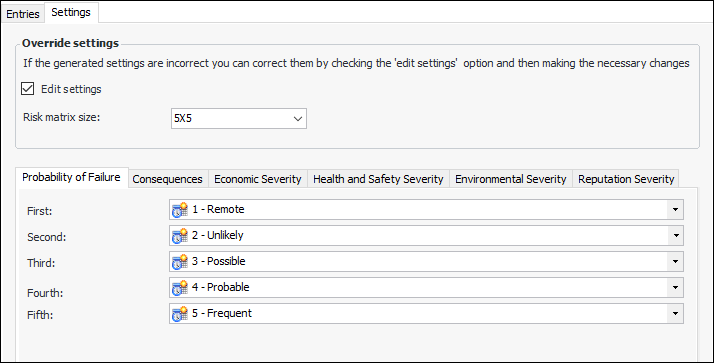
Select the Settings tab if you wish to edit probabilities, consequences, or severities. Select Edit settings.
18.

To Work with a Risk Matrix Entry

1.
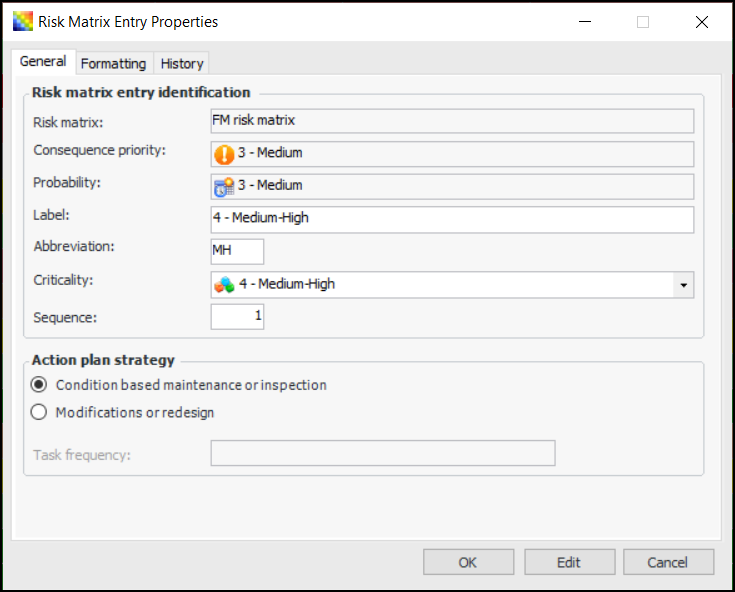
In the Entries view and tab, double-click an entry or click New. The Risk Matrix Entry Properties dialog appears. For example:
2.
3.
4.
In the Abbreviation box, provide a short form for the label. The abbreviations are shown in the small version of the matrix.
5.
6.
7.
8.
On the Formatting tab, select the font, text color, and background color for the entry.
9.
Click OK to close the Risk Matrix Entry dialog.

To Copy Formatting Between Entries
1.
In the Entries view, Entries tab, select the source row.
2.
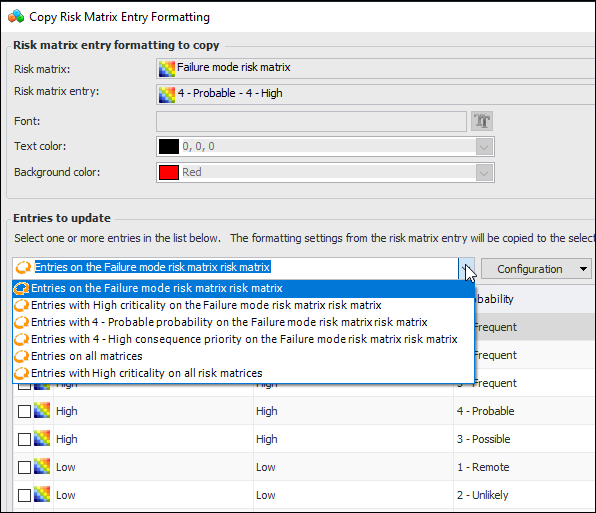
Right-click, and click Copy Formatting. The Copy Risk Matrix Entry Formatting dialog appears.
3.
4.
5.
Click OK. Refresh the Risk Matrix window to view the results.