Setting up Susceptibility to Failure Questionnaires

Susceptibility to failure evaluation examines the asset’s non-age related degradation patterns. It can provide an alternative to probability of failure analysis for these failure modes. For example, susceptibility evaluation can be used to determine the vulnerability of atmospheric storage tanks to corrosion under insulation or stress cracking. The evaluation can result in recommended actions, susceptibility ratings, or both.
A susceptibility to failure questionnaire presents the analyst with a series of questions. Like a decision diagram, the response to one question determines the next question, and so on, until a conclusion is reached. Along the way, instructions can be displayed to respond to individual answers.
This topic illustrates susceptibility evaluation with an example, provides an overview of the steps to the create a questionnaire, and explains how to create and test the questionnaire.

Example of a Questionnaire

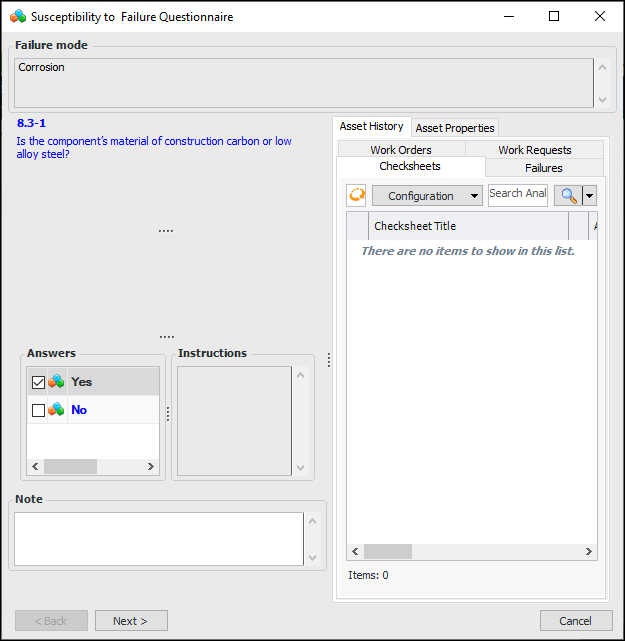
The following example helps the analyst determine a course of action when assessing an atmospheric storage tank’s corrosion rate:
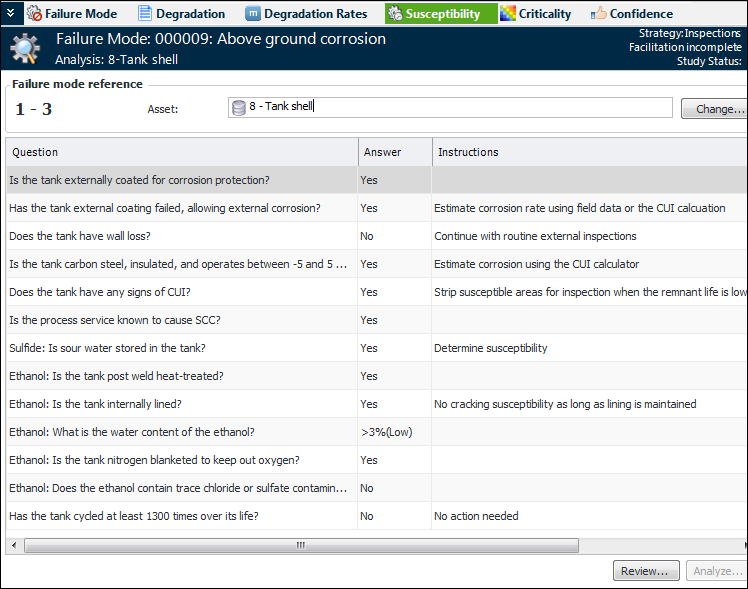
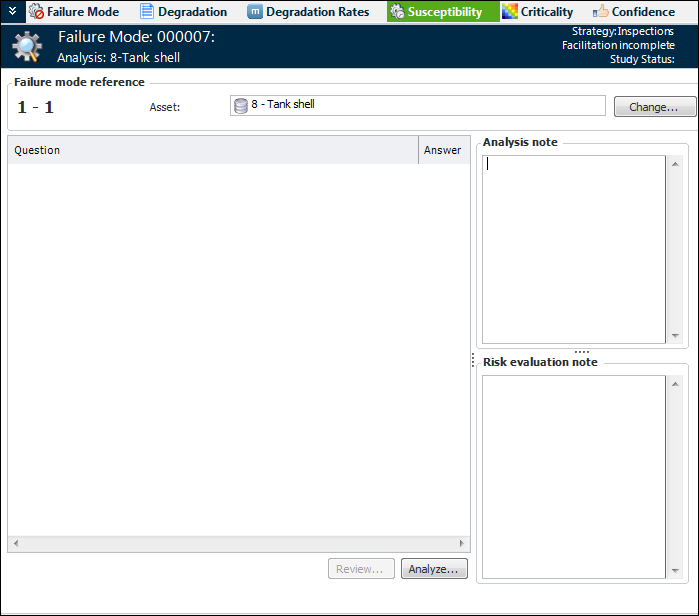
When the questionnaire is completed and closed, the results are shown on the Susceptibility view of the Maintenance Action Plan window. For example:
The analyst can revise the questionnaire by clicking Review.

Steps to Create a Questionnaire

Setting up susceptibility to failure questionnaires involves these steps:
See Creating the Questionnaire in this topic.
Note: You must launch APM with the administrator privilege to create or modify questionnaires. For more information, see Logging on as an Administrator.
See Testing the Questionnaire in this topic.
Tip: We recommend developing and testing questionnaires in your Development environment. Then use the Environment Migration Wizard to copy questionnaires to Production. For more information, see APM Environment Migration Guide.
Tip: These settings are also available in risk analysis options on asset types and analyses. You can also select a susceptibility questionnaire in a library failure mode’s Evaluations tab, Susceptibility tab (RBI analysis).

Creating the Questionnaire

Note: You must launch APM with the administrator privilege to create or modify questionnaires. For more information, see Logging on as an Administrator.

To Create a Questionnaire

1.
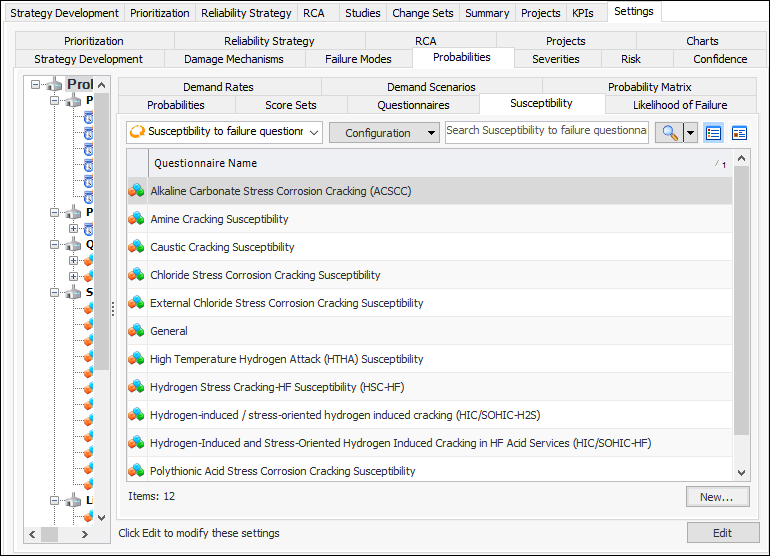
From the Site window, select the Strategy Development view, Settings tab and then the Probabilities tab. Select the Probability of Failure Settings node in the tree.
Tip: You can also select the Administration menu, Strategy Development Settings, Risk Analysis, and then Probabilities. The Strategy Development - Probability of Failure Settings dialog appears.
2.
Select the Susceptibility tab.
3.
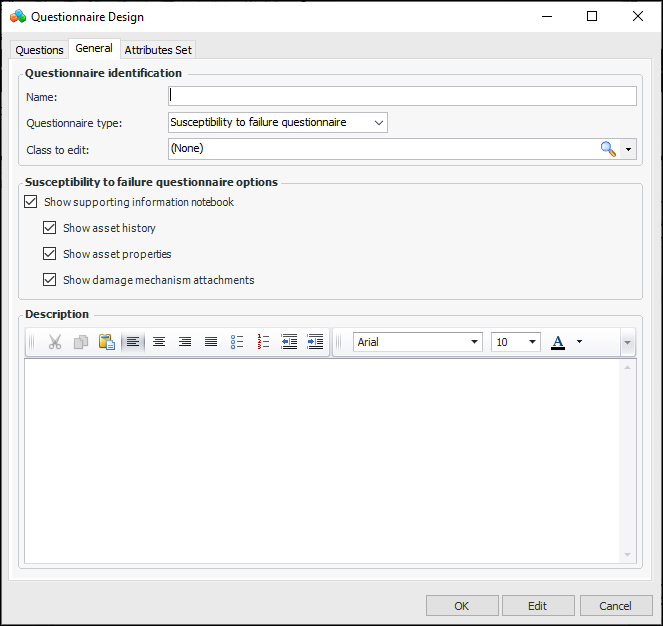
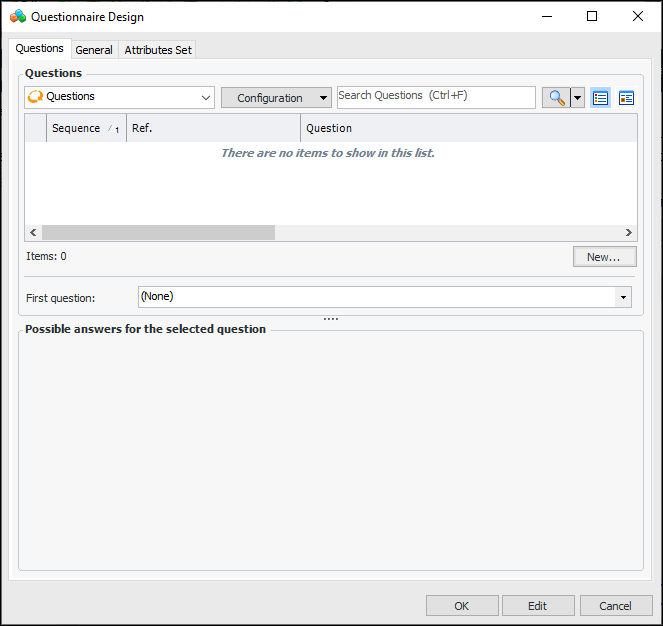
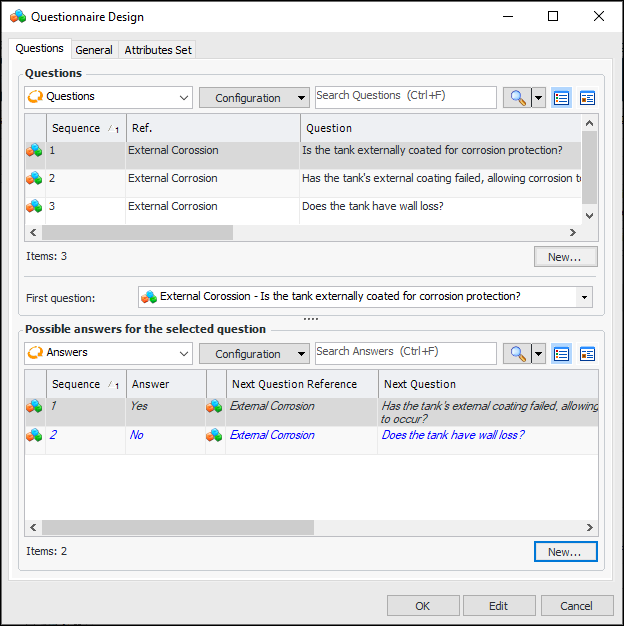
Click New. The Questionnaire Design dialog appears, displaying the Questions tab. Select the General tab:
4.
Tip: “Susceptibility to failure questionnaire” is selected by default in the Questionnaire type box. This list also contains General, MTA2, RBI, RCM2, and RSS types, each of which comes with unique properties, such as the location where it can be used.
5.
In the Class to edit box, select the Criticality evaluation class. When developing answers, you can set values for the class attributes.
6.
7.
8.
Select the Questions tab:
9.
Tip: For best results, create the questions in the order you wish to present them in the questionnaire and number them sequentially. You can create all of the questions and then add answers using the Questions tab. Creating all of the questions first ensures that the follow-up questions and statements are available to add to answers.
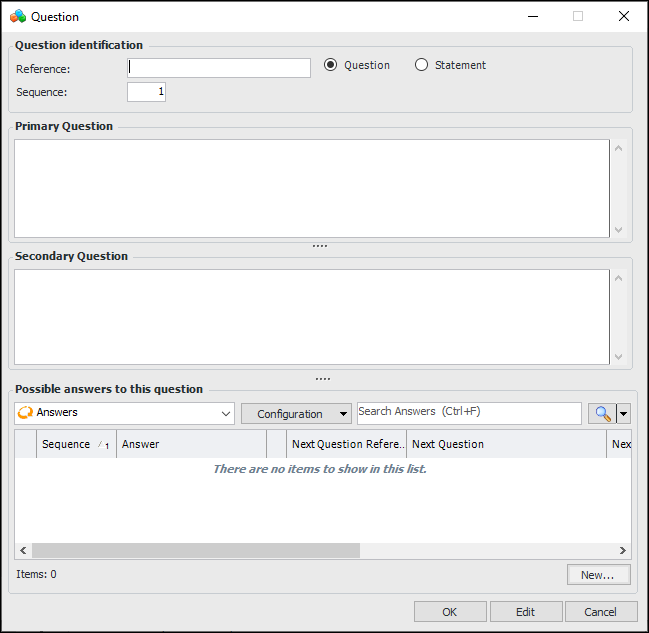
The Question dialog appears:
10.
Question – Supports primary and secondary questions as well as answers.
Statement – Supports primary and secondary recommendations but not answers. The Finish button is available in the questionnaire.
11.
Click OK to save the question or statement and close the Question dialog. The question or statement is added to the Questions tab.
12.
13.
In the First question list, select the starting question for the evaluation.
14.
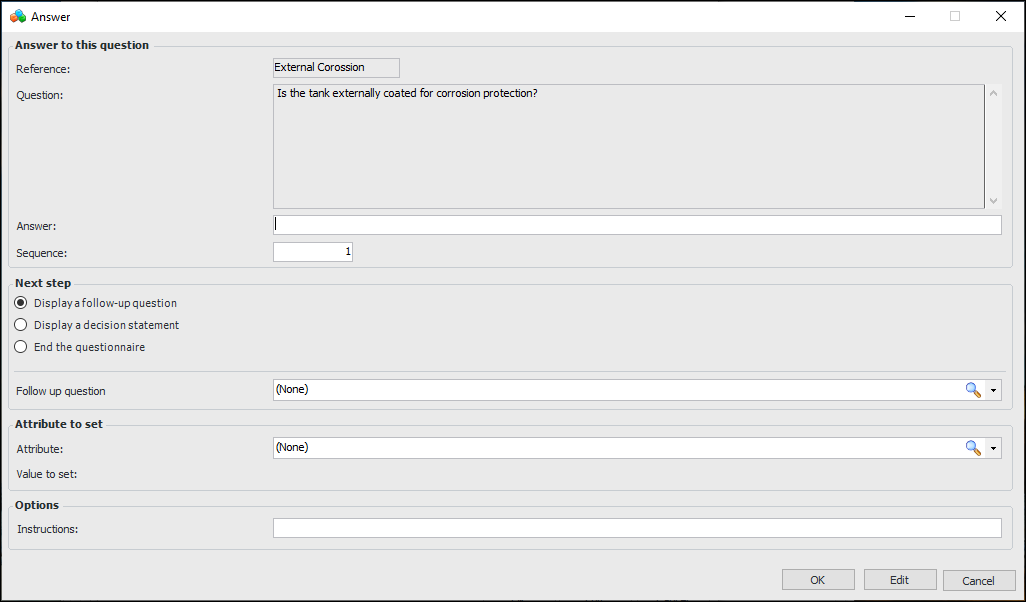
Add at least two answers for each question. Select the question in the top table. Click New at the bottom of the Answers table. The Answer dialog appears, for example:
15.
Display a follow-up question – When the user presses Next, the question that you specify is displayed.
Display a decision statement – When the user presses Next, a recommendation is displayed. The Finish button is available.
End the questionnaire – The Finish button is available.
Tip: You can also create a follow-up question or statement by right-clicking in this box and clicking New. The Question dialog appears.
Text that will appear in the Instructions box on the questionnaire when the answer is selected.
16.
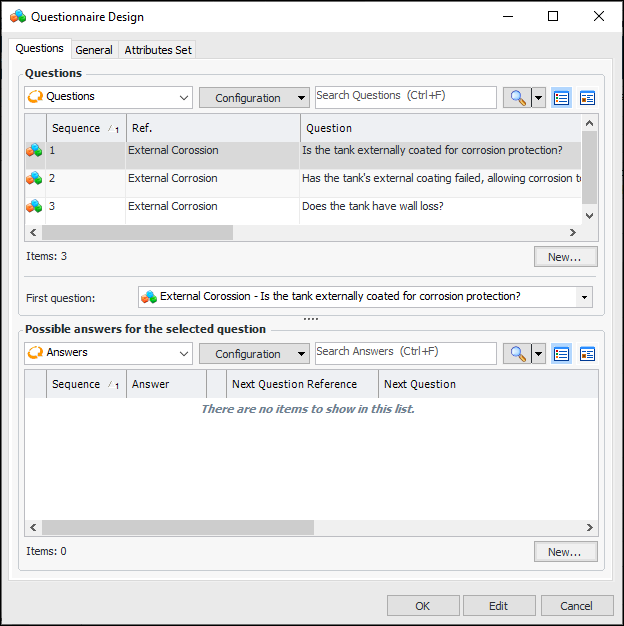
Click OK to save the answer and close the Answer dialog. The answer appears on the Questions tab of the Questionnaire Design dialog. For example:
Tip: Select the Attributes Set tab to view a list of the questions and answers as well as the attributes and values assigned to them.

Testing the Questionnaire

When you have created the questionnaire, test it before releasing it to users.

To Test a Questionnaire

1.
On the Site window, select the Strategy Development view and tab. Select the tab for the type of analysis that you wish to test with: MTA2, RCM2, or RBI.
2.
Click New to open the New Analysis window.
3.
Select the primary asset and click OK. The Strategy Development Analysis window appears.
4.
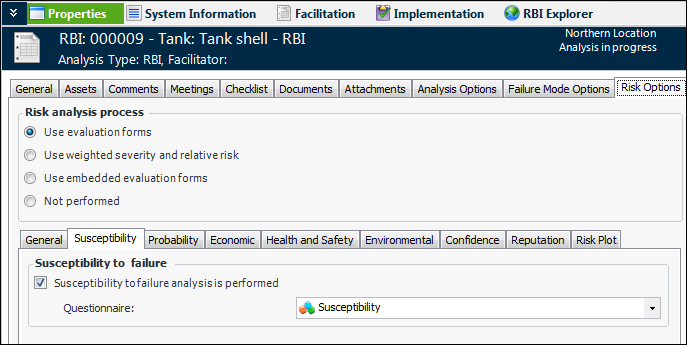
On the Properties view, select the Risk Options tab.
5.
Select Use evaluation forms. Select the Susceptibility tab.
6.
Select Susceptibility to failure analysis is performed and select the questionnaire that you created from the list. For example:
7.
8.
Select the Facilitation view and the Info Worksheet tab.
9.
Click New to create a failure mode. The Maintenance Action Plan window appears.
10.
Select the Susceptibility view. For example:
11.
Click Analyze to open your questionnaire.
12.