Setting up Probability of Failure Questionnaires

In the process of analyzing a failure mode on a strategy development analysis, the analysis team can quantify the relative risk associated with the failure by assessing the probability of the failure occurring and the consequences of failure, assigning values for each factor. APM then calculates the relative risk by multiplying the consequence severity by the probability.
The Probability of Failure questionnaire is used to determine the probability score. Each question in the evaluation form is associated with a numeric value that indicates the relative weighting of the probability.
When setting up the evaluation form, you can choose the complexity of the evaluation (simple or detailed), define the categories, and enter the questions to display in the form.
You can then set probability evaluation options for each of the analysis types. For example, for RBI analyses, you can specify that probability can be based on estimated time between failures (ETBF) or completed evaluation forms. You can make both of these options available so that analysts can use one or the other based on the requirements of a particular failure mode. For more information, see Setting Risk Analysis Options for Analysis Types.
This topic provides an example of an evaluation and explains how to set one up:

Example Questionnaire

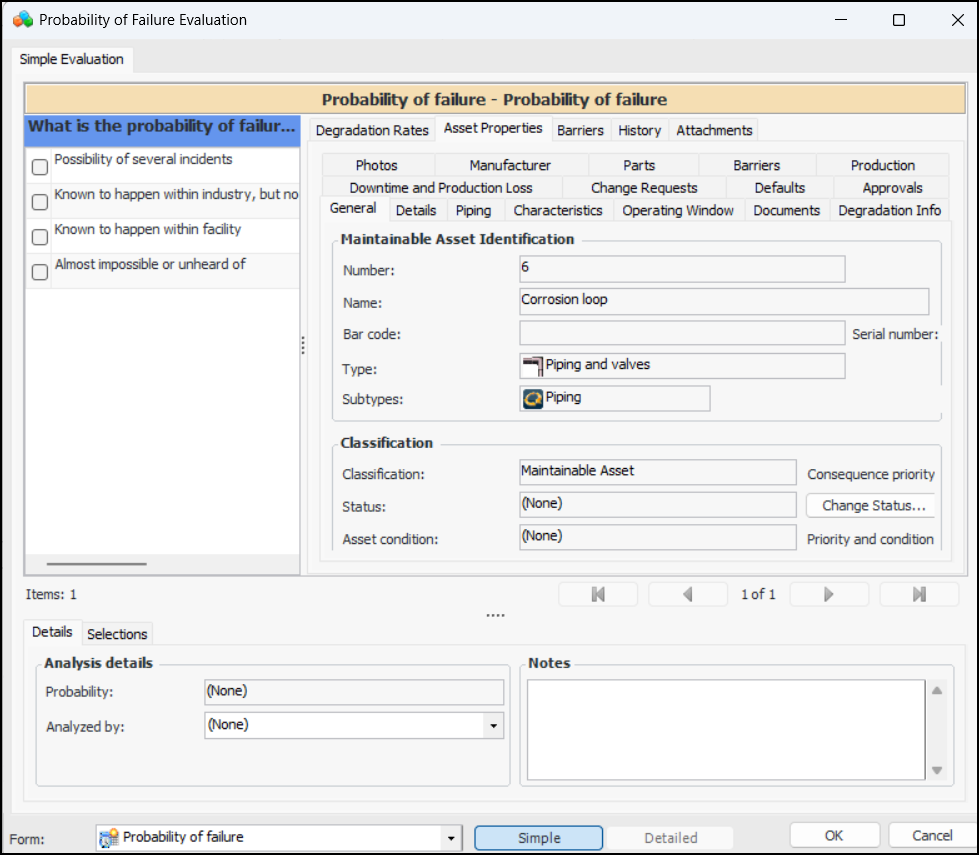
Here is an example of a simple Probability of Failure questionnaire:
Analysts can refer to supporting information to aid in the evaluation. The notebook can contain asset properties, history, barriers, samples, degradation rates, asset fluid information, damage mechanism attachments (RBI), or a combination, depending on the options set in the evaluation.

Categories

To perform the evaluation, the user selects options for the category, enters notes, and uses the arrow buttons to move between categories. When creating the evaluation, you can define as many categories as needed. Examples of categories are:
Category types are Consequence and Mitigation. Mitigation categories identify variables that lower the probability of failure.
Each category has one or more headings and two or more questions defined for it. You can also provide samples and calculations for categories. For example, the form could display asset fluid information for oil.

Simple and Detailed Evaluations

If different evaluation types have been defined in the form, the user can select Simple or Detailed, as required by the complexity of the failure mode. When designing a detailed form, you can specify whether it supports simple (one level of questions), detailed evaluations (one or two levels of questions), or both. When two levels of questions are defined, the first set of questions usually presents the problems and the second set presents the volume or size of the problem. Consequently, the two-level evaluation type is used most often for Health and Safety and Environmental evaluations.

Probability Score Selection

As the analyst moves through the evaluation, the Probability box displays the probability assigned to the selections. The probability is based on either the highest ranking answer or the sum of the scores for the answers. For example, when “highest ranking” is used, if options for three categories are selected in a simple evaluation, two of which have a result of “Negligible” and one with a result of “High”, the score for the evaluation as a whole will be “High”. When the “sum of scores” option is used, the numeric ranking of the questions are added and the corresponding probability is displayed. This will be the probability used in the risk analysis.
The consequence ranking assigned to the questions in the form determines the score, for example:

Result of the Evaluation

The analyst can select the team member performing the evaluation from the Analyzed by list and provide additional information about the analysis in the Notes box. Notes are collected and available in several locations.
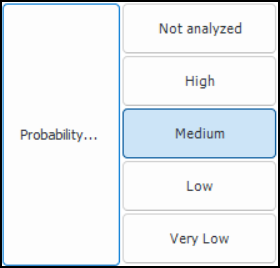
When the analyst completes the evaluation and clicks OK, the evaluation form closes and the result (for example, high, medium, low, or negligible) is selected in the risk matrix. For example:

Using Lookup Tables and Calculations

You can incorporate a lookup table and/or calculation in a category to automatically assess probability ranking. For example, use the degradation ratio lookup table to determine a ranking based on damage mechanism and actual degradation rate. For information, see Setting up Consequence Severity Evaluations to use Lookup Tables.

Creating a Probability of Failure Questionnaire

This section explains how to set up the questionnaire itself and how to create categories and questions.

To Set up a Probability of Failure Questionnaire

1.
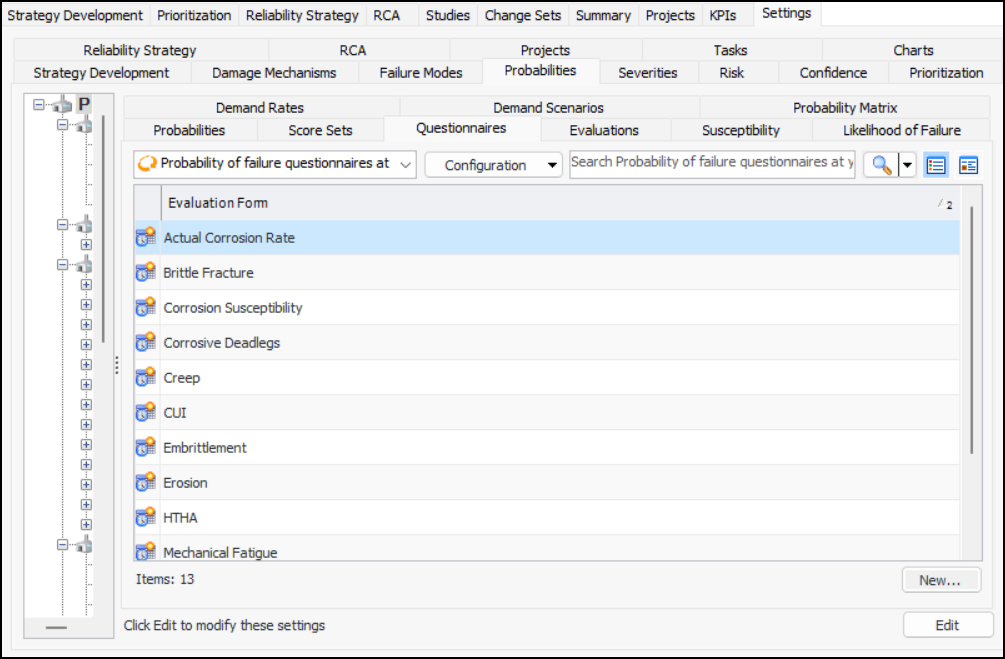
On the site’s Strategy Development view, select the Settings tab, the Probabilities tab, and the Probability Settings node in the tree.
Tip: You can also select the site’s Administration menu, Strategy Development Settings, Risk Analysis, and then Probabilities. The Strategy Development – Probability of Failure Settings dialog appears.
2.
Select the Questionnaires tab.
3.
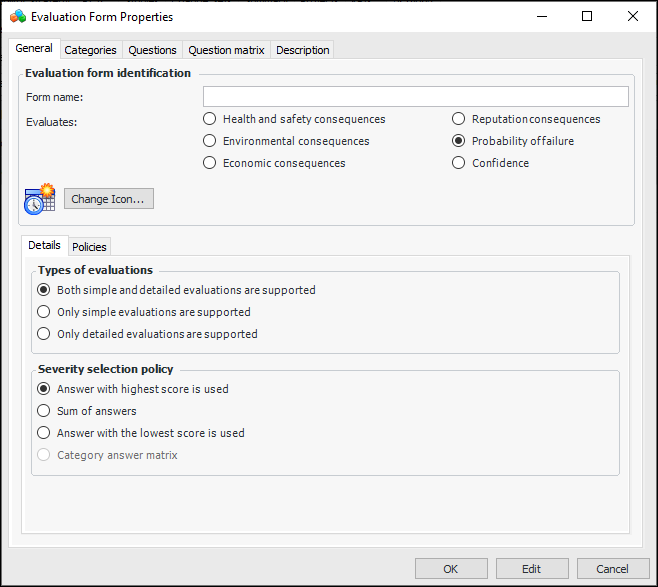
Click New. The Evaluation Form Properties dialog appears.
4.
5.
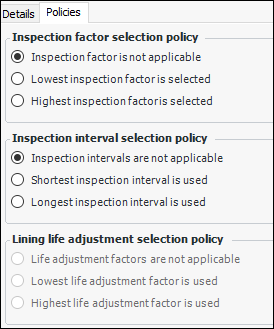
Select the Policies tab.
6.
Lowest inspection factor is selected – The selected statement with the lowest inspection factor supplies the inspection factor
Highest inspection factor is selected – The selected statement with the highest inspection factor supplies the inspection factor
Shortest inspection interval is used – The selected statement with the shortest inspection interval supplies inspection interval
Longest inspection interval is used – The selected statement with the longest inspection interval supplies the inspection interval
Add evaluation categories, as explained next.

To Create Evaluation Categories and Questions
1.
2.
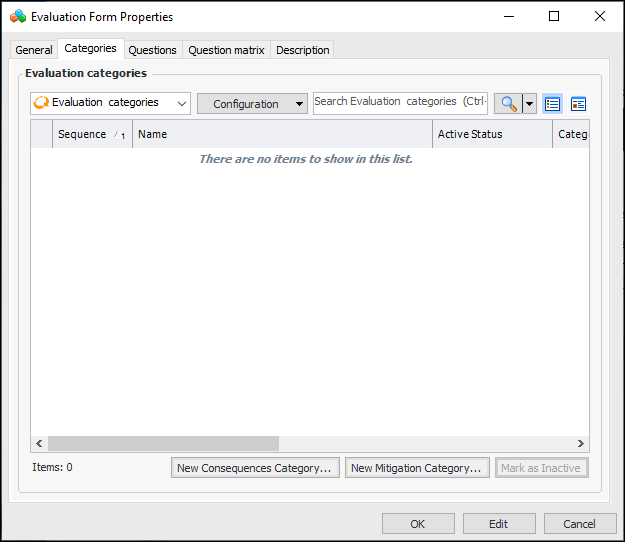
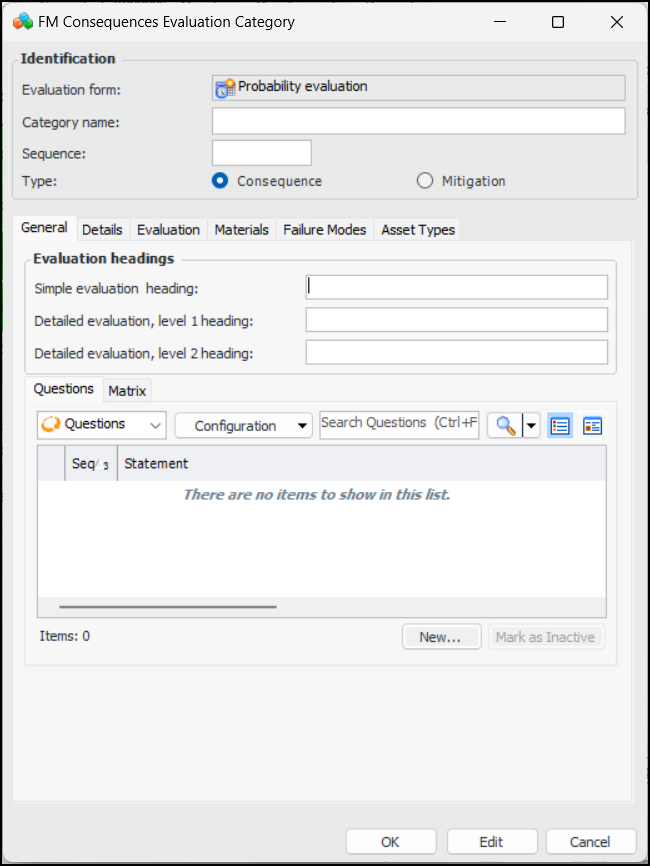
Click New Consequences Category. The FM Consequences Evaluation Category window appears.
3.
4.
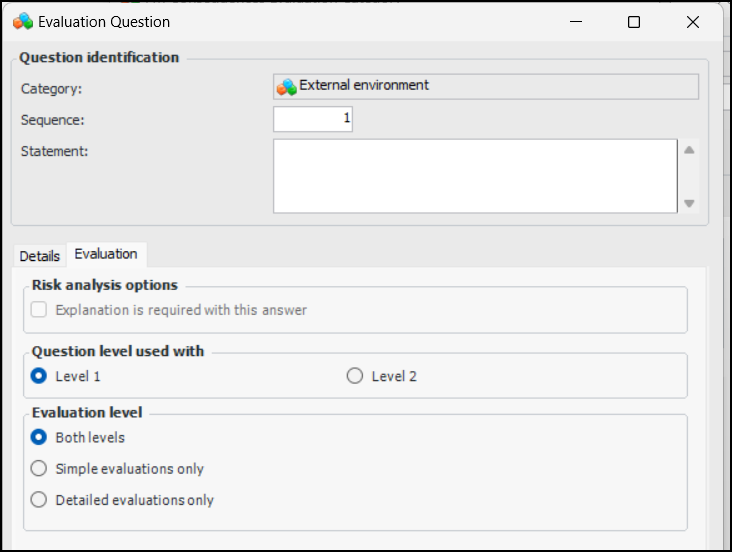
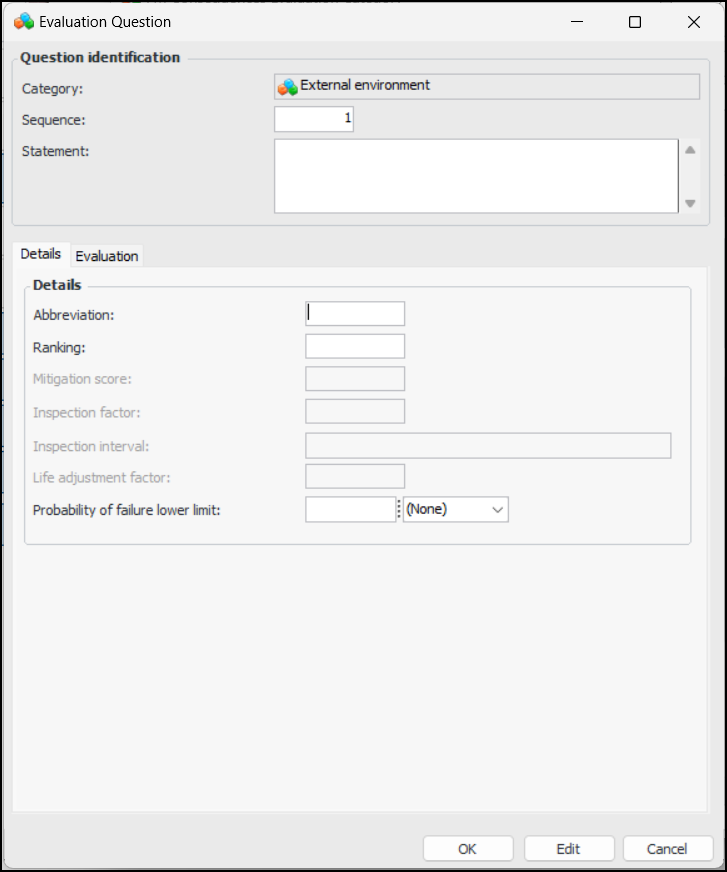
For each question in the category, click New. The Evaluation Question dialog appears.
5.
6.
Select the Evaluation tab. For example:
7.
Click OK. The question is added to the Questions tab.
8.
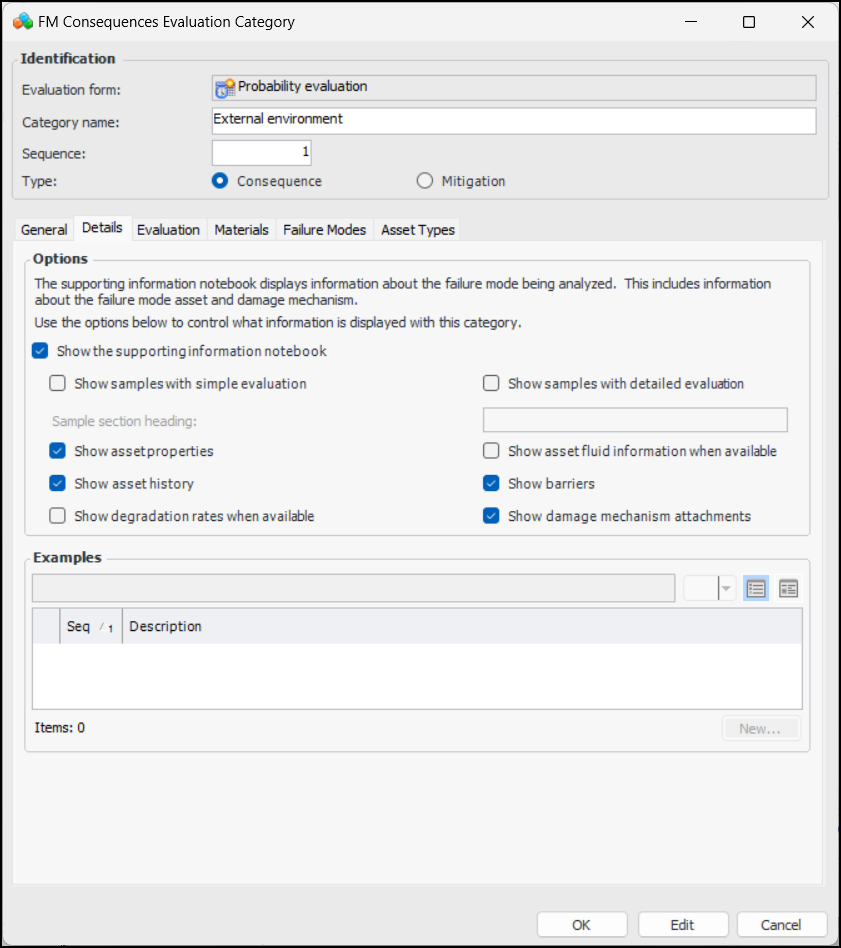
On the FM Consequences Evaluation Category dialog, select the Details tab to set options for supporting information. For example:
9.
The heading that appears at the top of the Samples tab for this category in the questionnaire.
When this option is selected, the supporting information notebook contains the Asset Properties tab. This tab provides the failure mode asset’s properties on several tabs.
When this option is selected, the supporting information notebook contains the History tab. This tab provides the failure mode asset’s checksheets, failures, work orders, and work requests.
When this option is selected, the supporting information notebook contains the Barriers tab. This tab lists the failure mode asset’s failure barriers.
When this option is selected, the supporting information notebook contains the Attachments tab. If the RBI failure mode was created from a damage mechanism, this tab lists the damage mechanism’s attachments.
10.
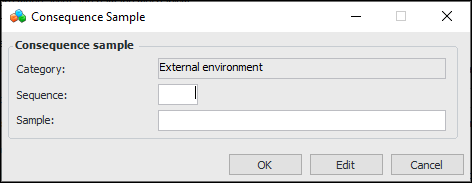
For each example, click New. The Consequence Sample dialog appears:
In the Sample box, enter the example. Click OK. The sample is added to the Examples table.
11.
12.
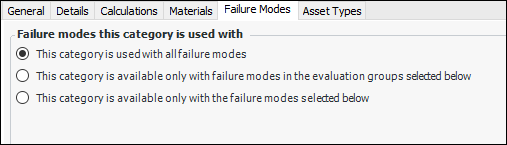
All failure modes – There are no restrictions on the category based on the failure mode.
Selected evaluation groups – A table appears listing the evaluation groups defined for the site. Select the appropriate evaluation groups.
Note: Evaluation groups are assigned to asset types in their strategy development settings. They can also be assigned to entries in the failure mode library (RBI analysis).
Selected failure modes – A table appears listing library failure modes. Select the appropriate library entries.
13.
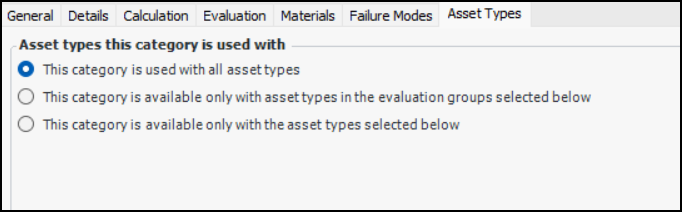
Select the Asset Types tab to restrict the category to specific asset types or asset types in specific evaluation groups.
14.
All asset types – There are no restrictions on the category based on the asset type.
Selected evaluation groups – A table appears listing the evaluation groups defined for the site. Select the appropriate evaluation groups.
Note: Evaluation groups are assigned to asset types in their strategy development settings. They can also be assigned to entries in the failure mode library (RBI analysis).
Selected asset types – A table appears listing asset types for the site. Select the appropriate asset types.
15.
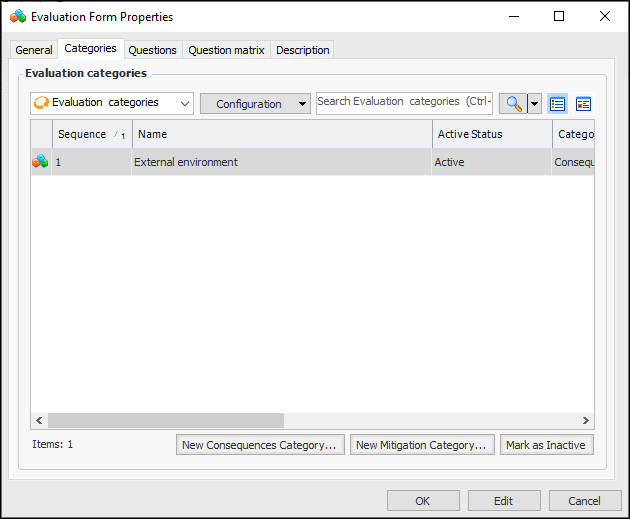
Click OK to save the category and close the dialog. The category is added to the Categories tab. For example:
Tip: While you are developing an evaluation, you can mark a category as inactive until it is ready to be used in risk analyses. On the Categories tab, select the category in the table and click Mark as Inactive. The Mark as Inactive window appears, where you can enter a comment. When you click OK, a confirmation message appears. Click OK. The category’s Active Status in the table is shown as “Inactive”. When you are ready, click Mark as Active to make the category available.
16.
17.
Select the Description tab to enter additional information.
18.
When you are finished, click OK to close the Evaluation Form Properties dialog. The evaluation form is added to the Questionnaires tab.