Setting up a Probability Matrix

The probability matrix is required for demand scenario risk analysis. Probability of failure is determined by two parameters: the likelihood of failure and the demand rate. A separate matrix entry is created for each combination of likelihood and demand rate. For example, the likelihood value “Has happened more than once per year at the location” is combined with the demand rate of 0.5 - 4 years and assigned the failure probability “High”.
The probability matrix typically has four or five likelihood levels and four or five demand rates. For example, if you have four likelihood values (Has happened more than once per year at the location, Has happened at the location or more than once per year in the organization, Has happened in the organization or more than once per year in the industry, and Heard of in the industry) and four demand rates (0-0.5 year, 0.5 year - 4 years, 4-20 years, >20 years), 16 matrix entries would be defined. The size of the matrix is shown as 4X4.
You can create probability matrix entries manually or using the Generate function to create an entry for any combination for which an entry does not exist. Once you have generated entries, you can edit their labels and color.
This topic explains how:

To Set up a Probability Matrix

1.
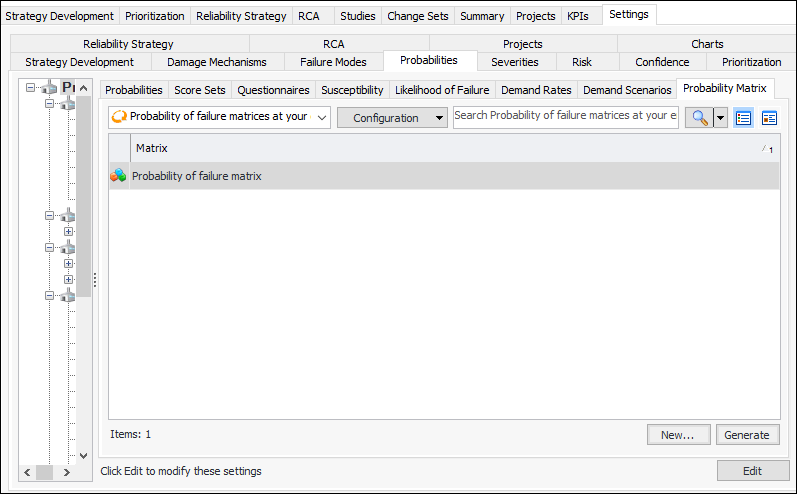
On the site’s Strategy Development view, select the Settings tab, the Probabilities tab, and the Probability Settings node in the tree.
Tip: You can also select the site’s Administration menu, Strategy Development Settings, Risk Analysis, and then Probabilities. The Strategy Development – Probability of Failure Settings dialog appears.
2.
Select the Probability Matrix tab.
3.
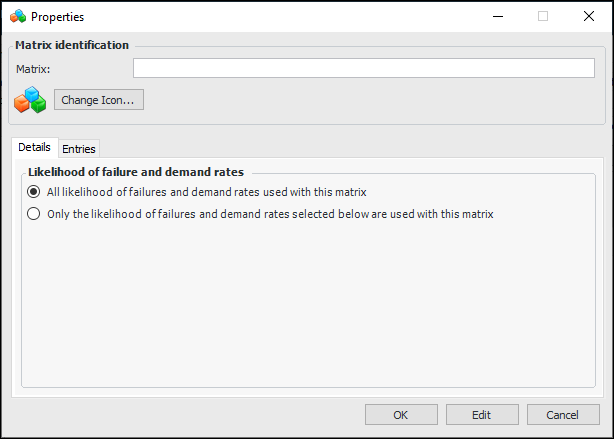
Click New. The Properties dialog appears.
4.
5.
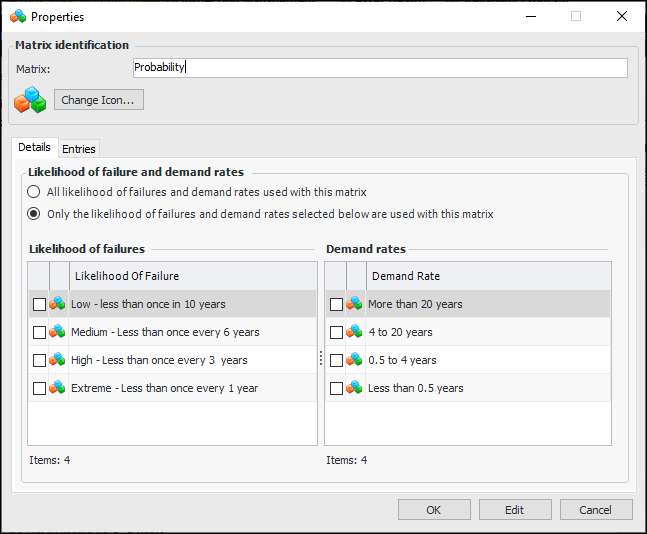
To replace the image that identifies the probability matrix, click Change Icon, select a different icon, and click OK.
6.
By default, all of the likelihoods of failure and demand rates defined for the site are used in the probability matrix. To limit the values, click Only the likelihoods of failure and demand rates selected below are used with this matrix. Tables are displayed and populated with the existing values. For example:
Select the items that you want to include in the matrix.
7.
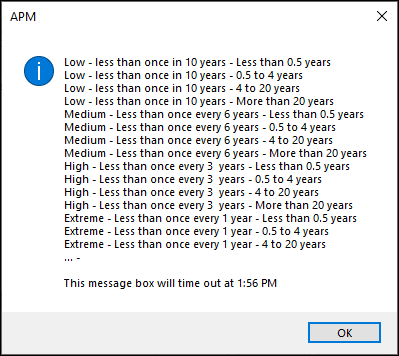
Select the Entries tab and click Generate. A message appears listing the entries that were generated. For example:
If no entries were created, a message appears to let you know.
8.
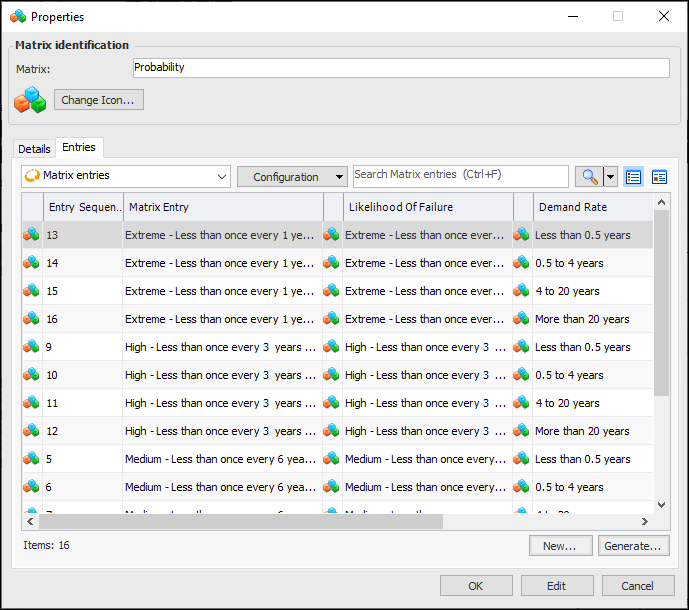
Click OK. The entries are listed in the Entries tab. For example:
The number of items in the matrix is shown at the bottom of the table.
9.
On the Entries tab, you can now open each new entry to set its probability value and formatting. See To Work with a Probability Matrix Entry for information about setting entry properties.
To Work with a Probability Matrix Entry
1.
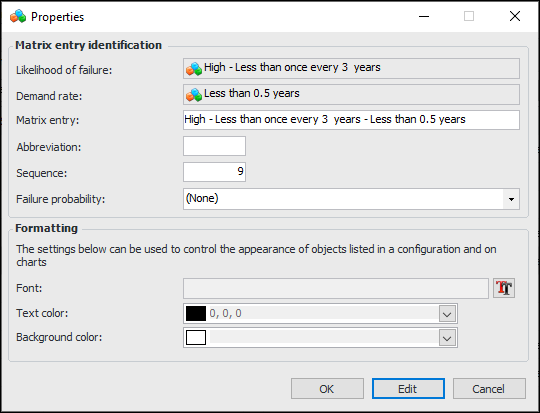
On the Entries tab double-click an entry or click New. The Properties dialog appears. If you opened an existing entry, click Edit.
2.
3.
4.
In the Matrix entry box, enter or change the name for the entry. When entries are generated, the name is the likelihood of failure value followed by the demand rate value, separated with a dash.
5.
In the Abbreviation box, provide a short form for the label. The abbreviations are shown in the small version of the matrix.
6.
7.
8.
9.
Click OK. The entry is listed in the Entries tab.