Setting up Consequence Priorities

You can define consequence priorities for use in strategy development analyses when risk analysis is warranted for the failure mode. Consequence priorities are also used to evaluate a failure’s suitability for root-cause analysis (RCA). Defining a consequence priority involves providing a name and ranking and then defining its rule. You can also mark your rules inactive to prevent them from being used before they are ready.
APM calculates a consequence priority for the failure mode during risk analysis or for the failure during RCA evaluation. Consequence priorities allow you to rank and compare an asset’s failure modes and failures. In failure analysis, the consequence priority is used in the calculation that determines whether the failure is suitable for RCA.
The rules defined for a priority can be based on any of these properties:
Downtime cost – the total downtime cost of the failure mode or failure is used. The total downtime cost is the sum of the downtime occurrence cost and the downtime rate costs times the length of the downtime:
Downtime Cost = Downtime Occurrence Costs + (Downtime Rate * Downtime Duration)
Relative risk (risk analysis only)
Severity, which can include the sum, minimum, or maximum value for any or all of:
Consequence priority rules are based on these properties. For example, the High consequence priority could be assigned to failure modes whose Safety severity is greater than 40 or Operational severity is at least 26.

Rule Clauses and Groups

Each rule is made up of one or more clauses, for example, “Safety is greater then 40”. When you create a clause, you assign it to a rule group.
Clauses in the same group are enclosed in parentheses in the rule. For example, here is a rule with one group and four clauses:
(Safety Is at least 40.00 OR Operational Is at least 26.00 OR Environmental Is at least 60.00 OR Total Is at least 201.00)
You can select an option to define the relationship between rule groups. One option has the rule clauses joined by “AND” within a group, while groups are joined by “OR”. This means that all values within groups must be true for the group to be true. Just one of the groups must be true for the rule to be true.
The other option has clauses joined by “OR” within a group, while groups are joined by “AND”. This means that just one of the values within a group must be true for the group to be true. All of the groups must be true for the rule to be true.
For example, a priority has five rule clauses in two groups:
The rule can be interpreted in either of these ways:
1.
((FM Severity is greater than 25) AND (Safety is greater than 7) AND (Environmental is greater than 9)) OR ((Failure costs is greater than $15,000) AND (Downtime is greater than 72 hours))
2.
((FM Severity is greater than 25) OR (Safety is greater than 7) OR (Environmental is greater than 9)) AND ((Failure costs is greater than $15,000) OR (Downtime is greater than 72 hours))
This topic explains how:

To Create a Failure Mode Consequence Priority

1.
On the site’s Strategy Development view, select the Settings tab, the Risk tab, and the Risk settings node in the tree. Select the Consequences tab.
On the site’s Performance Management view, select the Settings tab, the RCA tab, and the Consequence Priorities tab.
2.
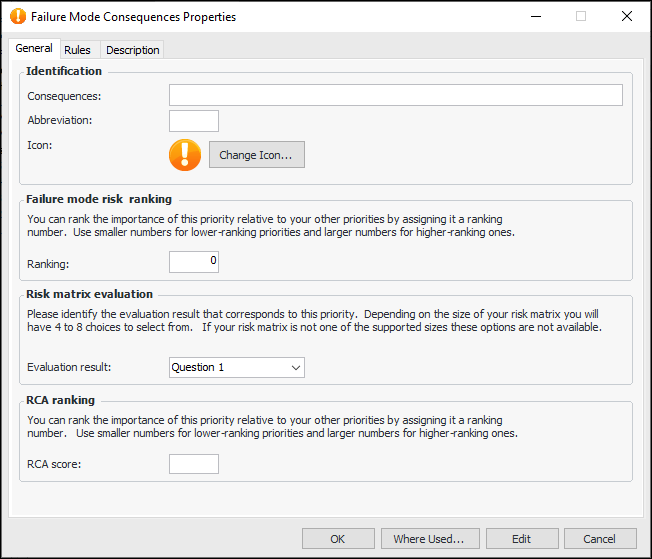
Click New. The Failure Mode Consequences dialog appears.
3.
4.
In the Abbreviation box, enter a short name for the priority.
5.
To change the icon shown for this priority, click Change Icon, select a graphic, and click OK.
6.
7.
8.
9.
On the Description tab, enter a additional information about the priority.

To Create a Priority Rule

1.
2.
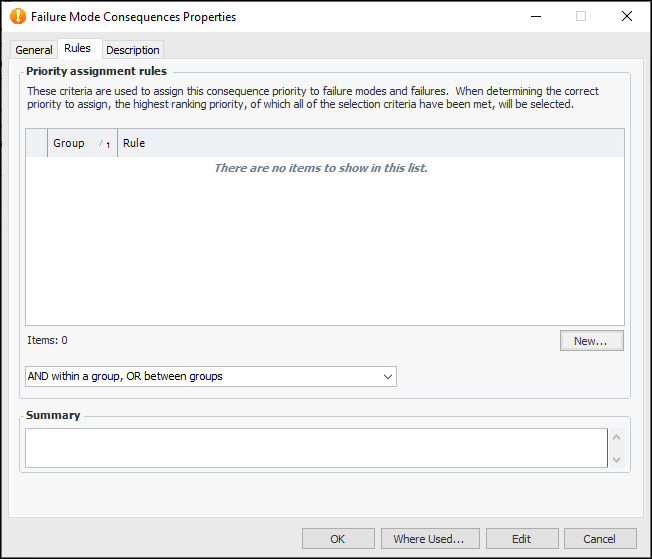
AND within a group, OR between groups - All values within groups must be true for the group to be true. Just one of the groups must be true for the rule to be true.
OR within a group, AND between groups - Just one of the values within a group must be true for the group to be true. All of the groups must be true for the rule to be true.
3.
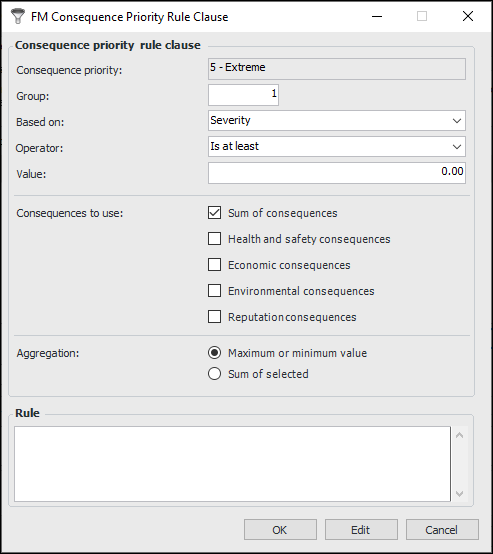
Click New. The FM Consequence Priority Rule Clause dialog appears.
4.
5.
6.
7.
8.
Sum of consequences - sum of the three types of consequences
9.
Maximum or minimum value - any of the selected severities
Sum of selected - sum of the selected severities
10.
Click OK. The dialog closes, and the Rules tab lists the clause and a summary of the rule.

To Mark a Priority as Inactive

1.
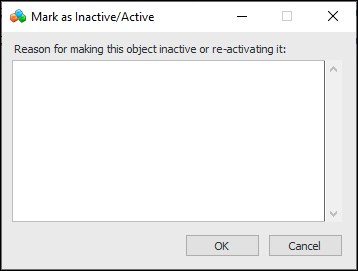
On the Consequences tab, select the priority and click Mark as Inactive. The Mark as Inactive/Active dialog appears.
2.
Provide a reason for the action and click OK. A confirmation message appears.
3.
Click OK. The priority is shown as scored through in the Consequences tab.

To Mark a Priority as Active

1.
On the Consequences tab, select the inactive priority and click Mark as Active. The Mark as Inactive/Active dialog appears.
2.
Provide a reason for the action and click OK. A confirmation dialog appears.
3.