Setting up Reputation Evaluations

In risk analysis, the consequences of failure are determined for each important failure mode. Any of the following types of effects can be included in the risk analysis:
This topic provides background information and explains how to set up an evaluation that analysts can use to assess the severity of reputation effects. This topic covers:
It explains how:
Tip: APM comes with an example evaluation form, which you can modify for your organization or use as a model for a new evaluation.

Hazards and Consequences

Consequences to reputation measure the impact that negative media attention has on an organization’s ability to operate in good faith. Typically, the severity of bad press is evaluated in terms of how far-reaching it is and how long it takes to mitigate, as shown in the table below:

Anatomy of an Evaluation

When setting up the evaluation, you will define at least one consequence category, for example, reputation. For each category, create questions or impact statements. Assign a ranking number to each question to indicate the severity of the effect. Typically, the larger the number, the greater the severity. Here are examples of severities and their scores:
As an analyst goes through the evaluation and selects statements, the numbers are used to calculate the overall severity for reputation. The severity is based on one of:
For example, when “highest score” is used, if statements for three categories are selected in a simple evaluation, two of which have a result of “Negligible” and one with a result of “High”, the score for the evaluation as a whole will be “High”. When the “sum of scores” option is used, the numbers assigned to the questions are added and the corresponding severity is displayed. This will be the severity used in the risk analysis.

Simple and Detailed Evaluations

When designing an evaluation, you can specify that it supports simple evaluations (one level of questions), detailed evaluations (one or two levels of questions), or both. When two levels of questions are defined, the first set usually presents the problems and the second set presents the volume or size of the problem. For the Fire category, for example, first-level questions could deal with flammability and second-level questions with the volume of released fluid. When the evaluation supports both levels, the user can click Simple or Detailed in the questionnaire, depending on the complexity of the failure mode.
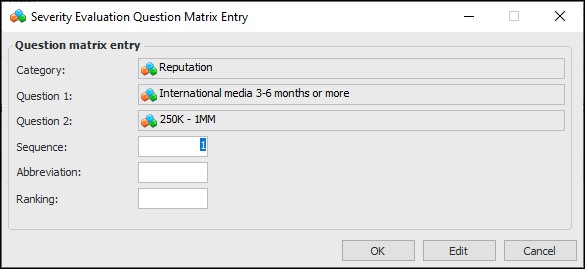
To set up a detailed evaluation with two levels, you must generate the question matrix. APM creates an entry for each combination of level 1 and level 2 questions. You can modify each entry’s sequence number, add an abbreviation, and set the ranking number that will be assigned to the category when the user selects the combination of statements. Here is an example of an entry:

Category Answer Matrix

When setting up questionnaires for risk analysis, you can use the category answer matrix on simple evaluations. You can define questions for as many as four categories, show examples for each category, and select probabilities to use in the matrix.
APM generates an answer matrix that takes into account the categories, category questions, and probabilities. For each matrix entry, you can select a severity ranking and safety integrity level, if applicable.
This type of evaluation must be used for SIF analysis and can also be used to design questionnaires for other analysis types.
The category answer matrix is only supported for simple evaluations with one level of questions. Evaluations must be presented as embedded forms, meaning that the user opens the Maintenance Action Plan window, selects the Risk tab, and then selects options. This choice can be set in the risk options of the analysis, analysis type, or asset type.
When embedded forms are specified for a strategy development analysis, you must set up an economic evaluation using a category answer matrix. When pop-up questionnaires (rather than embedded forms) are specified for an analysis, APM provides simple and detailed worksheets to perform the evaluation.
For more information, see Setting up Evaluations with the Category Answer Matrix.

Controlling the Availability of Categories

You can control whether or not a category is available in an evaluation by specifying:

Example Evaluation Form

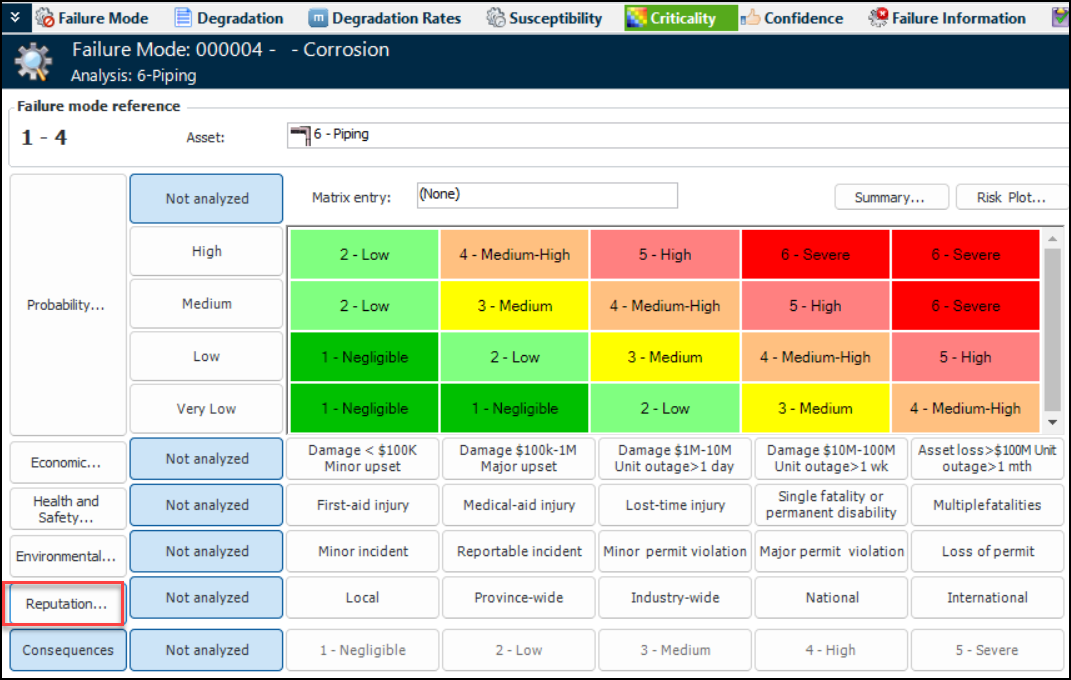
In order for the evaluation to be available in the Maintenance Action Plan window, it must be selected in the risk options for the analysis, analysis type, or asset type. The following example is a detailed evaluation presented as a pop-up dialog or online questionnaire. To open it, the analyst opens the Maintenance Action Plan window and selects the Criticality tab. For example:
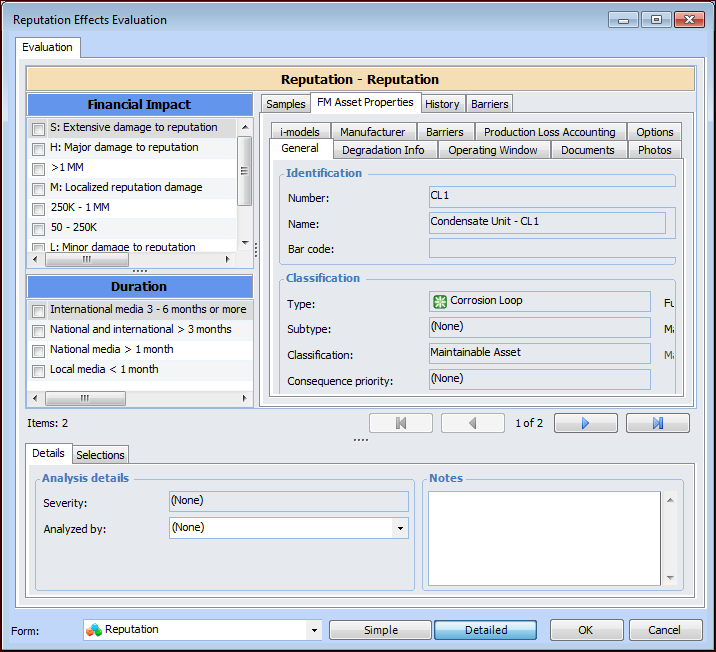
The analyst clicks Reputation to open the questionnaire:
Tip: Evaluations can also be shown as “embedded” forms, meaning that the user opens the Maintenance Action Plan window, selects the Risk tab, and then selects options. This choice can be set in the risk options for the analysis, analysis type, or asset type.
The analyst can refer to the FM Asset Properties, History, and Barriers tabs for information to aid in the evaluation, for example, historical inspections, failures, and work performed. APM provides this information automatically, based on the asset’s data. When designing the evaluation, you can add the Samples tab and provide examples.
If different evaluation types have been defined for the form, the user can select Simple or Detailed, as required by the complexity of the failure mode.
To perform the evaluation, the analyst selects statements, enters notes, and uses the navigation buttons to move between categories.
As the analyst moves through the analysis, the Severity box displays the current calculation of severity based on selections. The Selections tab displays the categories, selected statements, and the ranking.
The analyst can select the team member performing the evaluation from the Analyzed by list and provide additional information about the analysis in the Note box. Notes are collected and available in several locations.
When the analyst completes the pop-up questionnaire and clicks OK, the evaluation form closes and the result (for example, low impact or severe embarrassment) is selected in the risk matrix. For example:

To Set up a Reputation Evaluation

1.
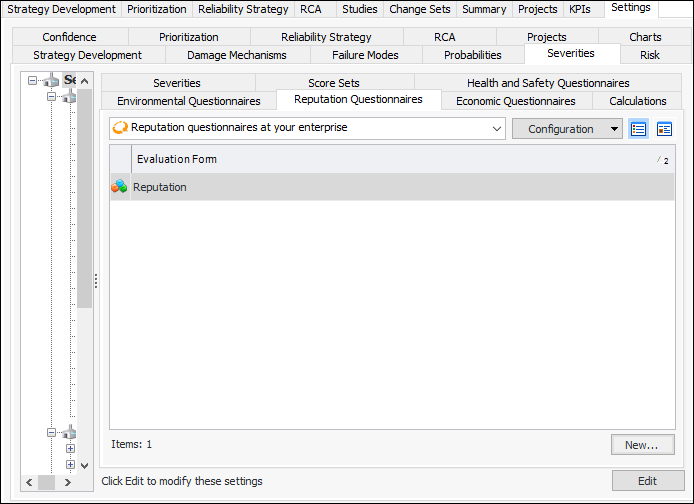
On the site’s Strategy Development view, select the Settings tab, the Severities tab, and the Severities settings node in the tree.
Tip: You can also select the site’s Administration menu, Strategy Development Settings, Risk Analysis and then Severities. The Strategy Development - Severities Settings dialog appears.
2.
Select the Reputation Questionnaires tab.
3.
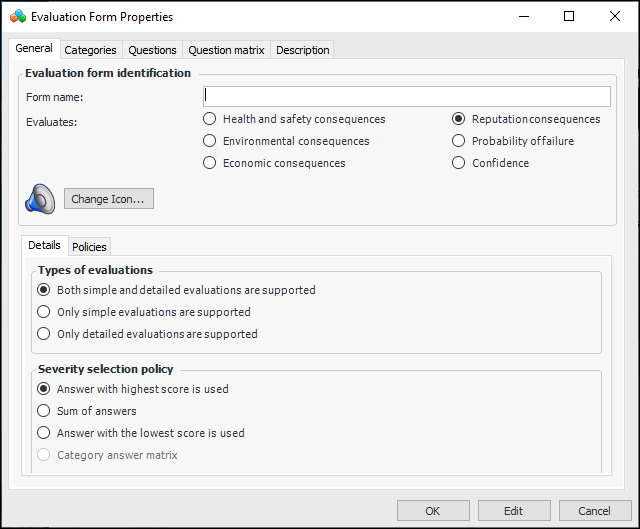
Click New. The Evaluation Form Properties dialog appears.
4.
Note: For related information, see Setting up Evaluations with the Category Answer Matrix.
Now you can add consequence categories, as explained next.

To Create Consequence Categories and Questions
1.
2.
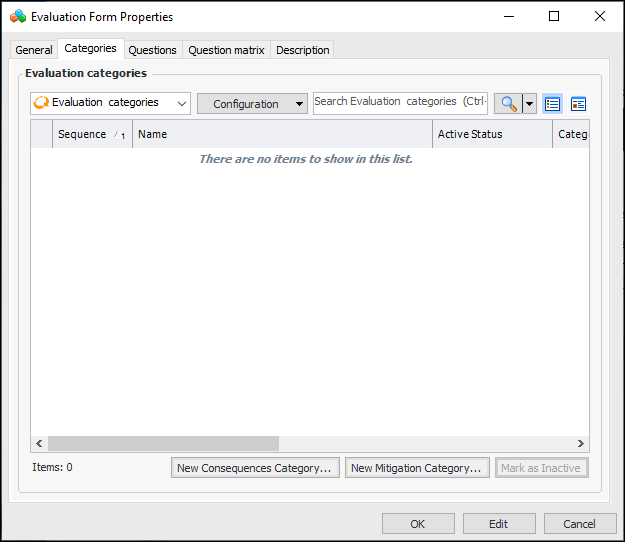
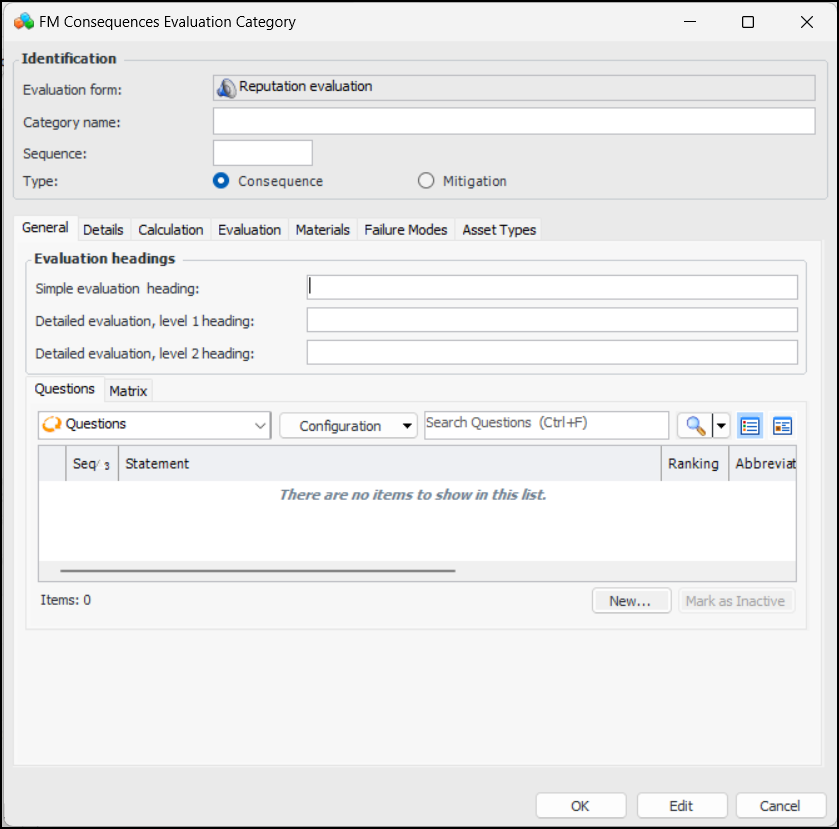
Click New Consequences Category. The FM Consequences Evaluation Category window appears.
3.
4.
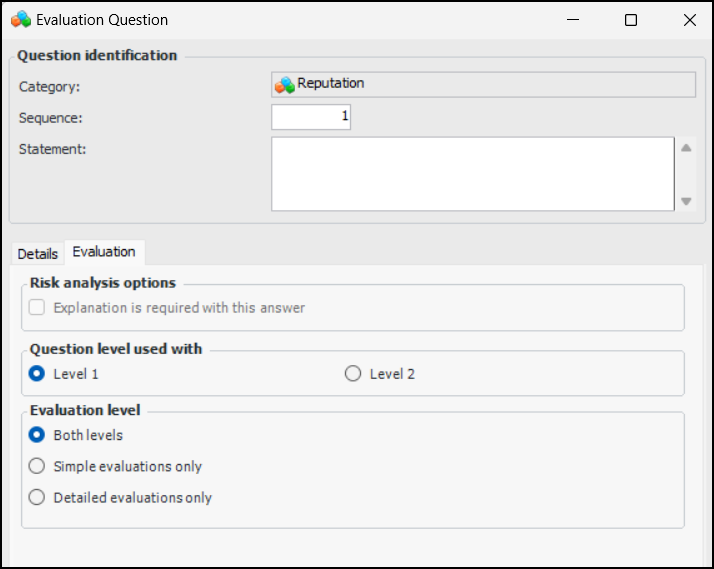
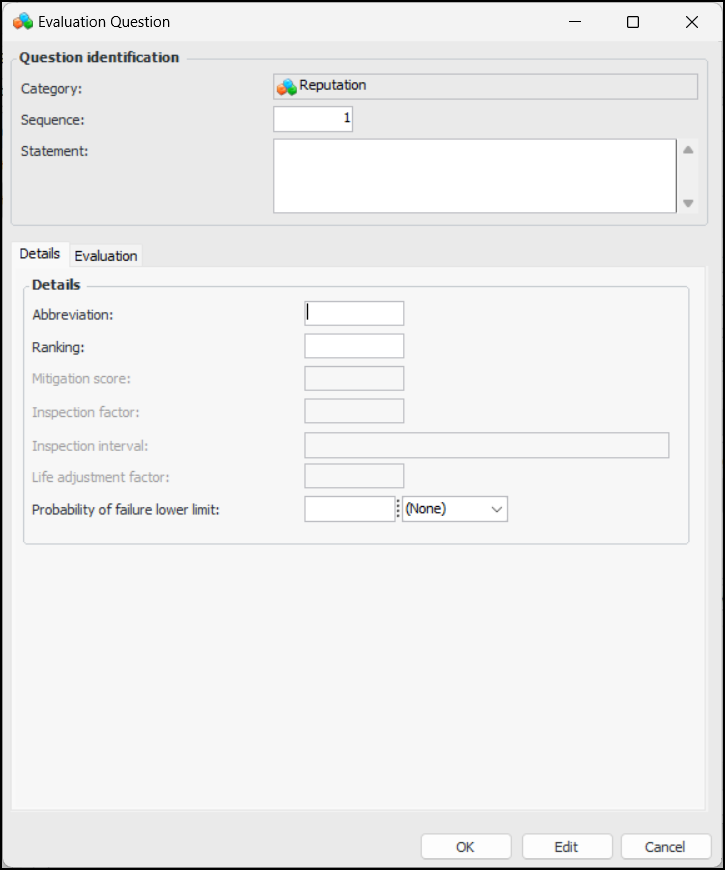
Click New. The Evaluation Question window appears.
5.
6.
Select the Evaluation tab. For example:
7.
Click OK. The question is added to the Questions tab.
8.
Repeat steps 4 to 7 for each question in the category.
9.
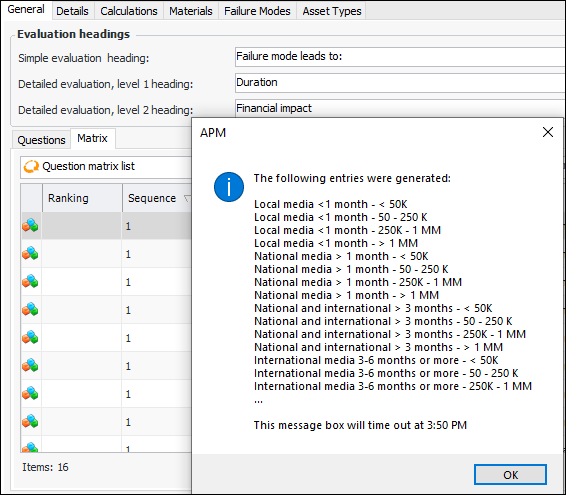
If the evaluation supports simple forms only, skip to 11. If the evaluation supports detailed forms, select the Matrix tab. Click Generate. APM displays a message listing the entries that were generated. For example:
10.
Click OK to close the message. Double-click each entry in turn to open its Severity Evaluation Question Matrix Entry dialog. For example:
Note: The first question has been designated level 1. The second question has been designated level 2. Both questions must have an evaluation level of either “Both levels” or “Detailed evaluations only” to be included in the matrix.
11.
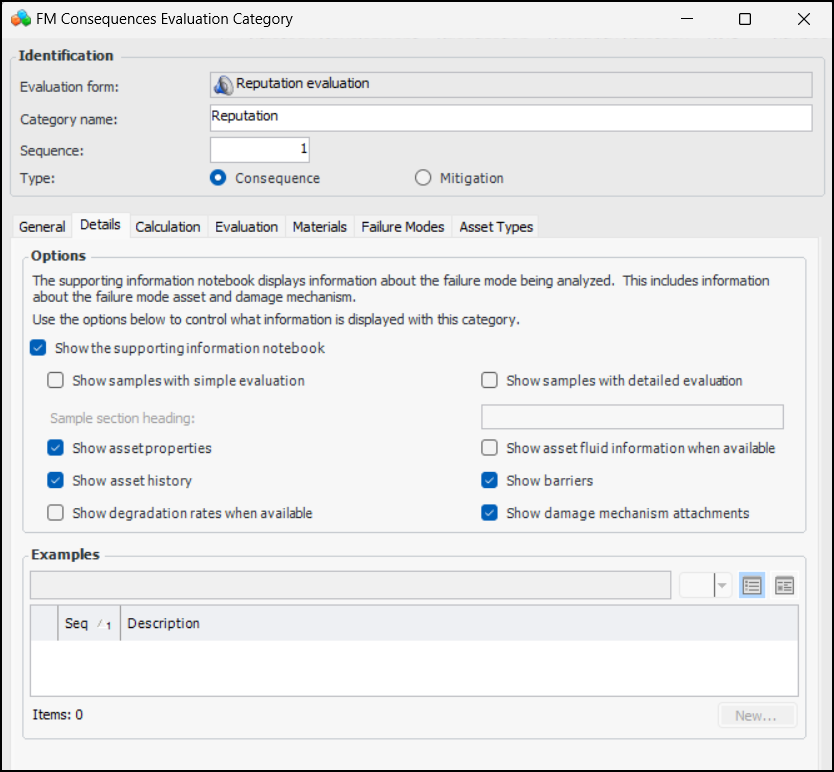
On the FM Consequences Evaluation Category dialog, select the Details tab to set options for supporting information. For example:
12.
The heading that appears at the top of the Samples tab for this category in the questionnaire.
When this option is selected, the supporting information notebook contains the Asset Properties tab. This tab provides the failure mode asset’s properties on several tabs.
When this option is selected, the supporting information notebook contains the History tab. This tab provides the failure mode asset’s checksheets, failures, work orders, and work requests.
When this option is selected, the supporting information notebook contains the Barriers tab. This tab lists the failure mode asset’s failure barriers.
When this option is selected, the supporting information notebook contains the Attachments tab. If the RBI failure mode was created from a damage mechanism, this tab lists the damage mechanism’s attachments.
13.
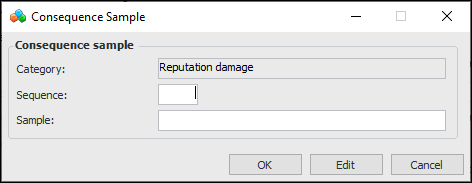
For each example, click New. The Consequence Sample dialog appears:
In the Sample box, enter the example. Click OK. The sample is added to the Examples table.
14.
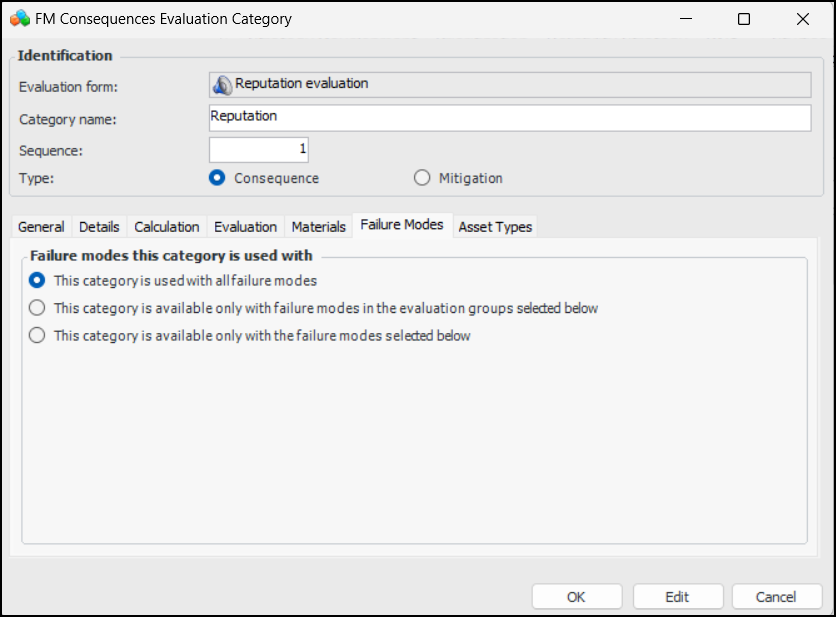
15.
All failure modes – There are no restrictions on the category based on the failure mode.
Selected evaluation groups – A table appears listing the evaluation groups defined for the site. Select the appropriate evaluation groups.
Note: Evaluation groups are assigned to asset types in their strategy development settings. They can also be assigned to entries in the damage mechanism library (RBI analysis).
Selected failure modes – A table appears listing library failure modes. Select the appropriate library entries.
16.
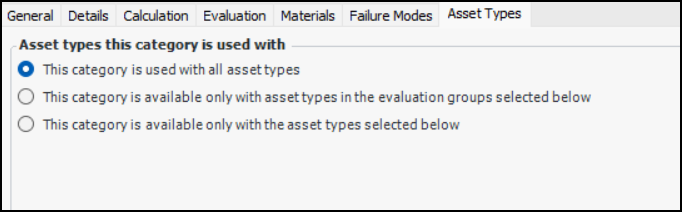
Select the Asset Types tab to restrict the category to specific asset types or asset types in specific evaluation groups.
17.
All asset types – There are no restrictions on the category based on the asset type.
Selected evaluation groups – A table appears listing the evaluation groups defined for the site. Select the appropriate evaluation groups.
Note: Evaluation groups are assigned to asset types in their strategy development settings. They can also be assigned to entries in the damage mechanism library (RBI analysis).
Selected asset types – A table appears listing asset types for the site. Select the appropriate asset types.
18.
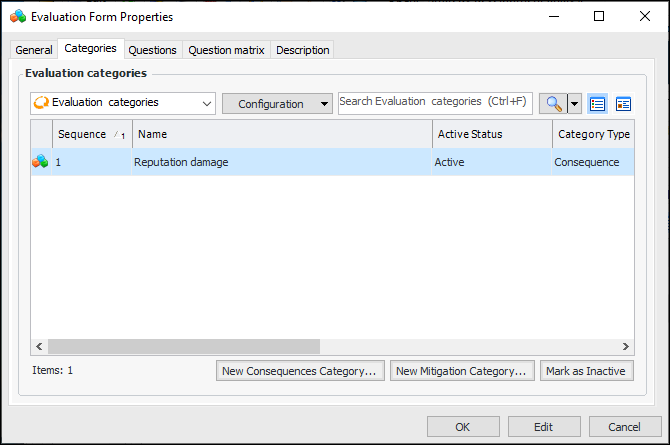
Click OK. The category is added to the Evaluation categories table. For example:
Tip: While you are developing an evaluation, you can mark a category as inactive until it is ready to be used in risk analyses. On the Categories tab, select the category in the table and click Mark as Inactive. The Mark as Inactive window appears, where you can enter a comment. When you click OK, a confirmation message appears. Click OK. The category’s Active Status in the table is shown as “Inactive”. When you are ready, click Mark as Active to make the category available.
19.
To view a list of the questions on the form, select the Questions tab. To view the compiled list of matrix entries for detailed evaluations, select the Question matrix tab.
20.
Select the Description tab to enter additional information.
21.
When you have finished adding categories, click OK. The form is added to the Reputation Questionnaires tab.
Note: When you have set up the evaluation, you can assign the questionnaire to analysis types and asset types. For more information, see: