Setting up Consequence Severity Evaluations to use Lookup Tables

You can automate the process of analyzing a failure mode’s criticality using lookup tables and delivered calculations. You can also define your own custom calculations.
Note: Support for criticality evaluation calculations is generally available. However, you must first enable feature 115 to use the functionality in APM. In the Enterprise window, select the Features view and the Enabled Features tab. Click Browse, select “Practical RBI - criticality evaluation calculations” and click OK. If APM is running as a smart client, click Refresh Enabled Features on the server. Then restart the client to use the functionality.
This topic explains:

Calculation of Criticality Evaluation Rankings

You can calculate the probability of failure and consequences for a failure mode based on various lookup tables and calculations to produce criticality evaluation rankings.
The calculation function supports calculations that determine ranking values for criticality evaluations. In the criticality evaluation, the user is presented with a series of evaluation categories. Each evaluation category consists of a series of questions or impact statements.
Typically, the user would select the appropriate question for the failure mode being evaluated. The selected question has a ranking assigned to it. The ranking is used to select the corresponding probability or severity (health and safety, environmental, or reputation).
The ranking calculation provides an option to automate the determination of the ranking based on one or more inputs and the formula defined for the calculation. In most cases, the formula consists of a lookup table or a series of lookups. Once the ranking has been calculated, APM selects the corresponding question associated with the evaluation category.
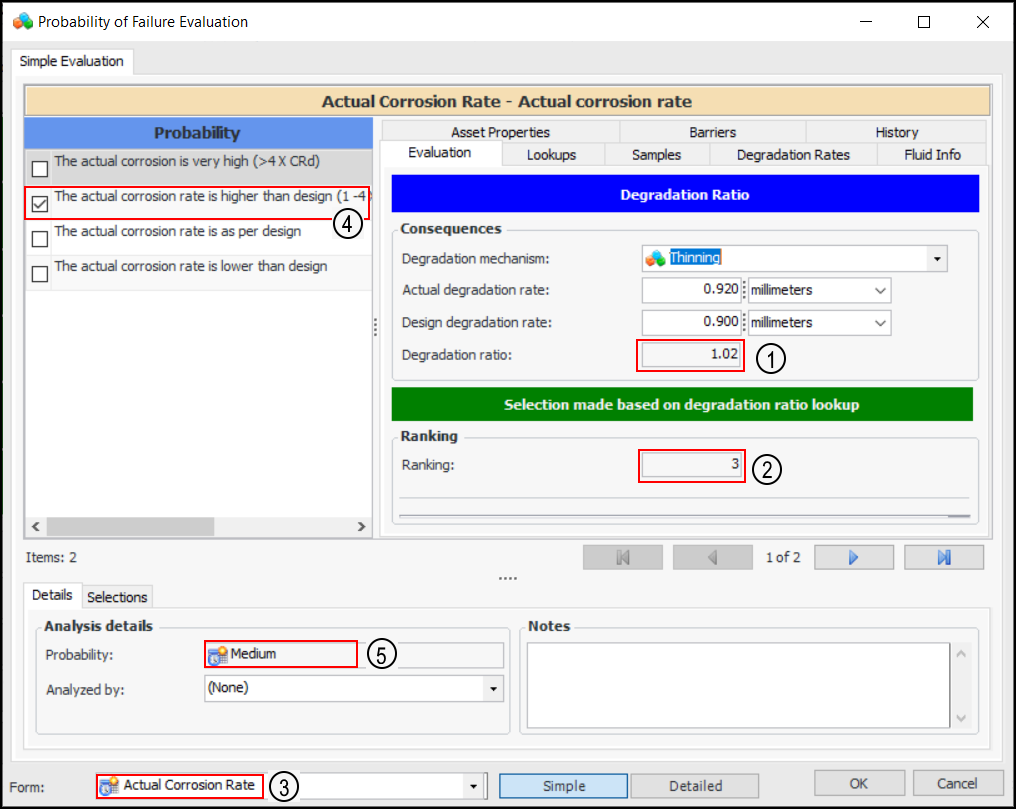
In this example of a probability of failure evaluation, the user selected a degradation mechanism and entered the actual degradation rate. APM then determined:
1.
2.
3.
4.
5.
You can create or update questionnaires to calculate:

RBI Lookup Tables

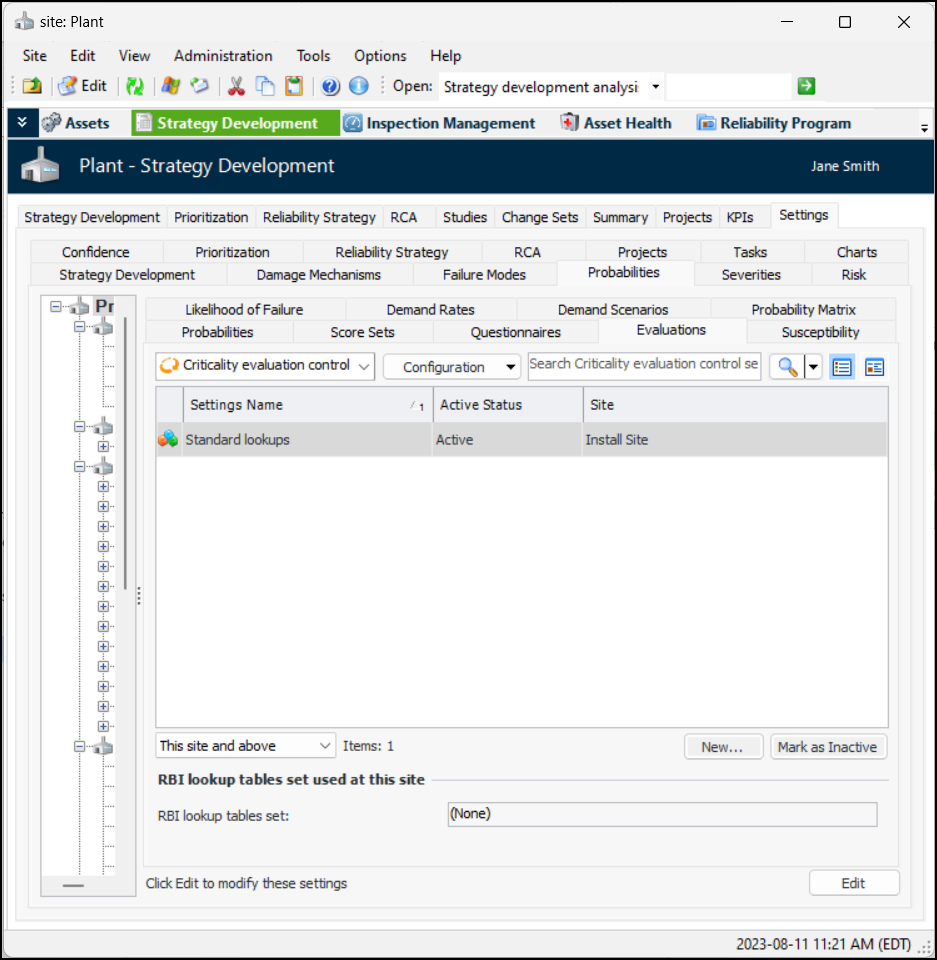
You can view, edit, and create lookup tables. In the Site window, select the Strategy Development view, Settings tab, and either the Probabilities or Severities tab. Select the Evaluations tab. For example:
This tab lists the RBI lookup tables sets for the site. Double-click a set to view its lookup tables. For more information, see Setting up RBI Lookup Tables and Sets.

Setup Tasks for Practical RBI Evaluations

Setting up APM to use the lookup tables and calculations involves the following objects:
See Setting Risk Analysis Options for Analysis Types

Setting up a Safety Evaluation with the Toxicity Lookup

This topic explains how to set up and use an existing health and safety evaluation to use the toxicity index lookup and calculation. The lookup table should be populated with values from the NFPA (National Fire Protection Association) toxicity index.
For detailed information about other aspects of creating the evaluation, see Setting up Health and Safety Evaluations.

To Set up a Safety Evaluation to use the Toxicity Lookup Table

1.
On the site’s Strategy Development view, select the Settings tab, the Severities tab, and the Severities settings node in the tree.
Tip: You can also select the site’s Administration menu, Strategy Development Settings, Risk Analysis and then Severities. The Strategy Development - Severities Settings dialog appears.
2.
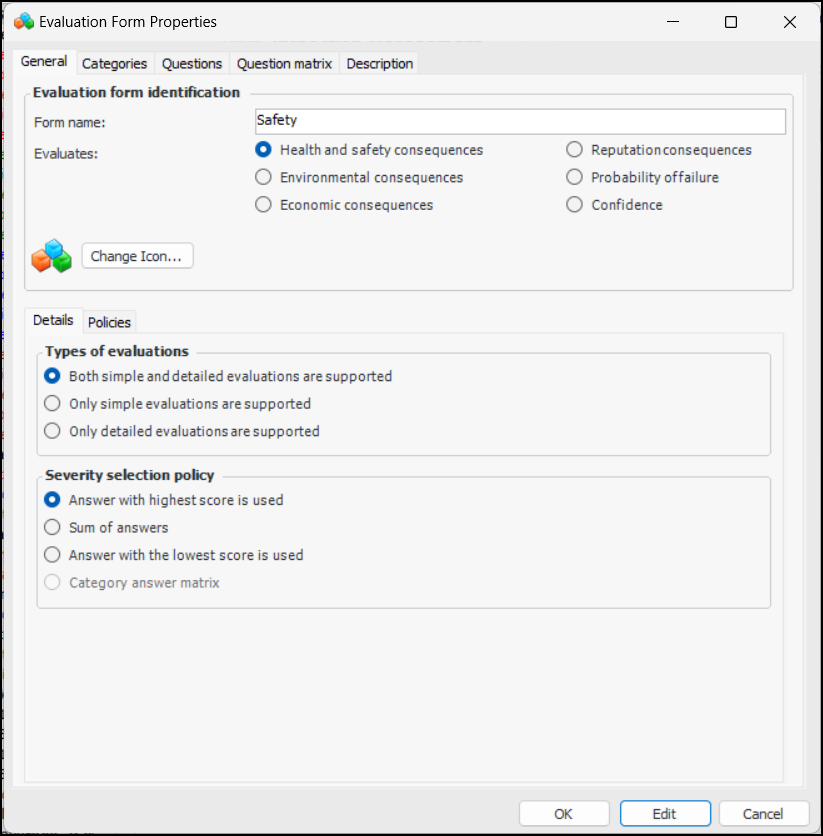
Select the Health and Safety Questionnaires tab and open the questionnaire you wish to edit. The Evaluation Form Properties window appears. Click Edit. For example:
3.
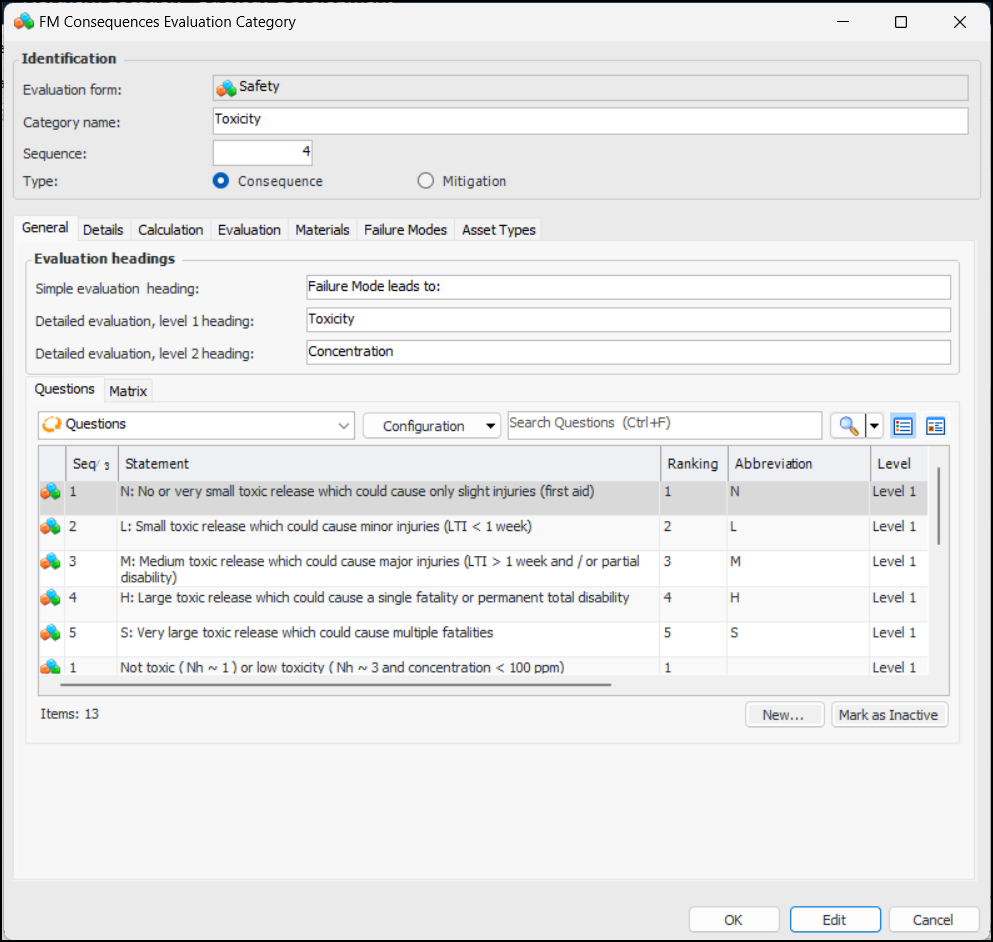
Select the Categories tab. Create a consequences category called “Toxicity” or open the existing Toxicity category and click Edit. This example is from the Safety evaluation in the install database:
4.
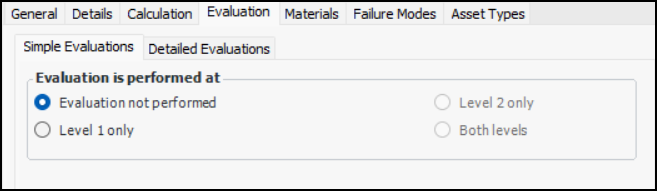
Select the Evaluation tab:
5.
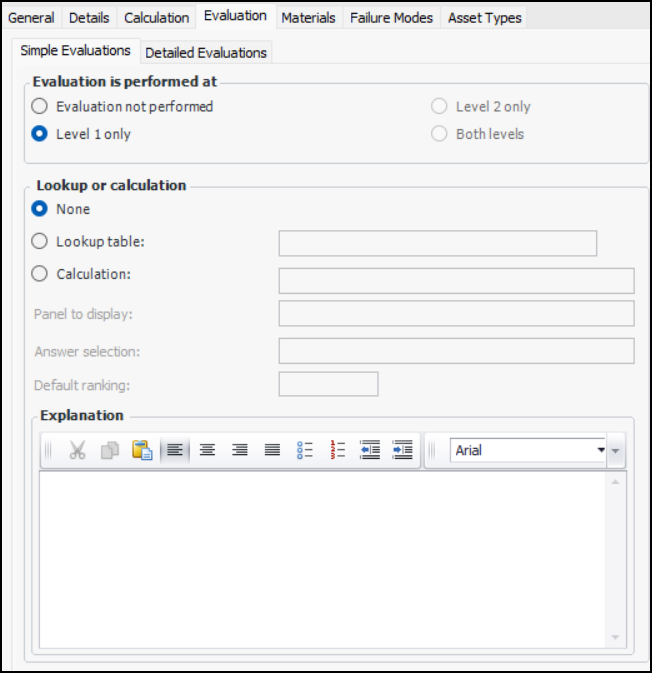
On the Simple Evaluations tab, select Level 1 only. The Lookup or calculation area is added:
6.
Click Lookup table and select “Toxicity index lookup” from the list.
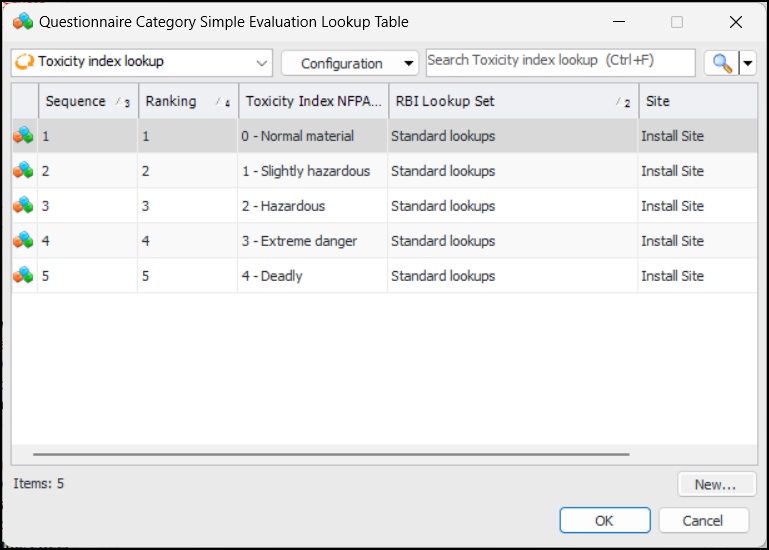
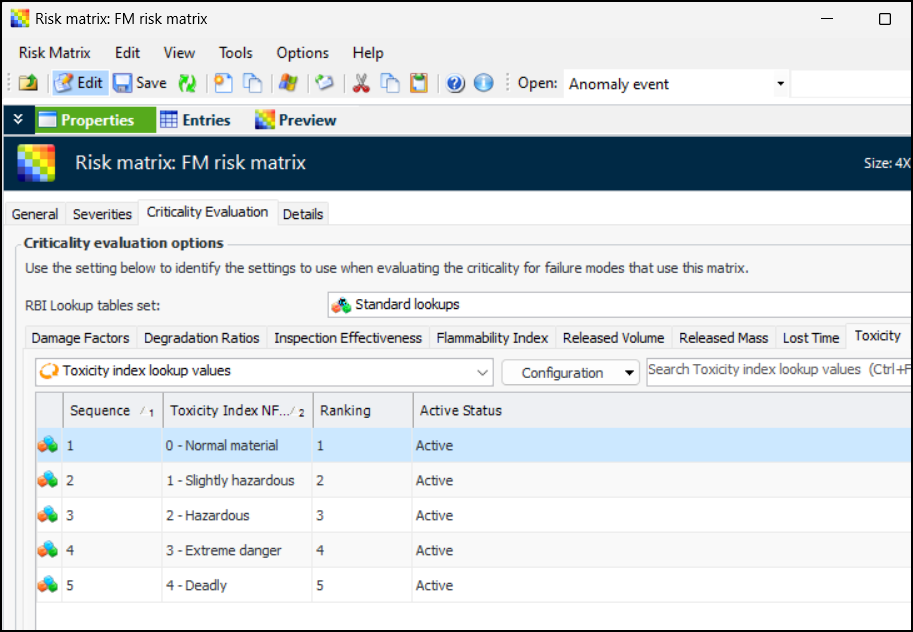
Tip: Click to view or edit the values in the lookup table. For example:
7.
Ensure that Answer selection is set to “Automatic”.
8.
9.
Tip: If the questionnaire supports it, select the Detailed Evaluations tab to specify the lookup table and the level at which it is used.
10.
Click OK to close the category. Then click OK to close the evaluation form.

To Use the Questionnaire

1.
2.
In the Properties view, select the Risk Options tab.
3.
4.
Add a failure mode to the analysis. In the Maintenance Action Plan window, select the Criticality view and click Health and Safety in the matrix. The Health and Safety Effects Evaluation window appears.
5.
6.
Tip: Select the Selections tab to view the results for this and other categories.
7.
Click OK to close the evaluation. The matrix is updated with the result.

Setting up a Safety Evaluation with the Lost Time Lookup

This topic explains how to set up an existing health and safety evaluation to use the lost time to injury lookup table.
For detailed information about creating the evaluation, see Setting up Health and Safety Evaluations.
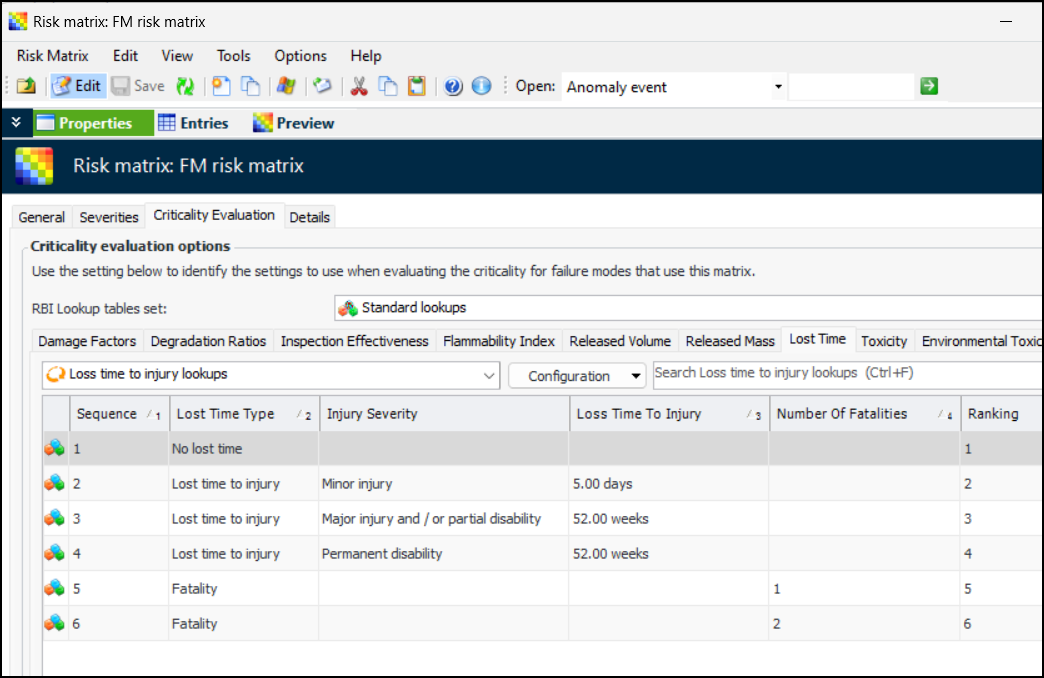
This topic assumes that the lost time to injury lookup table has been defined in the RBI lookup tables set. It also assumes that the injury severity values have been created for the enterprise. For more information, see Setting up RBI Lookup Tables and Sets and Setting up Injury Severities.

To Set up a Safety Evaluation to use the Lost Time Lookup Table

1.
On the site’s Strategy Development view, select the Settings tab, the Severities tab, and the Severities settings node in the tree.
Tip: You can also select the site’s Administration menu, Strategy Development Settings, Risk Analysis and then Severities. The Strategy Development - Severities Settings dialog appears.
2.
Select the Health and Safety Questionnaires tab and open the questionnaire you wish to edit. The Evaluation Form Properties window appears. Click Edit. For example:
3.
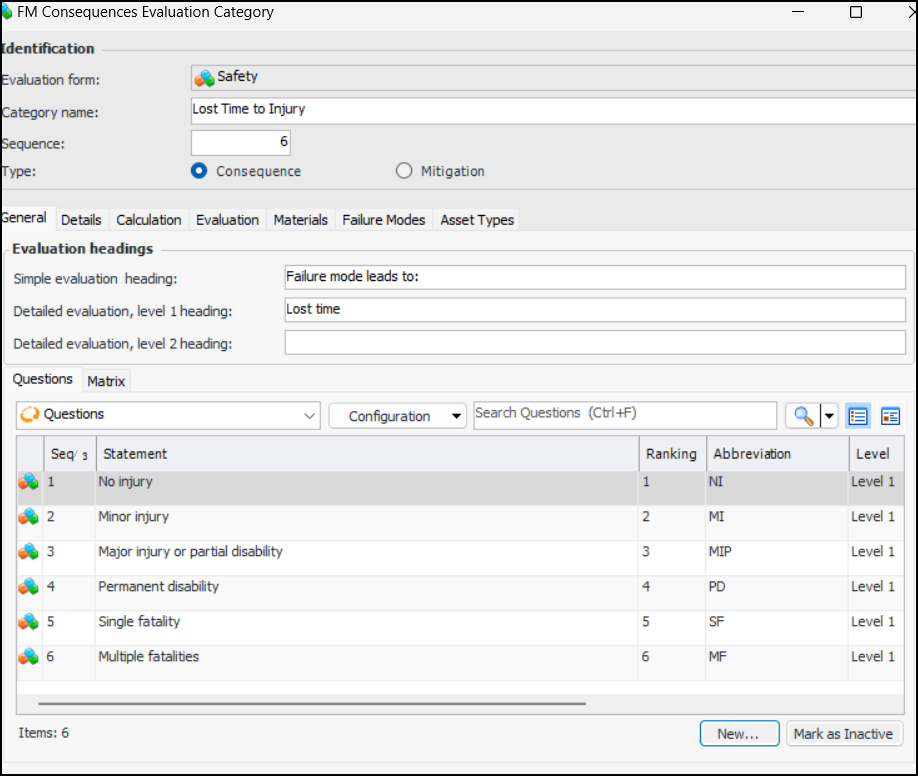
Select the Categories tab. Create a category called “Lost Time to Injury” and add questions that correspond to your lookup table. For example:
4.
Select the Evaluation tab:
5.
On the Simple Evaluations tab, select Level 1 only. The Lookup or calculation area is added:
6.
Click Lookup table and select “Lost time to injury lookup” from the list.
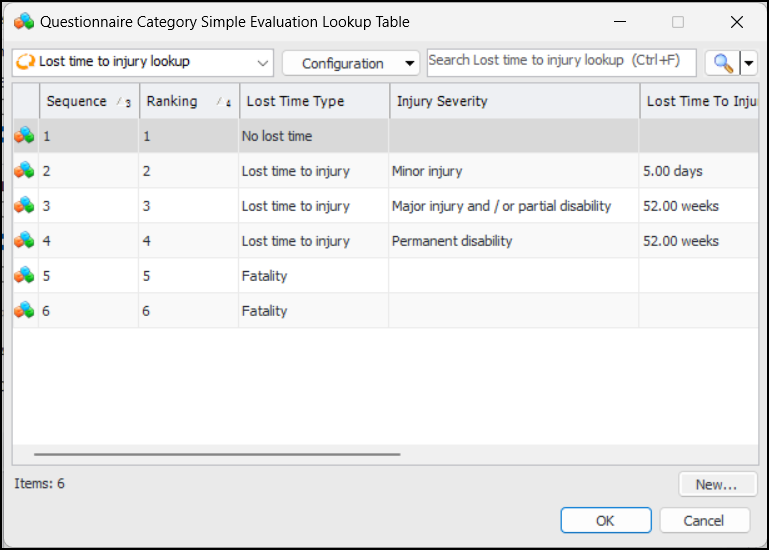
Tip: Click to view or edit the values in the lookup table. For example:
7.
Ensure that Answer selection is set to “Automatic”.
8.
9.
Tip: If the questionnaire supports it, select the Detailed Evaluations tab to specify the lookup table and the level at which it is used.
10.
Click OK to close the category and click OK to close the evaluation form.

To Use the Questionnaire

1.
2.
In the Properties view, select the Risk Options tab.
3.
4.
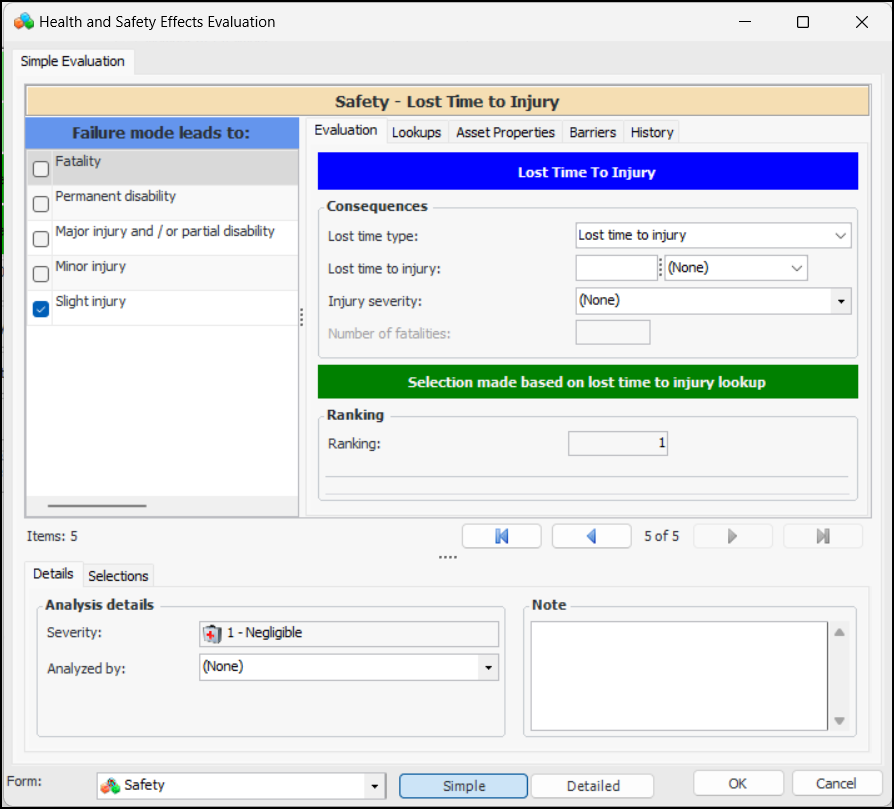
Add a failure mode to the analysis. In the Maintenance Action Plan window, select the Criticality view and click Health and Safety in the matrix. The Health and Safety Effects Evaluation window appears.
5.
6.
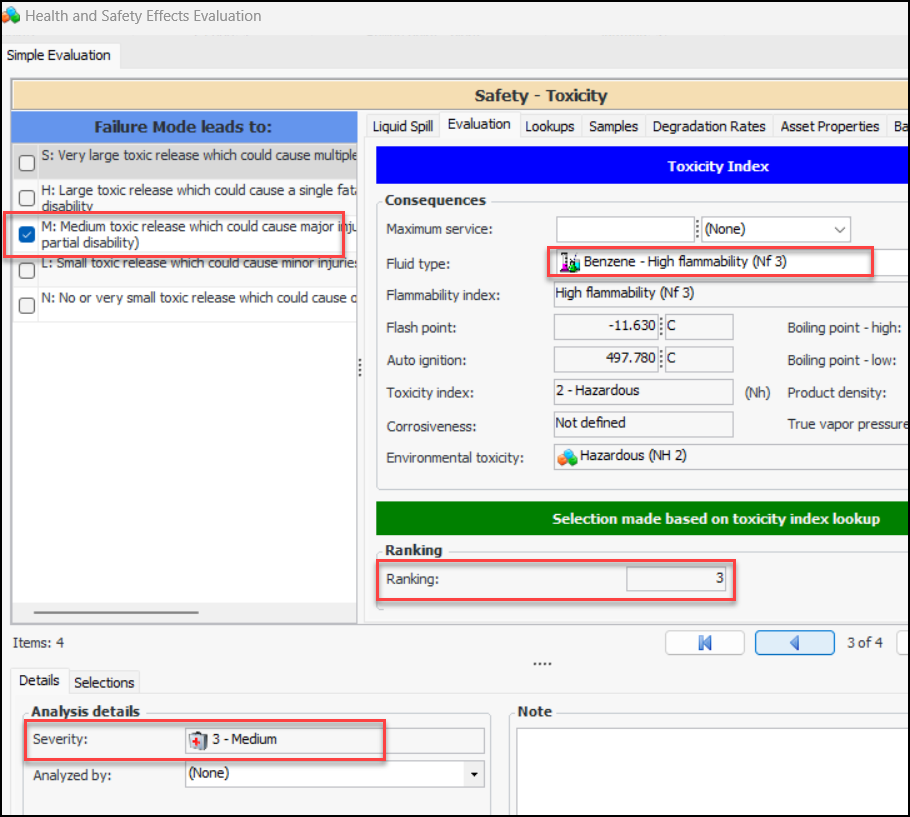
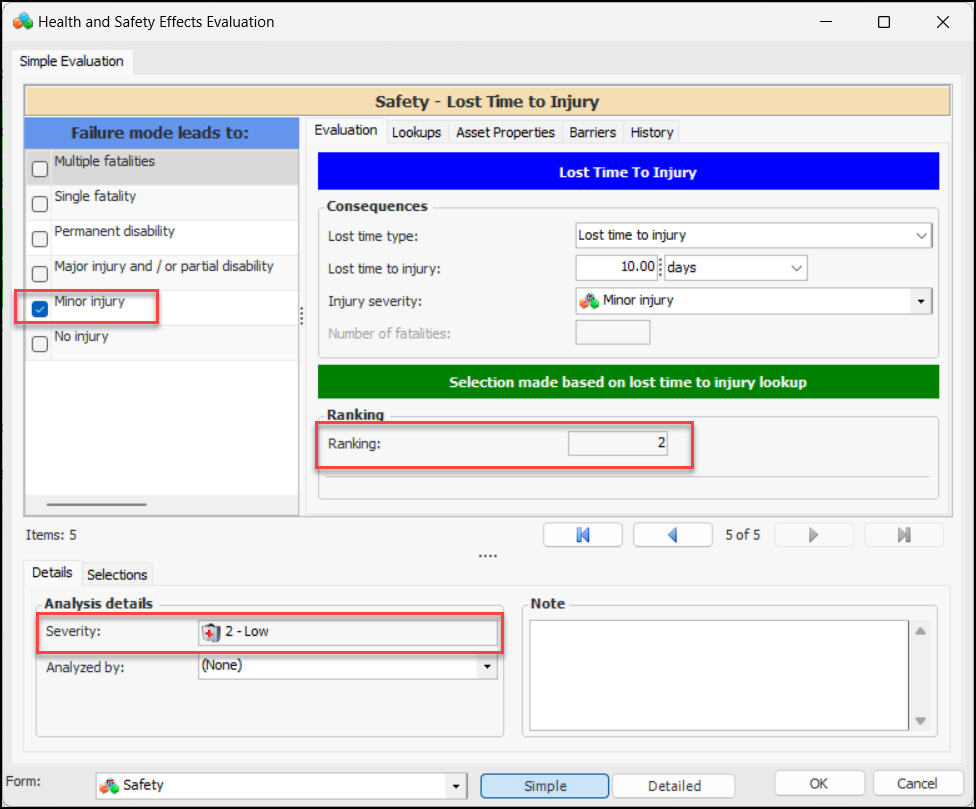
APM selects the ranking, selects the impact statement, and updates the value in the Severity box:
Tip: Select the Selections tab to view the results for this and other categories.
7.
Click OK to close the evaluation. The matrix is updated with the result.

To Set up an Environmental Evaluation to use the Toxicity Lookup

The environmental toxicity lookup table allows you to evaluate one of the consequences of a liquid spill. Environmental toxicity values are included in the fluid type in asset specifications. For more information, see Setting up Fluid Types.
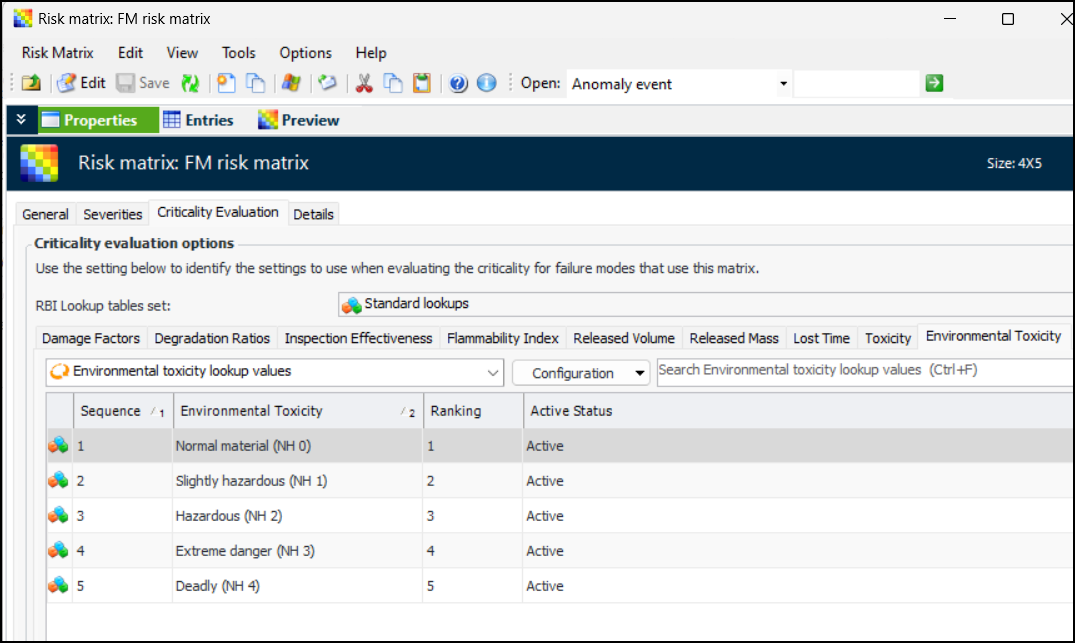
Be sure to populate the environmental toxicity lookup table, which should be assigned to the RBI lookup tables set that is referenced in the risk matrix assigned to the RBI analysis.
This topic explains how to set up the environmental toxicity evaluation on the first level of a detailed evaluation. The severity ranking is based on the size of the liquid spill and the toxicity of the material.
1.
On the site’s Strategy Development view, select the Settings tab, the Severities tab, and the Severities settings node in the tree.
Tip: You can also select the site’s Administration menu, Strategy Development Settings, Risk Analysis and then Severities. The Strategy Development - Severities Settings dialog appears.
2.
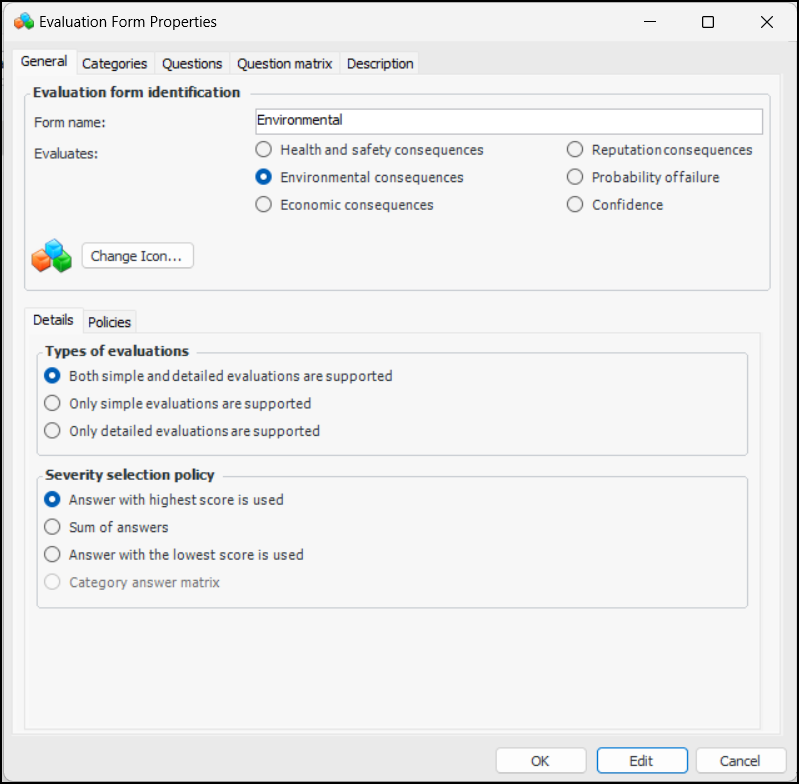
Select the Environmental Questionnaires tab and open the questionnaire you wish to edit. The Evaluation Form Properties window appears. Click Edit. For example:
3.
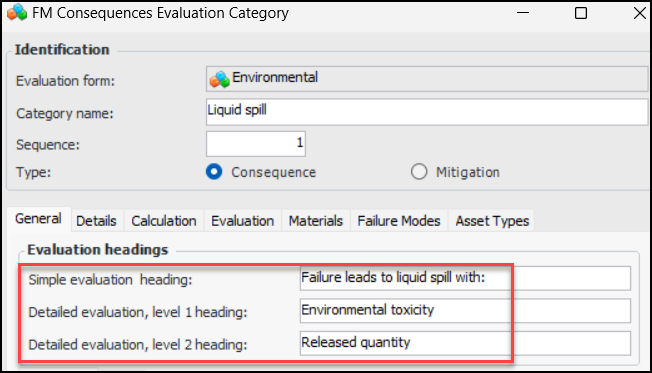
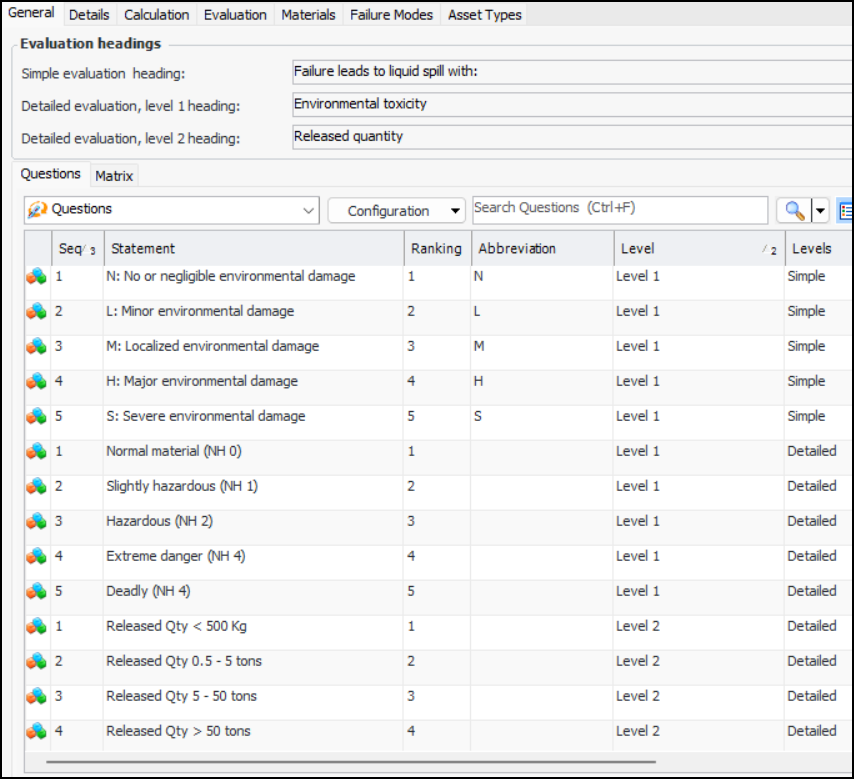
Select the Categories tab. Create the “Liquid Spill” category or open the existing category and click Edit.
4.
5.
6.
7.
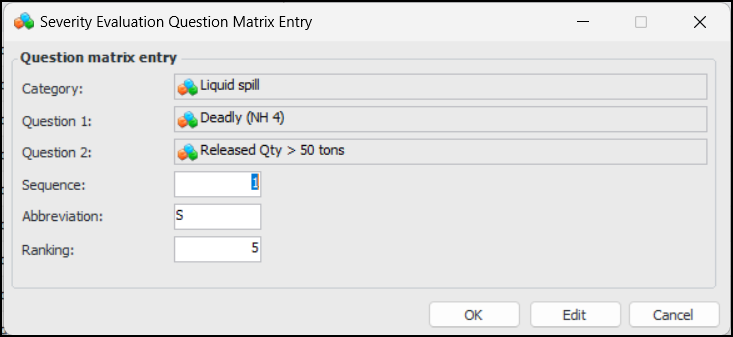
Select the Matrix tab and click Generate. The table is populated with an entry for each combination of questions in the detailed evaluation.
8.
9.
Select the Calculation tab and Liquid release calculation. Select the Liquid release calculation and ensure that the calculation is shown with single and two-level evaluations.
10.
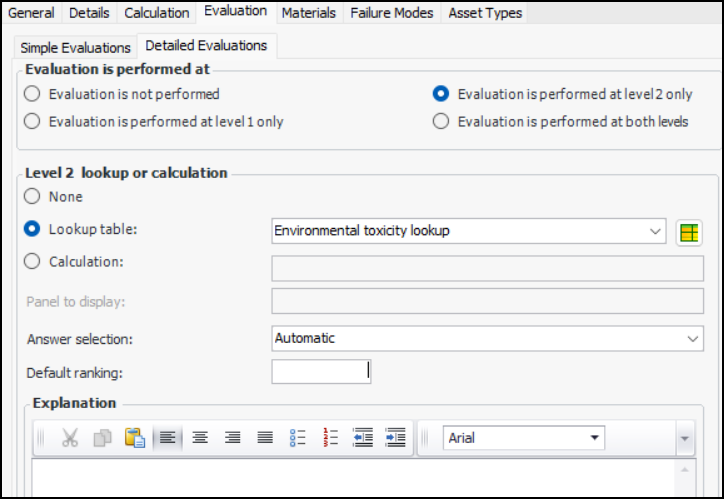
Select the Evaluation tab and the Detailed Evaluations tab.
11.
Click Evaluation is performed at level 2 only.
12.
Click Lookup table and select the environmental toxicity lookup table.
13.
Make sure that Answer selection is set to “Automatic”. For example:
14.
Click OK to close the category. Then click OK to close the evaluation form.

To Use the Questionnaire

1.
2.
In the Properties view, select the Risk Options tab.
3.
4.
Add a failure mode to the analysis. In the Maintenance Action Plan window, select the Criticality view and click Environmental in the matrix. The Environmental Effects Evaluation window appears.
5.
Click Detailed. Select the Evaluation tab.
6.
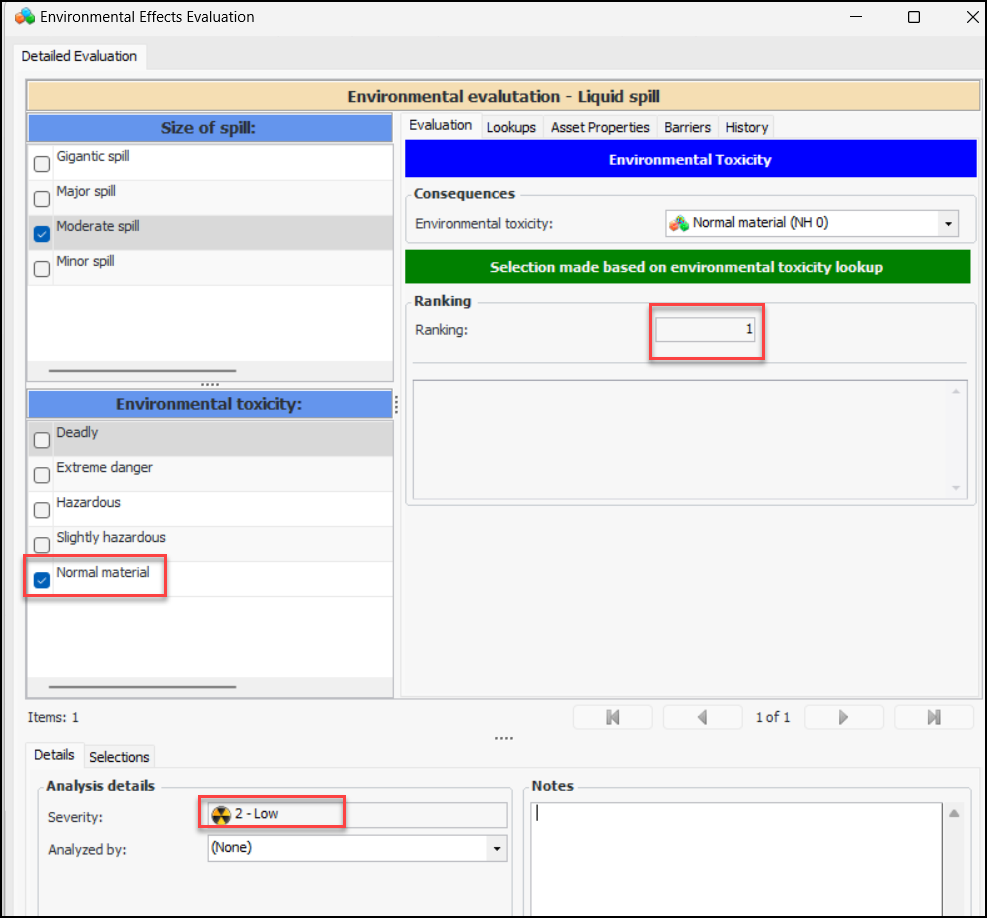
Toxicity value on the Evaluation tab
APM selects the ranking, selects the toxicity impact statement, and updates the value in the Severity box:
7.
Click OK to close the evaluation. The matrix is updated with the result.