Setting up RBI Lookup Tables and Sets

You can automate the process of analyzing a failure mode’s criticality using lookup tables and delivered calculations.
For related information, see Setting up Consequence Severity Evaluations to use Lookup Tables and Setting up Probability of Failure Evaluations to use Lookup Tables.
Note: Support for criticality evaluation calculations is generally available. However, you must first enable feature 115 to use the functionality in APM. In the Enterprise window, select the Features view and the Enabled Features tab. Click Browse, select “Practical RBI - criticality evaluation calculations” and click OK. If APM is running as a smart client, click Refresh Enabled Features on the server. Then restart the client to use the functionality.
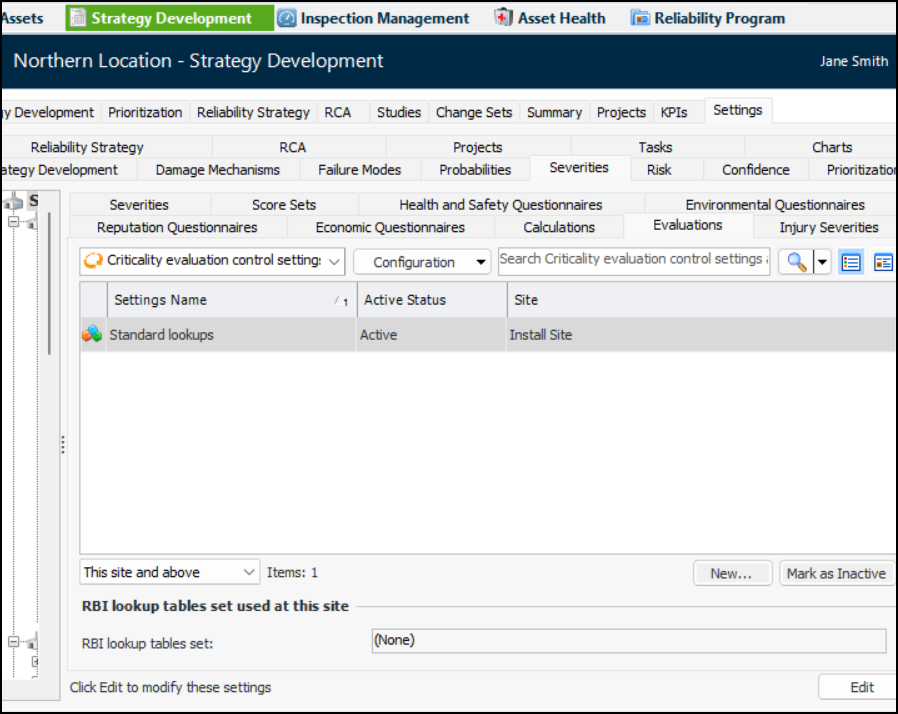
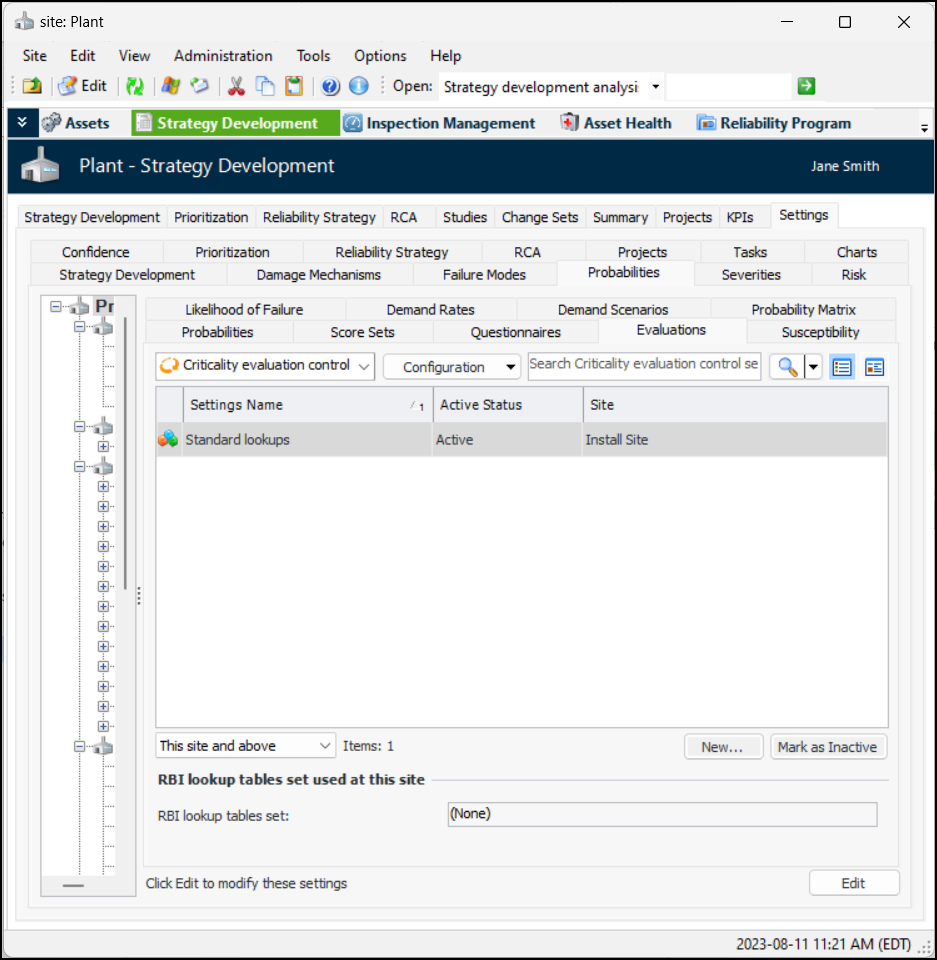
You can view lookup tables and populate them with values appropriate for you organization. In the Site window, select the Strategy Development view, Settings tab, and either the Probabilities or Severities tab. Select the Evaluations tab. For example:
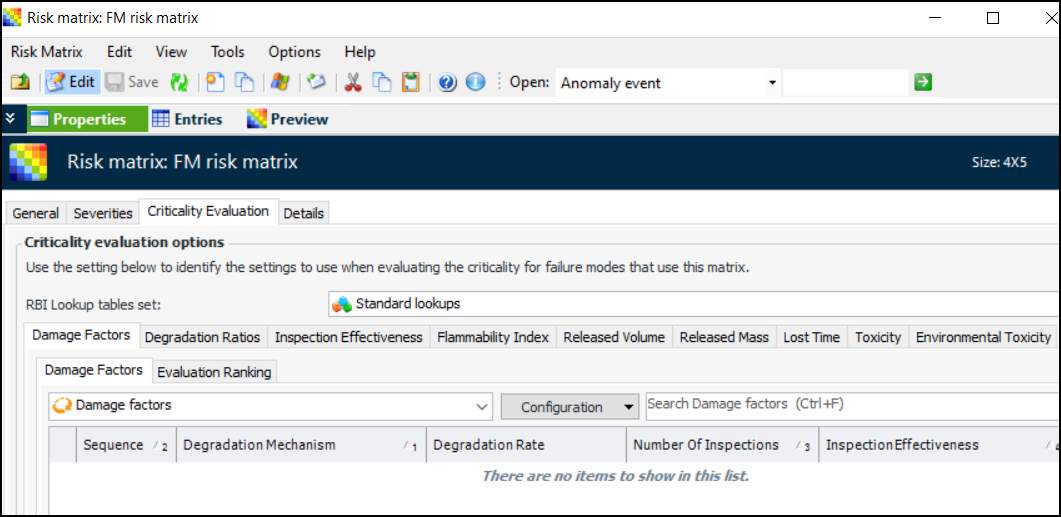
You can also view lookup tables in the Risk Matrix window. To open this window, open the Site window, select the Strategy Development view, Settings tab, Risk tab, and Risk Matrices tab. Double-click the risk matrix to open the Risk Matrix window. Select the Criticality Evaluation tab. In the RBI lookup tables set list, select “Standard lookups”. For example:
Tabs appear for the standard lookup tables.
Note: Data shipped as part of the Content classes, for example, Released Volume, might include data members that use UOMs that exist in the install database but not in your APM database. If you wish to use instances that use UOMs not currently in your database, you will need to manually create those UOMs. See Adding Units of Measure.
This topic explains how to create an RBI Lookup Tables set and assign it to the site. It also outlines the values you can add to tables. See:

To Create an RBI Lookup Tables Set

1.
In the Site window, select the Strategy Development view, Settings tab, Strategy Development tab.
2.
Select either the Probabilities or Severities tab.
Tip: You can also select the site’s Administration menu, Strategy Development Settings, Risk Analysis and then Probabilities (or Severities). The Strategy Development - Probabilities Settings dialog appears.
3.
Select the Evaluations tab. This tab lists the RBI lookup tables sets defined for the site. For example:
Tip: You can mark a set as inactive until it is ready to be used. Select the set in the table and click Mark as Inactive. The Mark as Inactive/Active dialog appears, where you can enter a comment. When you click OK, a confirmation message appears. Click OK. When you are ready, click Mark as Active to make the set available for use.
4.
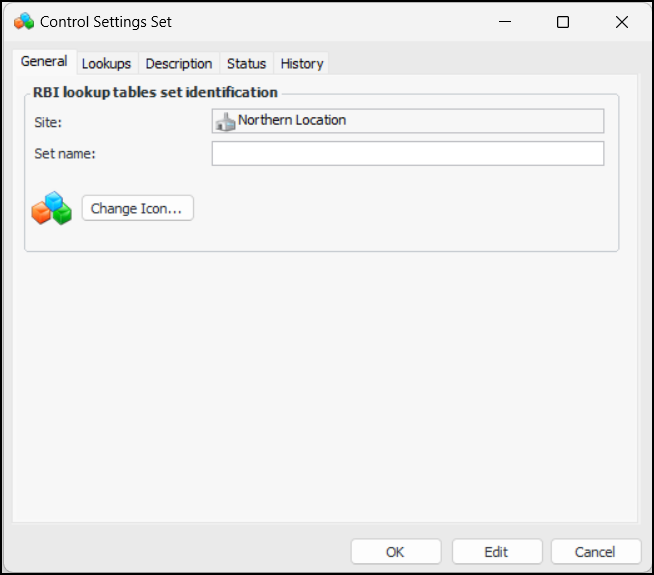
Click New. The Control Settings Set dialog appears:
5.
6.
To change the graphic that represents the set in the UI, click Change Icon, select another icon, and click OK.
7.
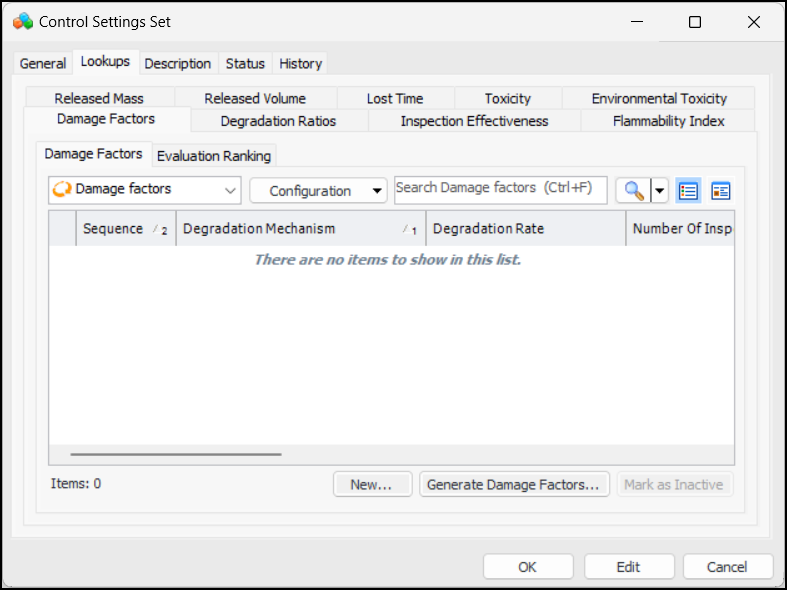
Select the Lookups tab. This tab contains a tab for each of the lookup tables currently available in the product. For example:
8.
9.
Select the Description tab to add more information about the set.
10.
Click OK. The dialog closes and the set is added to the table.

To Assign an RBI Lookup Tables Set to the Site

1.
In the Site window, Strategy Development view, Settings tab, select either the Probabilities or Severities tab.
2.
Select the Evaluations tab and click Edit to open the site for changes. The button changes to Save.
3.
In the RBI lookup tables set list, select a set.
4.
Click Save.

Lookup Table Values

In the install database, some lookup tables are populated with standard values. For example, the flammability index lookup table contains values published by the National Fire Protection Association (NFPA). The table is used in the Fire category in Health and Safety questionnaires.
The following lookup tables are available:
Note: The selection of a ranking is based on sequence number first, then value. That is, the calculation looks for the first value, according to sequence, that meets or exceeds the input value. When setting up the lookup table, you might find it most effective to give each value a sequence number of “1” so that the selection is based on the values instead.

To Set up the Damage Factors Lookup Table
The damage factors lookup table is created in two steps. First, generate damage factors, which are based on a matrix of damage mechanism, inspection effectiveness, degradation rate, and number of inspections values. Then assign evaluation ranking numbers to each value in the matrix.
1.
In the Site window, select the Strategy Development view, Settings tab, and Probabilities tab.
Tip: You can also select the site’s Administration menu, Strategy Development Settings, Risk Analysis and then Probabilities. The Strategy Development - Probabilities Settings dialog appears.
2.
Select the Evaluations tab. This tab lists the RBI lookup tables sets defined for the site.
3.
4.
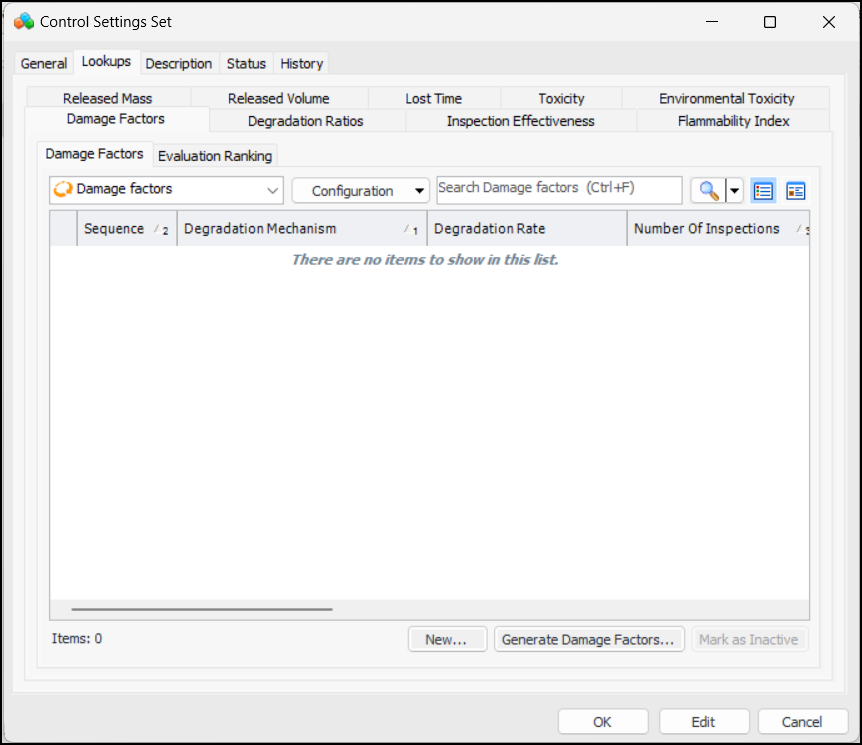
Select the Damage Factors tabs. For example:
5.
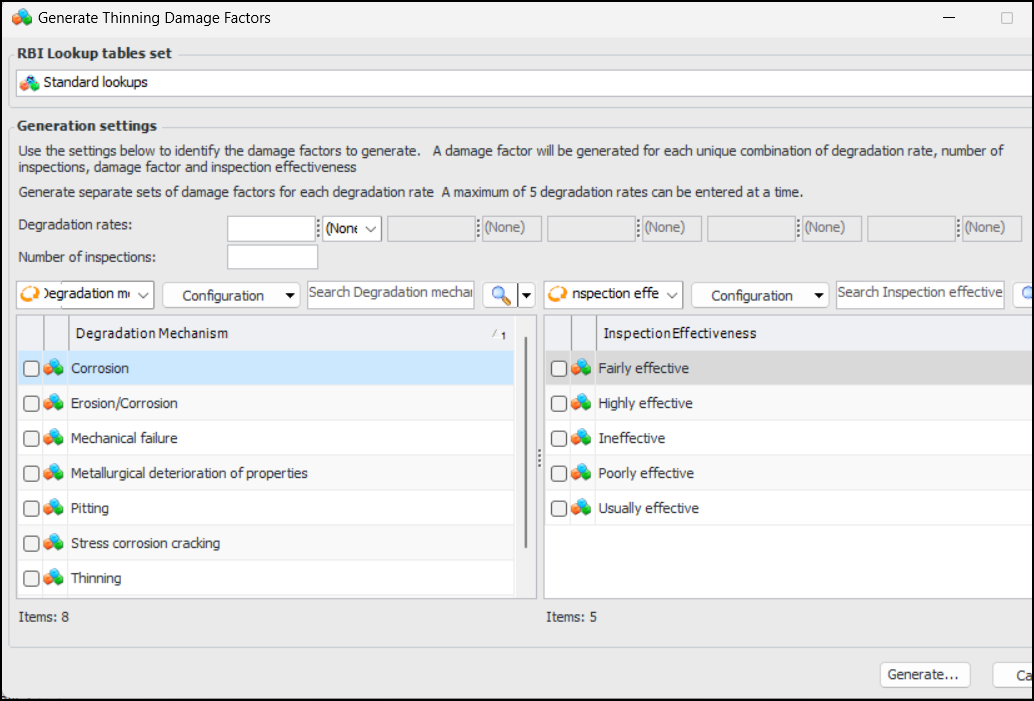
Click Generate Damage Factors. The Generate Thinning Damage Factors dialog appears:
6.
7.
8.
9.
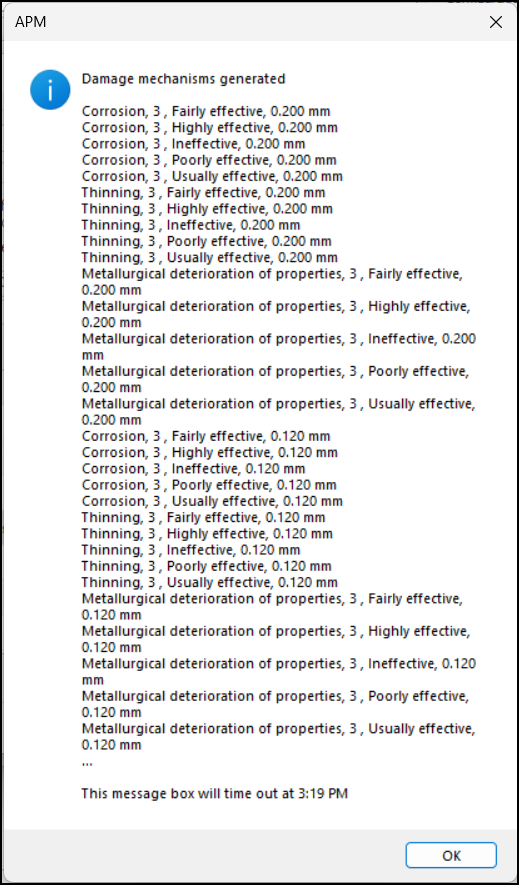
Click Generate. An information message appears showing the entries that were generated. For example:
10.
Click OK. The values are listed in the Damage Factors tab.
11.
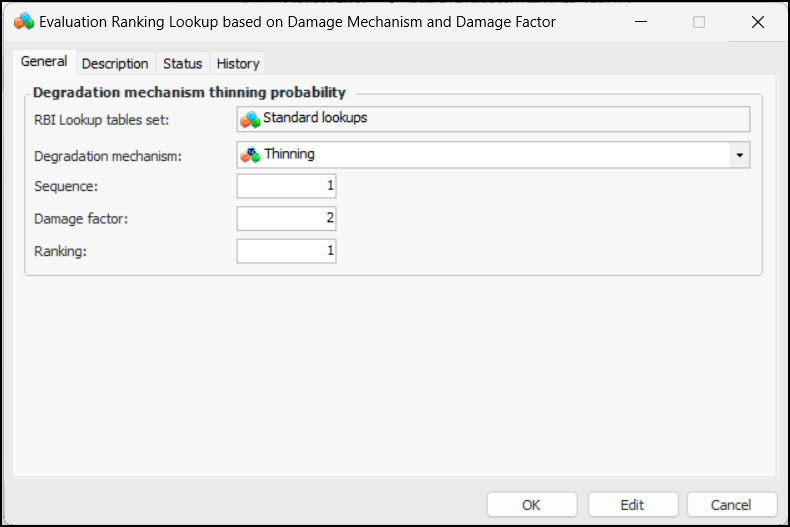
Select the Evaluation Ranking tab.
12.
13.
14.