|
Setting up Environmental Evaluations
•Hazards and Consequences
Mitigating Factors
Anatomy of an Evaluation
Simple and Detailed Evaluations
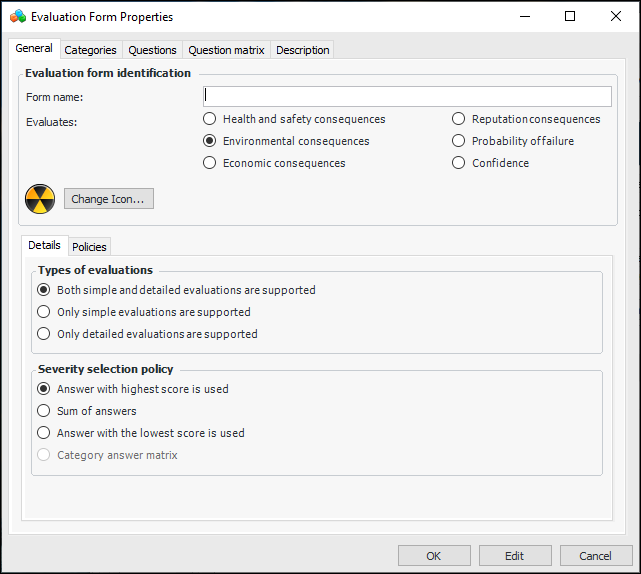
When designing an evaluation, you can specify that it supports simple evaluations (one level of questions), detailed evaluations (one or two levels of questions), or both. When two levels of questions are defined, the first set usually presents the problems and the second set presents the volume or size of the problem. For the Fire category, for example, first-level questions could deal with flammability and second-level questions with the volume of released fluid. When the evaluation supports both levels, the user can click Simple or Detailed in the questionnaire, depending on the complexity of the failure mode.Category Answer Matrix
The category answer matrix is only supported for simple evaluations with one level of questions. Evaluations must be presented as embedded forms, meaning that the user opens the Maintenance Action Plan window, selects the Risk tab, and then selects options. This choice can be set in the risk options of the analysis, analysis type, or asset type.Inspection Factors and Intervals
Controlling the Availability of Categories
Using Lookup Tables and Calculations
You can incorporate a lookup table and/or calculation in a category to automatically assess severity ranking. For example, use the environmental toxicity lookup table to determine a ranking. For information, see Setting up Consequence Severity Evaluations to use Lookup Tables.Example Evaluation Form
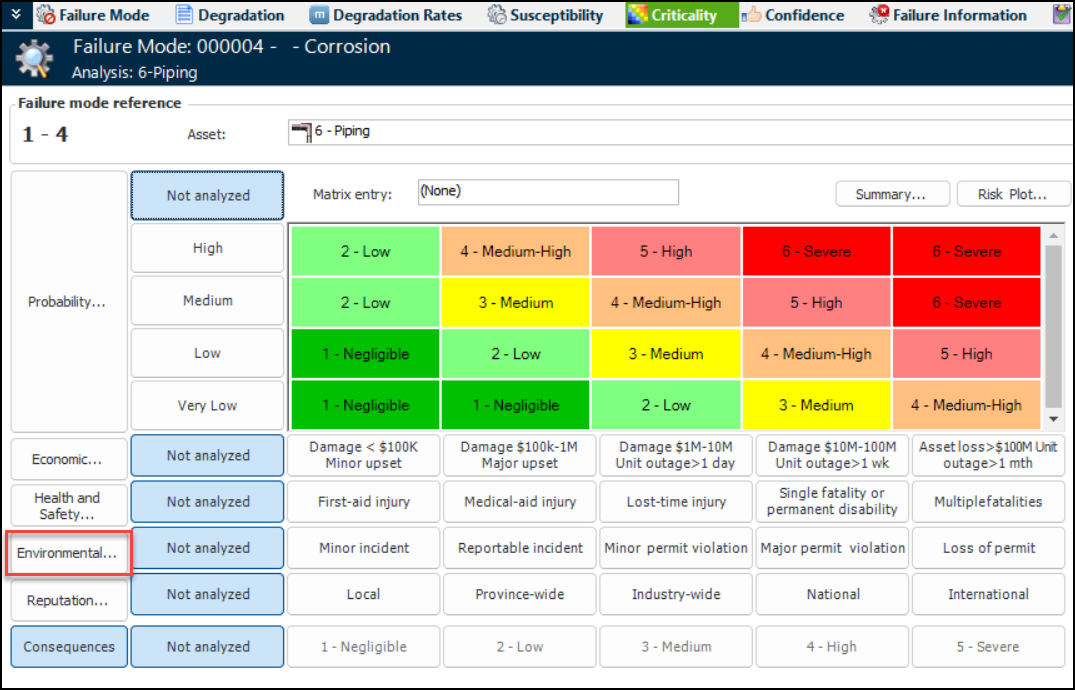
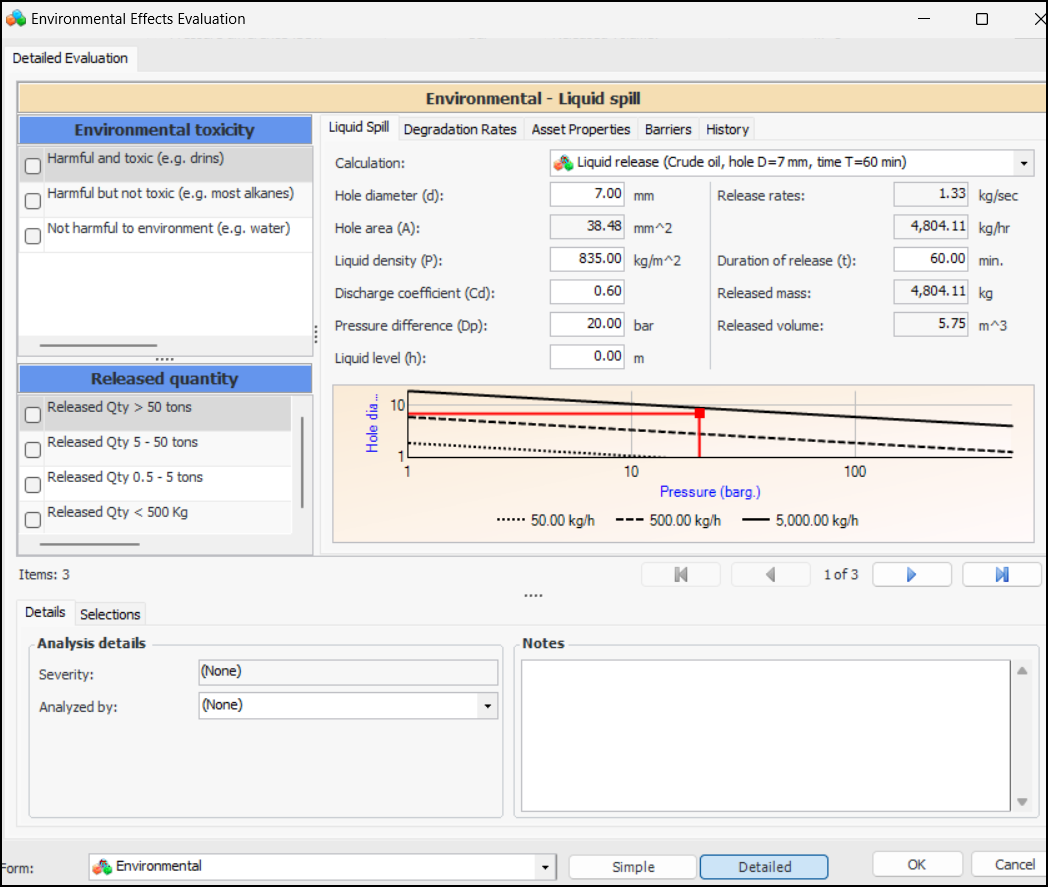
The analyst clicks Environmental to open the questionnaire:Tip: Evaluations can also be shown as “embedded” forms, meaning that the user opens the Maintenance Action Plan window, selects the Risk tab, and then selects options. This choice can be set in the risk options for the analysis, analysis type, or asset type.The analyst can refer to the Asset Properties, History, and Barriers tabs for information to aid in the evaluation, for example, historical inspections, failures, and work performed. APM provides this information automatically, based on the asset’s data. When designing the evaluation, you can add the Samples tab and provide examples. You can also choose to show asset fluid information, degradation rates, and calculations (Liquid release or flash calculation for LPG).If different evaluation types have been defined in the form, the analyst can select Simple or Detailed, as required by the complexity of the failure mode.As the analyst moves through the analysis, the Severity box displays the current calculation of severity based on the selections. The Selections tab displays the categories, selected statements, and the ranking.The analyst can select the team member performing the evaluation from the Analyzed by list and provide additional information about the analysis in the Notes box. Notes are collected and available in several locations.When the analyst completes the pop-up questionnaire and clicks OK, the evaluation form closes and the result (for example, slight effect or major effect) is selected in the risk matrix. For example:To Set up an Environmental Evaluation
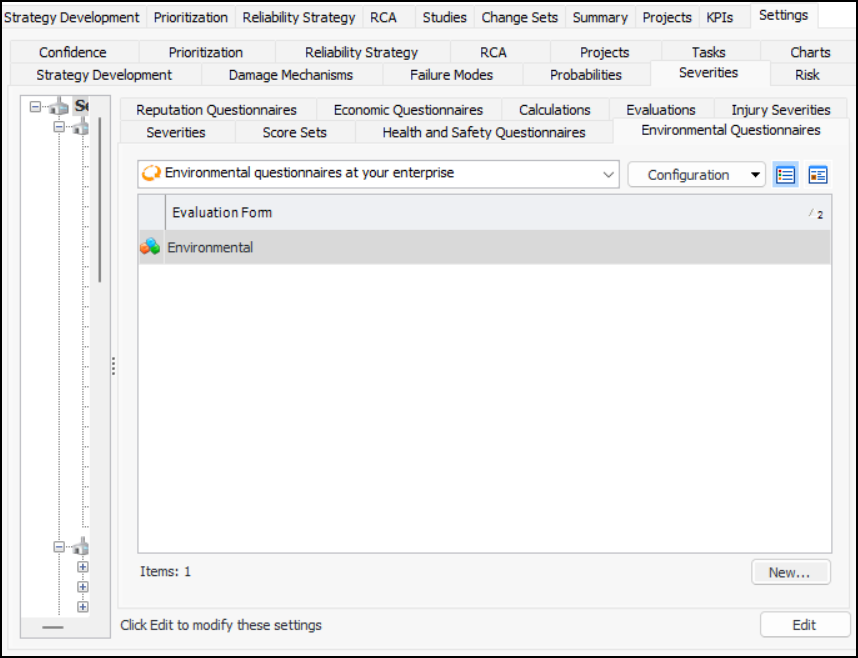
1. On the site’s Strategy Development view, select the Settings tab, the Severities tab, and the Severities settings node in the tree.Tip: You can also select the site’s Administration menu, Strategy Development Settings, Risk Analysis and then Severities. The Strategy Development - Severities Settings dialog appears.
2. Select the Environmental Questionnaires tab:
3. Click New. The Evaluation Form Properties window appears.
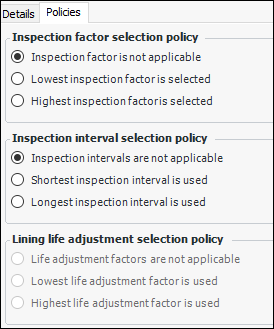
5. Select the Policies tab.
• Inspection factor is not applicable (default)
• Lowest inspection factor is selected – The selected statement with the lowest inspection factor supplies the inspection factor
• Highest inspection factor is selected – The selected statement with the highest inspection factor supplies the inspection factor
• Inspection intervals are not applicable (default)
• Shortest inspection interval is used – The selected statement with the shortest inspection interval supplies inspection interval
• Longest inspection interval is used – The selected statement with the longest inspection interval supplies the inspection intervalTo Create Consequence Categories and Questions
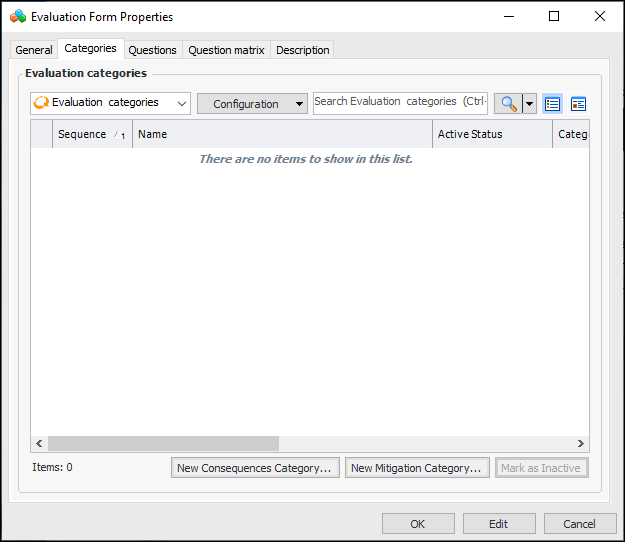
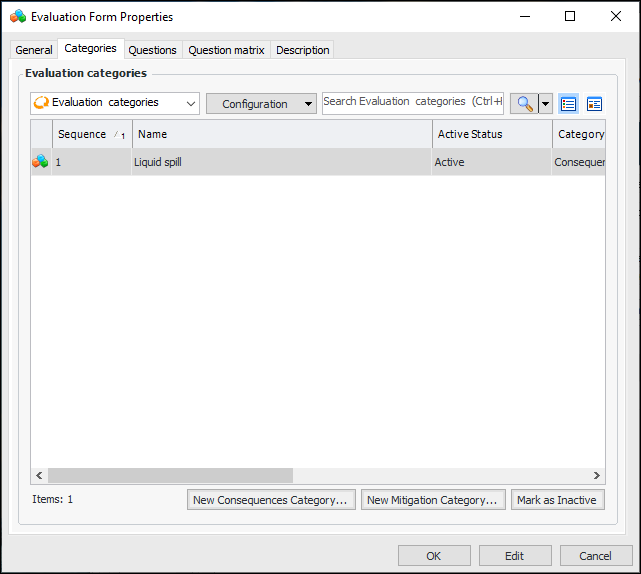
1. On the Evaluation Form Properties dialog, select the Categories tab.
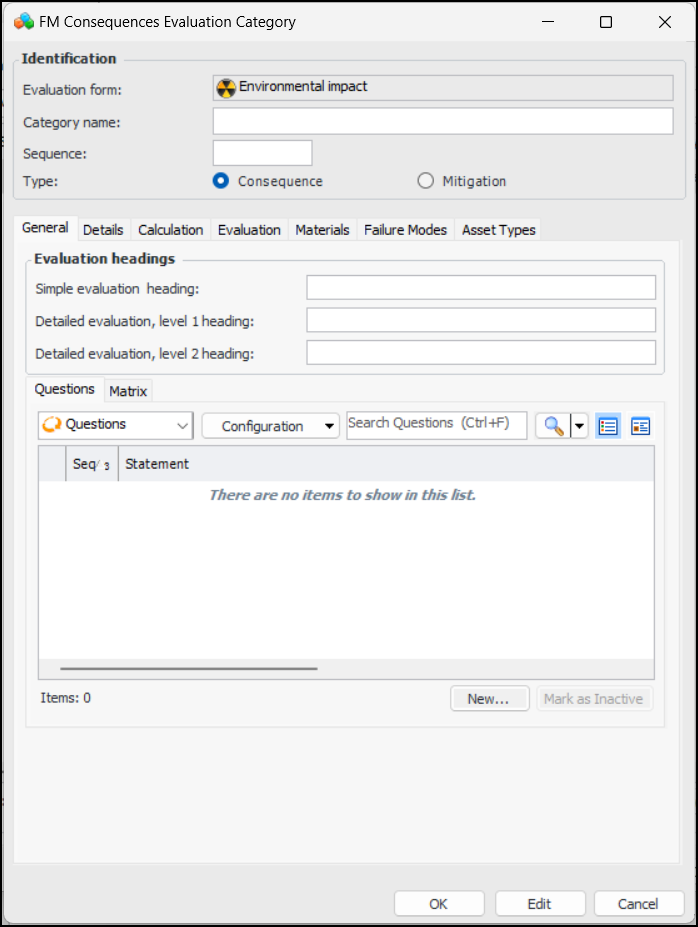
2. Click New Consequences Category. The FM Consequences Evaluation Category window appears.Note: For information about creating a mitigation category, see To Create Mitigation Categories and Questions.
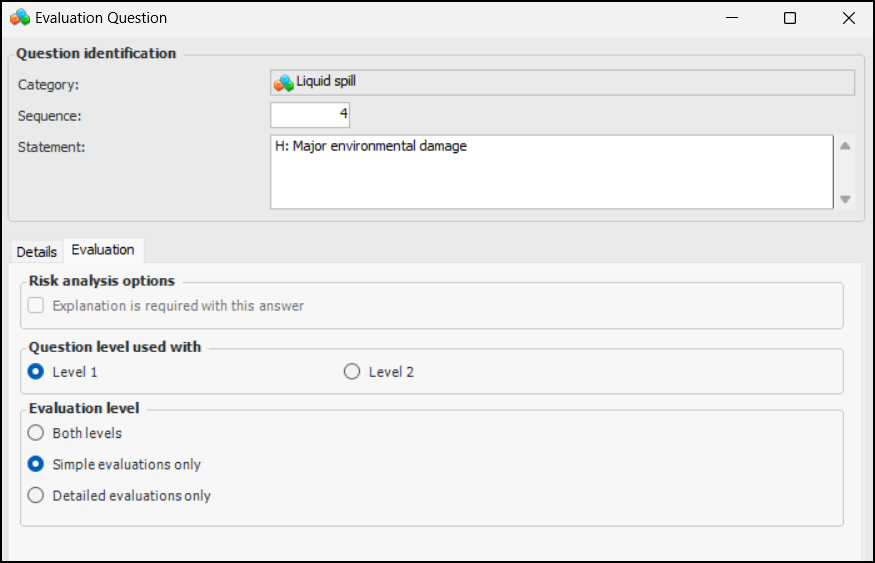
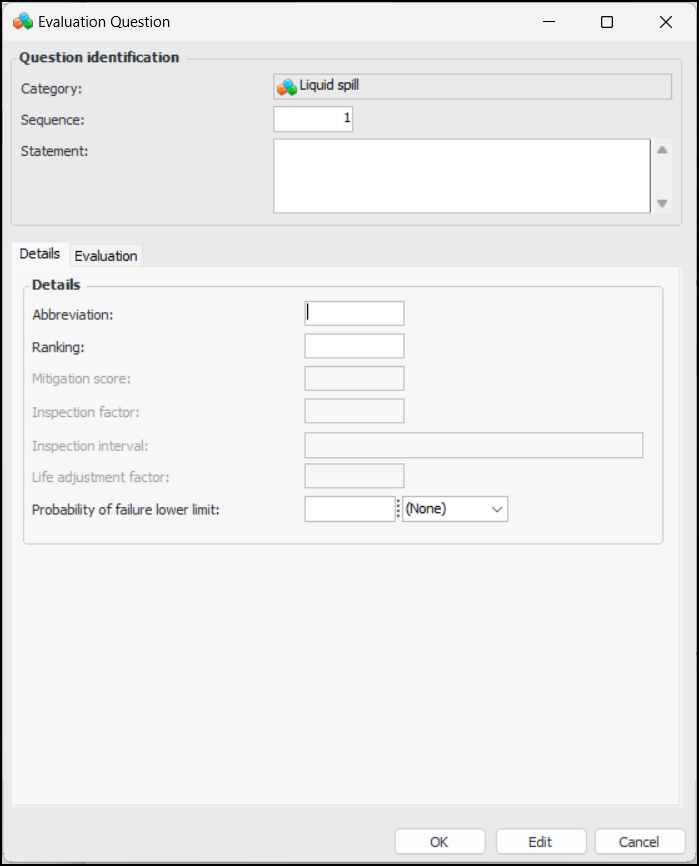
4. Click New. The Evaluation Question window appears.
6. Select the Evaluation tab. For example:
7.
8.
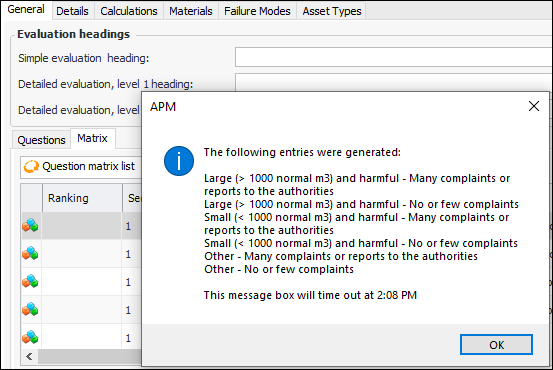
10. If the evaluation supports detailed forms, select the Matrix tab. Click Generate. APM displays a message listing the entries that were generated. For example:
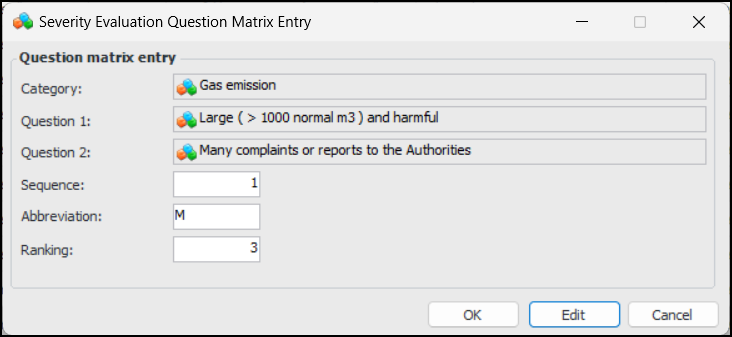
11. Click OK to close the message. Double-click each entry in turn to open its Severity Evaluation Question Matrix Entry dialog. For example:
• Click OK.
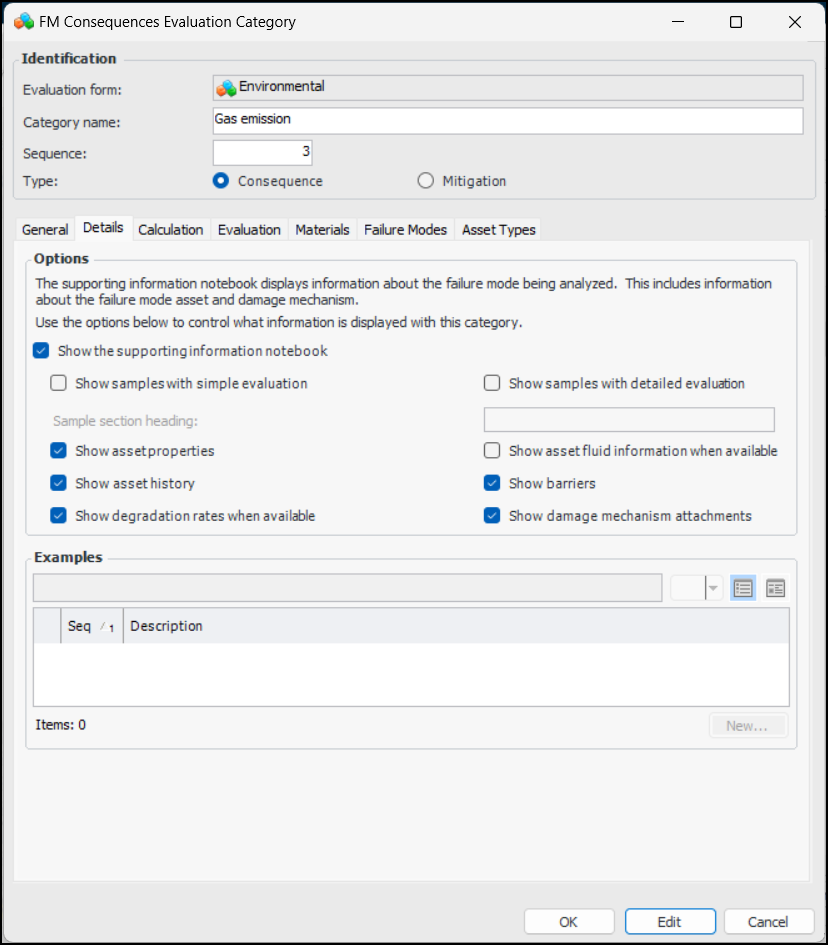
12. On the FM Consequences Evaluation Category dialog, select the Details tab to set options for supporting information. For example:
The heading that appears at the top of the Samples tab for this category in the questionnaire.
When this option is selected, the supporting information notebook contains the Asset Properties tab. This tab provides the failure mode asset’s properties on several tabs.
When this option is selected, the supporting information notebook contains the History tab. This tab provides the failure mode asset’s checksheets, failures, work orders, and work requests.
When this option is selected, the supporting information notebook contains the Barriers tab. This tab lists the failure mode asset’s failure barriers.
When this option is selected, the supporting information notebook contains the Attachments tab. If the RBI failure mode was created from a damage mechanism, this tab lists the damage mechanism’s attachments.
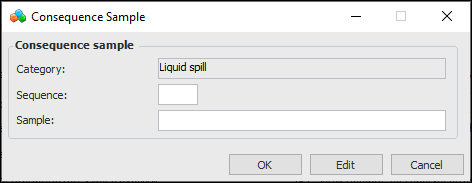
14. For each example, click New. The Consequence Sample dialog appears:
•
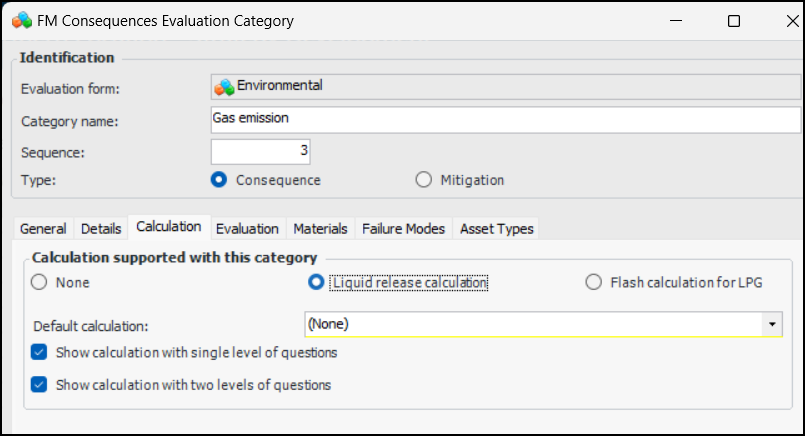
15. Select the Calculations tab if you wish to show a liquid release or gas spill flash calculation with the category.Note: APM provides liquid release and sample flash calculations. To create or edit calculations, select the Strategy Development view and then the Settings, Severities, and Calculations tabs. Click New to create either a liquid release calculation or a flash calculation for LPG.
•
16. Select the Materials tab to set up restrictions for material types and classifications, if applicable. For example, you could specify that the category is not available for assets made of stainless steel.
17.
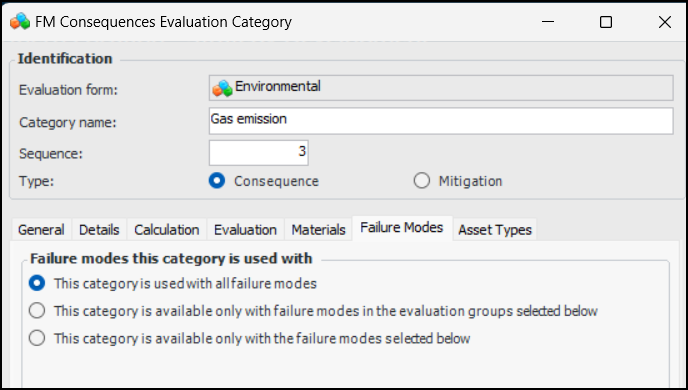
• All failure modes – There are no restrictions on the category based on the failure mode.
• Selected evaluation groups – A table appears listing the evaluation groups defined for the site. Select the appropriate evaluation groups.
• Selected failure modes – A table appears listing library failure modes. Select the appropriate library entries.
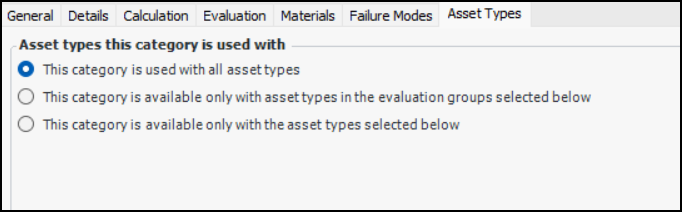
19. Select the Asset Types tab to restrict the category to specific asset types or asset types in specific evaluation groups.
• All asset types – There are no restrictions on the category based on the asset type.
• Selected evaluation groups – A table appears listing the evaluation groups defined for the site. Select the appropriate evaluation groups.
• Selected asset types – A table appears listing asset types for the site. Select the appropriate asset types.
21. Tip: While you are developing an evaluation, you can mark a category as inactive until it is ready to be used in risk analyses. On the Categories tab, select the category in the table and click Mark as Inactive. The Mark as Inactive window appears, where you can enter a comment. When you click OK, a confirmation message appears. Click OK. The category’s Active Status in the table is shown as “Inactive”. When you are ready, click Mark as Active to make the category available.
22. To view a list of the questions on the form, select the Questions tab. To view the compiled list of matrix entries for detailed evaluations, select the Question matrix tab.
23. Select the Description tab to enter additional information.To Create Mitigation Categories and Questions
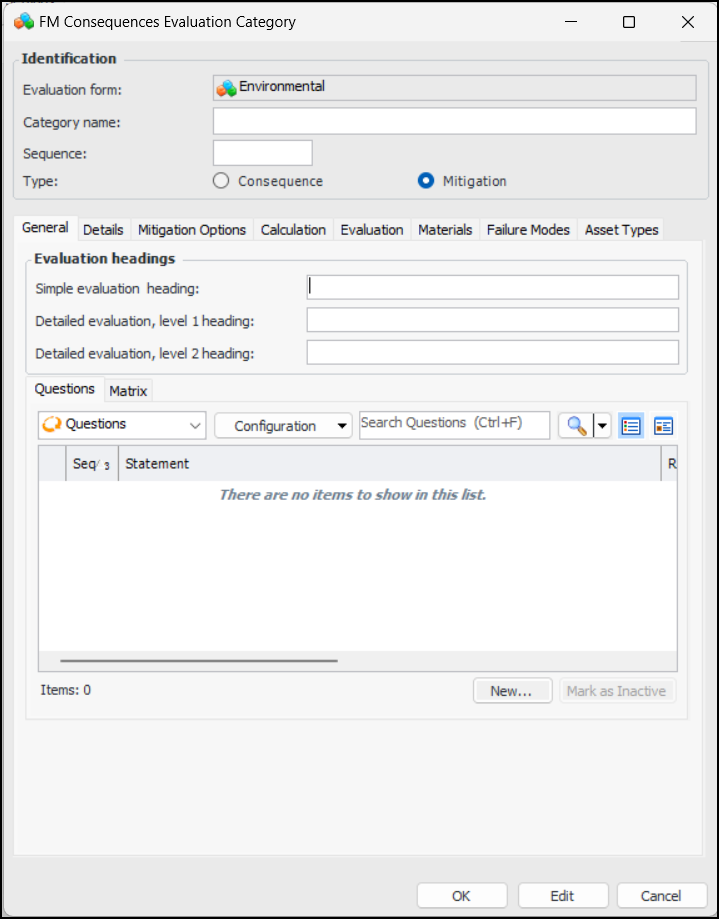
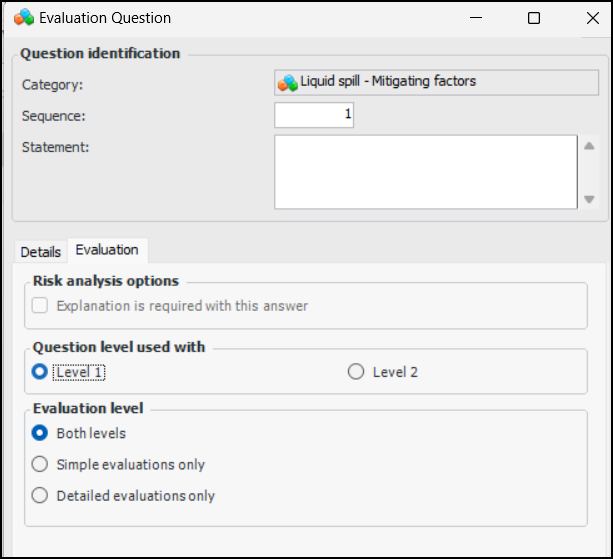
1. In the Evaluation Form Properties window, select the Categories tab. Click New Mitigation Category. The FM Consequences Evaluation window appears.
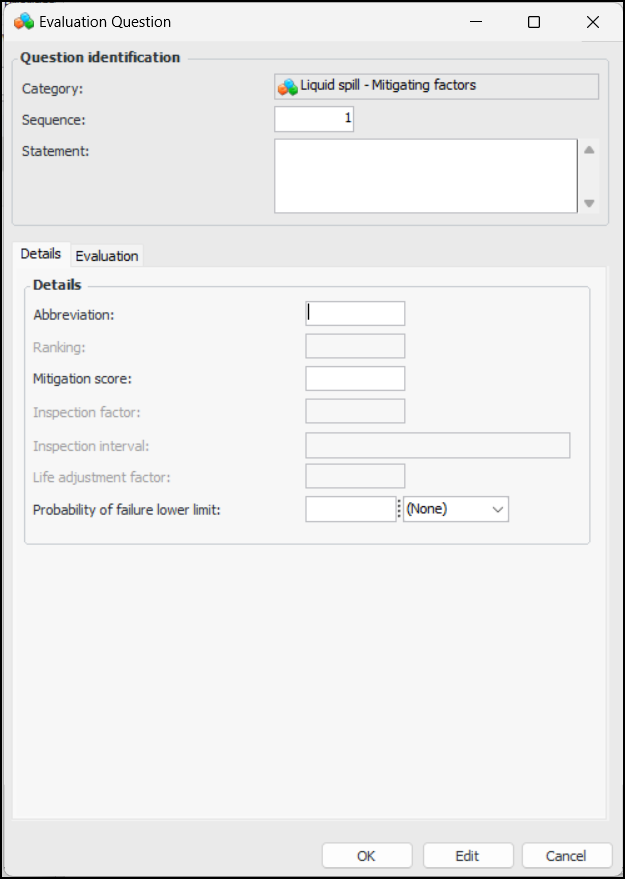
3. Click New. The Evaluation Question window appears.
5. Select the Evaluation tab.
6.
7.
8.
9. Select the Details tab to add samples and additional information.
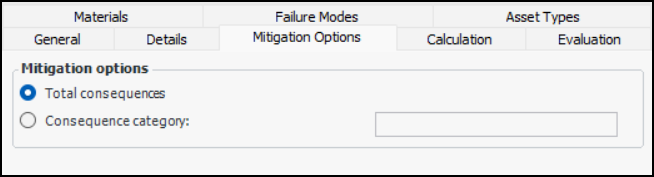
10. Select the Mitigation Options tab.
11. By default, the mitigation score is applied to the total consequences for the evaluation. To apply the mitigation score to a specific category, click Consequence category and select the category from the list.
12. When you have created all of the mitigation questions, you can generate and edit the question matrix, add samples, calculations, materials types, and failure mode and asset type restrictions. See the steps in To Create Consequence Categories and Questions for more information.
13. When you have finished adding categories, click OK. The form is added to the Environmental Questionnaires tab.