|
Setting up Risk Plot Lines and Areas
•
• Maintenance Action Plan window, Criticality and Feasibility views (MTA2, RCM2, RBI, SIF, HAZOP analyses)
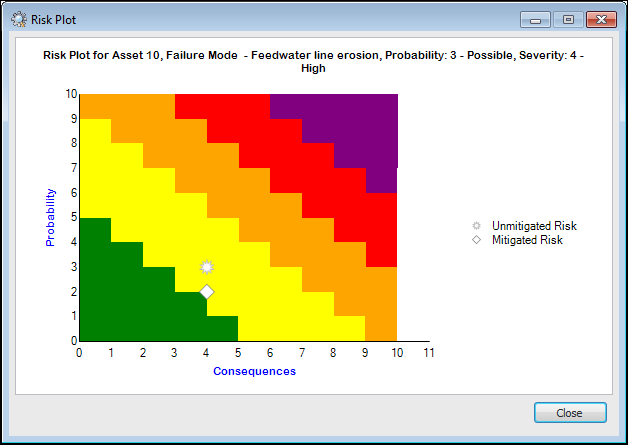
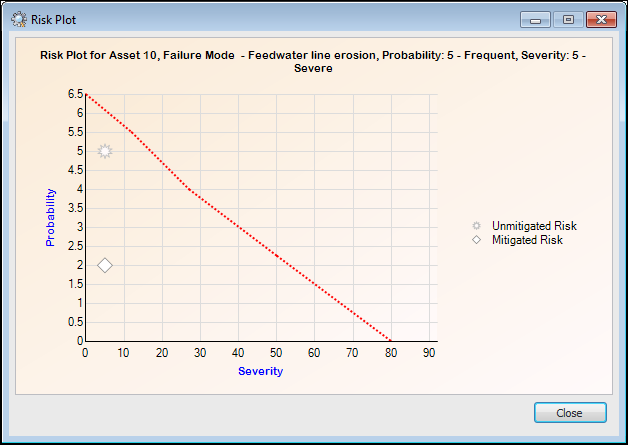
• This topic explains how to create risk plot lines and areas in the site’s strategy development settings on the Charts tab, where you can also test color areas in a chart.You can also create risk plot lines in the site’s Strategy Development view, Settings tab, Risk tab, Risk Plot tab. In this location, you can set the default risk plot line for the site.To Set up Risk Plot Lines and Areas
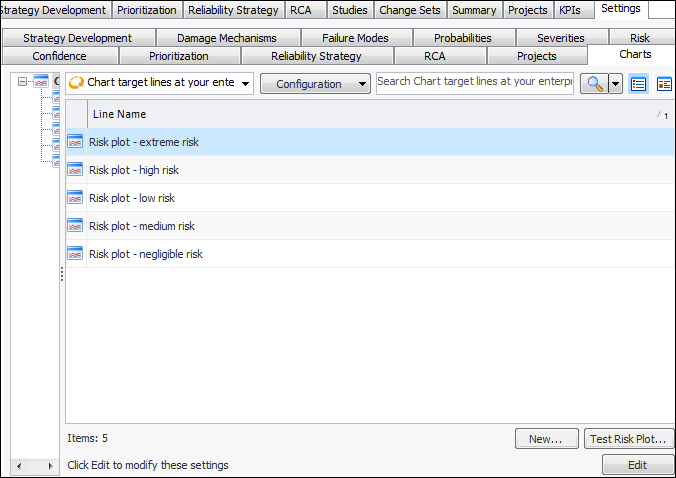
1. On the site’s Strategy Development view, select the Settings tab, Charts tab, and the Chart target lines node in the tree.
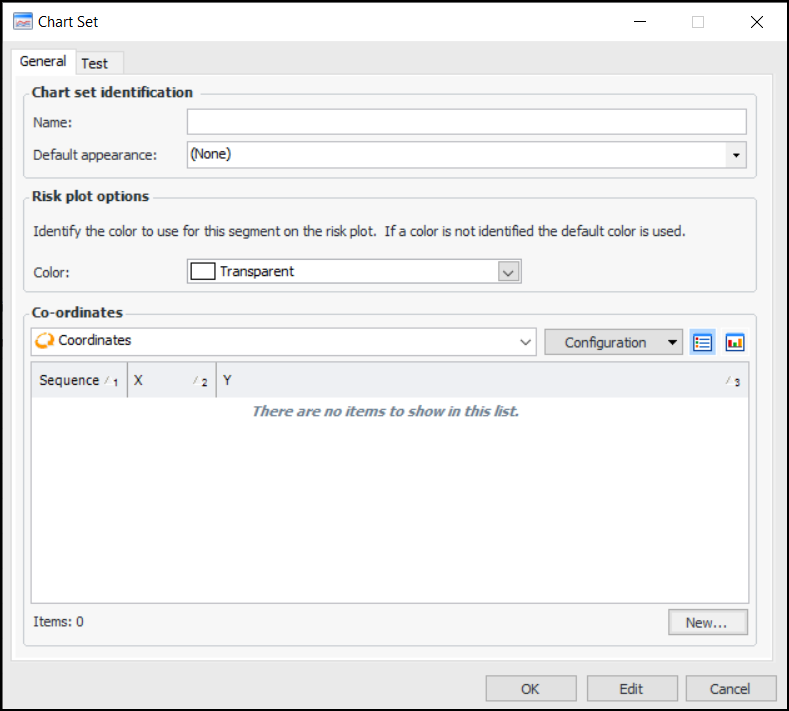
2. For each chart line or set that you need, click New. The Chart Set dialog appears.
4. To have the area filled with a color, click the arrow in the Color box and select a custom, web, or system color.
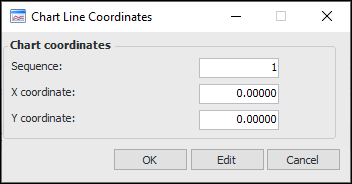
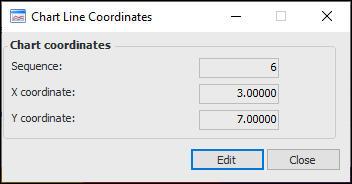
5. For each coordinate on the line, click New. The Chart Line Coordinates dialog appears.
7. In the X coordinate box, enter the number on the X axis (consequences) where the coordinate is positioned.
8. In the Y coordinate box, enter the number on Y axis (probability) where the coordinate is positioned.
9. Click OK. The coordinate is added to the Chart Set dialog.
10. When you have added all of the coordinates, click OK. The chart line is added to the table.To Test Color Areas in a Chart
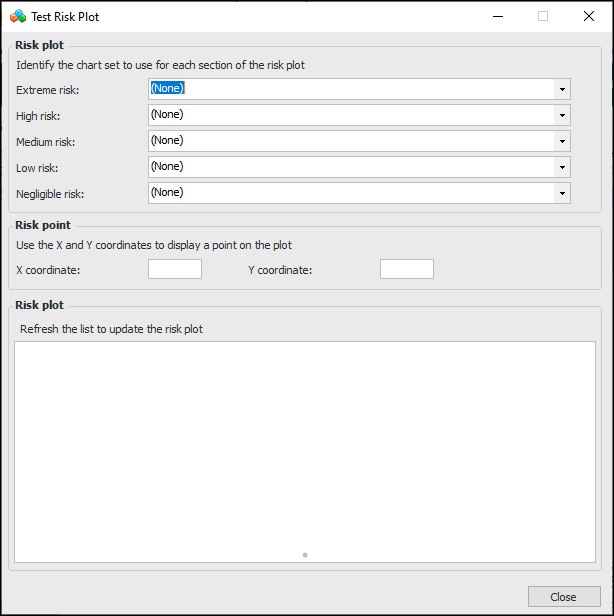
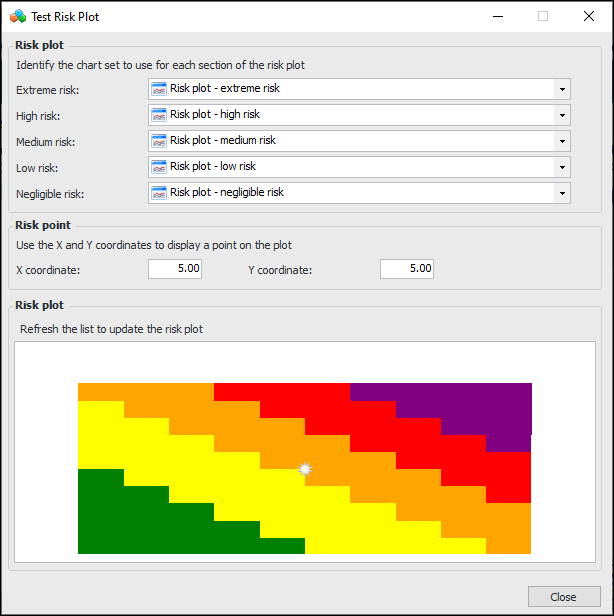
1.
4. When you are finished, click Close.To Set the Default Risk Plot Line for the Site
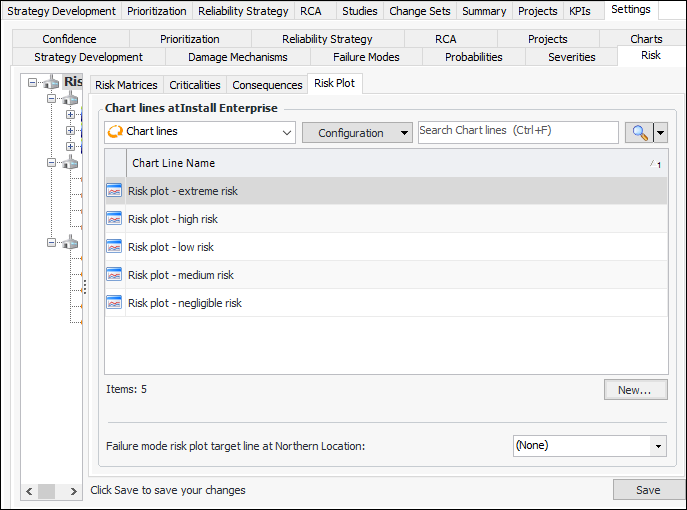
1. On the site’s Strategy Development view, select the Settings tab, the Risk tab, and the Risk settings node in the tree.Tip: You can also select the site’s Administration menu, Strategy Development Settings, Risk Analysis and then Risk Analysis. The Risk Process and Matrix Settings dialog appears.
2. Select the Risk Plot tab.
3.
4. Select a value in the Failure mode risk plot target line at this site list.
5. Click Save.