Setting up Project Statuses

This topic explains how to create project statuses. For information on suggested project statuses, see Capital and Operational Project Management.
A project status is a set of user-defined values that is used to track the progress of your projects in APM. Project statuses are used in pick lists when working with projects and displayed in project banners and in tables. Each status is tied to a set of project controls that determine what actions you can take with a project having this status.

Setting up Project Statuses

1.
From the Site window, select the Work Management view and the Settings tab. Select the Projects tab and the Project management settings node in the tree.
Tip: You can also work with project settings in the Strategy Development, Reliability Program, or Performance Management views. Select the Settings tab and then the Projects tab.
2.
Select the Project Statuses tab.
3.
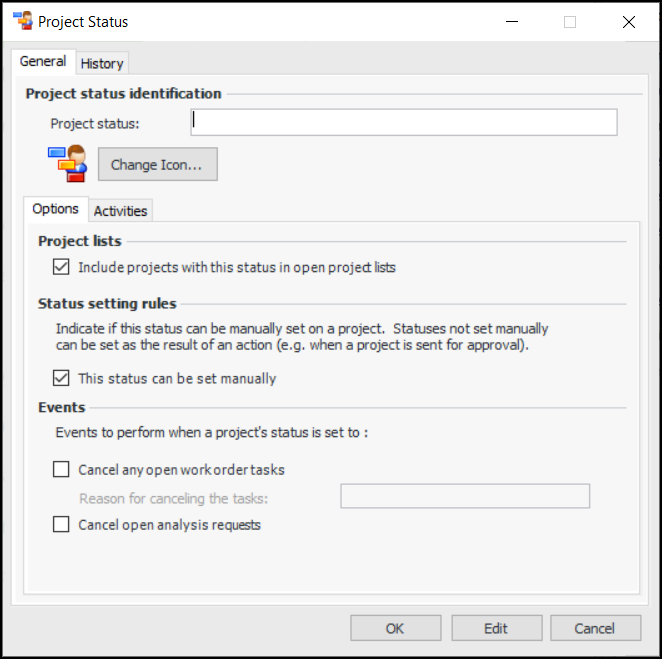
For each of the project statuses you wish to add, click New. The Project Status dialog appears:
4.
5.
To change the icon for this status, click Change Icon, select a different graphic, and click OK.
6.
On the Options tab, select the options for this status.
If this option is selected, all open work order tasks charged to a project given this project status will be canceled and given the cancellation reason chosen in the Cancellation Reason box. The cancellation will occur whether the status is set manually or through an automatic event.
Note: You should create at least one project status called “Project canceled” or similar. This will allow you to cancel related work order tasks at the same time.
Tip: The list of cancellation reasons is created in the Work Management view, Settings tab, Work Orders tab, Cancel Reasons tab.
7.
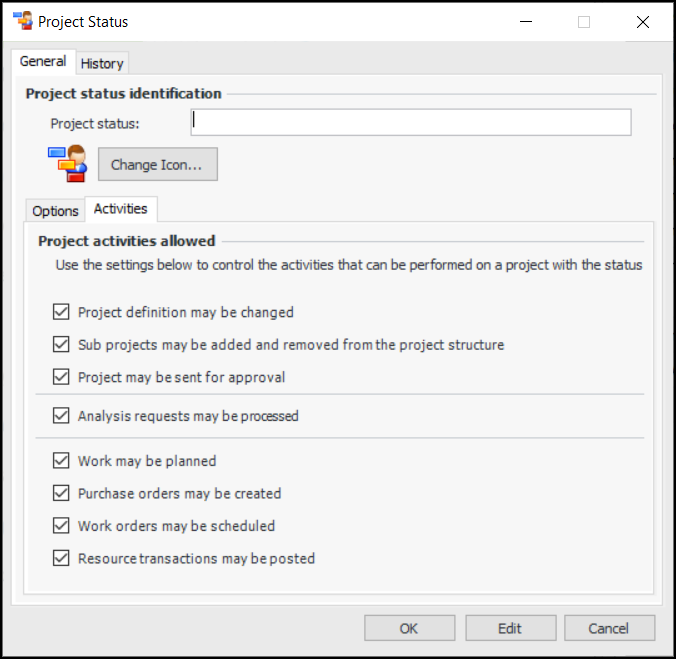
Select the Activities tab.
8.
9.
Click OK to save the new status.