|
Setting up Project Settings Profiles
•
•
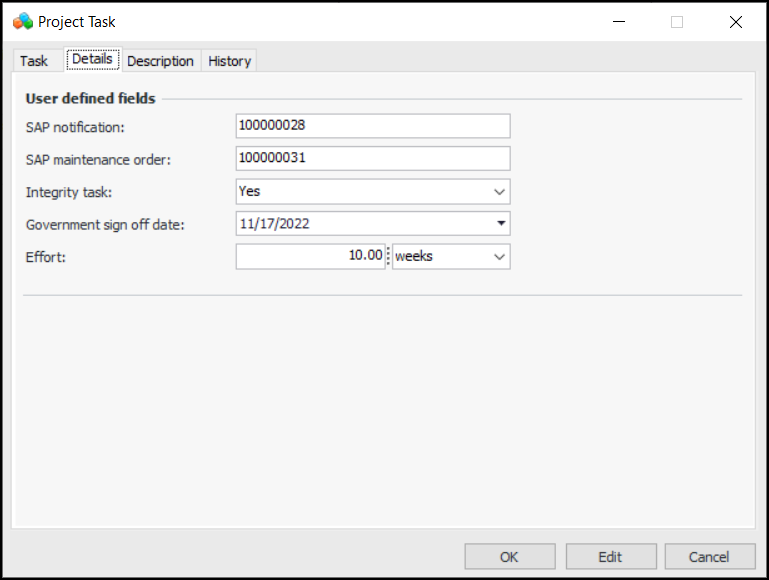
• Here is an example of a project task, Details tab showing user-defined fields:To Set up a Project Settings Profile
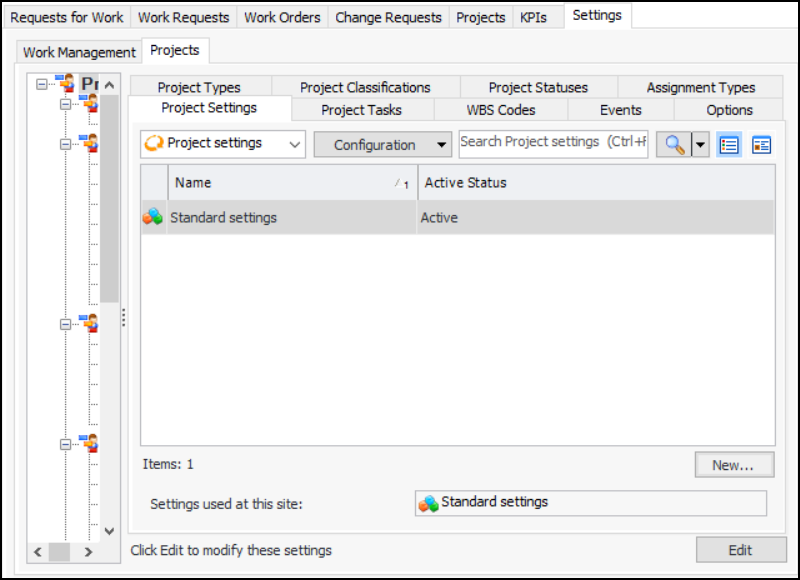
1. From the Site window, select the Work Management view and the Settings tab. Select the Projects tab and the Project management settings node in the tree.Tip: You can also work with project settings in the Strategy Development, Reliability Program, or Performance Management views. Select the Settings tab and then the Projects tab.
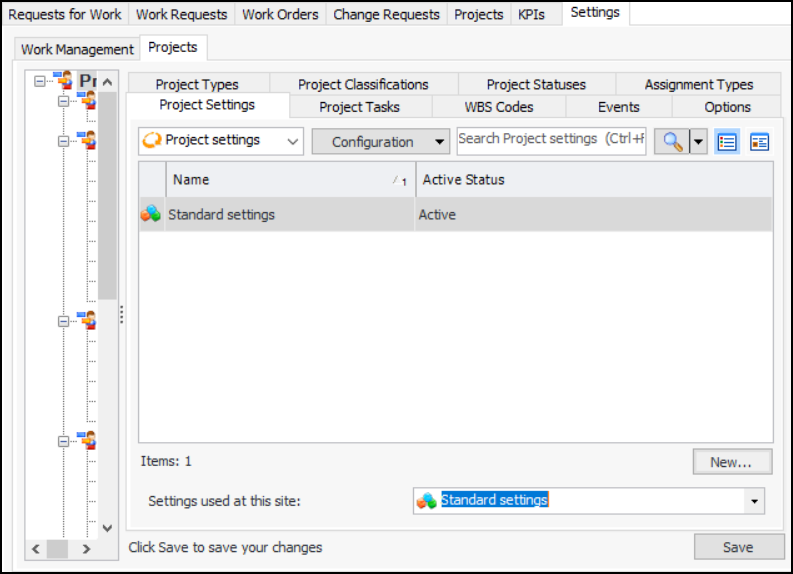
2. Select the Project Settings tab. This tab lists the existing settings profiles. For example:
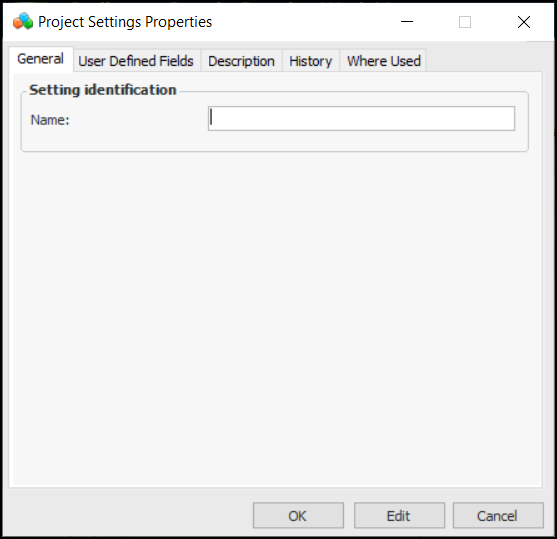
3. Click New. The Project Settings Properties dialog appears:
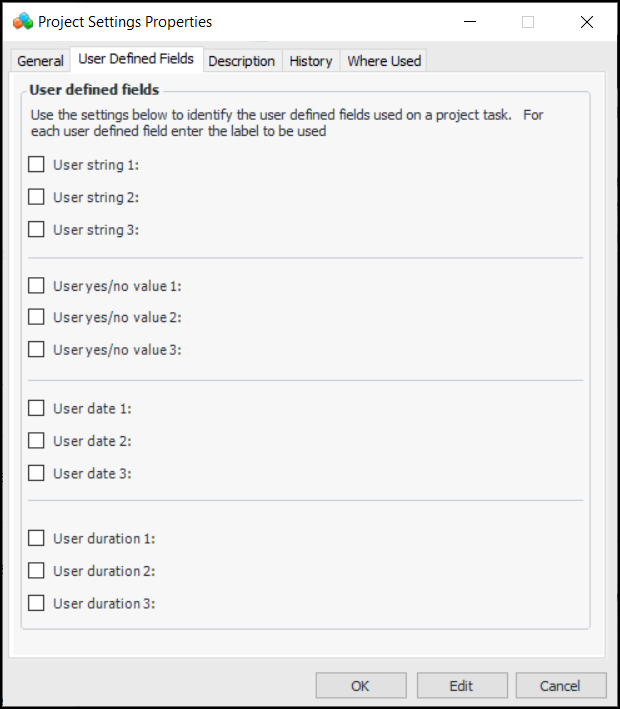
5. Select the User Defined Fields tab:
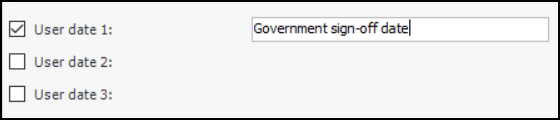
6. For each field you wish to define, click the check box for the type of data, for example, User date 1. A box appears next to the item. Enter the label that will appear in the project task. For example:
7. On the Description tab, provide more information about the settings.
8. Tip: You can return to the Project Settings Properties dialog and select the Where Used tab to see the sites that use the profile.To Assign Settings to a Site
1. On the Project Settings tab, click Edit. The tab opens for editing and the Edit button changes to Save.
2. In the Settings used at this site list, select the settings profile. For example:
3. Click Save.