|
Setting up Checklist Items
When recording an analysis, you can mark analysis checklist items as “Performed” and provide comments for them. APM records the employee who checked off the item, the date, and time. The analysis team can view the status of checklist items in the analysis window, Properties view, Checklist tab.To Set up Checklist Items
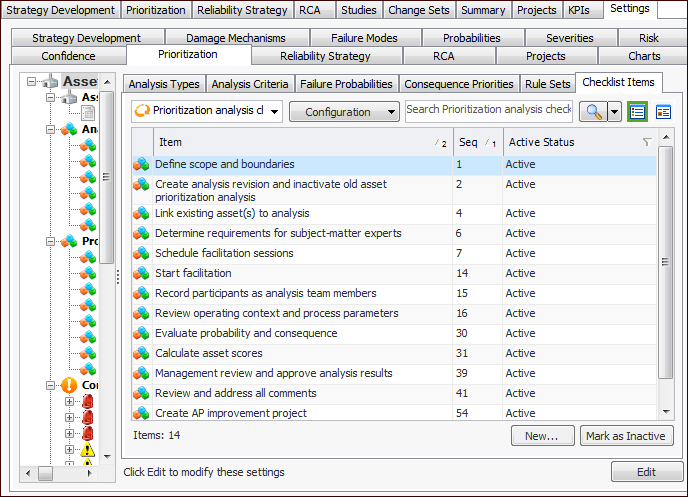
1. From the Site window, select the Strategy Development view, Settings tab. Select the Prioritization tab and the Asset prioritization settings node in the tree.Tip: You can also select the Administration menu, Strategy Development Settings, and then Asset Prioritization. The Asset Prioritization Settings dialog appears.
2. Select the Checklist Items tab. This tab lists the checklist items at your enterprise. For example:Tip: While you are developing a checklist item, you can mark it as inactive until it is ready to be used. Select the item in the table and click Mark as Inactive. The Mark as Inactive/Active dialog appears, where you can enter a comment. When you click OK, a confirmation message appears. Click OK. When the checklist item is ready for use, select it in the table and click Mark as Active.
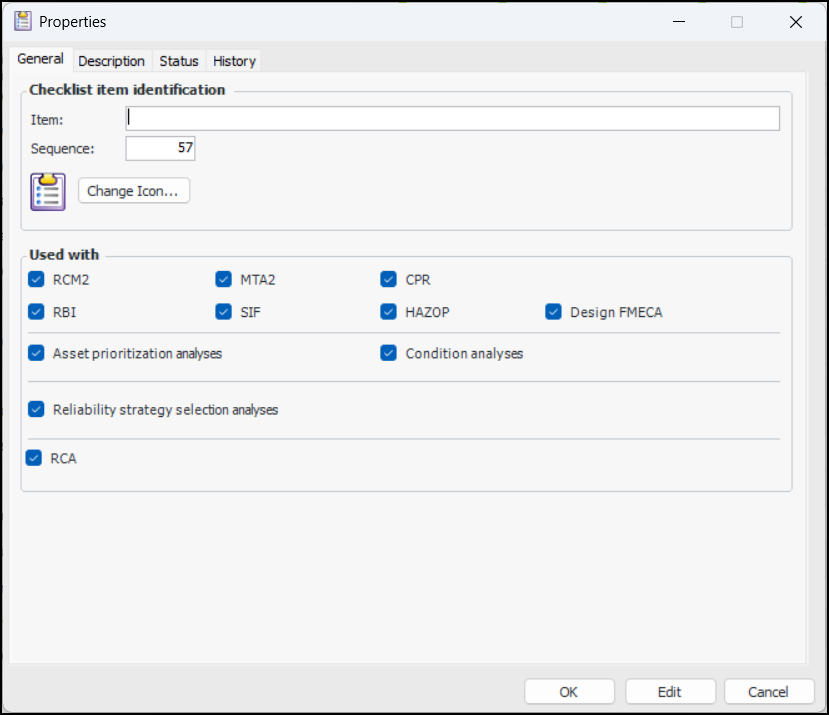
3. For each of the items required by your organization, click New. The Properties dialog appears.
6.
7. In the Used with area, select the types of analysis to which the item applies.
8. On the Description tab, you can add information about the item.
9. Click OK. The dialog closes and the item is added to the table.