Setting up My Desk Views

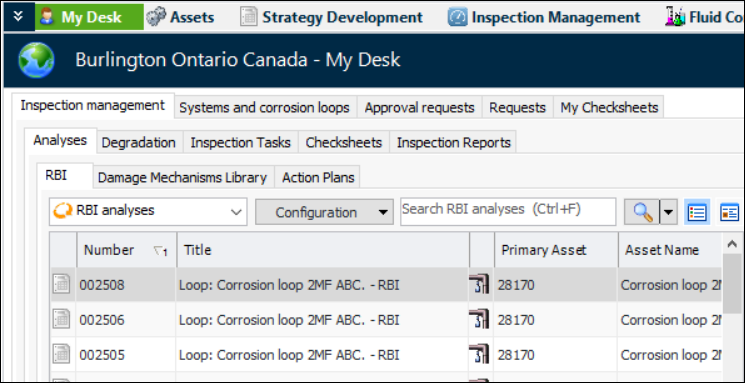
The My Desk view provides employees with information that is relevant to them or to their roles. For example, employees with the role of Planner might be assigned a My desk definition that shows the work orders, work requests, and reliability programs assigned to them. Here is an excerpt from a My Desk view that shows information for an inspection engineer:
APM comes with several predefined My desk definitions and sets, which you can modify for your organization. You can also create your own.
My desk definitions can consist of one to four sections, and each section can display site or KPI panels. The following predefined, role-based site panels are available for My desk definitions:
When you have created My desk definitions, you can define one or more My desk sets. For each set, specify the definitions to show and their order, and assign the set to one or more employees.
Note: Reminders are a generally available product feature. You must first enable feature 139 to use the functionality in APM. In the Enterprise window, select the Features view and the Enabled Features tab. Click Browse, select “Reminders and assignments” and click OK. If APM is running as a smart client, click Refresh Enabled Features on the server. Then restart the client to use the functionality.
For more information about dashboards, see Overview of Dashboards.
Defining My desk dashboards involves three steps:
1.
2.
3.

To Create a My Desk Definition

1.
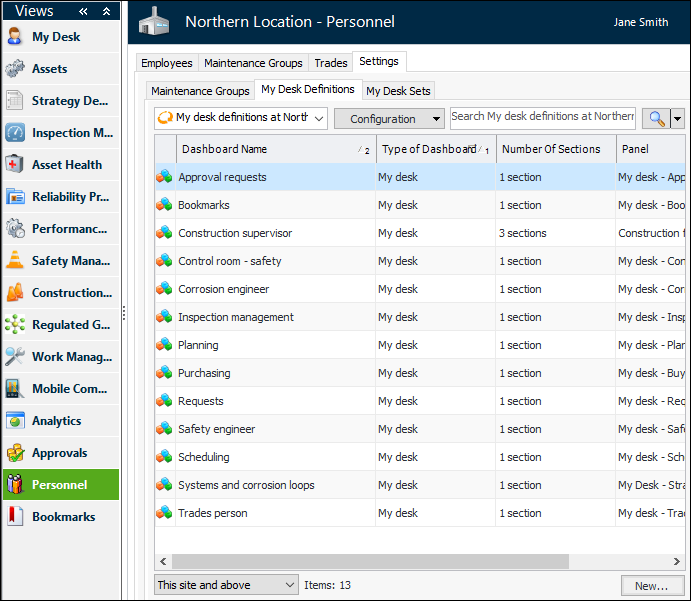
Select the site’s Personnel view, Settings tab, and My Desk Definitions tab. By default, this tab displays all My desk definitions for the site and above. For example:
2.
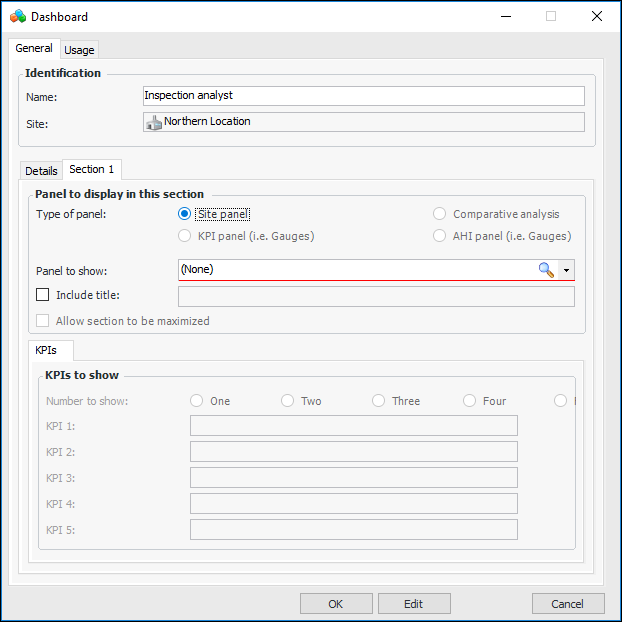
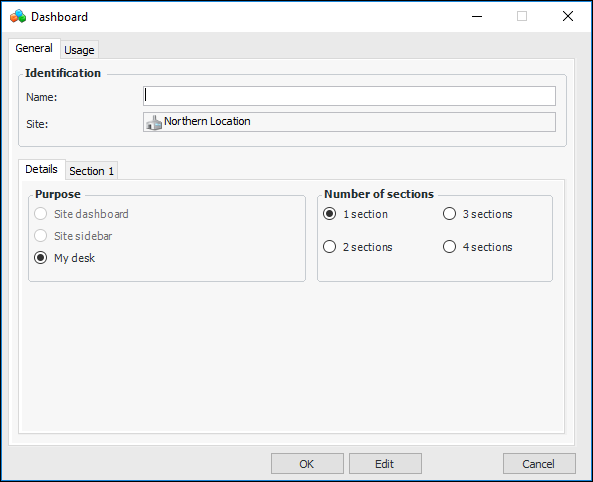
Click New to open the Dashboard window. The My desk and 1 section options are selected by default.
3.
On the General tab, enter a name for the dashboard.
4.
5.
6.
Tip: To create a new panel to be used in a dashboard, see Customization Guide.
Tip: Once the My desk definition is assigned to employees, you can select the Usage tab to view a list of the employees who see the definition on the first tab, second tab, and so on, of their My Desk views. For information about assigning My desk definitions to users, see To Assign Employees to a My Desk Set.
7.
When you are finished defining the My desk definition, click OK to save it. Your My desk definition appears in the list on the My Desk Definitions tab.

To Create a My Desk Set

1.
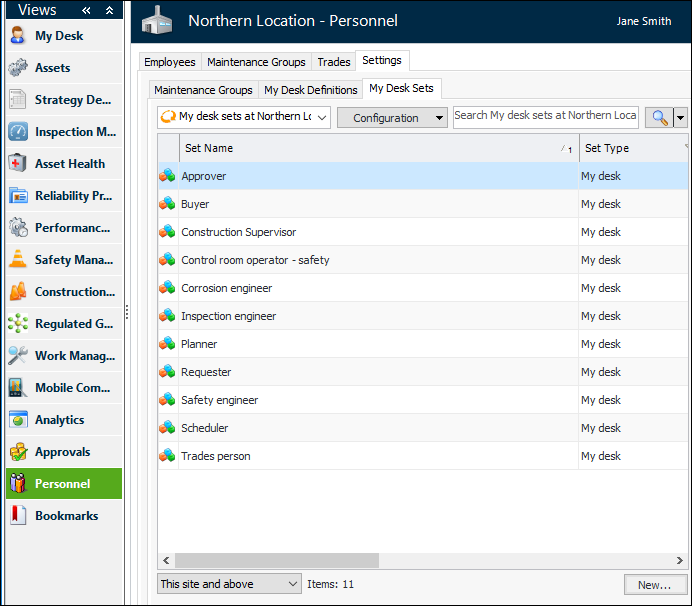
On the site’s Personnel view, select the Settings tab, My Desk Sets tab. By default, this tab lists all of the My desk sets that currently exist for the site and above.
2.
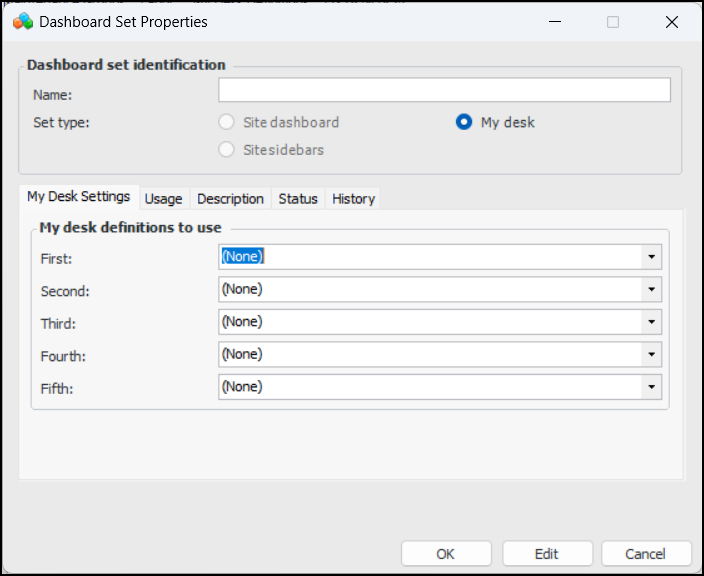
Click New. The Dashboard Set dialog appears.
3.
4.
On the My Desk Settings tab, select the My desk definitions required. Each definition appears on a separate tab in the My Desk view.
5.
Select the Description tab to add more information.
6.
Click OK to save the set and close the dialog, or see To Assign Employees to a My Desk Set.

To Assign Employees to a My Desk Set
1.
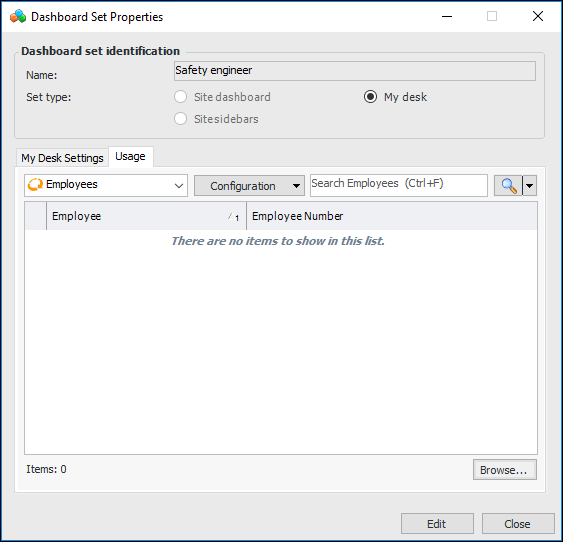
On the Dashboard Set dialog, select the Usage tab. The employees list appears.
2.
Click Browse. The Browse Employees window appears.
3.
4.
Click OK to save the My desk set.
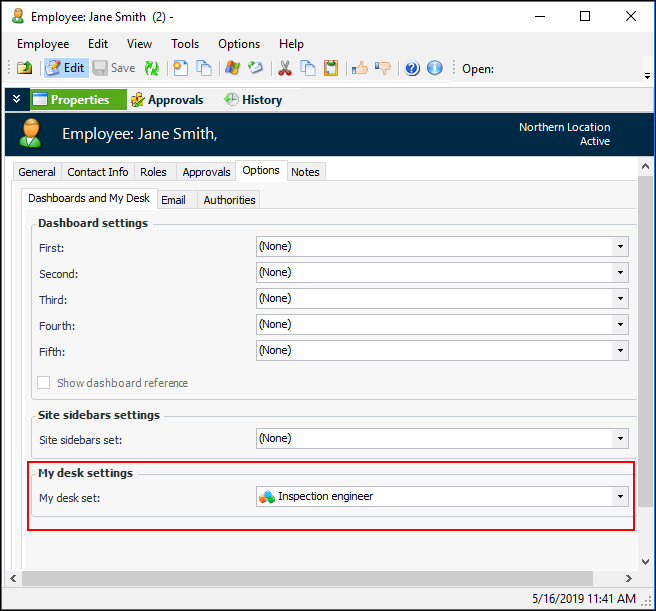
The My desk set is now saved in each selected employee’s record. For example:
Tip: To see how the new My Desk definition looks, assign the set to your employee record, select the site’s My Desk view, and select the appropriate tab. If the My Desk information is not immediately updated, close the site and reopen it.