Setting up Survey Types

A survey is used in APM to collect information about the measurement point or its reading during an inspection. Survey designers can define which properties are collected on each survey, including the vehicle used to perform the inspection, easting and northing coordinates, elevation, temperature, time of inspection, and so on.
Note: Surveys are only available for indicators if they are defined as having at least one fixed measurement point.
For each item collected on a survey, you can identify the properties to be copied from the previous reading’s survey.
APM includes two predefined survey types relevant to subsea inspections, which you can modify as required. You can also create survey types.
Custom APM survey types can be created to collect information specific to other types of inspections, such as pipelines, railways, and roads.
This topic describes how to set up survey types.

To Set up Survey Types

1.
From the Site window, select the Inspection Management view, the Settings tab, and then the Indicators tab. Select the Indicator Settings node in the tree.
Tip: You can also click the Administration menu, Inspection Management Settings, and then Indicator Management. The Indicator Settings window appears.
2.
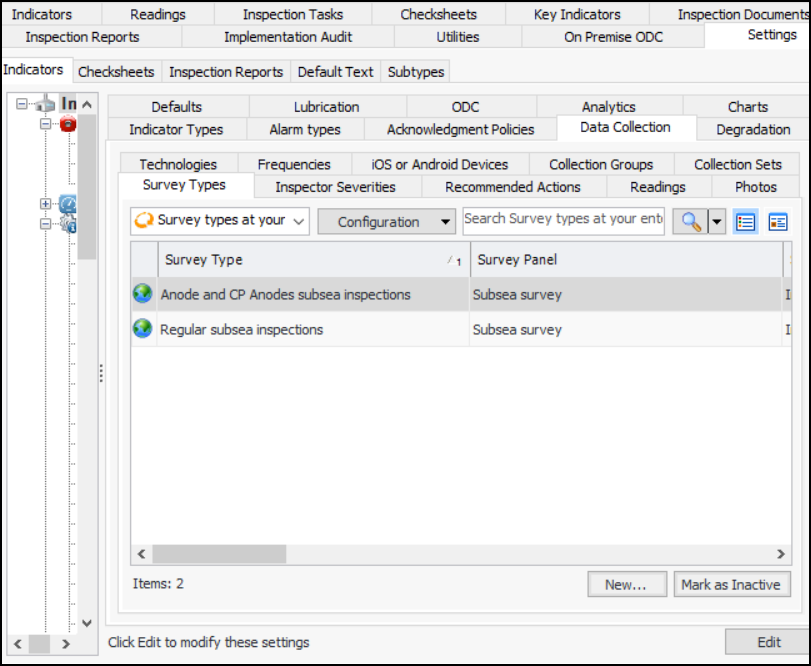
Select the Data Collection tab and then the Survey Types tab. This tab shows a list of the current subsea surveys:
Tip: You can mark a survey type as “inactive” while it is in development. Inactive objects are not available for selection on sites. To deactivate or reactivate a survey type, select it and click Mark as Inactive or Mark as Active. The Mark as Inactive/Active dialog appears, where you can enter a comment and click OK. Click OK in the confirmation message that appears.
3.
4.
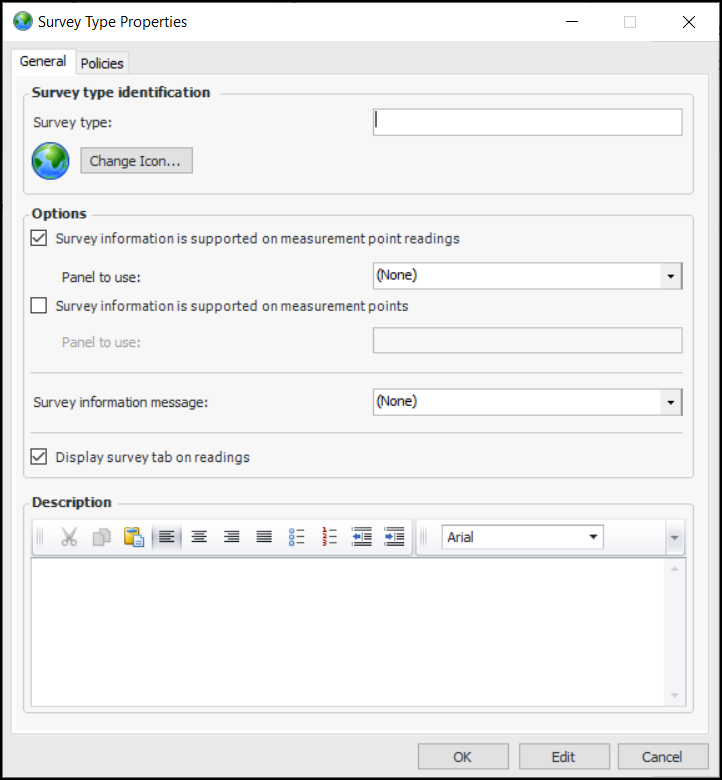
In the Survey Type box, enter a descriptive name for the type of survey.
5.
Select Survey information is supported on measurement point readings to allow this survey type to be selected on measurement point readings.
6.
7.
Select Survey information is supported on measurement points to allow this survey type to be selected on measurement points.
8.
9.
10.
11.
Select the Policies tab.
12.
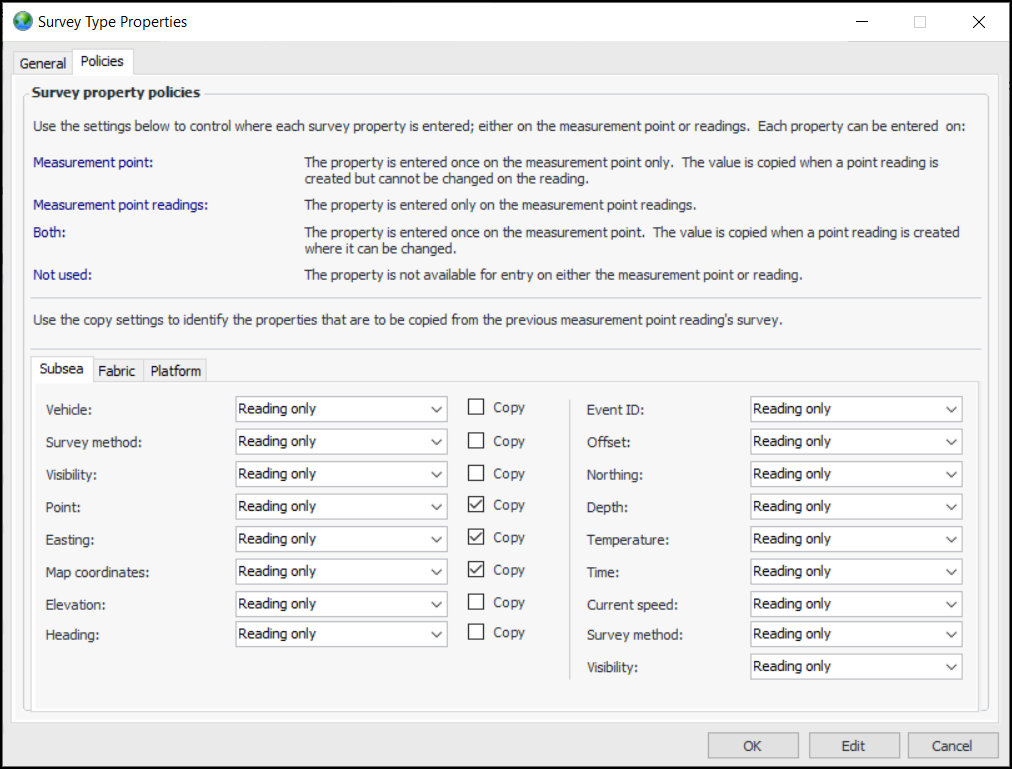
Subsea – For underwater asset inspections
Fabric – For inspection associated with oil or gas platforms
Platform – For inspection associated with oil or gas platforms
13.
Reading only – The property is entered only on the measurement point readings
Measurement point only – The property is entered once on the measurement point only. The value is copied when a point reading is created but cannot be changed on the reading
Both – The property is entered once on the measurement point only. The value is copied when a point reading is created, where it can be changed
Not used – The property is not available for entry on either the measurement point or reading
The information you select appears on a reading’s Survey tab.
14.
For each of the values that are collected on the survey, check Copy if you want to automatically populate the survey’s starting value with the value from the previous reading.
15.
When you are finished, click OK. The survey type is added to the list.