Setting up Fluid Sample Tests

Test values identify the kinds of tests performed on samples by the lab, for example, ferrography, particle count, or infrared radiation. Tests are assigned to types of tests, which are themselves assigned to lab fluid sample settings. Tests are also identified on fluid types and lab fluid samples.
When you create a fluid sample and select a fluid type and type of test, APM copies the tests from the type of test, checking that only tests supported by the fluid type are copied to the sample.
This topic explains how to set up the fluid sample test value list.

To Set up a Fluid Sample Test

1.
From the Site window, select the Fluid Condition view, Settings tab. Select the Fluid Condition Settings node in the tree.
Tip: You can also click the Administration menu and Fluid Condition Settings. The Fluid Condition Settings dialog appears.
2.
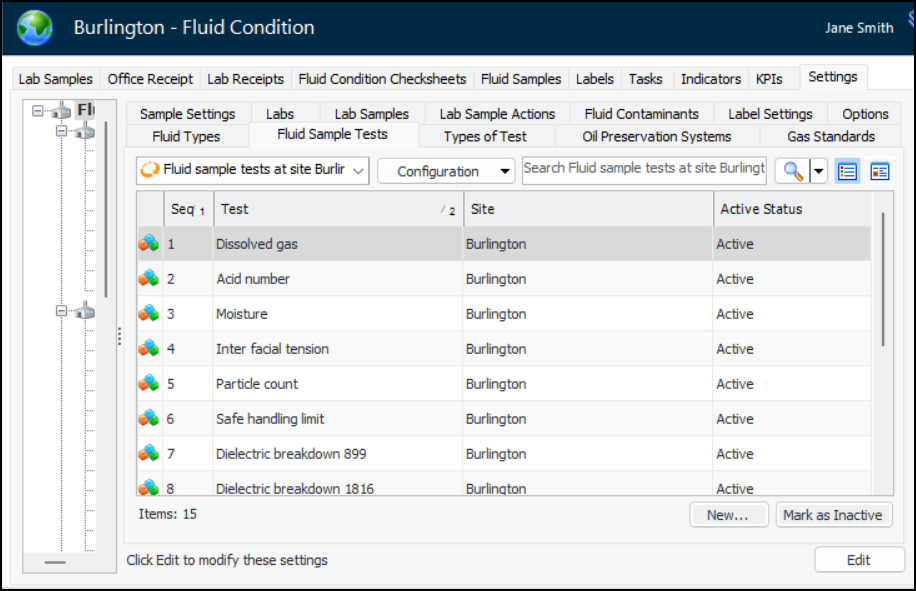
Select the Fluid Sample Tests tab. This tab lists the tests that have been created for the site. For example:
3.
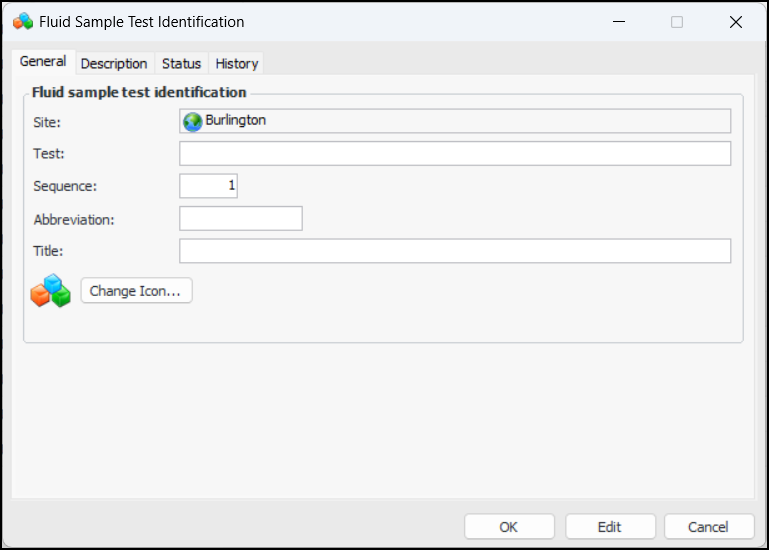
Click New. The Fluid Sample Test Identification dialog appears:
4.
5.
6.
7.
To replace the icon that represents the test, click Change Icon, select a new graphic, and click OK.
8.
Select the Description tab to provide more information.
9.
Click OK. The dialog closes and the test is added to Fluid sample tests table.