Setting up Settings for Lab Fluid Samples

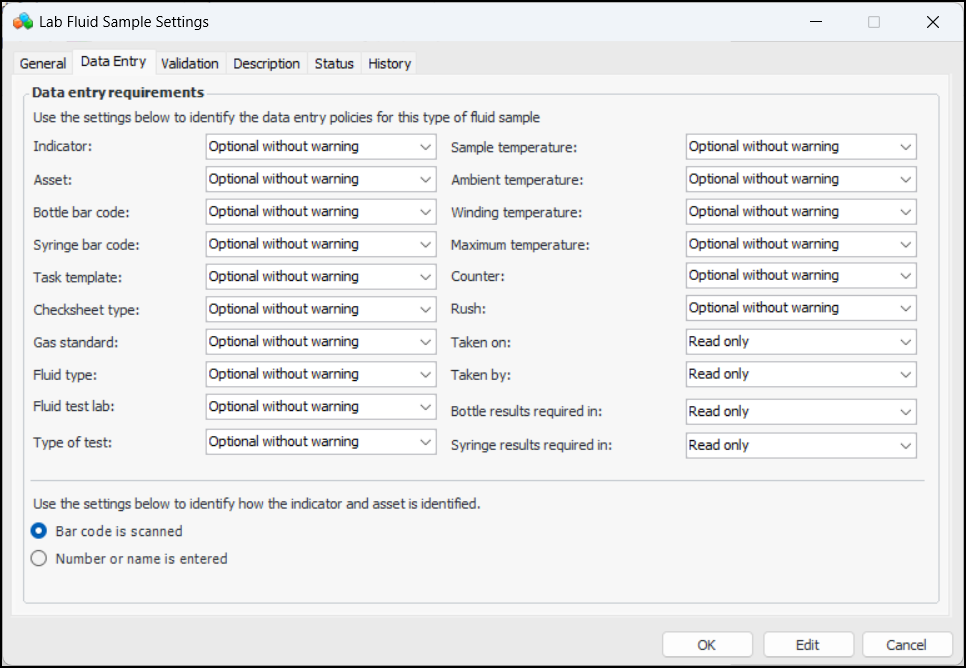
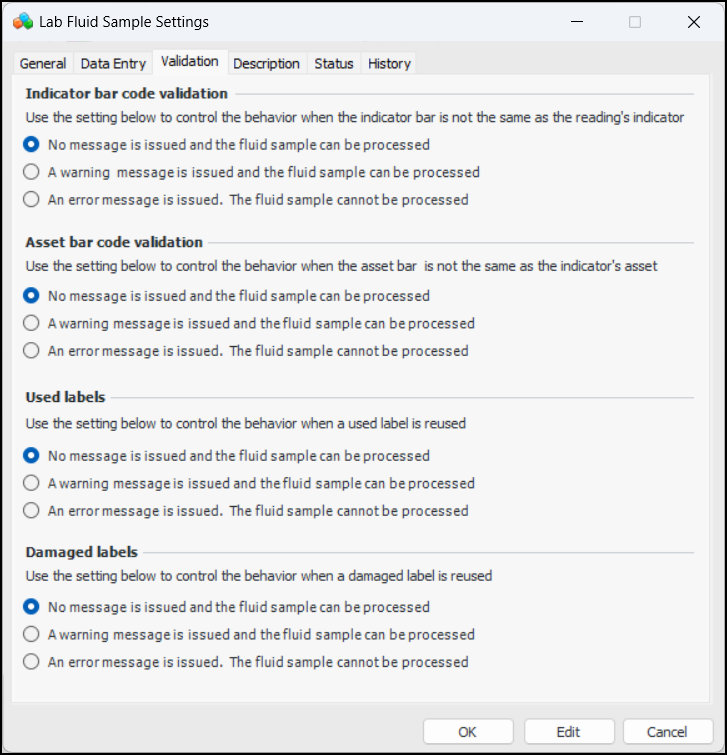
Lab fluid sample settings are usually created for specific sites and identify types of sample containers, task template to use for results, lab, type of test, and gas standard. They can also be used to set data entry policies, specify whether bar codes are scanned or entered, and control responses to invalid bar codes, used labels, and damaged labels.
This topic explains how to set up settings.

To Set up Settings for Lab Fluid Samples
1.
From the Site window, select the Fluid Condition view, Settings tab. Select the Fluid Condition Settings node in the tree.
Tip: You can also click the Administration menu and Fluid Condition Settings. The Fluid Condition Settings dialog appears.
2.
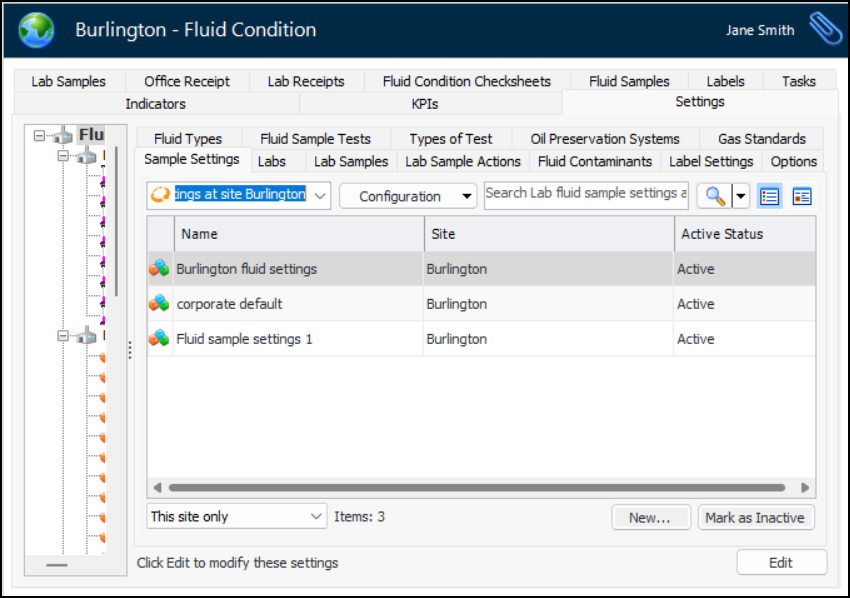
Select the Sample Settings tab. This tab lists the settings defined for the site. For example:
You can mark a setting record as inactive until it is ready to be used. Select the record in the table and click Mark as Inactive. The Mark as Inactive/Active dialog appears, where you can enter a comment. When you click OK, a confirmation message appears. Click OK. When you are ready, click Mark as Active to make the settings available for use.
3.
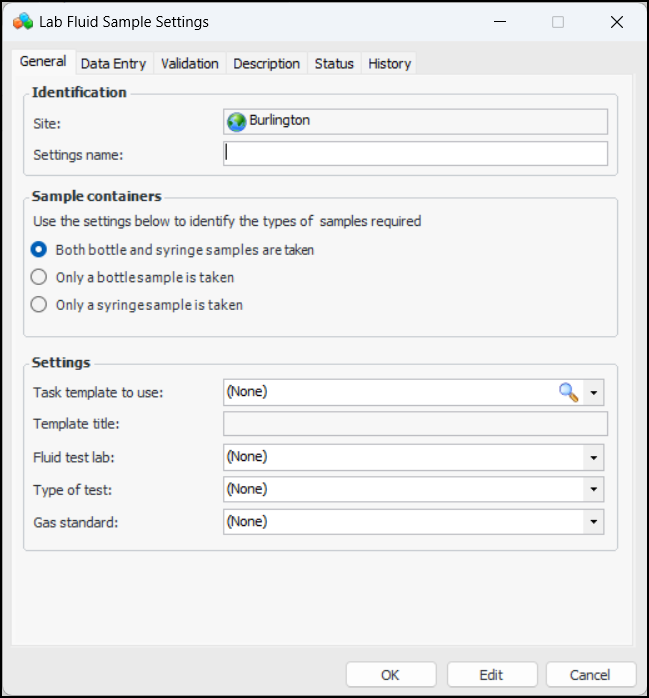
Click New. The Lab Fluid Sample Settings dialog appears:
4.
5.
In the Sample Containers area, specify what types of container(s) are used to collect and store samples.
6.
In the Settings area, select the following:
7.
Select the Data Entry tab:
8.
9.
10.
Select the Validation tab.
11.
12.
Select the Description tab to add more information.
13.
When you are finished, click OK to close the dialog. The settings are added to the Lab fluid sample settings table.