Setting up Material Types and Classifications

Not all materials degrade at the same rate or in the same way. It is important to know what type of materials an asset is made of so that an appropriate inspection strategy can be made and reliability programs put in place.
Material classifications provide broad categories of materials (for example, Stainless Steel) that are associated with specific material types (for example, High Chromium Stainless Steel with a standard material code to identify the type). When setting up materials in Failure Mode settings, you can create classifications and associate them with types and grades.
Professional organizations such as the American Petroleum Institute (API), ASME (founded as the American Society of Mechanical Engineers), and the American Society of Testing and Materials (ASTM) establish standards that are used in industries worldwide for research and development and product testing. These organizations develop standards that are used in many areas, with metals, plastic, petroleum, energy, and consumer products being a small group. The established standards are critical elements for the information used globally for manufacturing and trade.
Material types, grades, and classifications must be set up in APM before probability evaluations can be created because the evaluation forms can reference one or more material types. Material classifications, types, and grades are also used in asset records, asset subtypes, and failure modes.
This topic explains how to add material classifications, types, and grades in APM.

To Create Material Classifications

1.
On the site’s Strategy Development view, select the Settings tab. Select the Failure Modes tab and the Failure mode settings node in the tree.
Tip: You can also select the site’s Administration menu, Strategy Development Settings, and then Failure Modes. The Failure Mode Management Settings dialog appears.
2.
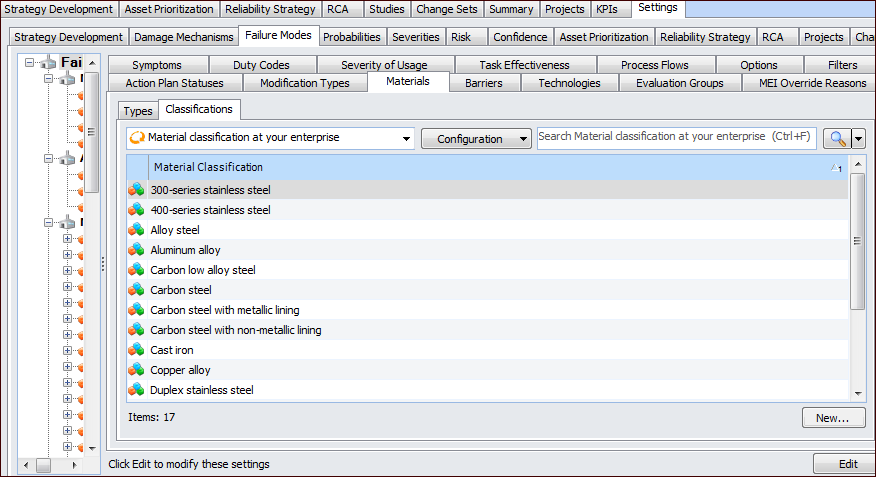
Select the Materials tab and the Classifications tab.
3.
4.
5.
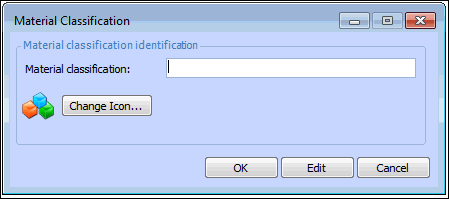
To change the icon displayed for this classification, click Change Icon, select an image and click OK.
6.
Click OK. The dialog closes and the classification is added to the table.

To Create Material Types and Grades
1.
On the site’s Strategy Development view, select the Settings tab. Select the Failure Modes tab and the Failure mode settings node in the tree.
Tip: You can also select the site’s Administration menu, Strategy Development Settings, and then Failure Modes. The Failure Mode Management Settings dialog appears.
2.
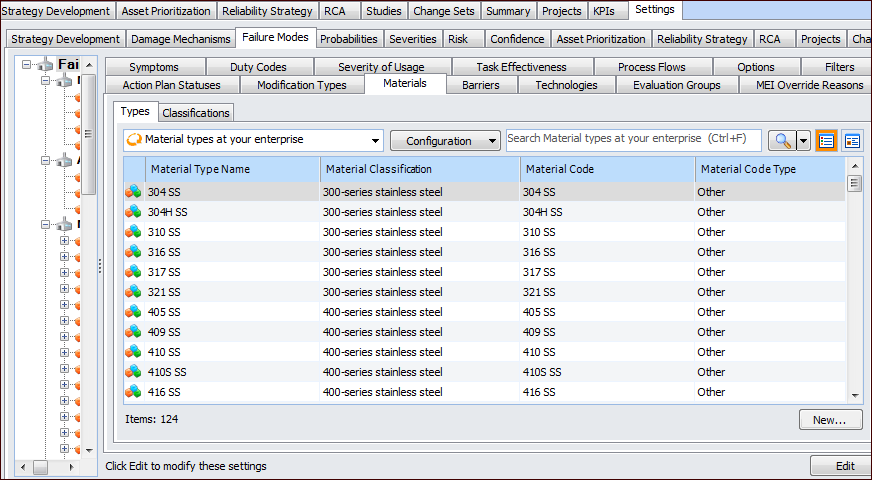
On the Materials tab, select the Types tab.
3.
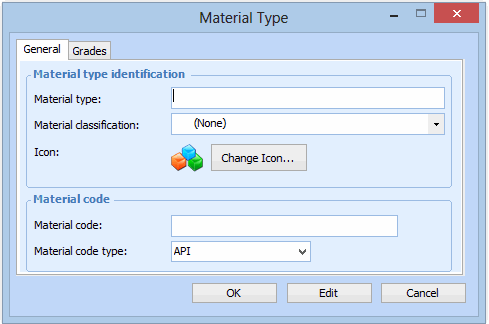
For each of the material types required by your organization, click New. The Material Type dialog appears, open to the General tab.
4.
5.
To change the icon displayed for this type, click Change Icon, select an image and click OK.
6.
7.
In the Material code box, enter the standard code that identifies the material, as established by a professional organization such as API or ASME.
8.
In the Material code type list, select the organization that provides the code. The choices are:
API – American Petroleum Institute
ASME – American Society of Mechanical Engineers
ASTM – American Society of Testing and Materials
9.
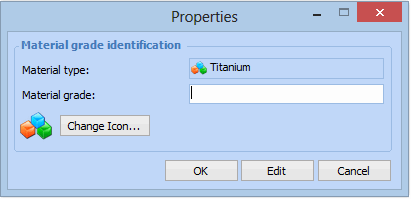
Select the Grades tab and then click New. The Properties dialog appears.
10.
In the Material Grade box, enter a material grade that represents this type of material. Click OK. The grade is added to the table.
11.
Click OK. The dialog closes and the material type is added to the table.