
|
|


Setting up Action Plan Task Statuses
Viewing Action Plans and Task Statuses
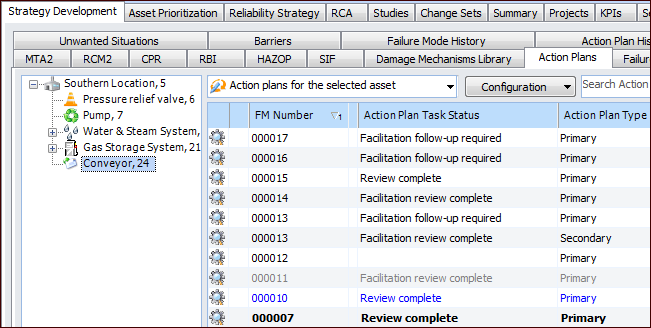
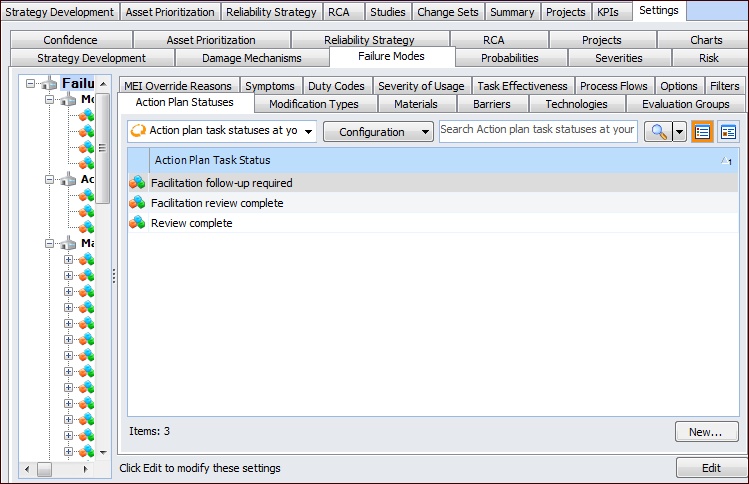
To view action plans with the statuses that you have set up and assigned, select the site’s Strategy Development view and tab, Action Plans tab. Select an asset in the tree to list its action plans in the table. The Action Plan Task Status column displays the statuses assigned to all of the asset’s primary and secondary action plans. For example:To Set up an Action Plan Task Status
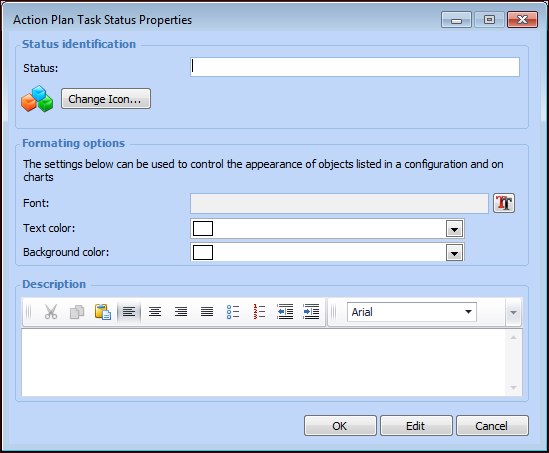
 to open the Font dialog. Select the font, size, effects, and script that you want to use.