
Enforcing Barcode Scanning on Mobile Devices

To scan a barcode on a mobile device and have it automatically open the checksheet, you can enforce barcode scanning on the mobile device. When barcode scanning is enabled, if more than one checksheet exists, a list of all checksheets for the asset is displayed on the device. The appropriate checksheet can be manually opened and only indicators for that asset are displayed.
This topic explains how to enforce barcode scanning on a mobile device.

To Enforce Bar Code Scanning on Mobile Devices
1.
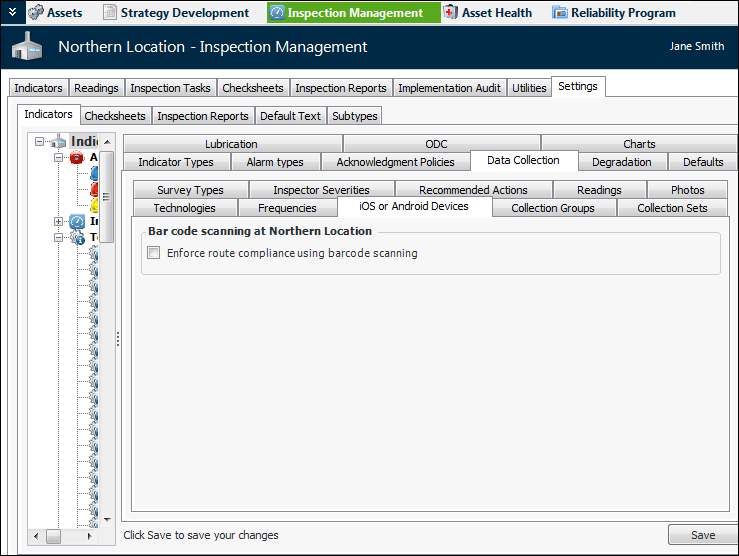
From the Site window, select the Inspection Management view, the Settings tab, and then the Indicators tab. Select the Indicator Settings node in the tree.
Tip: You can also click the Administration menu, Inspection Management Settings, and then Indicator Management. The Indicator Settings window appears.
2.
Click Edit to modify the site settings. The Edit button is replaced by the Save button.
3.
Select the Data Collection tab, then the iOS or Android Devices tab.
4.
Select Enforce route compliance using barcode scanning.
5.
Click Save.