Setting up Inspection Strategies

The inspection strategy describes the action to be taken in response to the failure mode’s criticality and confidence evaluations and its degradation type. An example is “Maintain current inspection / monitoring”. It is displayed in the Inspection strategy box on the failure mode’s Confidence tab.
Tip: To view where an established inspection strategy is in use, double-click the strategy to open its Inspection Strategy Properties dialog. Click Where Used to view the failure modes, inspection factors, and inspection factor material strategies that use it.

To Create an Inspection Strategy

1.
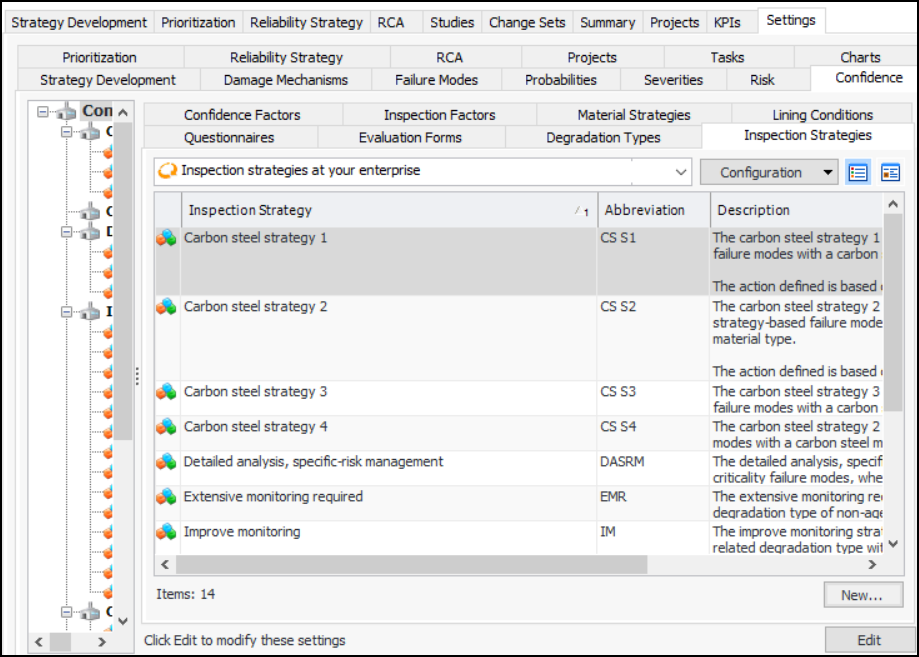
On the site’s Strategy Development view, select the Settings tab. Select the Confidence tab and the Confidence Analysis Settings node in the tree.
Tip: You can also select the site’s Administration menu, Strategy Development Settings, Risk Analysis, and then Confidence. The Strategy Development – Confidence Analysis Settings dialog appears.
2.
On the Confidence tab, select the Inspection Strategies tab.
3.
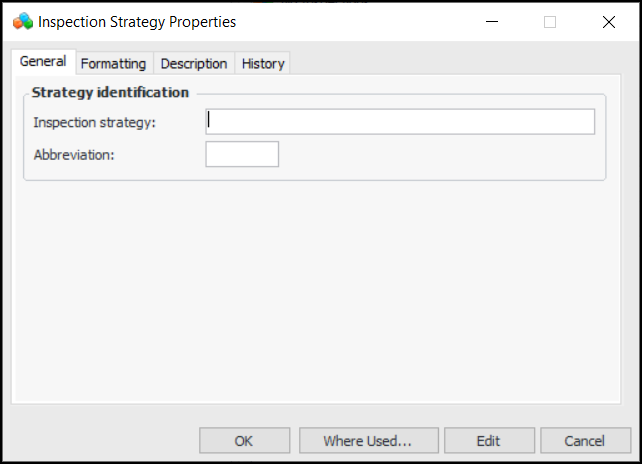
Click New. The Properties dialog appears, for example:
4.
5.
In the Abbreviation box, enter a short form for the strategy.
6.
Select the Formatting tab to select a font, text color, and background color for the strategy.
7.
Select the Description tab to enter a description for the strategy.
The History tab displays information about the object’s creation and last update.
8.
Click OK. The dialog closes and the strategy is added to the table.