Setting up Inspection Factors

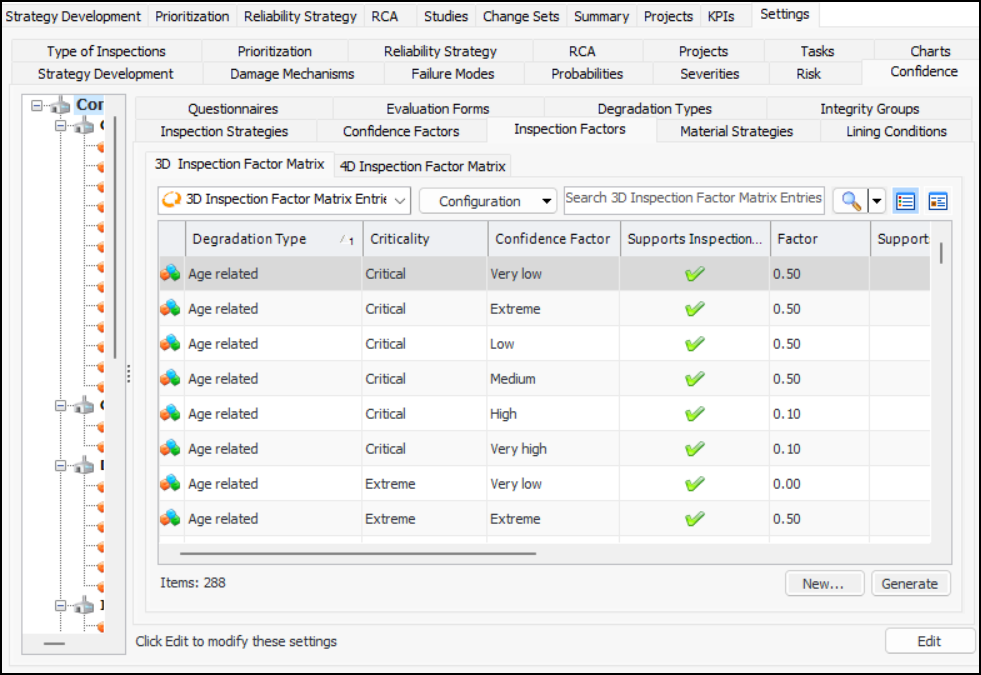
In APM, an inspection factor matrix is generated to create one entry for each combination of degradation type, criticality, confidence factor, and (optionally) integrity group defined for the site. Each generated entry, called an inspection factor, can be assigned an inspection factor value, inspection strategy, inspection interval, or a combination of these.
You can extend the 3-dimensional inspection factor matrix to a fourth dimension: integrity group. Integrity group is identified on asset types, providing an easy mechanism to group similar assets. For example, integrity groups can be created for piping systems, vessels, and heat exchangers. For more information, see Setting up Asset Integrity Groups.
Note: 4D inspection factor matrices are a “generally available” product feature. You must first enable feature 123 to use the functionality in APM. In the Enterprise window, select the Features view and the Enabled Features tab. Click Browse, select “Inspection factor lookup based on integrity group, degradation, criticality, and confidence factor” and click OK. If APM is running as a smart client, click Refresh Enabled Features on the server. Then restart the client to use the functionality.
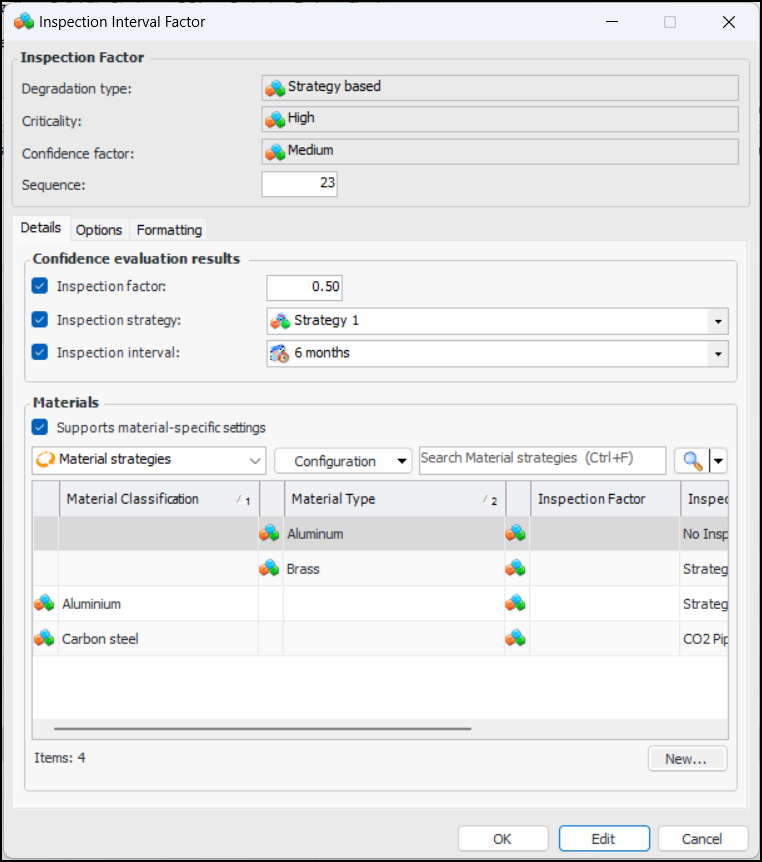
Inspection factor properties can be overridden by material strategies. That is, if the analysis’ primary asset has a material type, that type is matched to the applicable material strategy, which supplies the inspection factor value, inspection strategy, inspection interval, or a combination. Material strategies are created on the inspection factors to which they apply. However, you can view all defined strategies on the Material Strategies tab. (In the Site window, select the Strategy Development view, Settings tab, and then the Confidence and Material Strategies tabs.)
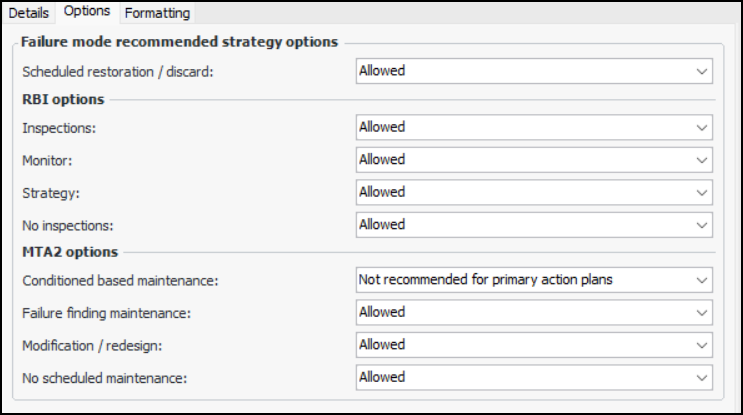
An inspection factor can specify which recommended strategies, for example, scheduled restoration/discard, are allowed on action plans.
When failure mode risk analysis has been performed, the analyst selects the Confidence tab on the Maintenance Action Plan window, selects a degradation type, and performs the confidence evaluation. Based on the result of the risk assessment (criticality), the selected degradation type, and the result of the confidence evaluation, APM fills in the Details area with one or more of the following values:
This topic explains how:

To Generate a 3D or 4D Inspection Factor Matrix

1.
On the site’s Strategy Development view, select the Settings tab. Select the Confidence tab and the Confidence Analysis Settings node in the tree.
Tip: You can also select the site’s Administration menu, Strategy Development Settings, Risk Analysis, and then Confidence. The Strategy Development – Confidence Analysis Settings dialog appears.
2.
On the Confidence tab, select the Inspection Factors tab.
3.
4.
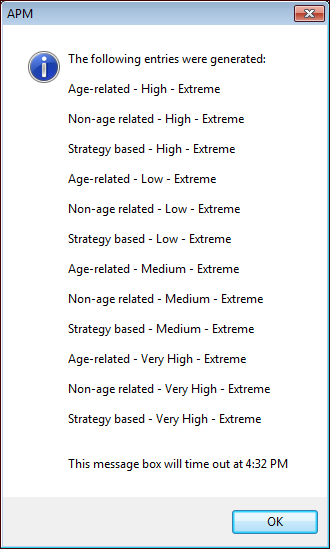
Click Generate. One inspection factor is created for each combination of elements. A message appears listing the entries that were generated. For example:
If no entries were created, a message appears to let you know.
5.
Click OK. The entries are listed in the appropriate tab.
You can now open each new entry to set its formatting, select an inspection strategy, and so on. You can also create inspection factors manually. See To Work with Inspection Factors.

To Work with Inspection Factors

1.
On the Inspection Factors tab, select either the 3D Inspection Factor Matrix or 4D Inspection Factor Matrix tab.
2.
Double-click an entry to open the Inspection Interval Factor dialog or the Integrity Group Inspection Factor Matrix dialog and click Edit. Or you can click New to create one. Here is an example of a generated inspection factor for a 3D matrix:
3.
Note: Specify abbreviated frequencies (for example, “1 yr”) to ensure that inspection intervals will be shown in printed reports.
4.
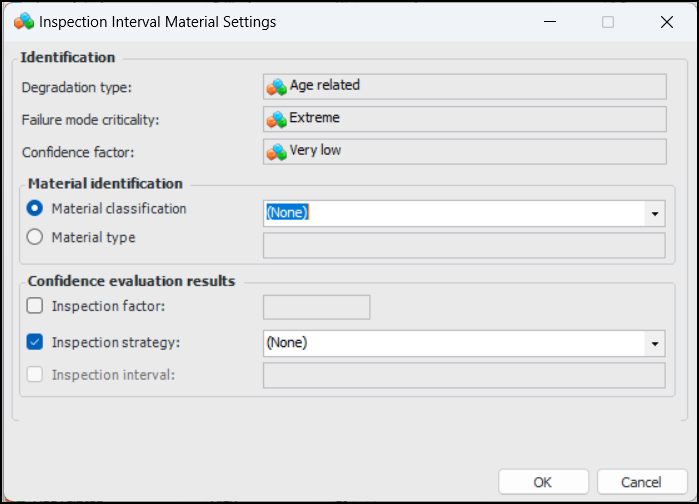
To create a material-specific strategy, click New. The Integrity Group Inspection Factor Material or Inspection Interval Material Settings dialog appears. For example:
5.
6.
Click OK. The dialog closes and the material strategy is added to the table.
7.
8.
9.
Select the Formatting tab to choose the font, text color, and background color for the inspection factor.
10.
Click OK. The dialog closes and the inspection factor is added to the table.