Setting up Confidence Evaluation Forms

Using the confidence evaluation form, the analyst can answer a series of questions to reach a conclusion, typically an inspection factor, inspection interval, or both. This form is designed for assets, such as atmospheric storage tanks, whose lining or coating affects the assets’ degradation rates. The form is used to evaluate the analysis team’s confidence in the asset lining. Setting up a confidence evaluation form involves the following steps:
1.
2.
Note: You can also set up and use a confidence questionnaire to evaluate lining. The statements are presented on the failure mode’s Confidence tab on the Lining tab. The analyst clicks buttons to select responses and arrive at an inspection factor.
3.
Modify the appropriate degradation type for the asset. On the Options tab, select the questionnaire that applies to the asset itself. On the Lining tab, specify whether the lining is internal, external, or both and select the confidence questionnaire that references the evaluation form. See Setting up Degradation Types.
This topic provides background information and explains how to set up an evaluation form that analysts can use to assess confidence. This topic covers:

Example Evaluation Form

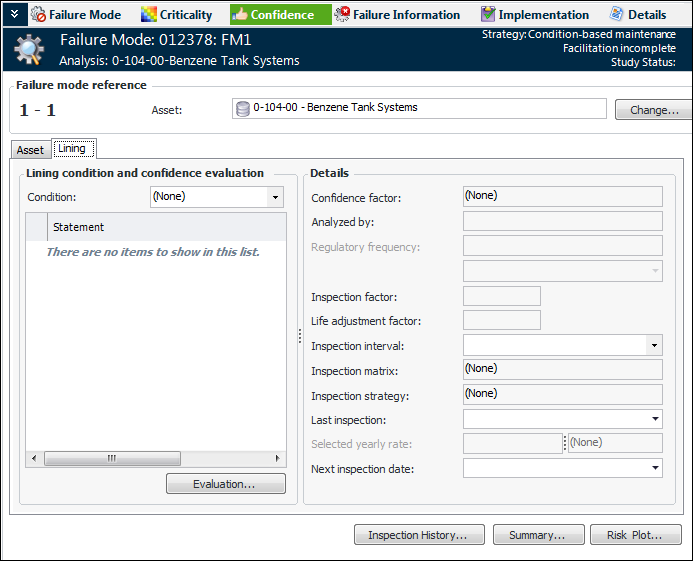
After performing risk analysis on a failure mode, the analyst selects the Confidence view and chooses a degradation type from the list. The confidence questionnaire assigned to the degradation type is displayed on the Asset tab. The Lining tab is added to the Confidence tab if the analysis asset has lining properties and the degradation type specifies a questionnaire for lining. Here is a Lining tab that uses an evaluation form:
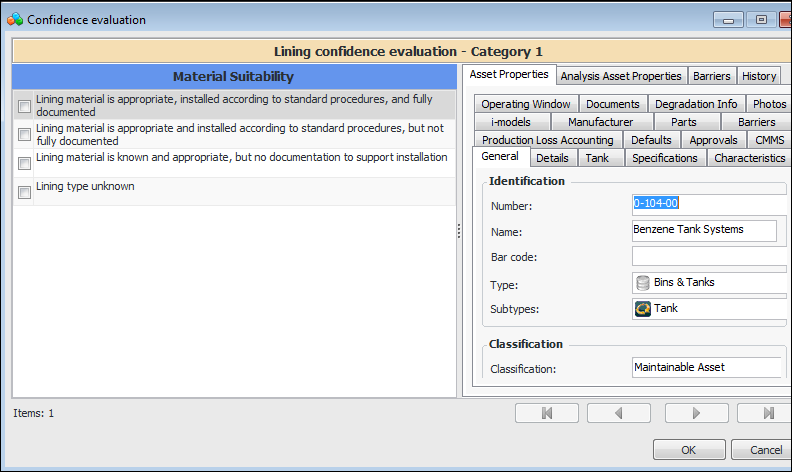
The analyst clicks Evaluation to open the confidence evaluation form. Here is an example:
The analyst can refer to the Asset Properties, History, and Barriers tabs for information to aid in the evaluation, for example, historical inspections, failures, and work performed. APM provides this information automatically, based on the asset’s data.
When the analyst has selected a statement and clicked OK, the form closes and the statement is shown in the Lining tab.

Anatomy of an Evaluation Form

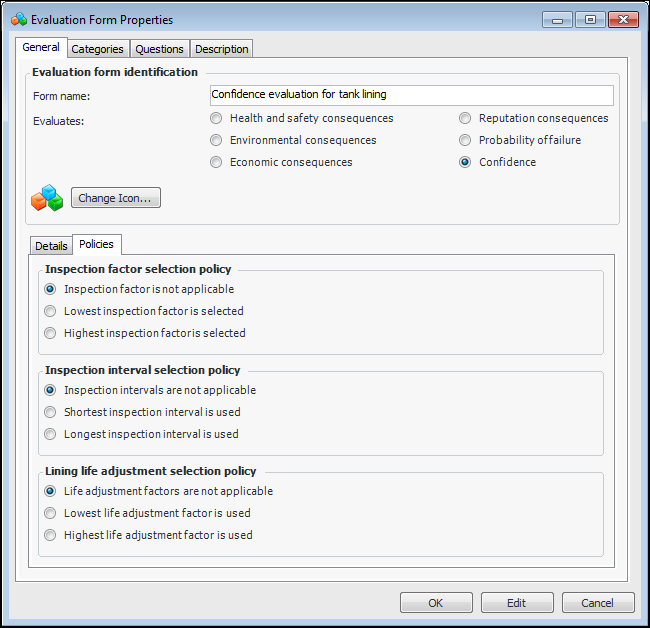
When creating the evaluation form, you will specify whether the evaluation determines inspection factors, inspection intervals, or both. Choose whether the lowest or highest inspection factor is used and choose whether the shortest or longest inspection interval is used.
Then you will define a category, for example, “Lining Material and Installation”. Define questions for the category, each containing a statement that the user can select if appropriate. You can specify an inspection factor value, inspection interval value, or both for each question.

Controlling the Availability of the Category

You can control whether or not the category is available in an evaluation form by specifying:

To Set up a Confidence Evaluation

1.
On the site’s Strategy Development view, select the Settings tab. Select the Confidence tab and the Confidence Analysis Settings node in the tree.
Tip: You can also select the site’s Administration menu, Strategy Development Settings, Risk Analysis, and then Confidence. The Strategy Development – Confidence Analysis Settings dialog appears.
2.
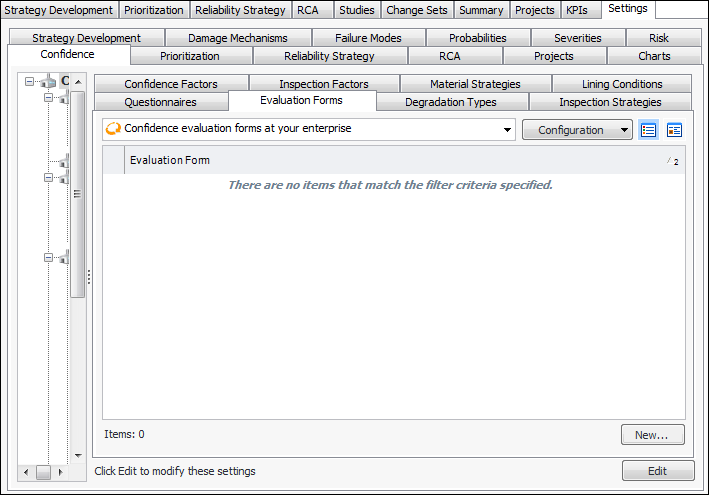
Select the Evaluation Forms tab.
3.
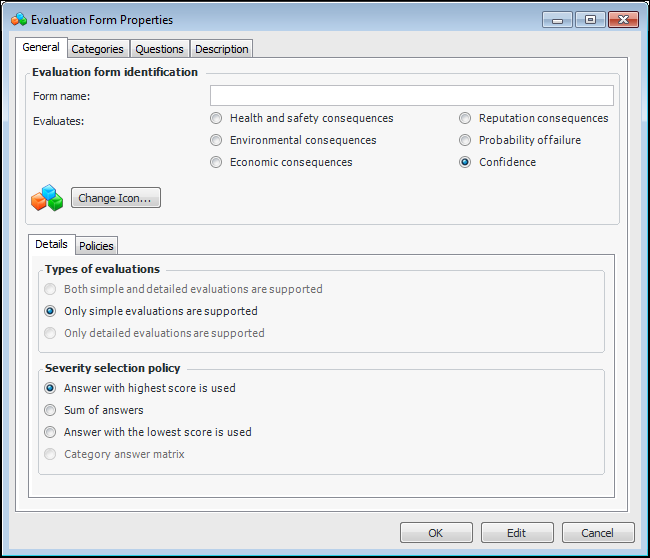
Click New. The Evaluation Form Properties window appears.
4.
5.
Select the Policies tab.
6.
Lowest life adjustment factor is used – The selected statement with the lowest life adjustment factor supplies the life adjustment factor
Highest life adjustment factor is used – The selected statement with the highest life adjustment factor supplies the life adjustment factor
Note: Set the inspection factor and inspection interval selection policies to “not applicable”.
Next, add an evaluation category and questions, as explained next.

To Create an Evaluation Category and Questions
1.
2.
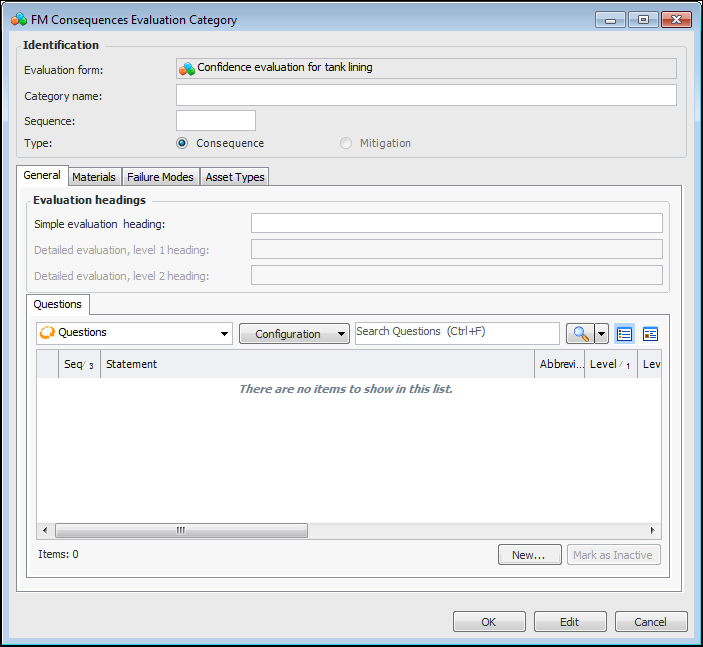
Click New Consequences Category. The FM Consequences Evaluation Category window appears.
3.
4.
5.
In the Simple evaluation heading box, you can enter a title to appear above the statements in the form.
6.
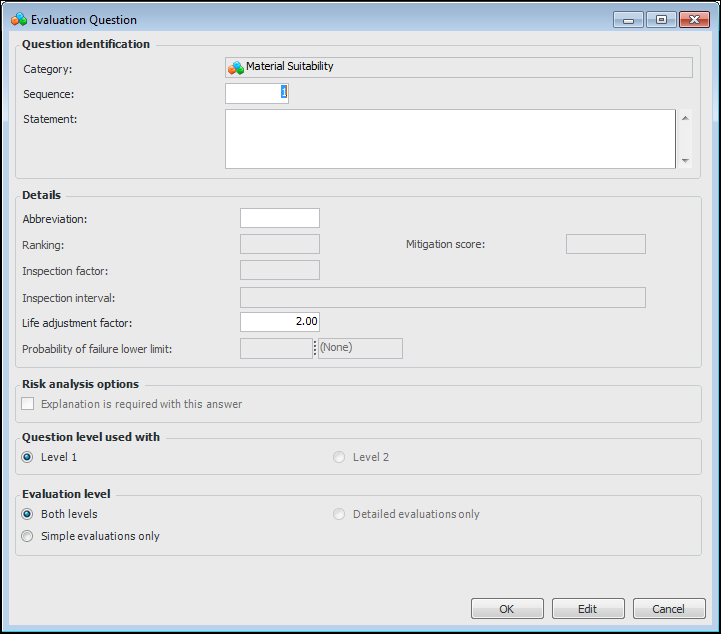
For each question on the form, click New. The Evaluation Question window appears.
7.
8.
Click OK. The question is added to the Questions tab.
9.
Select the Materials tab if you wish to set up restrictions for material types and classifications. For example, you could specify that the category is not available for assets made of stainless steel.
10.
11.
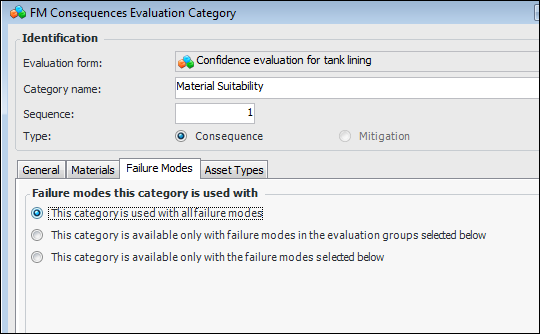
All failure modes – There are no restrictions on the category based on the failure mode.
Selected evaluation groups – A table appears listing the evaluation groups defined for the site. Select the appropriate evaluation groups.
Note: Evaluation groups are assigned to asset types in their strategy development settings. They can also be assigned to entries in the damage mechanism library (RBI analysis).
Selected failure modes – A table appears listing library failure modes. Select the appropriate library entries.
12.
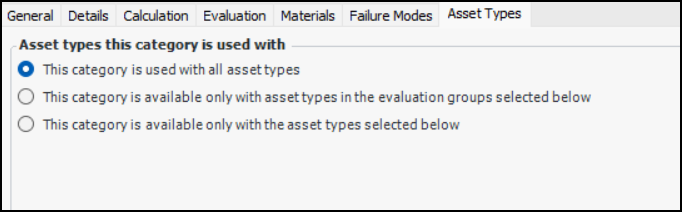
Select the Asset Types tab to restrict the category to specific asset types or asset types in specific evaluation groups.
13.
All asset types – There are no restrictions on the category based on the asset type.
Selected evaluation groups – A table appears listing the evaluation groups defined for the site. Select the appropriate evaluation groups.
Note: Evaluation groups are assigned to asset types in their strategy development settings. They can also be assigned to entries in the damage mechanism library (RBI analysis).
Selected asset types – A table appears listing asset types for the site. Select the appropriate asset types.
14.
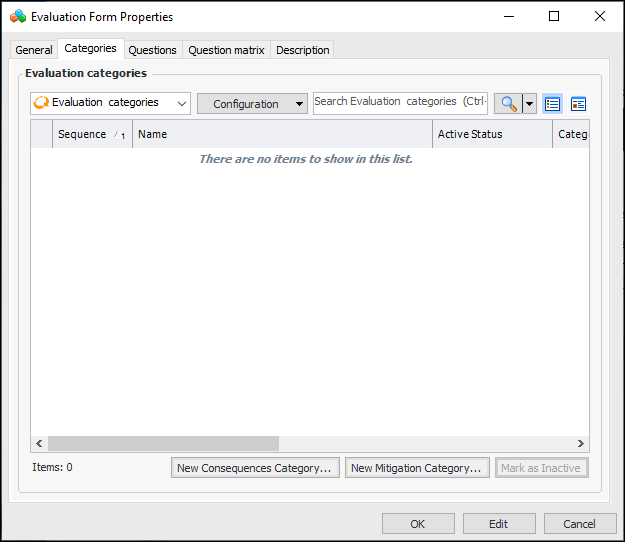
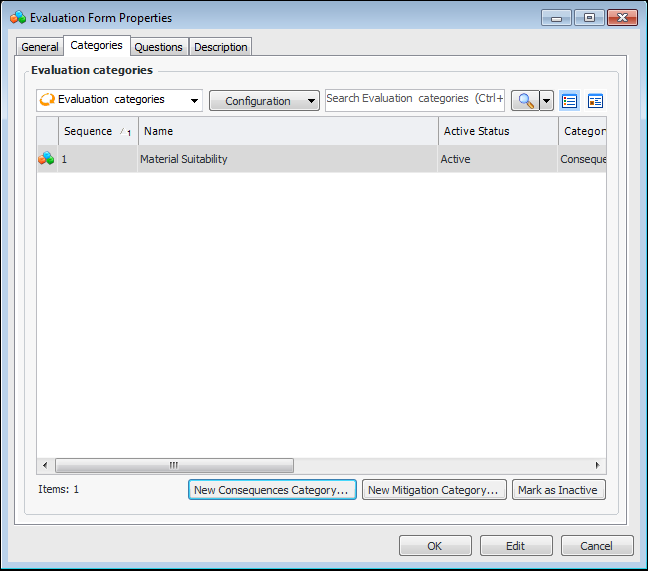
Click OK. The category is added to the Evaluation categories table. For example:
Tip: While you are developing an evaluation, you can mark a category as inactive until it is ready to be used in analyses. On the Categories tab, select the category in the table and click Mark as Inactive. The Mark as Inactive window appears, where you can enter a comment. When you click OK, a confirmation message appears. Click OK. The category’s Active Status in the table is shown as “Inactive”. When you are ready, click Mark as Active to make the category available.
15.
16.
Select the Description tab to enter additional information.
17.
When you have finished adding the category, click OK. The form is added to the Evaluation Forms tab.