Setting up Asset Dispositions

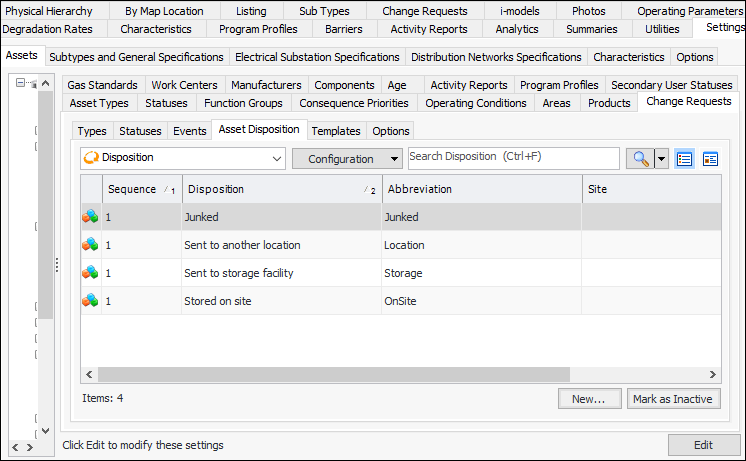
Asset dispositions can be selected on equipment removal requests to indicate the asset’s location after removal, for example, “Stored on site” or “Sent to storage facility”. APM provides default dispositions that you can modify or replace with your own.
This topic explains how to create an asset disposition.

To Set up an Asset Disposition

1.
From the Site window, select the Assets view, Settings tab. Select the Assets tab and the Asset management settings node in the tree.
Tip: You can also select the Administration menu, Asset Management Settings, and then Asset Management. The Asset Management Settings dialog appears.
2.
Select the Change Requests tab and then the Asset Disposition tab.
Tip: While dispositions are being developed, you can mark them as inactive to prevent them from being selected. When you are ready to enable the disposition, select it in the table and click Mark as Active.
3.
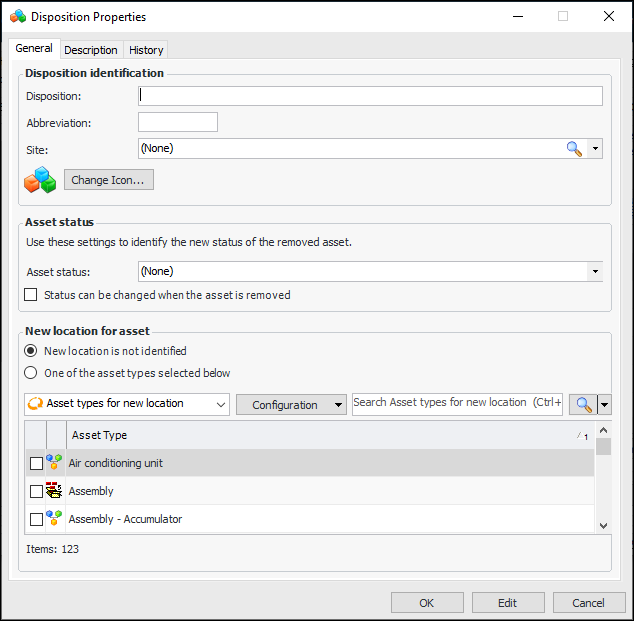
Click New. The Disposition Properties dialog appears:
4.
5.
Click the Description tab to add more information.
Tip: The History tab displays information about when the disposition was created and updated.
6.
Click OK to save the object and close the dialog. The disposition is added to the list.