Setting up Asset Condition Analysis Rule Sets

If you wish to tailor analyses for families of assets, you can define a rule set with a descriptive name, for example, IT Equipment. Select the rule set when creating analysis criteria. Then, when you are setting up conditions, select the rule set on rule clauses to filter the list of criteria available.
Tip: Create rule sets that apply to multiple sites on the top site. Create rule sets that apply to a specific site on that site.
In the asset condition analysis, select the appropriate rule set. When APM calculates the scores on the analysis, it uses only the rules that reference that rule set. If the analysis does not have a rule set, only rules that do not have rule sets are used.
You can also assign a rule set to an analysis type. When the type is applied to an individual analysis, the rule set is selected by default.
This topic explains how to create rule set records.

To Set up a Rule Set

1.
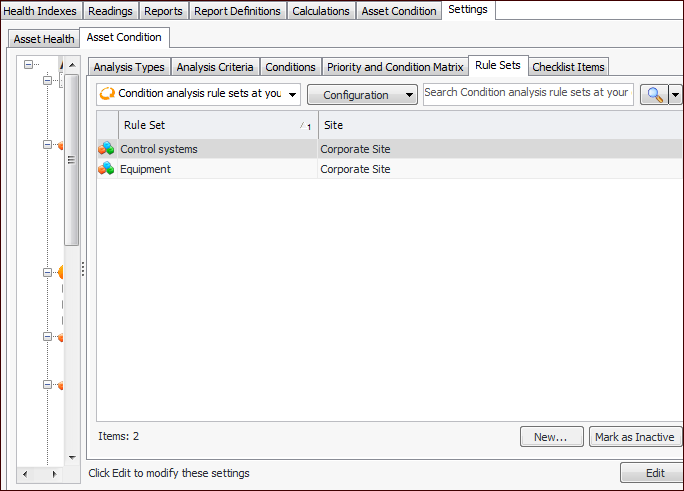
On the site’s Asset Health view, select the Settings tab, the Asset Condition tab, and the Asset condition settings node in the tree.
Tip: You can also select the site’s Administration menu, Asset Health Settings, and then Condition Analyses. The Asset Condition Analysis Settings dialog appears.
2.
Select the Rule Sets tab. This tab lists the rule sets at your enterprise.
Tip: While you are developing a rule set, you can mark it as inactive until it is ready to be used. Select the set in the table and click Mark as Inactive. The Mark as Inactive/Active dialog appears, where you can enter a comment. When you click OK, a confirmation message appears. Click OK. When the rule set is ready for use, select it in the table and click Mark as Active.
3.
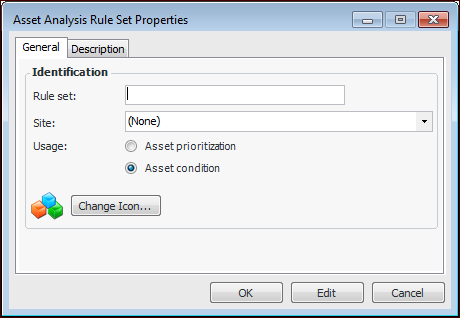
Click New. The Asset Analysis Rule Set dialog appears.
4.
5.
6.
You can change the graphic that represents the set by clicking Change Icon, selecting another graphic, and clicking OK.
7.
Select the Description tab to add more information.
8.
Click OK to close the dialog. The rule set is added to the table.