Setting up Asset Conditions

APM determines an asset’s condition by comparing the asset’s scores for analysis criteria to rule clauses contained in the condition definitions. If the asset’s scores match a rule, the asset is assigned that rule’s condition value. The clauses can use rule sets for different asset families.
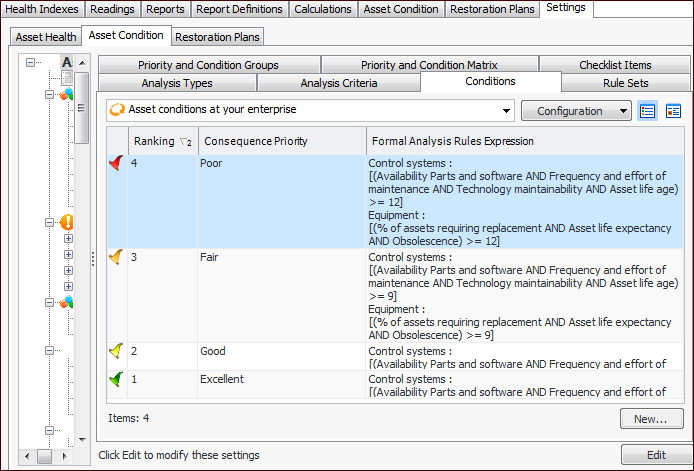
As an example, here are the rules for the “Good” condition, which uses rule sets for control systems and equipment:
Control systems: [(Availability Parts and software AND Frequency and effort of maintenance AND Technology maintainability AND Asset life age) >= 6]
Equipment: [(% of assets requiring replacement AND Asset life expectancy AND Obsolescence) >= 6]

To Set up Asset Conditions

1.
On the site’s Asset Health view, select the Settings tab, the Asset Condition tab, and the Asset condition settings node in the tree.
Tip: You can also select the site’s Administration menu, Asset Health Settings, and then Condition Analyses. The Asset Condition Analysis Settings dialog appears.
2.
Select the Conditions tab. This tab lists the conditions at your enterprise.
3.
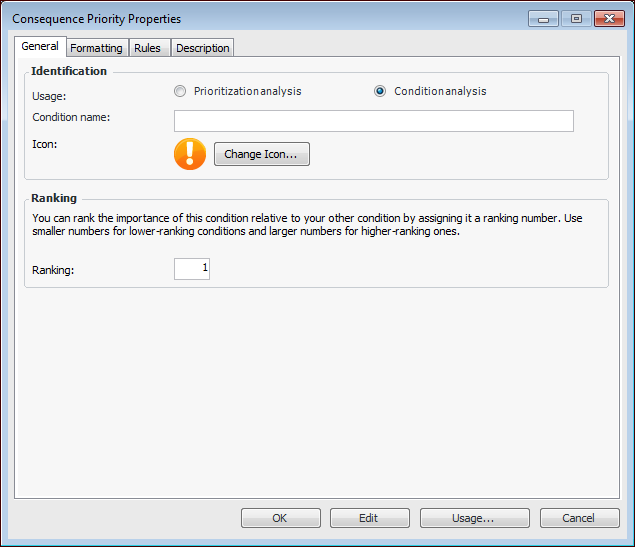
For each condition that you wish to add, click New. The Consequence Priority window appears.
4.
On the General tab, enter the following settings:
5.
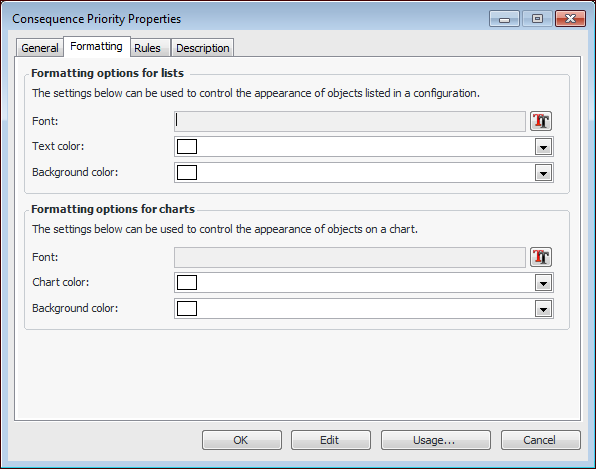
Select the Formatting tab:
6.
Note: To have the formatting appear in a table’s rows, open the table configuration, select the Appearance tab, then the Table tab and Row Formatting tab. Select the join path to the consequence priority’s Font and color control attribute.
7.
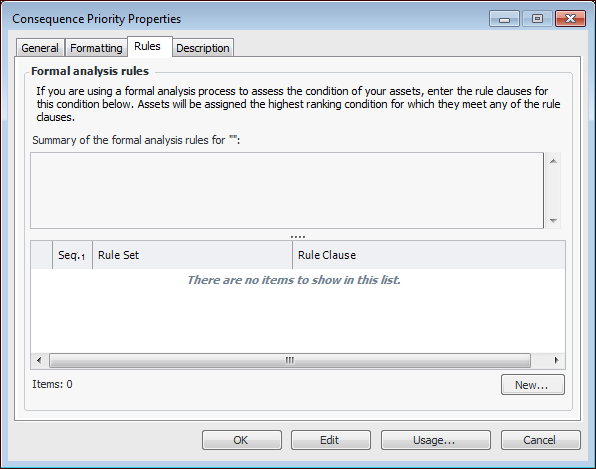
Select the Rules tab.
Once the condition name and rank are selected, you must create at least one formal analysis rule for the condition. When you perform a condition analysis, APM compares the scores chosen for that asset to these rules and the condition is applied to the asset based on the rules.
8.
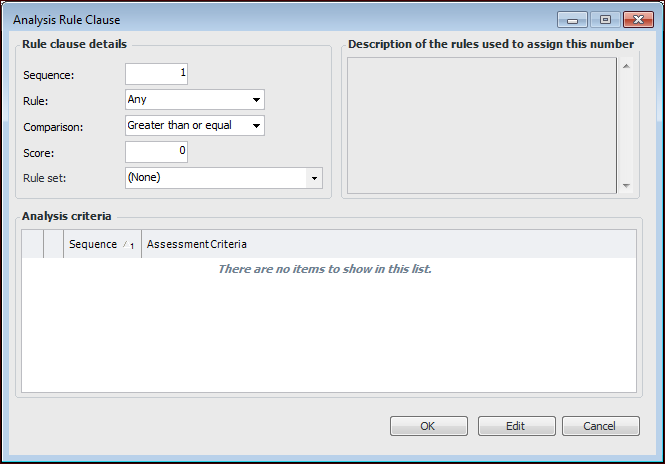
For each rule clause, click New. The Analysis Rule Clause dialog appears. For example:
9.
Indicates whether the scores for the rule’s criteria are used individually or as a group. If each criterion’s consequence is to be used individually, select Any. If the scores of the criteria’s consequences are to be totaled with the resulting total used, select Sum.
10.
11.
Click OK to save this rule clause and close the dialog. The description generated when the rule is saved is added to the Description box on the Analysis Rule Clause dialog. It is also included in the Summary box on the Rules tab.
12.
Click OK to save the condition and close the window.
Tip: Later, you can return to the window and click Usage to view a list of assets with this condition.