Changing the Status of MTA2 Failure Modes and Analyses

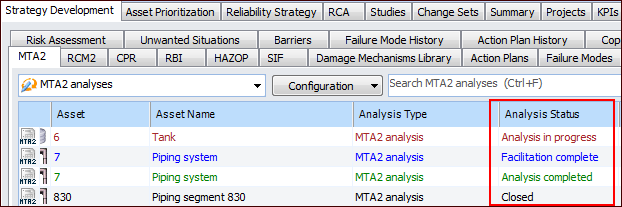
You can keep track of the strategy development process by monitoring and changing the status of analyses and failure modes. For example, select the site’s Strategy Development view and tab and then the MTA2 tab. Scroll to the Analysis status column:
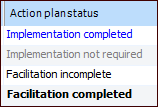
To view the statuses of failure modes, open the analysis, select the Facilitation view and then the By Asset or By Hierarchy tab. The Action plan status column displays each failure mode’s status. For example:
The following table shows typical activities and the appropriate status of the analysis and its failure modes. The analysis statuses are also used for templates.
When working with action plans, keep the following in mind:
When working with the status of analyses, keep the following in mind:
Tip: You can review the history of analysis status changes on the History view, Analysis Audit Info tab.
This topic explains how to change the status of failure modes and analyses.

To Change the Status of a Failure Mode

1.
From the site’s Strategy Development view and tab, select the MTA2 tab.
2.
Open the analysis containing the failure mode. Select the Facilitation view and the Info Worksheet, By Asset, or By Hierarchy tab.
3.
To complete a failure mode with a recommended action, right-click it, click Mark As, and then Facilitation Completed, Implementation Completed, or Implementation Not Required.
To reopen a completed failure mode, right-click it, click Mark As, and then Facilitation Incomplete.

To Change the Status of an Analysis or Template
1.
From the site’s Strategy Development view and tab, select the MTA2 tab.
Tip: You can also view the list of analyses from an asset’s Strategy Development view and tab, Analyses tab.
2.
Right-click the analysis, click Mark as, and then the status.
Open the analysis, click the Tools menu, Mark As, and then the status.