Evaluating the Feasibility of MTA2 Maintenance Tasks

The analysis team can determine if their proposed maintenance strategies are worth doing; that is, whether implementing the maintenance tasks will cost less than the savings achieved by avoiding the failure.
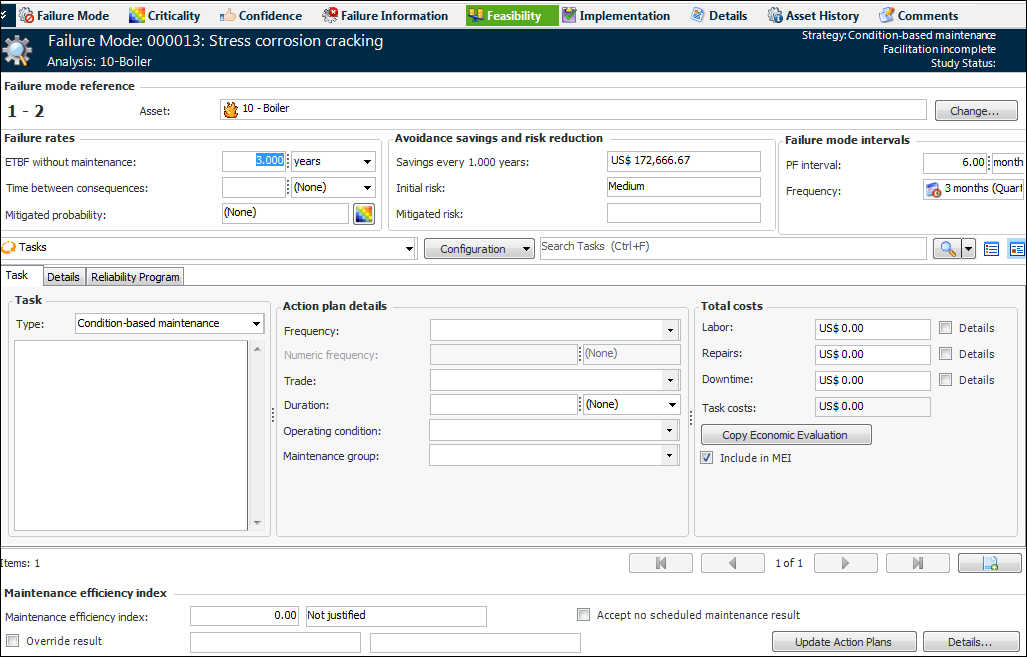
If you have performed risk analysis on the failure mode, when you select the Feasibility view, you will see that it displays the estimated time between failures (ETBF) without maintenance, avoidance savings, and initial risk. These values are based on the following:
APM uses the time period specified in feasibility settings to arrive at the savings per period
Failure costs can include the economic impact values of the consequence severities. For example, in the failure costs settings for the analysis, you can select one or more of the health and safety, environmental, and reputation effects to contribute to the calculation of avoidance savings. The economic evaluation also contributes
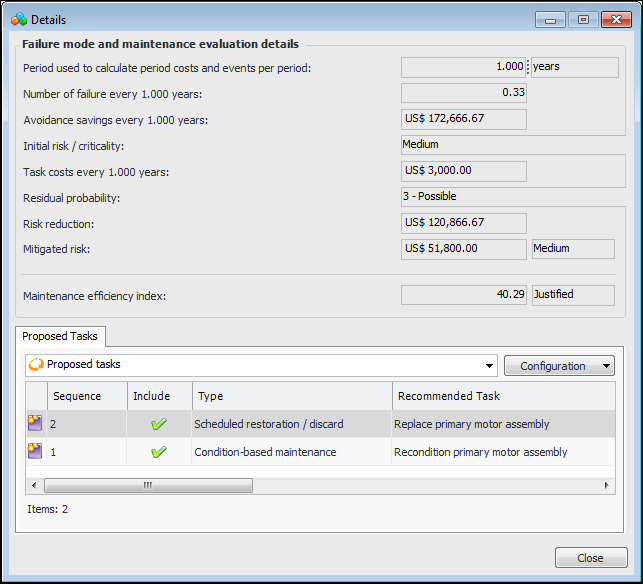
To arrive at the mitigated (or residual) risk, enter the estimated time between consequences (ETBC), which is the time between unexpected consequences or failures when inspections and preventive maintenance are performed on the asset. APM calculates the mitigated probability and mitigated risk amount. You can view the figures for risk reduction and mitigated risk by clicking Details to open the Details dialog.
Next, enter the frequency and costs of implementing the recommended task. You can itemize the cost of labor, repairs, and downtime or lost production on additional tabs. If you performed a detailed economic evaluation, Copy Economic Evaluation becomes available when you select a maintenance task type. When you click this button, information from the Economic Effects Evaluation form is copied to the Labor, Repairs, and Downtime tabs.
APM uses the maintenance efficiency index (MEI) to determine if the cost of the tasks is justified. The MEI is calculated as follows:
MEI = Risk reduction amount / Task costs every period
You can add as many tasks as needed. To compare the effect of different tasks, you can select or clear the Include in MEI setting on individual tasks. The maintenance efficiency index (MEI) value changes accordingly.
When you establish that the tasks are justified, click Update Action Plans to create or refresh the action plan for the recommended task. Secondary action plans are created for any additional tasks.
In some situations, you might have to implement a task that is not justified, for example, to meet regulatory inspection requirements. In this case, you can override the result, record the reason, and update action plans.
To view a summary of the feasibility analysis, open the Details dialog. It displays information such as the projected number of failures per analysis period, the risk reduction value, as well as the costs of the tasks.

To Perform a Feasibility Evaluation

1.
In the Maintenance Action Plan window, select the Feasibility view. In this example, criticality and confidence evaluations were completed to arrive at the ETBF without maintenance, avoidance savings, initial risk, and proposed task type:
2.
If ETBF without maintenance does not have a value, enter the estimated time between failures when no maintenance is performed on the asset. The avoidance savings is calculated for the period, based on the ETBF and the avoidance savings calculated in the Failure Information view, Failure Data tab.
3.
Tip: Click the risk plot icon () to view mitigated and unmitigated risk in the context of the risk analysis. For example:
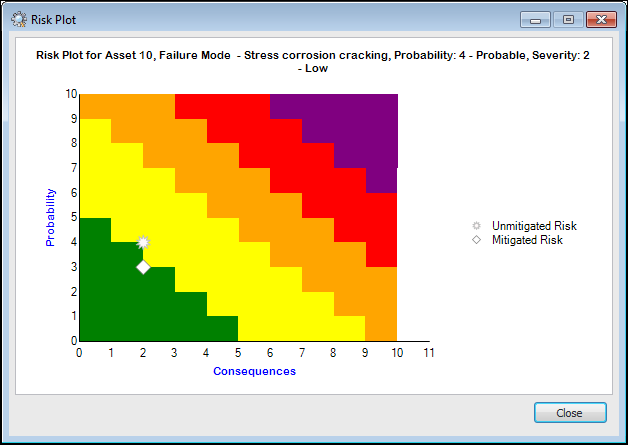
Click Close when you are finished.
4.
5.
The Action plan details area contains information that will be copied to the task’s action plan when it is created or updated. From the Frequency list, select the time period that indicates how often the task should be performed. This information is used in the MEI index calculation, along with task costs.
Tip: For proposed tasks that are performed as needed, for example, restoration or discard, you can select the “As needed” or “When required” frequency defined for your organization. In the Numeric frequency box, enter an estimate of how often the task will be performed.
6.
In the Trade list, select the resource that will be copied to the task’s action plan.
7.
In the Duration box, enter the amount of time that the trade person will need to perform the task.
8.
In the Operating condition list, you can select a condition to notify the people planning, scheduling, and performing the task what condition the asset must be in for the work to be started.
9.
In the Maintenance group list, you can select a group to perform the work.
Note: If APM is configured to interact with a SAP Plant Maintenance system, System condition and Work center are available in the Details area.
10.
Enter the appropriate amounts for labor, repairs, and downtime costs in the Total costs area. The total is calculated and displayed in the Task costs box. Alternatively, you can select one or more of the Details options. The appropriate tabs (Labor, Repairs, Downtime) are added, where you can itemize the costs in detail.
Note: When you use the Labor, Repairs, or Downtime tab to record detailed information, the corresponding cost box on the Task tab displays the resulting total in read-only format.
11.
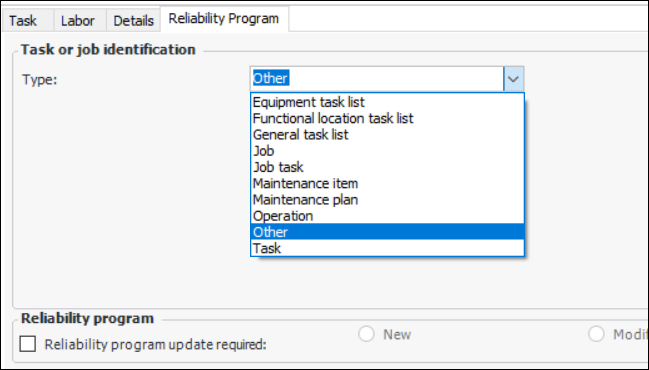
Select the Reliability Program tab to reference the appropriate item. Depending on whether integration is active for APM, you can do one of the following:
SAP integration: You can reference a task list, task list operation, maintenance item, or maintenance plan in the connected SAP Plant Maintenance system. In this example, the Type list contains the items available when site interoperability settings specify that both APM and SAP information can be used:
Do one of the following:
To specify that a reliability program update is required in a CMMS system, select “Other”. Describe the task in the CMMS task box. Click Reliability program update required and then the action required.
12.
As you enter cost information, the Maintenance efficiency index boxes show the resulting index and whether the tasks are justified or not justified.
Note: If you are using a custom MEI calculation, the Calculate button is available. Click it to determine if the costs are justified.
Tip: To compare the impact of different tasks, you can select or clear the Include in MEI setting on any of the second and subsequent tasks. The Maintenance efficiency index value changes accordingly.
Note: You cannot clear Include in MEI for the first proposed task.
13.
Click Details to compare the tasks. The Details dialog displays failure mode and evaluation details. The Proposed Tasks tab lists the tasks and their costs. For example:
Scroll to the right to view costs for each task, the number of times the task is performed for the period, and the cost for the period. You can also double-click a task to view more information about it.
Click Close to close the dialog.
14.
When the cost is justified, you can click Update Action Plans. If action plans have not yet been created, APM adds them to the failure mode. The following information is copied to the action plans:
Item selected on the Reliability Program tab
From the Reliability Program tab, the CMMS task reference and action required
When action plans already exist, the primary action plan is updated with information from the first task on the Feasibility view. For a secondary plan, APM searches for one with a matching task type. The first one it finds is updated with information from the first secondary task on the Feasibility view. If a matching task type is not found, a secondary action plan is created.
15.
On MTA2 and RCM2 failure modes, if the primary proposed task is not justified, you have the option of selecting Accept no scheduled maintenance result. When you click Update Action Plans, the primary action plan’s task type is set to “No Scheduled Maintenance”. Any existing secondary action plans are deleted.
16.
If the proposed task is not justified but it needs to be performed anyway, for example, because of regulatory requirements, select Override result. Then select a reason from the list of MEI override reasons defined for the site, enter a comment manually, or do both.
When you click Update Action Plans to create or revise action plans.
Tip: You can also select Override result and provide a reason when a proposed task is justified.