Revisiting MTA2 Failure Mode Copy Requests

You can revisit a failure mode copy request after the Copy Failure Modes wizard has been closed. The Copy Requests tab is available for the site and individual analyses. The actions you can perform on a copy request include:

To View and Open Copy Requests

1.
On the Site window, select the Strategy Development view and tab, and then the Copy Requests tab. This tab displays all of the copy requests for the site. The following configurations are available: failure mode copy requests, processing to be reviewed, not processed, and processed.
Open the analysis. On the History view, select the Copy Requests tab. This tab displays the copy requests that reference the analysis as either a source or target.
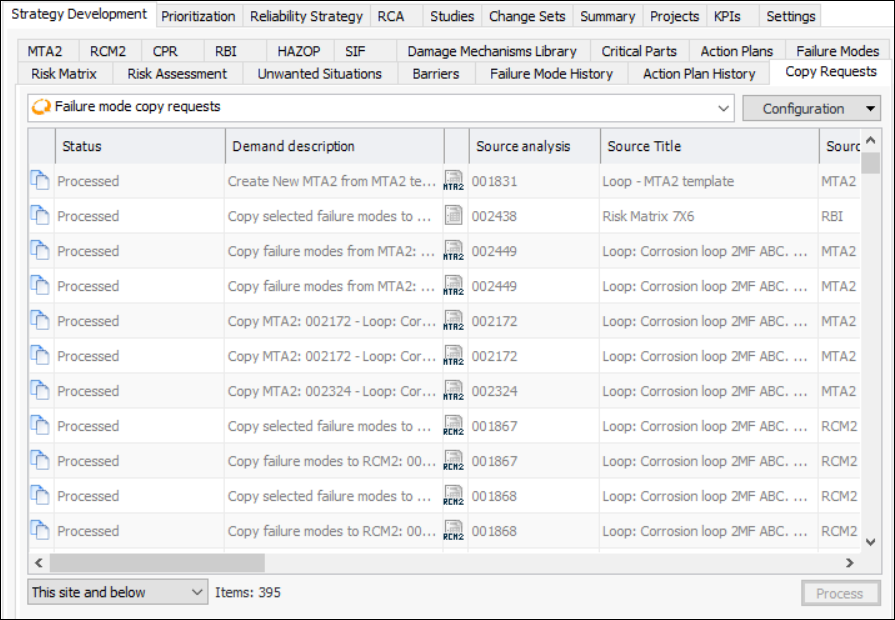
The Copy Requests tab lists each request’s status, description, source and target, and more. Here is an example for the site:
The status of the copy request can be one of:
Being defined – the copy request has not yet been fully defined
Ready to process – the copy request was saved and closed after the matches were reviewed
Process pending – processing was deferred to be completed later, either manually or by the “Process Failure Mode Copies” scheduled action
Processing started – processing was canceled after it started
Processed – the copy process finished without error
2.
Detailed information is available in the three views and many tabs.

To Resume Defining and Processing a Copy Request

If a copy request has not yet been processed, you can resume defining it. You can complete the steps of the wizard and complete the copy.
1.
In the site’s Copy Requests tab, select Not Processed from the list of configurations. Only copy requests that have not been completed are displayed.
2.
Right-click the request and click Resume Definition. The Copy Failure Modes wizard opens, showing the step where the definition process stopped.
3.

To Mark Processed Requests as Reviewed
You can keep track of your review process by marking processed requests as “to be reviewed” and “reviewed”. Only requests with the status “Processed” can be flagged in this way.
1.
In the Copy Requests tab, select Processed from the list of configurations. The list of copy requests changes accordingly.
2.
Right-click a request and click either Mark As Processing to be Reviewed or Mark As Processing Reviewed.
In the Copy Requests tab, you can scroll to the right to see the Processing Review Status column. You can also select “Processing to be reviewed” in the list of configurations.