Setting Mapping Options for a Failure Mode Copy

When a failure mode copy is requested, the first thing the system does is copy the site’s smart mapping options to the Copy Failure Modes wizard. If the criteria are not changed, the site-level criteria are used.
If the site’s mapping settings are not appropriate for the current copy, you can modify them. Perhaps the asset structures involved use different properties than your normal conventions. Using the site-level mapping criteria would result in the system suggesting a number of incorrect mappings. By modifying the criteria, you can ensure that the quality of the system’s suggestions are higher, requiring fewer manual changes.
The options are defined in the same manner as the site-level smart mapping options. In addition to defining the criteria for the current copy, you have the option of replacing the site options with the values defined for this copy request. This can be handy if the site options have not been defined or require updating. Define the criteria you want to use and then click Site Values and Save.
Tip: If you wish to return to the site-level settings, click Site Values and then Reset. This option is used when you have made a number of changes to the criteria, are unhappy with the resulting suggested mappings, and want to start over.
This topic explains how to use the mapping options in the Copy Failure Modes wizard to ensure that objects are mapped accurately. The following sections explain the general procedure for changing the settings. These settings are then explained in detail:

To Set Mapping Options

1.
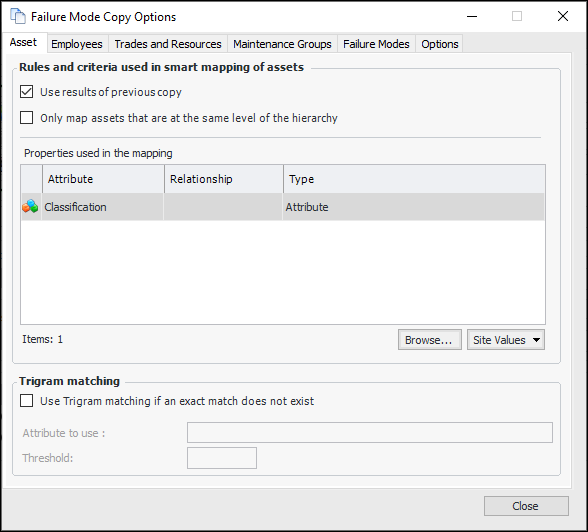
In the Copy Failure Modes wizard, Identify Target step, click More Options. The Failure Mode Copy Options dialog appears.
2.
Select mapping defaults on the Asset, Employees, Trades and Resources, Maintenance Groups, and Failure Modes tabs. The following sections explain the options.
3.

Use Results of Previous Copy

When a failure mode copy is performed, the asset mappings are saved by the system. When Use results of previous copy is selected, the next time a copy is performed for the same asset structures, the system retrieves the saved asset combinations and reuses them. If more than one match is found, the most recent of the previous mappings is used.
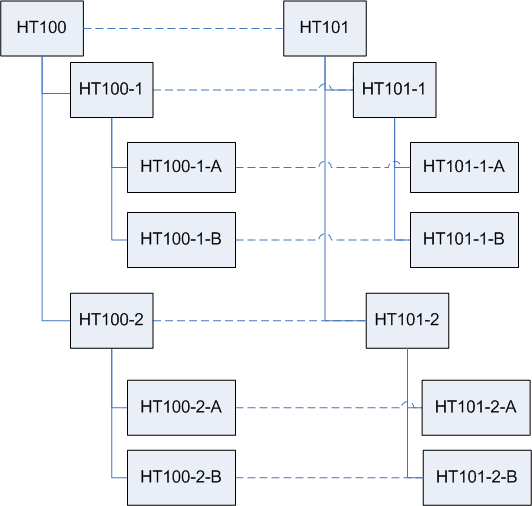
The following example shows similar source and target asset structures for haul trucks #1 and #2. The dotted lines show the mappings.
The following mappings are saved:
Any assets in the structures that were not included in the previous copy are mapped using the remaining criteria. If the option is not selected, previous mappings are disregarded and the suggested mappings are based on the other settings only.

Only Map Assets at the Same Level of the Hierarchy

When this option is selected on the Asset tab, APM limits the suggested mappings to assets that are at the same relative level in their hierarchy structure as the source asset. The mapping starts with the starting asset in the source asset structure and the starting asset in the target asset structure. The first-level assets are mapped, then the second-level descendants, and so on. The mappings can also involve ancestors of the starting assets. As with descendants, first-level source ancestors are mapped to first-level target ancestors, and so on up the hierarchy.
Like all of the mapping criteria, it is wise to combine “level in the hierarchy” with one or more other criteria to get reasonable results. If used on its own, this criterion can result in questionable suggestions that require manual adjustments.
If this setting is not selected, the asset hierarchy is not considered in the mappings. Assets from different levels and sections of the hierarchies can be mapped.

Adding Properties to Use in Smart Mapping

You can select from several class attributes and references-one relationships to use as criteria for smart mapping. For example, if you select the Title attribute for the Asset class, exact matches between the source asset’s Title and the Titles of assets in the target hierarchy structure will be suggested as matches. As another example, assets could be matched based on the source asset’s hierarchy code (asset attribute), asset type (reference-one relationship), and function group (reference-one relationship)
In the case of references-one relationships, the target asset must reference the same instance as the source asset. For example, if Asset type is being used, the source and target asset must reference the same asset type.
You can specify properties for assets, employees, trades and other resources, maintenance groups, and failure modes. Some objects have attributes selected in the wizard by the system and you cannot remove them. For example, asset Classification is always a criterion in asset mapping to prevent problems with components and locations. Similarly, Unit of Measure and Resource type are default attributes for resources. Trades must be mapped to trades, services to services, and so on. Resources can only be mapped to resources with the same unit of measure.
For background information about class attributes and relationships, see Object Model Overview.

To Add Properties to Use in Smart Mapping

1.
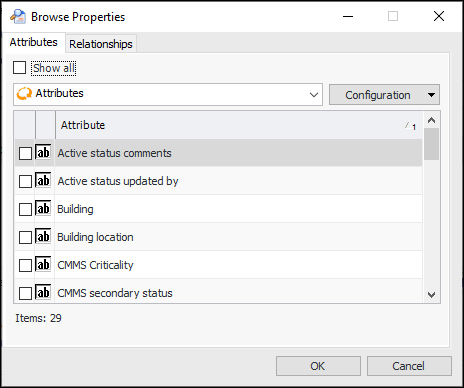
In the Failure Mode Copy Options dialog, click Browse. The Browse Properties dialog appears. Here is an example for the Asset class.
The list on each tab contains properties for the class that are best suited for smart mapping.
2.
3.
4.
Select the Relationships tab and make any selections you require.
5.
When you are finished, click OK. The Properties table now displays the attributes and relationships you selected.
Tip: To remove a property, right-click it in the Properties table and click Delete. Click Yes in the confirmation message that appears.

Using Trigram Matching

Select Use Trigram matching if the string attributes that you selected for smart mapping might not match the target values exactly. Trigram searching is useful for identifying the closest match when the exact syntax or spelling of the target object is not precisely known.

To Use Trigram Matching

1.
Click Use Trigram matching if an exact match does not exist.
2.
3.
Enter a value in the Threshold box if you want to specify a cut-off point for Trigram matching. For example, if the threshold is 0.5, any object that returns a score lower than 0.5 will not be presented as a match.

Reviewing the Results of Trigram Matching

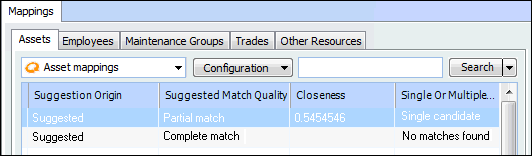
You can see the results of Trigram matching when you are reviewing suggested mappings in the Copy Failure Modes wizard. The Asset mappings table includes the following columns. You can also double-click a mapping to view its properties.
Suggested Origin displays the method used for matching. The possible values are:
Suggested Match Quality indicates if exact or partial (Trigram) matching was used. Possible values are:
Closeness is the score obtained in the Trigram matching process. A closeness value of 1.0 is an exact match.
Single Or Multiple Candidates indicates whether multiple candidates were found. Possible values are:
The following example shows that Trigram matching was used (the suggested match quality is “Partial match”), one partial match was found (single candidate), and a score of 0.545 was obtained. An exact match has a closeness score of 1.0.

Selecting Other Options

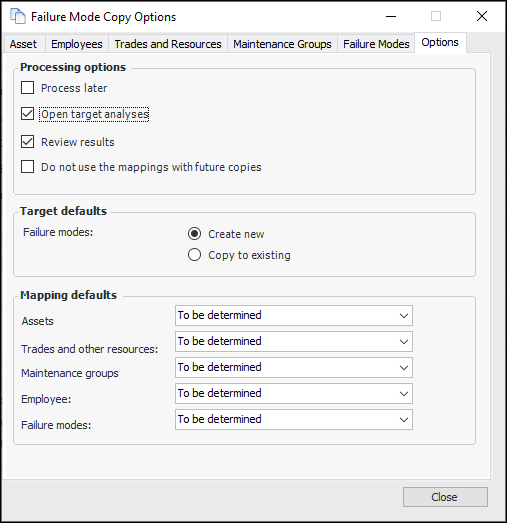
Other smart mapping options that you can modify on the Copy Failure Modes wizard include processing options, target defaults, and mapping defaults. These determine what selections appear in other pages of the wizard, including the default suggestions presented when an object cannot be matched to a target.

To Select Other Options

1.
2.
3.
Create new – a copy of the object is created when the copy request is processed
Copy to existing – the source failure modes’ properties are copied to the target failure modes
4.
Exclude – the source asset is excluded from the copy, as well as any failure modes, indicators, and standard tasks and jobs that refer to it
Map to primary target asset – the source asset is mapped to the target asset selected as the starting point for the structure
New – a copy of the source asset is created when the copy request is processed. The appropriate indicators, standard tasks, and standard jobs are created on the new asset
Same – the source asset is used as the target. The source object’s existing objects are referenced on the target failure modes. For example, the indicators identified on the source are also referenced on the new failure mode.
To be determined – the user determines the mapping method in the wizard
New – a copy of the source objects is created when the copy request is processed
Same – the source object is used as the target
To be determined – the user determines the mapping method in the wizard
Blank no mapping is suggested if a match is not found. The object can be mapped manually.
New – a copy of the source objects is created when the copy request is processed
Same – the source object is used as the target
To be determined – the user determines the mapping method in the wizard
Blank no mapping is suggested if a match is not found. The object can be mapped manually.
Same – the source object is used as the target
To be determined – the user determines the mapping method in the wizard
New – a copy of the source objects is created when the copy request is processed
To be determined – the user determines the mapping method in the wizard
Note: If an option described above does not appear in the corresponding list, permission for it has been denied in the site level settings. For example, it might not be appropriate to create employees when failure modes are copied.
5.