|
Developing Primary MTA2 Action Plans
Tip: If you performed risk analysis on the failure mode, the resulting recommended task and related information might appear in the Implementation view, Primary Action Plan tab, depending on the analysis risk options. In that case, you cannot change the task type, but you can develop the action plan as needed.This topic explains how to develop action plans from the Maintenance Action Plan window using the Implementation view, Primary Action Plan tab.Tip: You can also quickly add action plans from the Strategy Development Analysis window’s Implementation view, Action Plans tab. Select a failure mode in the table view and press F2 to open the row for editing. Press Tab to move to the next editable field. When you are done, press Enter to close the table to editing.To Develop Action Plans
1.
3. Double-click the failure mode to open the Maintenance Action Plan window. In the Facilitation view, General tab, ensure that a strategy has been selected. This makes the Implementation view available in the window.
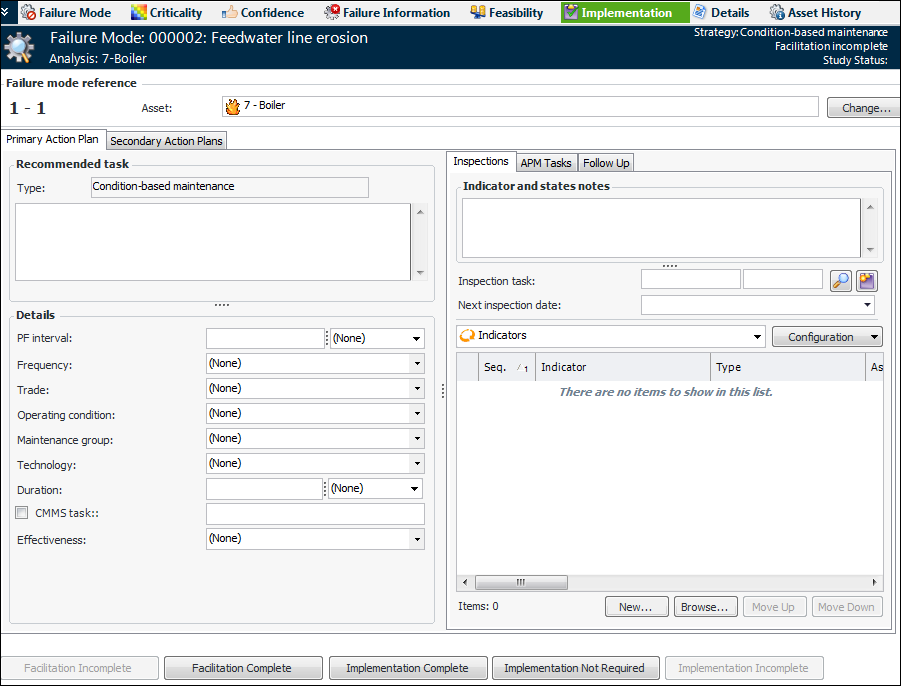
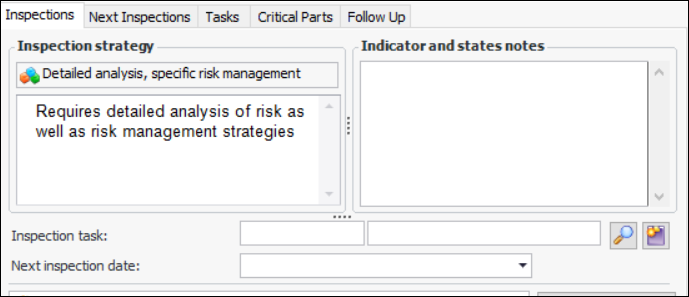
5. Select the Implementation view and the Primary Action Plan tab. The information on this tab varies depending on the recommended strategy. Here is an example for condition-based maintenance:Tip: If an inspection strategy has been assigned to the failure mode, the strategy and its description are displayed on the Inspections tab. For example:
6. In the Recommended task area, provide a description of the recommended task in the text box.
7. In the Details area, set the options for the task.Note: If APM is configured to interact with a SAP Plant Maintenance system, System condition and Work center are available in the Details area.
Tip: To create a modification type, click in the box and press F3. The Modification Type dialog appears, where you can provide a name and icon for the type. Note: For information about using the Calculate Failure-Finding Interval utility, see Calculating a Failure-Finding Interval for an MTA2 Action Plan.
9.