Creating an MTA2 Template

A maintenance task analysis template (MTA2 template) is a group of settings that can be used as the basis for an analysis. An MTA2 template identifies failure modes for a type of asset, rather than for a specific asset. Similarly, it refers to indicator templates, task templates, and job templates, not to specific asset indicators, standard tasks, and standard jobs. It includes a maintenance strategy for each of its failure modes. An MTA2 template can be used in the creation of new analyses and to copy action plans to existing analyses.
You can create a template from scratch or based on an existing analysis. Because the template is based on an asset type rather than a specific asset, there are some key differences between a template and an analysis:
The Assets tab is not available in the Properties view.
No information is displayed in the Asset boxes and columns in the analysis.
Note: If your APM environment includes multiple sites, MTA2 templates and failure modes can be used at sites with different site currencies. Any cost monetary amounts defined in failure modes are converted to the asset’s site currency. If an exchange rate is not available, the amount is converted at par (for example, one U.S. dollar is equivalent to one Canadian dollar).
You can organize analysis templates in a hierarchy that includes MTA2 and RCM2 templates. For more information, see Setting up a Hierarchy for MTA2 Templates.
This section explains how:

To Create an MTA2 Template Based on an Existing Analysis

1.
2.
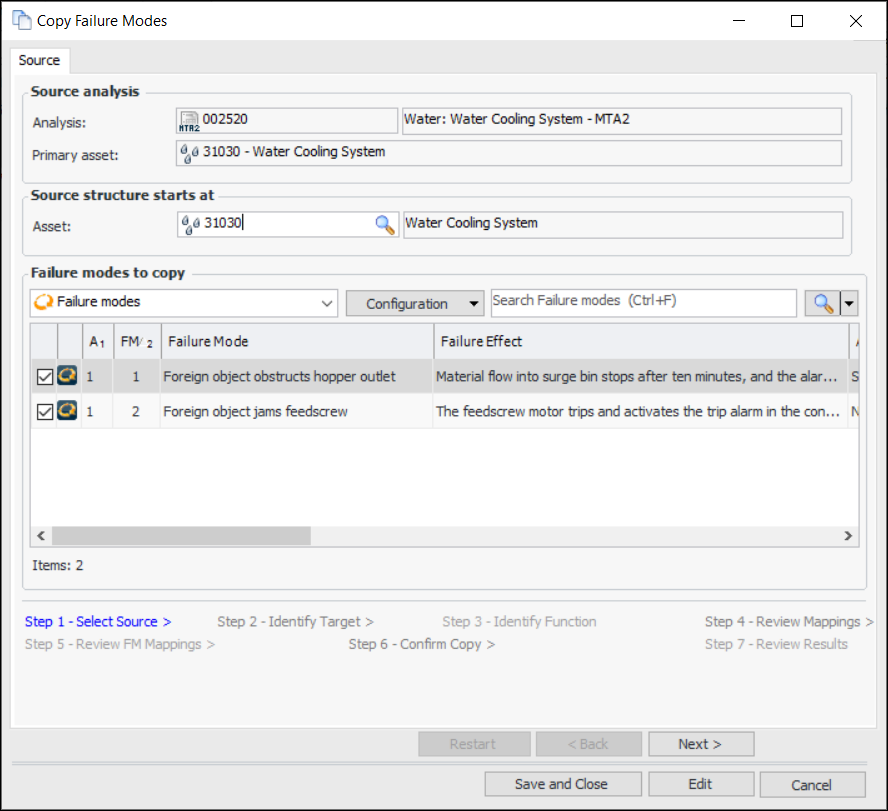
Click the Analysis menu, Create, and then Copy. The Copy Failure Modes wizard appears.
3.
4.
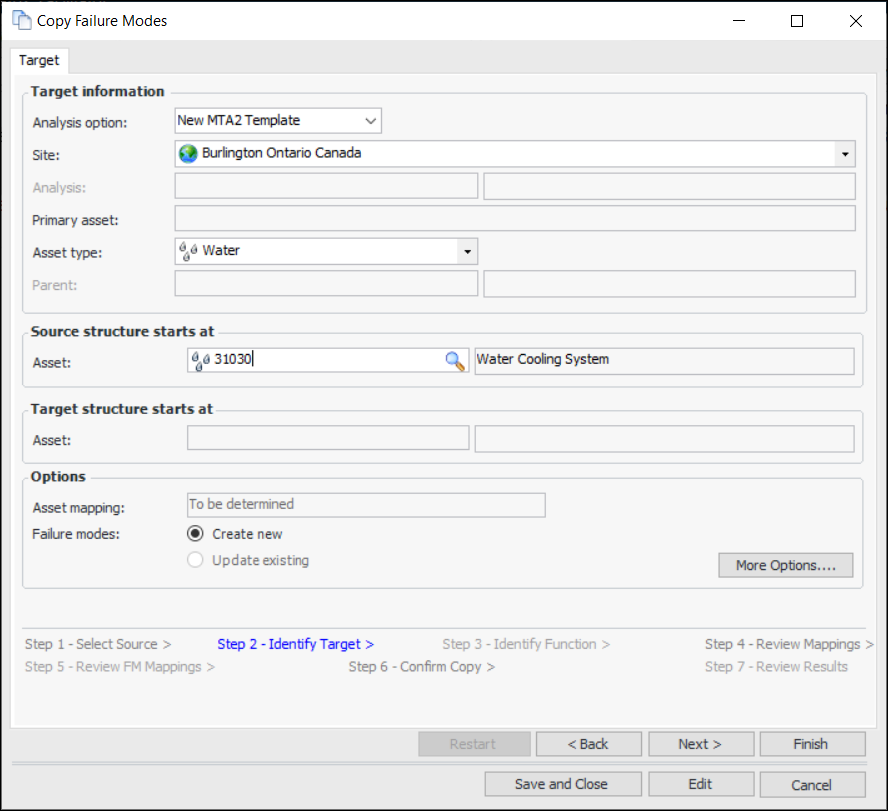
Click Next. The Identify Target step appears.
5.
In the Analysis option list, select “New MTA2 Template”.
6.
7.
The Asset type box displays the asset type of the primary asset of the source analysis. Select another asset type, if appropriate.
8.
9.
Click Next to view the Review Mappings step. This page displays matches for employees, trades, maintenance groups, and other resources.
10.
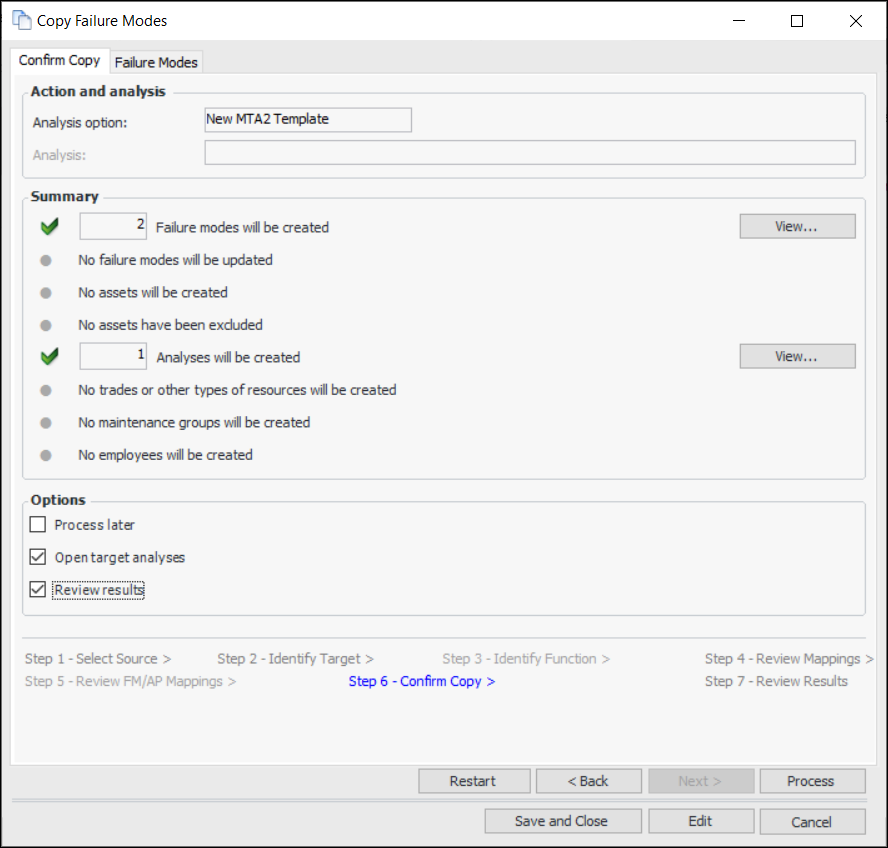
Click Next. The Confirm Copy step appears. For example:
11.
12.
The Failure Modes tab displays information about the failure modes. If you wish to remove a failure mode from the list, right-click it and click Remove. Click Back to make adjustments on previous pages.
13.
On the Confirm Copy tab, in the Options area, select the processing options:
14.
Click Process or Finish if Process later is selected. One or more of the following occurs:
If Process later is selected, a confirmation message appears. Click Yes to save the copy request to be completed later.
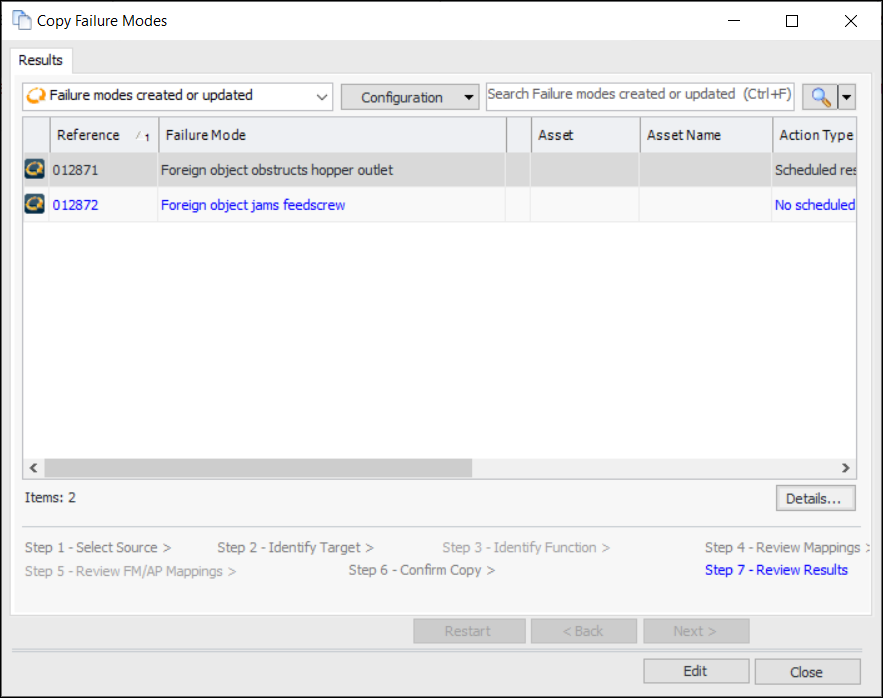
If processing has not been deferred, the copy is completed. If Review results is selected, the Review Results step appears. For example:
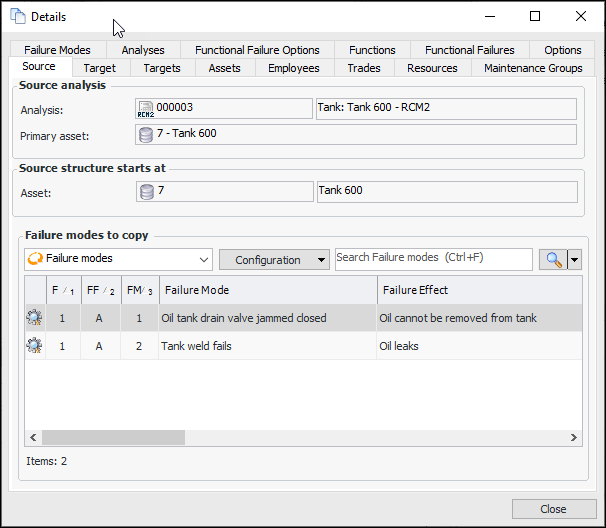
To view more information, click Details. The Details window displays information about the source and target asset structures, asset mappings, employees, trades, maintenance groups, failure modes, and so on. For example:
Click Close to return to the wizard.
When you are finished reviewing results, click Close. You can view the information again on the Copy Requests tab for the site or the analysis.
If Open target analyses is selected in the Confirm Selections step, the Strategy Development Analysis window appears.

To Create an MTA2 Template from Scratch
1.
Select the site’s Strategy Development view and tab and the MTA2 tab.
2.
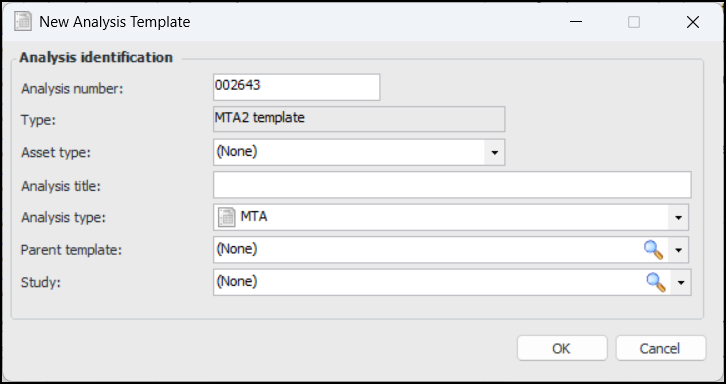
Click New. The New Analysis Template dialog appears.
3.
4.
5.
In the Title box, the default name for the template follows this pattern:
Asset type – MTA2 template
You can change the title, if you wish.
6.
7.
For more information, see Setting up a Hierarchy for MTA2 Templates.
8.
9.
Click OK. The Strategy Development Analysis window appears. The Facilitation view, Info Worksheet tab is shown.
Tip: You can also open the site’s Strategy Development view, Templates tab, and Asset Types tab. Select the asset type in the table, click the New list, and select the type of template to create. The Strategy Development Analysis window opens to the Properties view, General tab.
10.
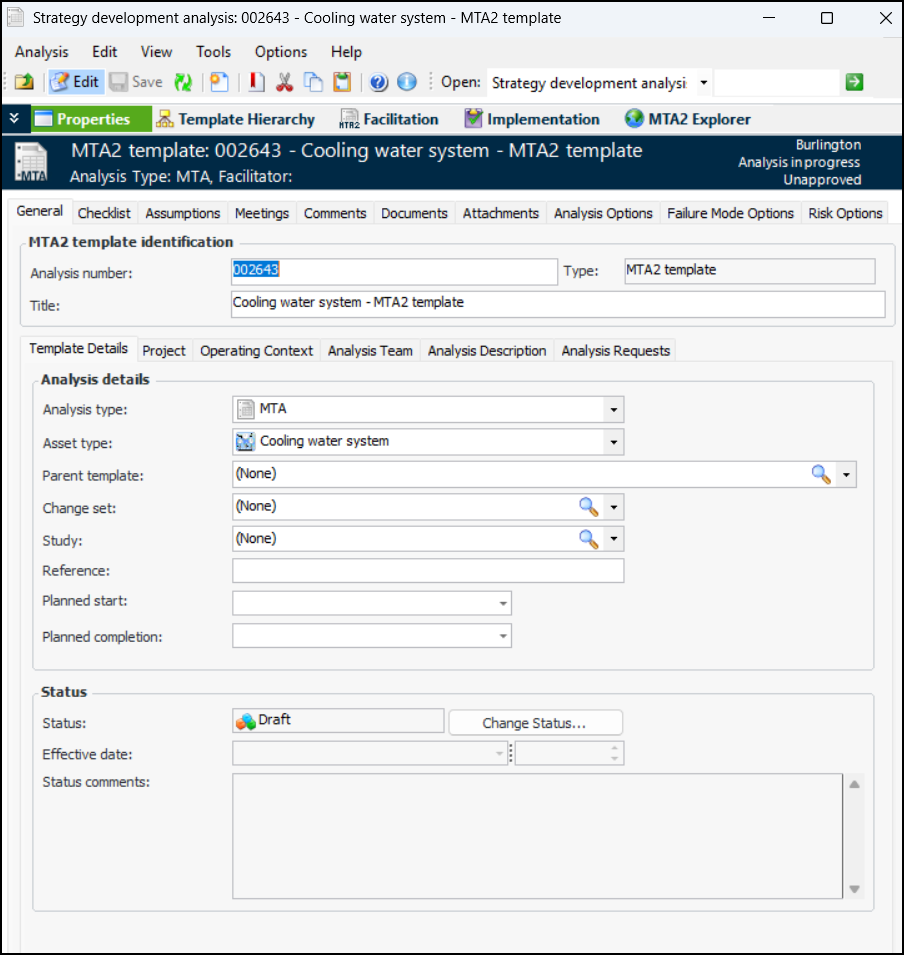
To set the general properties of the template, select the Properties view. The General tab displays information about the template. For example:
11.
Select the Documents tab to browse for standard documents that are relevant to the analysis.
12.
Select the Analysis Options tab to specify the sites where the template’s failure modes are to be available. For example, if the template is available at the current site only, its failure modes cannot be copied to analyses on other sites. You can also prevent the failure modes from being copied by selecting Not available for use.
13.
Select the Failure Mode Options tab and the Template Options tab. The Failure mode descriptions can be changed option is selected by default. Clear this option if you want failure mode descriptions to be read-only.
You are now ready to develop the template by creating failure modes and more.
See the following topics for more information: