Adding Inspection Tasks and Indicators to MTA2 Action Plans

When an action plan’s recommended action is condition-based maintenance, failure-finding maintenance, or scheduled restoration or discard, you can include the following:
Failure mode settings can specify that indicators are added automatically to inspection tasks. In this case, when you add a manually-collected indicator to the action plan, it is added to the assigned inspection task. Similarly, when you add an inspection task, any manually-collected indicators currently on the action plan are added to it.
Note: You cannot add inspection tasks to action plans on analysis templates.
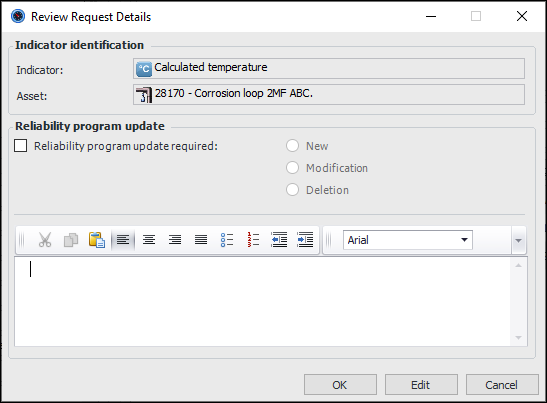
Tip: After you have added an indicator to an action plan, you can right-click it in the table and click Review Request Details. The Review Request Details dialog appears:
You can specify the reliability program update required. When the action plan is marked “Facilitation Completed” or “Implementation Completed”, the request is created automatically.
In the process of creating analysis templates, you can add indicator templates, task templates, and job templates. When an analysis is created from the template or when the action plan is copied to another analysis, APM checks the asset for a matching indicator, standard task, or standard job. If a match is not available, a new indicator, task, or job is created using the template. If a match is found on the asset, it is assigned to the action plan.
Tip: To view consolidated information about an analysis’ action plans, recommended actions, indicators, corrective tasks, and projects, select the Implementation view in the Strategy Development Analysis window.
Note: If you create an indicator for an action plan and wish to remove it, you can delete it from APM as long as it is not used anywhere else. If it is included on another action plan, you can remove it from the current action plan but not from the system. If the indicator is used on a standard task, a confirmation dialog appears when you attempt to delete it. You can choose to remove the indicator only from the action plan or to delete it from the action plan, the standard task, and the asset. In this case, the indicator is removed from APM altogether.
Tip: You can also add an inspection task to one or more action plans at the same time from the context of the standard task. See Linking a Standard Task to Action Plans.
This topic explains how:

To Add an Existing Inspection Task to an Action Plan

Note: You cannot add inspection tasks to action plans on analysis templates.
1.
2.
3.
Select the Implementation view.
4.
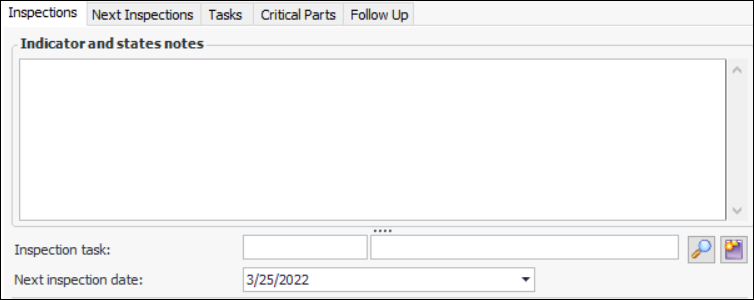
On the Primary Action Plan tab, select the Inspections tab.
The default next inspection date is provided by the confidence analysis.
5.
To add an existing standard task, click the browse icon (), select the task, and click OK. The task number and title are displayed in the Inspection task boxes. The Inspection Task tab is added, where the task, next inspection date, and description are displayed.
6.
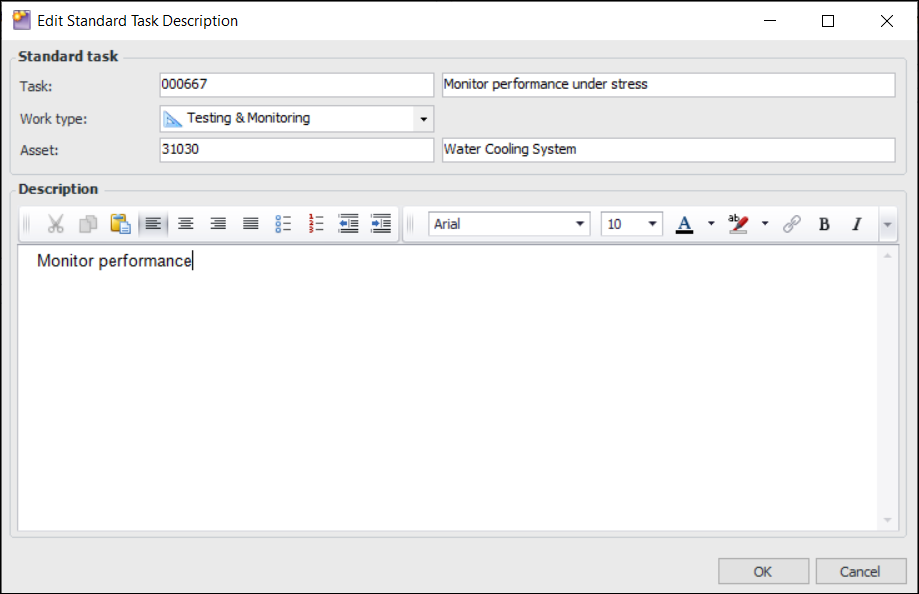
Select the Inspection Task tab to view or edit the standard task’s description. The Edit button is available for standard tasks that where not created from templates.
Click Edit to open the Edit Standard Task Description dialog.
7.

To Add a New Inspection Task

1.
Task details, such as expected frequency, are provided by the failure mode.
2.
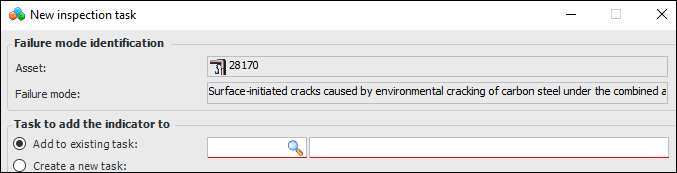
Click Add to existing task.
Enter a task number or click the browse icon () to open the Standard Task Selector dialog. Select a task and click OK. The standard task number and name are shown in the New Inspection Task dialog.
3.
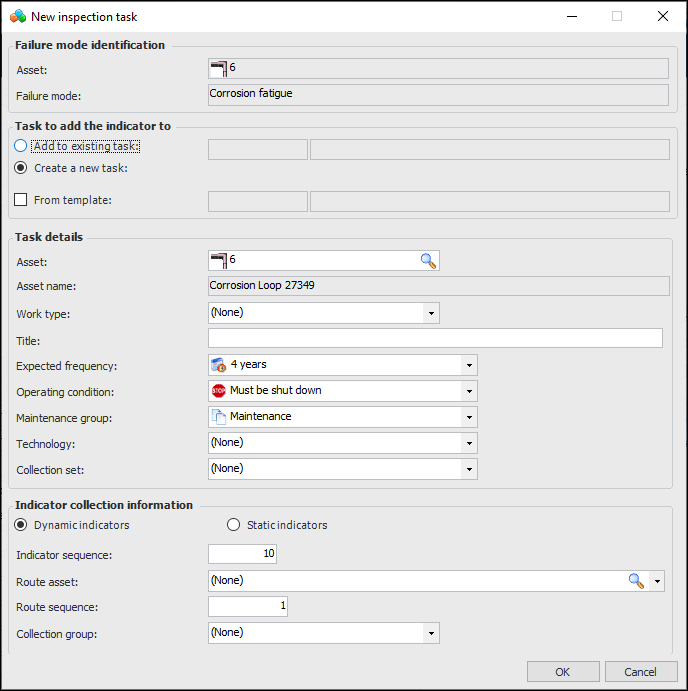
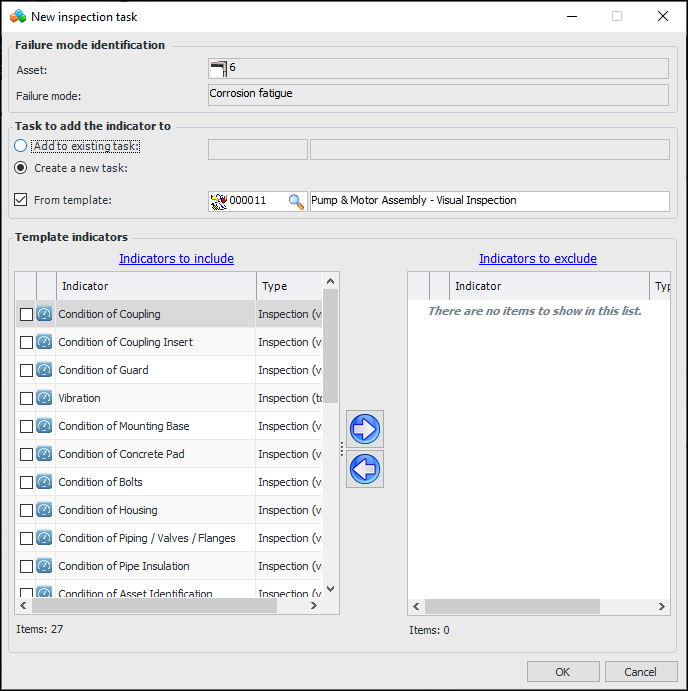
To create a standard task, click Create a new task. You can create the task from a task template or from scratch, as explained in the following steps.
4.
Click From Template. Enter the template number or click the browse icon () to select a template. The template number and name are shown in the dialog. The template’s indicators are listed in the “Indicators to include” table. For example:
Tip: You can restore excluded indicators to the standard task after it is created. See “Editing a Standard Task that is Based on a Template”.
Click OK. The new task’s number and title are shown in the Inspections tab. The Standard Task window opens, where you can review and modify the task.
5.
Values for expected frequency, operating condition, maintenance group, and technology are copied from the action plan.
6.
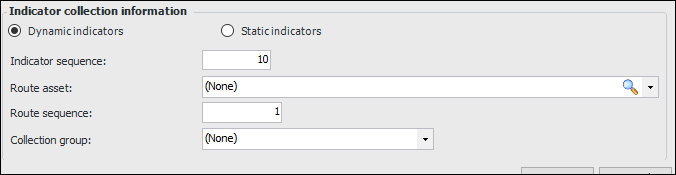
The options in the Indicator collection information area are enabled if the analysis’ failure mode options allow indicators to be automatically added to the inspection task. For example:
Select whether dynamic or static indicators are added to the task:
7.
Click Dynamic indicators.
8.
Click Static indicators.
9.
Click OK. The new standard task window appears. You can edit the task as required. The task number and title are shown in the action plan’s Inspection task boxes. The Inspection Task tab is added, where the task, next inspection date, and description are displayed.
10.
Select the Inspection Task tab to view or edit the standard task’s description. The Edit button is available for standard tasks that where not created from templates.
Click Edit to open the Edit Standard Task Description dialog.
11.
For more information, see Setting up Standard Tasks.

To Add Indicators to an Action Plan on an Analysis or Template
1.
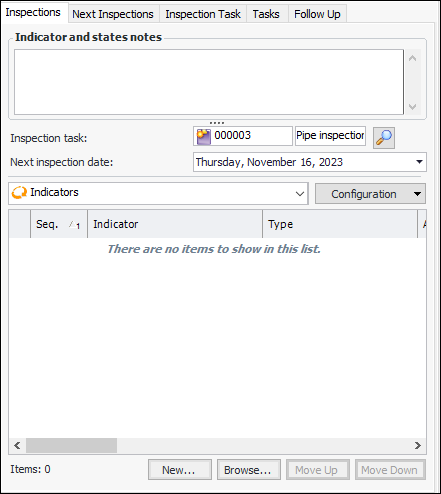
On the Primary Action Plan tab, select the Inspections tab. For example:
Note: The Next Inspections tab is displayed if the analysis supports confidence evaluations. The tab lists any degradation indicators that have been added to the failure mode. For each indicator, the table displays information such as the inspection factor that resulted from the confidence evaluation, the indicator’s estimated next inspection date, and so on.
2.
Click New at the bottom of the tab. The Create New Indicator dialog appears, where you can select either From scratch or From template. To create from a template, select the indicator template.
When you click OK, the Indicator window appears, where you can define the indicator.
For more information, see Setting up Asset Indicators.
Tip: In the Create New Indicator dialog, you can also click Create Multiple to add two or more indicators (not indicator templates). The Create Multiple Indicators window appears, where you can specify the number to create, the indicator name, number to add to the name, indicator type, and so on. When you click OK, the indicators are added to the table. You can then open them individually, and modify them as needed.
3.
Click Browse at the bottom of the tab. The Browse Indicators dialog appears.
Show circuit assets’ indicators is available and selected when the asset that you are filtering on represents a circuit. When selected, the option filters the list to include only indicators for assets included in the circuit.
If you select an indicator on the failure mode’s asset, the action plan will link to the indicator. A new indicator will not be created for the action plan.
However, if you select another asset’s indicator, you have the option of either copying or linking to the indicator. If you select Copy the indicators selected, a new indicator is created and assigned to the asset referenced on the action plan. If the failure mode is deleted in the future, the indicator is also removed from the system. If you wish to link to an existing indicator instead of copying it, click Link to the indicators selected.
Tip: You can change the position of an indicator in the table by selecting it and clicking Move Up or Move Down.
4.