Adding Corrective Tasks to MTA2 Action Plans

When an action plan’s recommended action is condition-based maintenance, failure-finding maintenance, or scheduled restoration or discard, you can include the following:
This topic explains how:

To Add a Corrective Task (APM)

1.
2.
3.
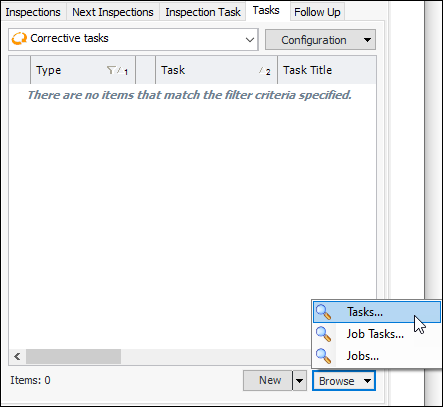
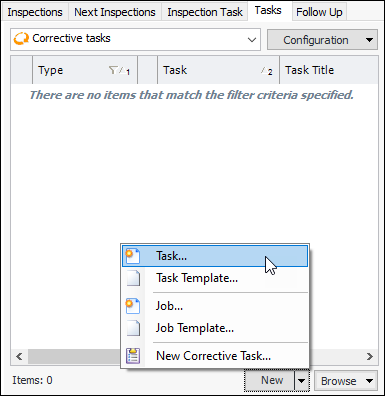
On the Primary Action Plan tab, select the Tasks tab.
4.
Click OK. The item is added to the action plan.
5.
Note: If you are developing an action plan for an analysis template, your options are to create a task or job template.
For more information, see:

To Add a Corrective Task (AWEIS)

1.
2.
3.
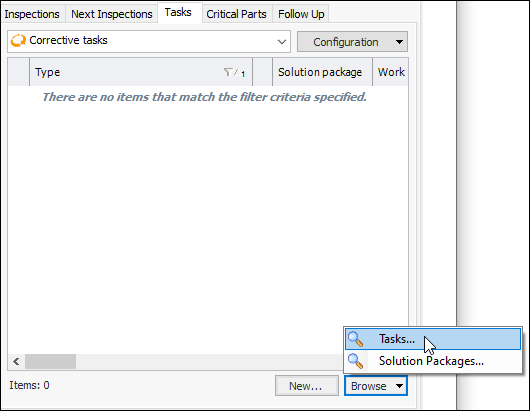
On the Primary Action Plan tab, select the Tasks tab.
4.
A browse dialog appears.
5.
6.
Click OK. The item is added to the action plan.

To Add a Corrective Task (SAP)

1.
2.
3.
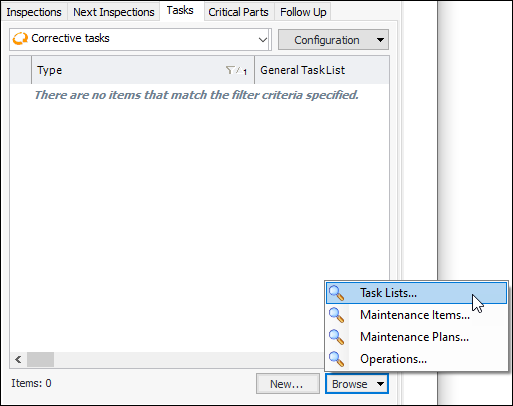
On the Primary Action Plan tab, select the Tasks tab.
4.
5.
6.
7.
8.
Click OK. The reference is added to the action plan.

To Add a Corrective Action Plan Task

1.
2.
3.
On the Primary Action Plan tab, select the Tasks tab.
4.
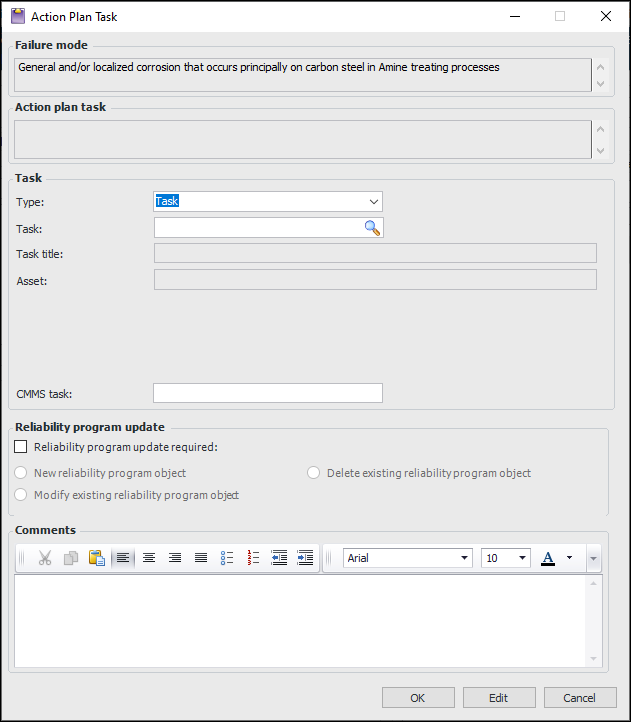
For APM objects, click the New list and then New Corrective Task. For AWEIS or SAP objects, click New. The Action Plan Task dialog appears. Here is an example for APM objects:
5.
In the Type list, select an object or “Other”.
6.
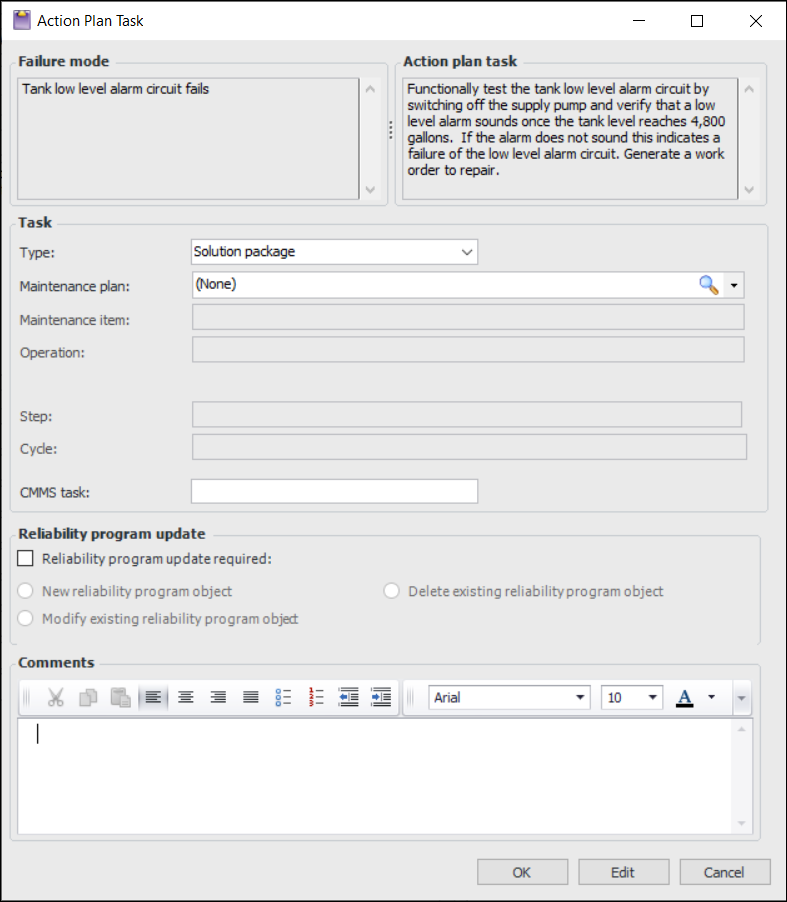
For AWEIS, you can select “Solution package” in the Type list. The dialog displays the solution package levels and options specified in the site interoperability profile. In this example, Maintenance plan, Maintenance item, and Operation are the three levels. Levels 2 and 3 are subordinate to the level above, so a maintenance plan must be selected before a maintenance item.
7.
8.
Click Reliability program update required. Select the update type: create, modify, or delete a reliability program object. Provide instructions in the text box.
9.
Click OK. The task is added to the Tasks tab.